

Key takeaways
- Monitor says no signal? Start with a 2-minute checklist, use the symptom table, then work through 8 fixes ordered cheapest first and learn when to replace.
A monitor that shows “No Signal” is powered and working, but it is not receiving a picture it can use. The usual causes are a loose or wrong cable, the wrong input selected on the monitor, or a computer that is asleep, off, or sending video from a different port than the one you plugged into. Work through the steps below in order, because the cheapest ones solve most cases. Each step changes only one thing, so you can tell what fixed it.
Quick checks (2 minutes)
Before touching anything complicated, run through this short list. It catches a surprising share of cases.
- Confirm the computer is really on: look for fan noise, case lights, or a response when you press a key or move the mouse.
- Press the monitor’s input or source button and cycle through each input slowly, giving each a few seconds to lock.
- Push both ends of the video cable in firmly. On cables with screws, tighten them by hand.
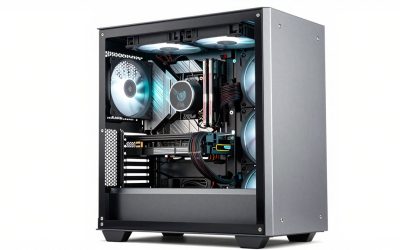
- On a desktop with a separate graphics card, make sure the cable goes into the card, not the motherboard panel above it.
- Unplug the monitor’s power cord for about 30 seconds, then plug it back in.
What “no signal” really means
The message appears when the monitor’s active input sees no valid video. That is a different situation from a monitor that stays completely dark with no light at all, which points to power rather than video. If the standby light is on and the on-screen menu opens when you press the monitor’s buttons, its electronics are alive, and the fault is probably upstream: the cable, the port, or the computer.
Two broad situations hide behind the same message. In one, nothing is arriving, because of a cable, port, or computer that is not outputting. In the other, something arrives but the monitor cannot read it, perhaps because the resolution or refresh rate is beyond what the input accepts. Some monitors show a separate “input not supported” message for that second case, but others simply fall back to “No Signal”.
Symptom, likely cause, and fix
| What you see | Likely cause | First fix to try |
|---|---|---|
| No Signal right after power-on, PC fans spinning | Cable in the motherboard port while a graphics card is installed | Move the cable to the graphics card |
| No Signal on one input only | Wrong input selected, or a bad port or cable on that input | Cycle inputs, then try another port |
| No Signal after waking from sleep | Connection did not renegotiate | Replug the cable, power-cycle the monitor |
| Works with a direct cable, fails with an adapter or dock | Adapter limits or loose connection | Reseat it, try another adapter, or connect directly |
| Picture flashes, then No Signal | Marginal cable or settings beyond the link’s capacity | Try a shorter cable or lower the refresh rate |
| No Signal and the PC itself shows no activity | Computer is not starting | Check the PC’s power and contact its support |
| Fine on a laptop, blank on the PC | PC graphics output or driver | Try another PC port, then reinstall the driver |
Step-by-step fixes, cheapest first
- Reseat everything. Power down, unplug the video cable at both ends, wait half a minute, and reconnect firmly.
- Swap the cable. Borrow a known-good one, ideally of the same type, and note whether the result changes.
- Change ports. Try another output on the computer and another input on the monitor, one change at a time.
- Change the connection type. If you used HDMI, try DisplayPort, or the reverse, when both ends offer the choice.
- Start with another source. Connect a laptop or other device to the monitor to see whether the monitor accepts any signal.
- Start with another display. Connect a different monitor or a TV to the computer to see whether the computer outputs anything.
- Look at drivers. If the picture appears at startup but vanishes when the desktop loads, start the computer in safe mode through the recovery options and reinstall or roll back the display driver.
- Reset the monitor. If its menu opens, look for a factory reset option in the setup or system menu.
Graphics card port or motherboard port?
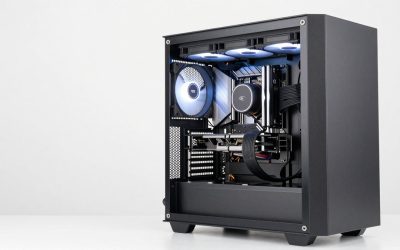
This single mistake deserves its own section because it is so common after a new build or an upgrade. A desktop with a dedicated graphics card normally outputs video through that card. The motherboard’s own video ports are frequently disabled or idle while the card is installed, so a cable plugged in there shows nothing.
Look at the back of the case. The graphics card’s ports sit on a horizontal slot lower down, usually beside a row of metal brackets. The motherboard ports sit in a cluster above, next to the USB and audio connections. If you are unsure which is which, check the manuals. When the card’s ports also show nothing, power down and unplug the computer before checking that the card is fully seated and that its power connectors are attached.
Cables and adapters worth keeping on hand
A short, spare set of cables makes this kind of troubleshooting far quicker, because a swap answers the question immediately.
- One spare cable of each type you use, such as HDMI and DisplayPort, in a modest length.
- A cable labeled for your monitor’s resolution and refresh rate; check the manual for the supported versions.
- A direct cable instead of a long run through a switch, splitter, or dock, at least temporarily.
Adapters deserve caution. Some convert in only one direction, and others need extra power or specific support from the port, so check the adapter’s documentation. Remove it from the chain while diagnosing.
A worked example: the four-way split
When swapping seems endless, use this decision grid. It needs only a second source (a laptop works) and a second display (a TV works). The results are illustrative, but the logic holds for most setups.
| Monitor with another source | Computer with another display | Where to look |
|---|---|---|
| Works | Works | The cable, adapter, or settings between the two |
| Works | Fails | The computer’s graphics output or driver |
| Fails | Works | The monitor or the input you used |
| Fails | Fails | Check both cables again and the shared adapter |
Suppose a monitor works from a laptop but the desktop shows nothing on a spare TV either. The grid points at the desktop’s output, so you would focus on card seating, its power connectors, and the driver rather than buying a new monitor.
When it is the monitor itself
A monitor fault becomes likely once the monitor fails with several sources and several known-good cables on more than one input. Other hints include an on-screen menu that never appears, an input that is dead while others work, or visible damage around a port. Try a factory reset first. If that changes nothing, do not open the casing, because internal parts can hold a charge even when unplugged. Contact the manufacturer or a qualified technician instead.
When to stop and contact support, or consider replacement
Stop troubleshooting and call for help if you notice a burning smell, scorch marks, or a bent or broken port, and unplug the device straight away. Also pause if the computer itself will not start, since that needs the computer maker’s support. Check the warranty before attempting anything further, because some repairs or opening the casing can void it. Replacement becomes reasonable when the monitor is out of warranty, fails on every source, and the quoted repair cost approaches the price of a comparable new one.
Keeping the signal stable
A few habits prevent most repeats. Avoid bending cables sharply behind the monitor, and give them slack so the connector is not under strain. Plug in firmly rather than leaving a connector half seated. Keep graphics drivers current, but change one thing at a time so a new problem is easy to trace. Label the cable you trust. The steps here come from published specifications, manufacturer documentation and general technical knowledge, so defer to your own monitor’s manual for menu names.
Related guides
Frequently asked questions
Why does my monitor say no signal when the PC is on?
The monitor is awake but is not receiving a usable picture. Common reasons are a loose cable, the wrong input selected, or the cable plugged into the motherboard while a graphics card is installed. Less often the computer is asleep, the port has failed, or the graphics output is faulty. Work through the quick checks first, because they cost nothing.
Can a bad HDMI or DisplayPort cable cause no signal?
Yes. A damaged, loose or marginal cable can drop the connection entirely, especially at high resolutions and refresh rates. Swapping in a different cable is one of the cheapest checks. Choose a cable that is labeled for the connection type you use, and check the monitor and graphics card manuals for the supported versions.
Why does no signal appear only after my computer sleeps?
After sleep, the computer and monitor must renegotiate their connection, and sometimes that handshake fails. Unplugging and replugging the cable or switching the monitor off and on often restores the picture. If it repeats, try a different cable or port, update the graphics driver, and check the sleep and display power settings.
Does no signal mean my monitor is broken?
Not usually. The message normally means the monitor is working but sees nothing to display. Trying the monitor with a different source, such as a laptop, quickly separates a monitor fault from a computer or cable fault. If it fails with several sources and cables, contact the manufacturer rather than opening the casing.
Why does the screen work on the motherboard port but not the graphics card?
A desktop with a dedicated graphics card usually sends video from that card, and the motherboard ports may be disabled or idle. Moving the cable to the card is the standard fix. If the card ports show nothing, check that the card is fully seated and its power connectors are attached, with the computer unplugged first.

Write Your Review
No reviews yet. Be the first to share your experience!