

Our Top Picks
The best monitor for coding and programming in this group is the Dell S2725QS: a 27 inch 4K IPS panel with USB-C and a stand described as height adjustable, swivel and pivot, priced in the middle of the set. If you want 4K sharpness for less, the Samsung ViewFinity S7 is the lower-cost route. If you would rather have width than density, the 34 inch Sceptre ultrawide holds three code panes side by side. Every monitor here is at least 2560×1440, which is a sensible floor for comfortable reading of small type.
A few of these panels are built for games first. The ASUS TUF and the LG UltraGear are gaming monitors by their own titles, and the Dell Plus QHD and the Sceptre carry gaming-style refresh and response figures. We say so plainly, because a fast panel does not make code look better. What helps a programmer is pixel density, usable width, the right ports for a laptop, and a stand that lets you sit properly. Those are the yardsticks used below, and every number we derive is arithmetic on the sizes and resolutions in the titles, labeled as an estimate.
Pick by situation

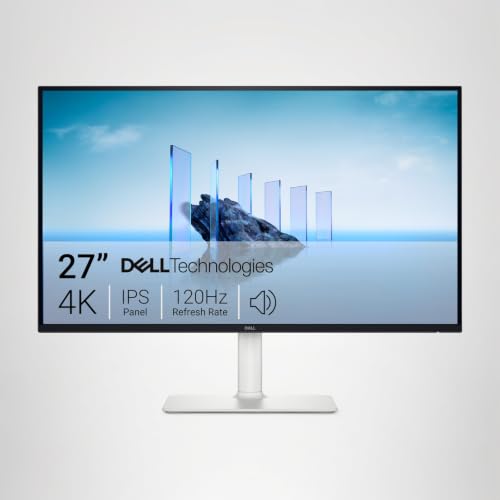
Dell 27 Monitor S2725QS, 4K UHD IPS, 120Hz, 5ms, FreeSync Premium | 350 cd/m2 Brightness, 1,500:1 Contrast, 99% sRGB, Anti-Glare, HDMI, DisplayPort, USB‑C, Height Adjustable, Swivel, Pivot


As an Amazon Associate we earn from qualifying purchases. Product prices and availability are accurate as of the date/time indicated.

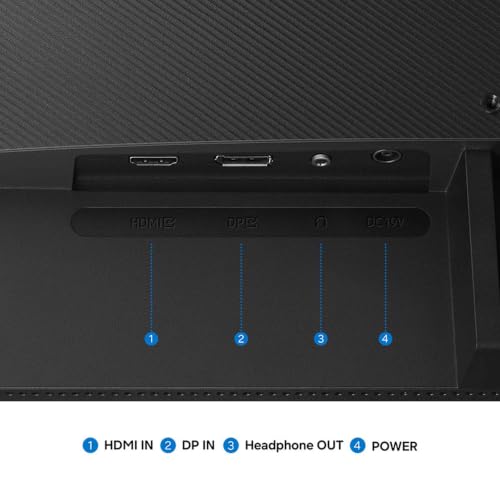
Samsung 27" ViewFinity S7 (S71H) 4K UHD IPS HDR10 High Resolution Monitor | Explore and buy 27 inch 4K UHD ViewFinity S7 S71H Monitor LS27H710EANXZA, Featuring IPS Panel, HDR10 and Eye Saver Mode




As an Amazon Associate we earn from qualifying purchases. Product prices and availability are accurate as of the date/time indicated.

LG 27US500-W Ultrafine Monitor 27-Inch 4K UHD (3840x2160) HDR10 IPS Borderless Design Reader Mode Flicker Safe Switch App HDMI DisplayPort - White


As an Amazon Associate we earn from qualifying purchases. Product prices and availability are accurate as of the date/time indicated.

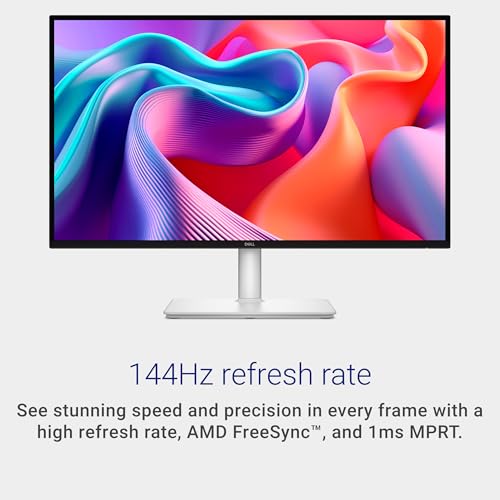
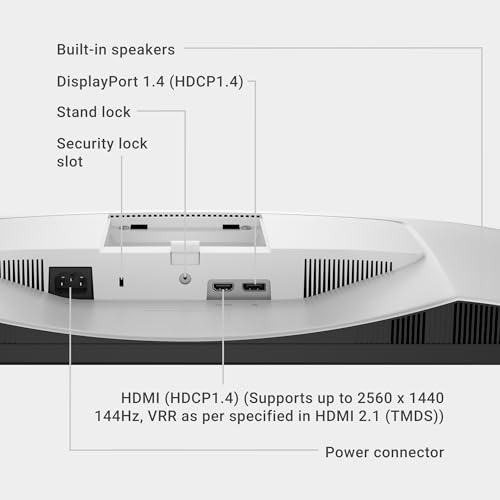
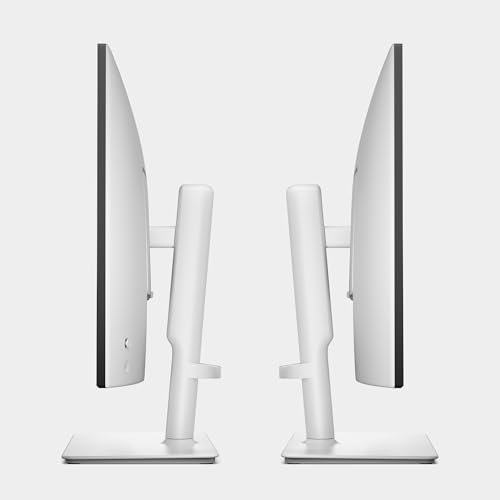
Dell 27 Plus QHD Monitor - S2725DSM - 27-inch QHD (2560x1440) 144Hz 1ms Display, 2 x 3W Speakers, HDMI/DisplayPort 1.4 Connectivity, Height/Tilt/Pivot/Swivel Adjustability, AMD FreeSync - Ash White






As an Amazon Associate we earn from qualifying purchases. Product prices and availability are accurate as of the date/time indicated.

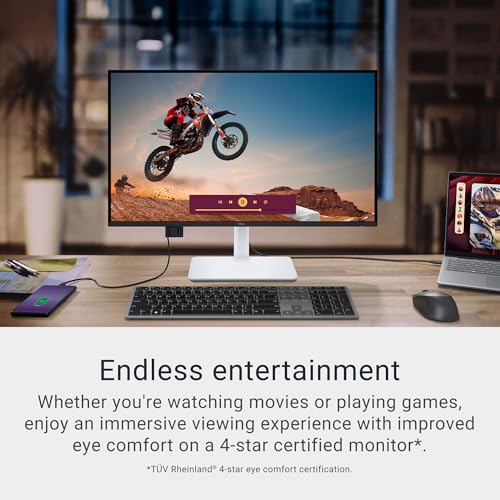
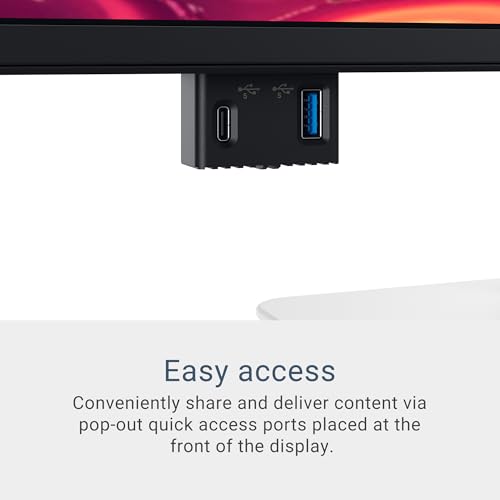
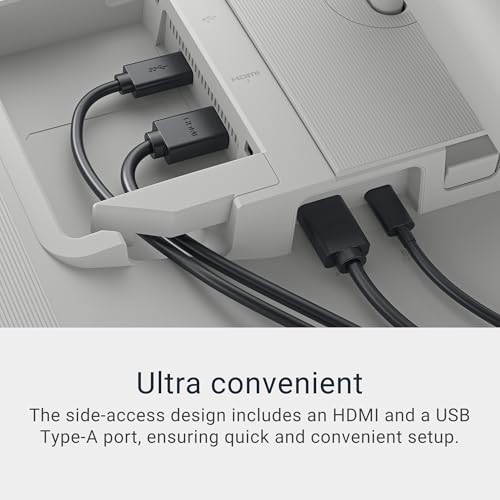
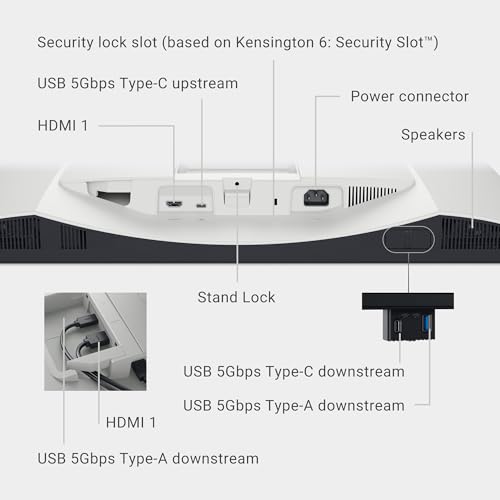
Dell 27 Monitor S2725QC, 4K UHD IPS, 120Hz, 99% sRGB, 4ms, FreeSync Premium | 3840x2160, 163 PPI, USB-C, HDMI, DisplayPort, Anti-Glare, Eye Comfort Technology, LED Edgelight System





As an Amazon Associate we earn from qualifying purchases. Product prices and availability are accurate as of the date/time indicated.

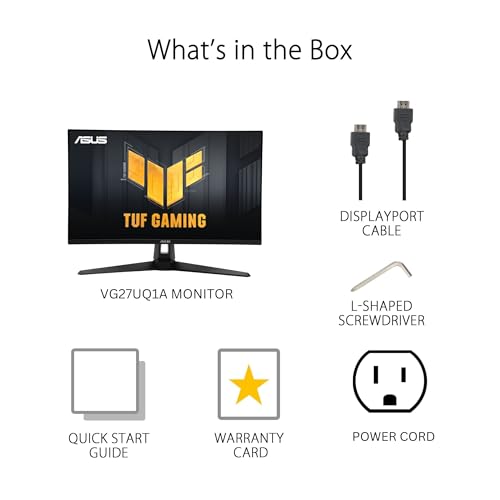
ASUS TUF Gaming VG27UQ1A 27 Inch 4K 160Hz G-SYNC Gaming Monitor | ELMB Sync, 1ms, 95% DCI-P3, FreeSync Premium, DisplayWidget Center, for PS5 and Xbox




As an Amazon Associate we earn from qualifying purchases. Product prices and availability are accurate as of the date/time indicated.

LG 27G810A-B 27-inch Ultragear 4K UHD (3840 x 2160) IPS Gaming Monitor, Dual Mode UHD 180Hz or FHD 360Hz, 1ms, NVIDIA G-Sync, AMD FreeSync Premium, VESA DisplayHDR 400, HDMI 2.1, Black





As an Amazon Associate we earn from qualifying purchases. Product prices and availability are accurate as of the date/time indicated.

Sceptre 34-inch Curved ultrawide WQHD Monitor (3440 × 1440), R1500, up to 180Hz/165Hz, DisplayPort x2, 99% sRGB, 1ms, Built-in Speakers, Machine Black, 2025 (C345B-QUT168)


As an Amazon Associate we earn from qualifying purchases. Product prices and availability are accurate as of the date/time indicated.
- You read code for hours and care most about crisp type: a 27 inch 4K panel. The Dell S2725QS, Dell S2725QC, Samsung S71H and LG 27US500-W all land near 163 pixels per inch.
- You want one cable to a laptop: the two Dell 4K models name USB-C in their titles. Power wattage is not stated, so check the listing.
- You want the widest workspace: the Sceptre 34 inch ultrawide at 3440×1440.
- You want the lowest entry price: the Dell 27 Plus QHD, which also names height, tilt, pivot and swivel adjustment.
- You also play games on the same desk: the ASUS TUF or the LG UltraGear, accepting that you pay for features code does not need.
- You work in a bright room: look at the anti-glare wording on the Dell 4K models and check the finish on the others.
Side-by-side summary
| Model | Size and resolution (from title) | Notable features named | Price tier | Best for |
|---|---|---|---|---|
| Dell S2725QS | 27 inch, 4K UHD IPS | 120Hz, USB-C, anti-glare, height/swivel/pivot | Mid-range | All-round developer desk |
| Samsung ViewFinity S7 (S71H) | 27 inch, 4K UHD IPS | HDR10, Eye Saver Mode | Budget | Cheapest sharp text |
| LG 27US500-W | 27 inch, 3840×2160 IPS | Reader Mode, Flicker Safe, HDMI, DisplayPort, white | Mid-range | Comfort features, light-colored desk |
| Dell 27 Plus S2725DSM | 27 inch, 2560×1440 | 144Hz, 1ms, speakers, height/tilt/pivot/swivel | Budget | Lowest cost with adjustable stand |
| Dell S2725QC | 27 inch, 3840×2160 IPS | 163 PPI, USB-C, Eye Comfort Technology, anti-glare | Premium | Laptop users who want one cable |
| ASUS TUF Gaming VG27UQ1A | 27 inch, 4K | 160Hz, G-SYNC, 1ms, 95% DCI-P3 | Mid-range | Coding plus gaming |
| LG 27G810A-B UltraGear | 27 inch, 4K UHD IPS | Dual mode 180Hz or FHD 360Hz, HDMI 2.1, DisplayHDR 400 | Premium | Coding plus fast gaming |
| Sceptre C345B-QUT168 | 34 inch curved, 3440×1440 | Up to 180Hz/165Hz, two DisplayPort, speakers | Budget | Wide multi-pane layouts |
Price tiers are relative within this set of eight. Budget means the three least expensive, Premium the two most expensive, and Mid-range the three in between. We do not quote prices, because they change often.
The arithmetic of a coding screen
Marketing pages lean on adjectives. A programmer is better served by three numbers: how dense the pixels are, how much logical workspace you get at a readable scale, and how many lines of code that translates into. All of what follows is calculation from the diagonals and resolutions in the titles. None of it was measured on a unit.
Pixel density is the diagonal pixel count divided by the diagonal size. A 3840×2160 panel has a diagonal of about 4,406 pixels, so at 27 inches it comes to roughly 163 pixels per inch, which agrees with the figure Dell prints in the S2725QC title. A 2560×1440 panel at 27 inches works out near 109. The 34 inch 3440×1440 ultrawide lands near 110. So the six 4K models share one density, the Dell QHD and the Sceptre share another, and the gap between the two groups is about 50 percent.
The worked example below assumes an editor line height of 20 logical pixels and about 160 logical pixels taken up by the title bar, tabs and status bar. It also assumes roughly 8 logical pixels per character in a monospace font. Change any of those and the line counts move, so treat them as estimates for comparison, not predictions for your editor.
| Setup | Logical workspace | Estimated lines of code | Estimated columns | Physical size of a 20 px line |
|---|---|---|---|---|
| 27 inch 4K at 125% | 3072×1728 | 78 | 384 | about 0.15 inch |
| 27 inch 4K at 150% | 2560×1440 | 64 | 320 | about 0.18 inch |
| 27 inch 4K at 175% | 2194×1234 | 53 | 274 | about 0.21 inch |
| 27 inch QHD at 100% | 2560×1440 | 64 | 320 | about 0.18 inch |
| 27 inch QHD at 125% | 2048×1152 | 49 | 256 | about 0.15 inch |
| 34 inch ultrawide at 100% | 3440×1440 | 64 | 430 | about 0.18 inch |
The pattern is worth reading slowly. A 27 inch 4K panel at 150 percent, a 27 inch QHD panel at 100 percent and the 34 inch ultrawide at 100 percent all give the same 64 lines and the same physical text size, about 0.18 inch for a 20 pixel line. What differs is how the text is drawn and how much sideways room you get. The 4K panel renders the same letters with 2.25 physical pixels behind every logical pixel, so edges are smoother. The ultrawide adds roughly 110 columns of width, enough for a file tree beside three 120-column panes. The QHD panel gives the same space as 4K at the lowest tier, with coarser type.
Scaling is where 4K can disappoint. At 125 percent you fit about 78 lines, but characters are physically smaller, about 0.15 inch, which some people find tiring. At 175 percent the text is comfortable and the line count falls to about 53. Fractional scaling such as 125 or 150 percent behaves differently across operating systems and applications, so if you work in a mix of older tools and new ones, expect a few that look soft. Many editors let you raise font size independently, which is often a cleaner knob than system scaling.
Desk footprint matters too. A 27 inch 16:9 panel is about 23.5 inches wide and 13.2 inches tall. The 34 inch ultrawide is about 31.4 inches wide and 13.1 inches tall, nearly the same height and about eight inches wider. On a 48 inch desk that leaves little room for speakers or a lamp. Measure before you commit.
The eight monitors, one at a time
Dell S2725QS: 27 inch 4K with USB-C and an adjustable stand
The title describes a Dell 27 monitor, model S2725QS, with a 4K UHD IPS panel, 120Hz refresh, 5ms response, FreeSync Premium, 350 cd/m2 brightness, 1,500:1 contrast, 99% sRGB and an anti-glare finish. The named inputs are HDMI, DisplayPort and USB-C, and the stand is listed as height adjustable, swivel and pivot. That combination is why it leads the guide: it names a dense panel, a single-cable port and the adjustments that let you set the top edge near eye level.
Our estimate from the diagonal is about 163 pixels per inch. At 150 percent scaling that is a 2560×1440 logical workspace, around 64 lines of code in the example above, drawn more smoothly than on a 1440p panel of the same size. The 350 cd/m2 figure suits a normally lit room, and the anti-glare wording is relevant if a window sits behind you.
The title leaves several things open. It gives no USB-C power wattage, no mention of whether the port can feed a hub, no KVM, no tilt range and no VESA pattern. If you plan to charge a laptop through the monitor, confirm the wattage on the listing and compare it with your charger. The 120Hz figure is a refresh rate; whether it matters for editing is personal, and some people notice smoother scrolling while others do not. If you leave the refresh rate at a lower setting to save power or avoid cable limits, nothing about the text sharpness changes.
Pros
- 4K IPS at 27 inches, about 163 PPI by our calculation
- USB-C, HDMI and DisplayPort all named
- Height, swivel and pivot adjustment named
- Anti-glare finish and 99% sRGB listed
Cons
- USB-C wattage not stated; check the listing
- Tilt and VESA mounting not mentioned in the title
- Mid-range tier costs more than the Samsung 4K
Who it’s for: developers who want the most complete 4K desk monitor in the set without paying the Premium tier.
Samsung ViewFinity S7 (S71H): the lower-cost 4K IPS route
The Samsung title reads 27 inch, 4K UHD, IPS, HDR10, with an Eye Saver Mode, under the model number LS27H710EANXZA. Panel geometry is the same as the Dell 4K models, so our pixel density estimate is the same, about 163 PPI. At 150 percent scaling you get the same 2560×1440 logical workspace and roughly 64 lines in the worked example. In this set it sits in the Budget tier, which makes it the cheapest way to get 4K-class text.
HDR10 is a signal format, and the title gives no peak brightness or local dimming detail, so treat it as support for HDR video rather than a reason to buy for coding. Eye Saver Mode is the manufacturer’s name for a comfort setting; the title does not explain what it changes, and no monitor feature replaces regular breaks or an eye exam if you have persistent discomfort. Read Samsung’s documentation for what the mode does.
What the title does not tell you is a longer list than for the Dells: refresh rate, response time, ports, stand adjustments, VESA pattern, sRGB coverage and speakers all fall under check the listing. That matters for ergonomics in particular. Lower-priced stands are often more limited, so if the listing shows tilt only, budget for a monitor arm and confirm VESA support first.
A practical way to use the savings: because the panel geometry matches the pricier 4K models, the money you keep is the real appeal. Spend a slice of it on a clamp-mount arm and you can land the top edge of the screen near eye level, which is the adjustment a basic stand most often cannot make.
Pros
- 27 inch 4K IPS at the lower end of the price range
- HDR10 and Eye Saver Mode named
- Same estimated 64-line workspace as the pricier 4K panels
Cons
- No ports, refresh rate or stand details in the title
- USB-C not named
- Ergonomic range unknown until you check the listing
Who it’s for: developers who mainly want sharp text on a budget and will add an arm if the stand falls short.
LG 27US500-W: Flicker Safe and Reader Mode in white
The LG title lists a 27 inch 4K UHD monitor at 3840×2160 with HDR10, an IPS panel, a borderless design, Reader Mode, a Flicker Safe feature, a Switch App, HDMI and DisplayPort inputs, in white. By arithmetic that is again about 163 PPI. Among the 4K titles in the set, this one names two separate comfort items, Reader Mode and Flicker Safe, so it is the one to look at if you care about that checklist.
Reader Mode and Flicker Safe are feature names; the title does not describe how they work, and we have not measured anything, so read LG’s documentation rather than assuming a result. Flicker-related and blue-light-related modes are sometimes marketed as easing eye strain, but individual experience varies and none of them is a medical measure. The Switch App is software for adjusting settings from the desktop, per its name; check what it controls and which operating systems it supports.
Connectivity is HDMI and DisplayPort only, as named. There is no USB-C in the title, so a laptop with just USB-C ports needs a cable or adapter that outputs HDMI or DisplayPort, and it will charge from its own adapter. Stand adjustments and VESA support are not stated. The white finish is a practical plus on a light desk setup and a minus if your room is dark and you dislike reflective surfaces; check the listing for the bezel and coating details.
Pros
- 27 inch 4K IPS, about 163 PPI by calculation
- Reader Mode and Flicker Safe named in the title
- HDMI and DisplayPort inputs
Cons
- No USB-C named
- Stand adjustment and VESA details not in the title
- White color will not suit every desk
Who it’s for: developers who want a 4K panel with comfort-oriented features and a desktop PC or a laptop with HDMI or DisplayPort output.
Dell 27 Plus S2725DSM: QHD, adjustable stand and the lowest tier
This Dell lists a 27 inch QHD display at 2560×1440 with 144Hz refresh and 1ms response, two 3W speakers, HDMI and DisplayPort 1.4 connectivity, height, tilt, pivot and swivel adjustability and AMD FreeSync, in Ash White. It is the only QHD 27 inch panel here, and the only model besides the Dell S2725QS that names a stand with more than one adjustment, which is rare at the lowest tier.
The density estimate is about 109 pixels per inch. At 100 percent scaling you get a 2560×1440 logical workspace, the same 64 lines and 320 columns as the 4K models at 150 percent. Text looks coarser because there are fewer physical pixels behind each character, but the size on the desk is the same. For people reading code in a mid-size font, the difference is noticeable on close inspection rather than disastrous.
The title does not state panel type, brightness, contrast or color coverage, so check the listing for the panel technology before you rely on viewing angles. The 144Hz and 1ms numbers are gaming-style specifications; they cost you nothing for coding, but they are not why a developer would choose this model. It has no USB-C in the title, and the pair of 3W speakers are a convenience, not a substitute for headphones.
Consider what the savings buy. At the lowest tier you get a named stand with four kinds of adjustment, which many pricier panels in this set do not state in their titles. If you sit at a standing desk, or share a desk with someone of a different height, the pivot and height range can matter more than a sharper font. Pivot also lets you rotate the panel to portrait for reading long files or logs.
Pros
- Lowest tier with height, tilt, pivot and swivel named
- DisplayPort 1.4 and HDMI named
- Speakers built in
- Same 64-line workspace as 4K at 150%
Cons
- Lower pixel density, about 109 PPI
- Panel type and USB-C not stated; check the listing
- Gaming-style specs you may not use
Who it’s for: developers on a budget who want an adjustable stand and are comfortable with QHD sharpness.
Dell S2725QC: 163 PPI and Eye Comfort Technology
The S2725QC title states 4K UHD IPS, 120Hz, 99% sRGB, 4ms, FreeSync Premium, 3840×2160, 163 PPI, USB-C, HDMI, DisplayPort, anti-glare, Eye Comfort Technology and an LED edgelight system. It is the only title in the group that prints the pixel density itself, and it matches the arithmetic we did independently. In this set it is in the Premium tier, so the question is what it adds over the Dell S2725QS.
From the titles alone: a 4ms response figure against 5ms, which is irrelevant for editing; the name Eye Comfort Technology, which the title does not explain; and the edgelight wording. What the S2725QC title does not list is the stand: no height, swivel or pivot is named here, unlike the QS. That does not mean the stand lacks them, only that this title is silent, so check the listing carefully. It also gives no brightness or contrast figure.
USB-C is named, which is the headline for laptop users. As with the QS, the wattage is not stated, and neither is any hub or KVM function. Confirm power delivery against your laptop charger before treating it as a docking solution. An edge-lit backlight, as the title describes, is a design choice you read about in the manufacturer’s documentation rather than a feature to evaluate from a listing.
The decision between this and the QS comes down to a short checklist. If the QC listing confirms a stand you can set to eye level and a USB-C wattage that covers your laptop, the extra spend may buy the comfort-feature naming and the stated density. If either answer is no, the QS gives you the same panel class with its adjustments spelled out, for less.
Pros
- 163 PPI stated in the title
- USB-C, HDMI and DisplayPort named
- Eye Comfort Technology and anti-glare listed
Cons
- Premium tier
- Stand adjustments not named in the title
- USB-C wattage not stated
Who it’s for: laptop users who want one cable and Dell’s comfort features, once the stand details check out.
ASUS TUF Gaming VG27UQ1A: a 4K gaming panel that also shows code well
This is a gaming monitor by its own title: 27 inch, 4K, 160Hz, G-SYNC, ELMB Sync, 1ms, 95% DCI-P3, FreeSync Premium and DisplayWidget Center, with a note about PS5 and Xbox. For a programmer the relevant fact is the panel size and resolution. A 27 inch 4K screen is about 163 PPI by our arithmetic, so code is as crisp here as on the other 4K models, and the 64-line workspace at 150 percent scaling applies.
The rest is gaming equipment. A 160Hz refresh at 4K asks a lot of a graphics card: 4K has 2.25 times the pixels of QHD, so frame rates in demanding games fall noticeably against 1440p on the same GPU, a ratio from arithmetic rather than any measurement. A rough link-bandwidth estimate shows 4K at 160Hz in 8-bit color needs about 32 Gbps of pixel data before overhead, more than a plain DisplayPort 1.4 link carries without compression, so the ports and cables matter. The title lists none, so check the listing. ELMB Sync and DisplayWidget Center are names from ASUS’s gaming lineup; read the manual for restrictions on using them together.
Panel technology is not stated in the title, nor are stand adjustments, USB-C or speakers. Gaming monitors often skip the single-cable laptop features developers look for, but verify rather than assume. The 95% DCI-P3 figure suits creative and gaming work and has little to do with reading code.
Pros
- 27 inch 4K, about 163 PPI by calculation
- 160Hz and G-SYNC for gaming
- 95% DCI-P3 listed
Cons
- Panel type, ports and stand not in the title
- Gaming features that code does not need
- 4K at high refresh needs a strong graphics card and the right cable
Who it’s for: developers who also game at 4K and want one monitor for both.
LG 27G810A-B UltraGear: dual mode for gaming and code
The LG title is long and entirely gaming-flavored: 27 inch UltraGear, 4K UHD 3840×2160 IPS, dual mode UHD 180Hz or FHD 360Hz, 1ms, NVIDIA G-Sync, AMD FreeSync Premium, VESA DisplayHDR 400 and HDMI 2.1. Dual mode means you pick between a 4K setting at up to 180Hz and a 1080p setting at up to 360Hz. Only the 4K mode matters for code; at 1920×1080 on 27 inches the density falls to about 82 PPI by our calculation, which would look coarse for text.
In 4K mode the story is the same as the other 27 inch models: about 163 PPI, a 2560×1440 logical workspace at 150 percent scaling and roughly 64 lines. IPS is named, which is a plus for viewing angles. DisplayHDR 400 is a certification level, but the title says nothing about local dimming, and HDR is not a coding feature. HDMI 2.1 is named, which matters for consoles and high refresh at 4K.
It is the highest-priced item in this set, so a developer who does not play fast games will be paying for numbers they will never use. No USB-C, stand adjustments or VESA pattern appear in the title; check the listing. If you do play competitive games at both resolutions, this is the one listing where the second mode has a clear purpose. Otherwise, one of the cheaper 4K panels gives the same text sharpness.
One more arithmetic note for the 1080p mode: 1920×1080 has a quarter of the pixels of 3840×2160, so a graphics card pushing frames at that setting works far less per frame, which is how a 360Hz target becomes plausible. That is a ratio from the resolutions, not a benchmark. Switching modes may also mean changing your desktop resolution, so confirm in the manual how quickly the switch happens.
Pros
- 4K IPS with 180Hz named
- HDMI 2.1 and DisplayHDR 400 named
- Dual mode adds a 1080p high-refresh setting
Cons
- Highest tier in the set
- No USB-C or stand details in the title
- Gaming extras do nothing for code
Who it’s for: developers who also play fast games and want one 27 inch 4K screen that handles both.
Sceptre C345B-QUT168: 34 inch curved ultrawide
The Sceptre is a 34 inch curved ultrawide WQHD monitor at 3440×1440 with an R1500 curve, up to 180Hz or 165Hz, two DisplayPort inputs, 99% sRGB, 1ms response and built-in speakers, in machine black. The R1500 figure describes the curve radius, usually 1500 mm; check the listing for the exact meaning. Panel type is not stated in the title.
The appeal for programmers is width. At 3440 logical pixels and about 8 pixels per character, our estimate is about 430 columns, enough for a file tree and three 120-column panes, or two editors and a terminal. The workspace is 64 lines tall at 100 percent scaling. Pixel density is only about 110 PPI, so text is less smooth than on the 4K models, and the physical size of a line is about the same as on the 4K models at 150 percent.
The title lists two DisplayPort inputs and no HDMI or USB-C, so a laptop with only USB-C may need an adapter or cable to reach DisplayPort; check the listing for the exact port set. The listing also calls for a close look at how 180Hz and 165Hz apply, since the title gives both figures without saying which input or setting each belongs to. Stand adjustments are not named. At roughly 31 inches wide and with a curve, it needs a deep, wide desk for comfortable viewing.
Think about window management too. A single wide panel suits tiling window managers and snap layouts, where you divide the screen into columns. If you prefer maximized windows, you will gain little over a 27 inch model, because one editor stretched across 3440 pixels leaves long lines of empty space. The speakers are a convenience for notifications and video calls, though a headset is better in a shared office.
Pros
- 3440×1440 ultrawide, about 430 columns by our estimate
- Two DisplayPort inputs and built-in speakers named
- Budget tier
Cons
- About 110 PPI, softer text than 4K
- No HDMI or USB-C in the title
- Panel type and stand adjustment not stated
Who it’s for: developers who run several panes side by side and will take width over density.
How we picked these
This page is written by the Editorial team. Nobody on the team used or measured these units. The testbench for this article is published specifications, manufacturer documentation and buyer reviews, and each statement about a product is limited to what its title says. Where the title is silent, we write check the listing instead of guessing.
The marketplace returned eight monitors for this search. We grouped them by what a programmer cares about: pixel density, workspace, ports and stand. We did not rank them by star ratings or review counts, and price appears only as a relative tier. Numbers such as pixel density, logical workspace and columns are arithmetic on the sizes and resolutions in the titles, with assumptions stated, so you can redo them for your own editor.
Gaming panels are marked as such. If you are weighing a broader purchase, our guide to computer monitors by use and budget takes a wider view, and if gaming is part of the plan, our gaming monitors by budget page covers panels chosen for motion first.
What to look for in a monitor for programming
Pixel density and scaling. Density decides how smooth text looks, and scaling decides how big it is. Aim for a setup where a 20 pixel line is about 0.18 inch tall, which all three natural setups in the table achieve. Higher density then buys you smoother edges, not more space. If you code in a small font for long sessions, 4K at a 27 inch size is the safer pick. If you code in large type or work mostly in a terminal, QHD may be enough.
Panel type. Five titles name IPS: the Dell S2725QS, Samsung S71H, LG 27US500-W, Dell S2725QC and LG 27G810A-B. Three do not state a panel type: the Dell 27 Plus, the ASUS TUF and the Sceptre. IPS panels generally keep colors and brightness more stable at an angle, which helps when you sit close or share a screen, but check the listing for the others rather than assuming.
Refresh rate and response. Refresh rate is the number of times per second the image updates. These titles show 120Hz, 144Hz, 160Hz, 180Hz and 360Hz in FHD mode. Some people find scrolling a long file smoother at higher refresh, others do not notice; it is a preference, and a higher number adds cost and GPU demand. Response times of 1ms to 5ms are all fine for editing.
Connectivity. For a single-cable laptop desk you want USB-C with enough power delivery, and the titles do not state a wattage for either Dell model. Look for hub or KVM functions only if the listing names them, since none of these titles do. For a desktop PC, DisplayPort or HDMI is enough. Check cable ratings for 4K at the refresh rate you plan to use.
Eye comfort. The titles name Eye Saver Mode, Reader Mode, Flicker Safe, Eye Comfort Technology and anti-glare finishes. These are feature names, and the titles do not describe their mechanisms. Matte or anti-glare finishes reduce reflections, which can help in bright rooms. None of these is medical treatment. A common habit is to look at something distant for 20 seconds every 20 minutes, and if you have persistent strain, headaches or blurred vision, see an eye-care professional rather than rely on a monitor setting.
Ergonomics. Only the Dell S2725QS and the Dell 27 Plus name stand adjustments in their titles. For the rest, check the listing for height, tilt, swivel and VESA pattern. A common guideline is to put the top edge of the screen at or just below eye level, about an arm’s length away. If the stand cannot do that, an arm with a VESA mount is the usual fix, so confirm the pattern before you buy.
Gaming-oriented panels. The ASUS TUF and LG UltraGear are gaming monitors by their titles, and the Dell Plus QHD and Sceptre add gaming-style numbers. They work for code, but each extra feature raises the price, and gaming models sometimes trade away laptop features such as USB-C. If you want the speed anyway, our 1440p gaming monitor picks and the 240Hz ultrawide guide compare gaming panels in more depth.
One ultrawide or two monitors. A 34 inch ultrawide avoids a bezel gap in the middle and uses one cable, but it is one panel at about 110 PPI. Two 27 inch 4K panels would give far more total area at higher density for more money and desk width. If you rarely use more than three panes, the single ultrawide is simpler.
Mistakes buyers make
Buying 4K and leaving scaling at 100 percent. Text on a 27 inch 4K panel at 100 percent is about two-thirds of the physical size of the 150 percent setup, and many people cannot read it comfortably for long. If you want the extra space, step down to 125 percent and see.
Assuming USB-C means charging. A USB-C port can carry video without delivering much power. Of these eight, only the two Dell 4K models name USB-C, and neither title states a wattage. Check the listing against your charger.
Paying for gaming features you will not use. The 360Hz FHD mode on the LG or the 160Hz G-SYNC on the ASUS adds nothing to a code editor. Buy them only if you play.
Ignoring desk width. The 34 inch ultrawide is about 31 inches wide. On a narrow desk it pushes everything else aside, so measure first.
Trusting a title for stand details. Several titles here say nothing about height, tilt or swivel. A good panel on a fixed stand can lead to a neck-forward posture, so read the listing and plan for a VESA arm if needed.
Choosing by HDR badges. HDR10 and DisplayHDR 400 are labels for video and games. They tell a programmer very little about text quality or comfort.
Verdict
For most developers the Dell S2725QS is the best monitor in this group: 4K IPS at 27 inches, USB-C, and a stand described as height adjustable, swivel and pivot, at the Mid-range tier. The budget pick is the Samsung ViewFinity S7 if you want 4K sharpness for the least money and will check the stand, or the Dell 27 Plus QHD if you want the lowest tier with an adjustable stand and can accept coarser text. The premium pick is the Dell S2725QC, with the 163 PPI figure stated in its title and Eye Comfort Technology.
For width, choose the Sceptre ultrawide. For code plus games, the ASUS TUF or the LG UltraGear. Measure your desk, check the ports and wattage on the listing, and then choose.
Frequently asked questions
What is the best monitor for coding and programming?
Among these eight, the Dell S2725QS is the most balanced choice for most developers: a 27 inch 4K IPS panel, USB-C, and a stand described as height adjustable, swivel and pivot, in the middle of the price range. The Samsung ViewFinity S7 is the lower-cost 4K route, and the 34 inch Sceptre suits people who want width. Match the pick to your desk depth, your laptop’s ports and how many windows you keep open.
Is 4K worth it over 1440p for coding?
The main gain is sharper text, not extra room. A 27 inch 4K panel works out to roughly 163 pixels per inch against about 109 for 27 inch 1440p, so characters have smoother edges. Most people run 4K at 125 to 175 percent scaling, which leaves a workspace close to a 1440p monitor at 100 percent. If budget is tight, a good 1440p panel still works well for code, and the saving can go toward a better stand.
Is an ultrawide better than a 27 inch monitor for programming?
It depends on how you work. A 3440×1440 ultrawide offers about 430 columns of width in our worked example, enough for three 120-column editor panes side by side, while a 27 inch panel at 2560 logical pixels fits two with room to spare. The ultrawide has lower pixel density, near 110 pixels per inch, so text is less crisp than on 4K. It also needs more desk width, roughly 31 inches.
Can I use a gaming monitor for coding?
Yes. The ASUS TUF and LG UltraGear listings here are gaming monitors by their own titles, and a 27 inch 4K gaming panel shows code as sharply as any other 27 inch 4K panel. You pay for refresh-rate and response features that code editing does not need. Check the ports (most of these titles do not list USB-C), the stand adjustments and any special modes before you buy, and only choose one if you also game.
Will a USB-C monitor charge my laptop?
Only if the monitor’s USB-C port supports power delivery at a wattage your laptop needs, and your laptop’s USB-C port supports video output. Of these eight, only the Dell S2725QS and S2725QC name USB-C in their titles, and neither title states a wattage, so check the listing and the manufacturer’s documentation. Compare that number with your laptop charger’s rating, and use a cable rated for the power and 4K video.









Write Your Review
No reviews yet. Be the first to share your experience!