

Our Top Picks
Start with the laptop’s USB-C port, not the dock. A dock can only pass along what the port beneath it supports, and video, data and charging all squeeze through one cable. The most expensive mistake in this category is buying a three-monitor dock for a port that carries a single video stream. This guide sorts nine listings that mention 100W charging by how they get pictures to your screens, which ones need a driver, and who each one fits. Eight are genuine laptop docks. The ninth is a charging organizer for phones and tablets that shares only a number with the rest, and it gets a plain explanation in its own section.
Top picks at a glance

Plugable USB C Triple Display Docking Station | 100W PD, 3x HDMI | 1x 4K 30Hz, 2x 1080p 60Hz, 6x USB 5Gbps | Windows, macOS, ChromeOS Compatible, Enhance Productivity w/ Multi-Monitor Support


As an Amazon Associate we earn from qualifying purchases. Product prices and availability are accurate as of the date/time indicated.

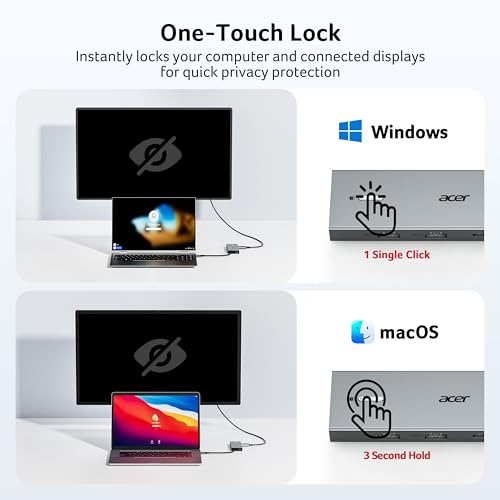
Acer USB-C Docking Station Dual Monitor, 9-in-1 Laptop Dock with 2 HDMI | Laptop Docking Station with 4K@60Hz HDMI, USB A&C 3.0, SD/Micro SD, 100W PD Compatible with Acer/Dell XPS/HP/Mac (0.65FT)




As an Amazon Associate we earn from qualifying purchases. Product prices and availability are accurate as of the date/time indicated.

Plugable 13-in-1 USB C Docking Station 4K Triple Monitor with 100W Charging | USB C Dock for Windows, Mac, ChromeOS, Thunderbolt | Driver Required | 3X HDMI and 3X DisplayPort (UD-ULTC4K)


As an Amazon Associate we earn from qualifying purchases. Product prices and availability are accurate as of the date/time indicated.
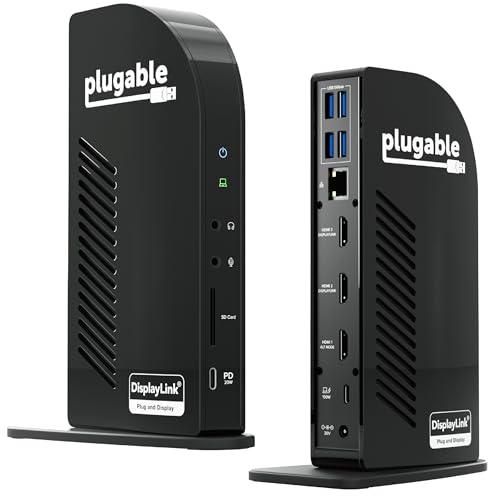
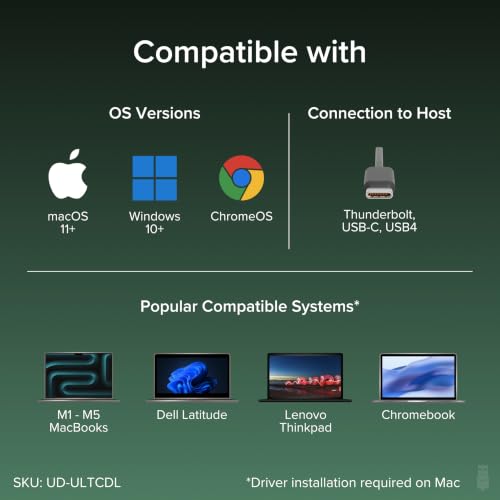
Plugable USB-C Triple Monitor Docking Station, 13-in-1, 100W Charging | Laptop Dock for Mac (DisplayLink Driver Required), Windows, Chrome, 3 HDMI, Gigabit Ethernet, SD, USB-C 20W, 4 USB, UD-ULTCDL




As an Amazon Associate we earn from qualifying purchases. Product prices and availability are accurate as of the date/time indicated.

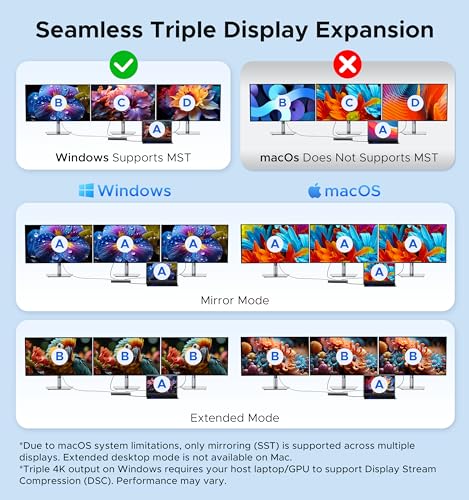
Acer 13-in-1 Laptop Docking Station, USB-C 3 Display Docking (2 HDMI+1 DP) | 100W Laptop Charging, 5Gbps USB-A/C, 1Gbps LAN, Requires Full-Featured USB-C Port, Windows Compatible,macOS Supports Only SST



As an Amazon Associate we earn from qualifying purchases. Product prices and availability are accurate as of the date/time indicated.

Plugable USB C Docking Station, Dual Monitor 4K 60Hz 2x HDMI or DisplayPort | For Apple Mac M1/M2/M3/M4/M5,Neo, MacBook, 100 W Charging DisplayLink Dock, Driver Install Required (UD-6950PDH)


As an Amazon Associate we earn from qualifying purchases. Product prices and availability are accurate as of the date/time indicated.

Anker Nano Laptop Docking Station, 13in1 Dock with Detachable 6in1 USBC Hub | 3 Display USB C Dock (2 HDMI+1 DP), 10 Gbps USBC, 3 USBA, Audio, SD/TF, Ethernet, 100W Max PD for Dell/Lenovo/HP Home Office


As an Amazon Associate we earn from qualifying purchases. Product prices and availability are accurate as of the date/time indicated.

100W Charging Station for Multiple Devices, 10-Port USB Fast Charger, Black | with Adjustable Dividers & 10 Cables- Multi Device Organizer Charging Dock for iPhone, iPad, Tablets & More


As an Amazon Associate we earn from qualifying purchases. Product prices and availability are accurate as of the date/time indicated.

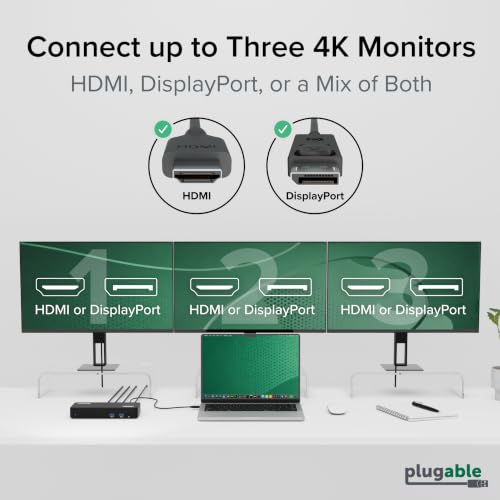
Plugable 12-in-1 USB C Triple Monitor Docking Station, 100W Charging | Triple 4K Displays with 3X HDMI or 3X DisplayPort, for Mac, Windows, Thunderbolt, USB4, USB-C (100W PD, 6X USB, Ethernet)



As an Amazon Associate we earn from qualifying purchases. Product prices and availability are accurate as of the date/time indicated.
Every entry below is built from the seller’s own title wording. The price tier is relative inside this set, and the best-for column assumes your laptop port supports what the dock needs.
| Model | Key point from the title | Price tier | Best for |
|---|---|---|---|
| Plugable Triple Display Dock (100W PD, 3x HDMI) | One 4K 30Hz plus two 1080p 60Hz, six 5Gbps USB ports | Mid | Windows, Mac or Chromebook desks with mostly 1080p screens |
| Acer 9-in-1 Dual Monitor Dock | 2 HDMI, 4K@60Hz on one, SD and microSD, 100W PD compatible, short 0.65FT cable | Budget | Light two-screen setups on a tight budget |
| Plugable 13-in-1 UD-ULTC4K | 3 HDMI plus 3 DisplayPort, 4K triple monitor, driver required | Premium | Three-screen desks that want a wide port count |
| Plugable 13-in-1 UD-ULTCDL | 3 HDMI, gigabit ethernet, SD, DisplayLink driver required for Mac | Mid | Mac users who need three screens from one cable |
| Acer 13-in-1 Docking Station | 2 HDMI plus 1 DP, 100W charging, full-featured USB-C port required, macOS limited to SST | Budget | Windows laptops with a capable USB-C port |
| Plugable UD-6950PDH | Dual 4K 60Hz, DisplayLink, written for Apple Mac laptops, driver install required | Mid | Mac owners who want two sharp screens |
| Anker Nano 13-in-1 | Detachable 6-in-1 hub, 2 HDMI plus 1 DP, 10Gbps USB-C, ethernet, 100W max PD | Budget | People who want to unplug a slim hub for travel |
| Dywcdnice 10-Port 100W Charging Station | Multi-device charger with dividers and 10 cables, no video | Budget | Phones and tablets only, not laptops |
| Plugable 12-in-1 Triple Monitor Dock | Triple 4K via 3 HDMI or 3 DP, Thunderbolt and USB4 mentioned, six USB, ethernet | Premium | Thunderbolt or USB4 hosts that can feed three 4K screens |
What is changing in this category
Docks used to be sold by port count. Today the better question is how the video leaves the box, because that single choice decides how many screens you get, whether a driver is needed, and how a Mac behaves. Two routes dominate. A native route hands the laptop’s DisplayPort signal straight to the monitors, which needs no software but is bound by the host port’s bandwidth. A DisplayLink-style route compresses the picture and sends it as USB data, which lets one cable drive more screens but requires a driver and puts some work on the laptop’s processor.
Faster host ports are pushing the native route further. Thunderbolt and USB4 ports carry far more display data than a plain USB-C port, so a dock written for them can plausibly feed several high-resolution screens without compression. That is general standards knowledge, hedged: what a given laptop actually delivers depends on its own controller, and manufacturers differ.
The Mac side explains why driver-based docks keep showing up in these titles. Many base-tier Apple-silicon laptops support fewer external displays natively than their pricier siblings, and one listing here tells Mac buyers plainly that it supports only a single stream. DisplayLink-style docks are the usual workaround, with the trade-offs above.
Charging is shifting too. A 100W ceiling is now common, but laptop chargers vary widely, from 45W ultrabook bricks to 140W workstation adapters. A dock cannot make a laptop draw more than it was designed to, and a laptop that wants more than the dock offers will still drain slowly during heavy work. So treat the 100W figure as a ceiling, not a promise.
How these listings were picked
Each listing was chosen because its title mentions a 100W charging figure and a docking or multi-port purpose, then compared on video path, display limits, driver needs and port mix. The basis is published specifications, manufacturer documentation and buyer reviews. Nobody on the team used or measured these units. Titles are seller claims, so anything the title leaves open is marked “check the listing”, and one entry that is not a laptop dock at all is labeled as such rather than quietly ranked.
Listing-by-listing breakdown
Plugable USB C Triple Display Docking Station (100W PD, 3x HDMI)
The title spells out how its three HDMI outputs share bandwidth: one at 4K 30Hz and two at 1080p 60Hz. That is a candid description, and it reads as a three-screen office dock for spreadsheets, email and video calls rather than a design workstation. Six 5Gbps USB ports and compatibility with Windows, macOS and ChromeOS make it a flexible choice for mixed households. The title does not say whether a driver is required, so check the listing before you buy.
Picture a desk with a laptop in the middle and two 1080p monitors flanking a third that shows reference documents: the 4K 30Hz port suits the static screen, and the two 60Hz ports cover the active ones.
- Pros: clear per-port resolution limits; six 5Gbps USB ports; works across three operating systems.
- Cons: 4K tops out at 30Hz, which feels sluggish for scrolling; only one screen is above 1080p; driver status unclear in the title.
Question to ask before buying: does the listing’s technical section say a driver is needed on your operating system?
Acer USB-C Docking Station Dual Monitor, 9-in-1
The cheapest real dock in this set. It offers two HDMI outputs, one described as 4K@60Hz, plus USB-A and USB-C 3.0, SD and microSD readers, and a “100W PD compatible” note. That last phrase is worth reading slowly. It can mean the dock accepts up to 100W from a charger and passes it on, which is different from a dock that generates 100W itself. The short 0.65FT cable keeps things tidy but limits where the dock can sit relative to the laptop.
It suits a student or home worker who wants one extra monitor plus a card reader, and who will not miss ethernet, because the title does not list it.
- Pros: low cost; two HDMI outputs; SD and microSD readers.
- Cons: no ethernet in the title; the 4K@60Hz claim applies to one output, so check dual-screen limits; very short cable.
Question to ask before buying: can both screens run at your preferred resolution at once, or does the 4K60 mode drop the second screen to a lower setting?
Plugable 13-in-1 USB C Docking Station, UD-ULTC4K
This is the port-heavy option, with three HDMI and three DisplayPort connectors on a triple-monitor dock that explicitly says “driver required”. That wording points to a software-assisted video path, which makes it more tolerant of limited host ports and gives you freedom to add three screens from one cable. The listing names Windows, Mac, ChromeOS and Thunderbolt compatibility, which signals broad reach.
It is best for a desk that has outgrown a two-port dock and keeps several windows open at once: ticketing queue on one screen, chat on another, documents on the third.
- Pros: six video connectors for flexible cabling; broad OS support; 100W charging mentioned in the title.
- Cons: needs a driver install; premium cost in this set; compression and CPU load are worth reading about for video playback.
Question to ask before buying: does your company’s IT policy allow installing a display driver?
Plugable USB-C Triple Monitor Docking Station, UD-ULTCDL
Another DisplayLink-driven model, this time with three HDMI outputs, gigabit ethernet, an SD reader, four USB ports and a separate USB-C port rated 20W. The title says a DisplayLink driver is required for Mac, which tells you where the maker expects the most value. For a Mac laptop with limited native displays, three HDMI screens on one cable is the headline benefit.
Think of a hybrid worker with a MacBook and a spare 1080p monitor pair at home: one cable, wired ethernet for stable video calls, and the 20W USB-C port for a phone.
- Pros: three HDMI outputs; ethernet and SD reader; extra 20W USB-C port.
- Cons: driver dependency; older-looking model code, so verify the revision; no DisplayPort outputs.
Question to ask before buying: which macOS version does the manufacturer’s driver page list as supported?
Acer 13-in-1 Laptop Docking Station (2 HDMI + 1 DP)
The title is unusually honest: it requires a full-featured USB-C port, is Windows compatible, and for macOS supports only SST. SST, single-stream transport, means one video stream, so a Mac would treat the dock as a one-screen extension. Everything else reads strongly for the price: three display outputs, 100W charging, 5Gbps USB-A and USB-C, and 1Gbps LAN.
It fits a Windows laptop whose USB-C port supports multi-stream video, where it can deliver three screens without a driver. On a base-tier Mac, you will likely get one.
- Pros: three video outputs at a budget price; ethernet; frank compatibility notes.
- Cons: macOS limited to one stream; relies entirely on host port capabilities; USB speeds are 5Gbps, not 10.
Question to ask before buying: does your laptop’s USB-C port support multi-stream video, and is that stated in its specification?
Plugable USB C Docking Station, UD-6950PDH
Written for Apple Mac laptops, with M1 through M5 and “Neo” in the title. That final word is odd, so check the listing for the exact supported models rather than trusting a keyword list. The dock gives two 4K 60Hz outputs via HDMI or DisplayPort, 100W charging and a DisplayLink driver you must install. For Mac owners it solves the main limitation of base-tier chips: more than one external screen.
A designer or analyst with two 4K monitors and a MacBook is the clear user, someone who wants sharp text at 60Hz without paying for a Thunderbolt dock.
- Pros: two 4K 60Hz outputs; Mac-oriented compatibility; 100W charging.
- Cons: driver install required; protected or DRM video can behave differently under DisplayLink-style docks; “Neo” wording is unclear.
Question to ask before buying: does the listing confirm your exact Mac model and macOS version?
Anker Nano Laptop Docking Station, 13-in-1
A detachable 6-in-1 USB-C hub rides on the main dock, so you can leave the base at your desk and carry the small hub. The title lists three display outputs (two HDMI and one DP), 10Gbps USB-C, three USB-A ports, audio, SD and TF readers, ethernet and “100W Max PD” for Dell, Lenovo and HP laptops. “Max” is the keyword: it is a ceiling, and the real figure delivered to the laptop depends on the dock’s own power input and what it feeds elsewhere.
It suits a hybrid worker with a business laptop who commutes with the lighter hub and docks the full unit at home.
- Pros: detachable hub; 10Gbps USB-C; three video outputs; audio jack.
- Cons: named for Windows laptop brands, so Mac behavior is unclear; “Max” PD wording; video path not stated in the title.
Question to ask before buying: what does the listing say about the dock’s own power adapter and Mac display support?
Dywcdnice 100W Charging Station, 10-Port
This is a different product type. The title describes a charger organizer with adjustable dividers, ten cables and a 100W total for iPhone, iPad and tablets. There is no mention of video outputs, ethernet or laptop charging, and nothing in the title suggests it can act as a docking station. It likely appears in dock searches because of the 100W figure, which appears to be shared across all ports rather than delivered to one.
It makes sense on a shared family desk or classroom cart where a handful of phones and tablets charge at once.
- Pros: tidy charging for many small devices; cables included; low cost.
- Cons: not a laptop dock; no display, data or ethernet role; 100W is a shared total.
Question to ask before buying: how many watts per port are available when every slot is full?
Plugable 12-in-1 USB C Triple Monitor Docking Station
The title promises triple 4K displays through three HDMI or three DisplayPort connectors, 100W charging, six USB ports and ethernet, and it names Mac, Windows, Thunderbolt, USB4 and USB-C hosts. Because Thunderbolt and USB4 are mentioned, the design seems to expect a high-bandwidth host port, which suits native video without compression. Whether a driver is also needed is not clear, so read the specifications carefully.
It targets a creative or trading desk with three 4K screens and a modern laptop that has Thunderbolt or USB4.
- Pros: three 4K outputs; broad host compatibility; six USB ports plus ethernet.
- Cons: premium cost; benefits depend on a high-bandwidth host port; driver status unclear in the title.
Question to ask before buying: does your laptop’s port support Thunderbolt or USB4 at full bandwidth?
Buying guide
How video leaves the dock
Two designs sit behind most listings here, and the table below keeps them apart. Read it before you look at any port count.
| Video path | Driver needed | Strength | Watch-out |
|---|---|---|---|
| Native DisplayPort Alt Mode | No | Simple, low overhead | Limited by the host port’s lanes; macOS may allow only one stream |
| Native over Thunderbolt or USB4 | No | Highest bandwidth for several 4K screens | Needs a matching host port; cost rises |
| DisplayLink-style over USB | Yes | More screens from limited ports, including base Macs | Software install; some CPU load; protected video can misbehave |
Specification concepts that matter
| Concept | What to look for | Why it matters |
|---|---|---|
| Per-port resolution | Resolution plus refresh rate for each connector | “Triple 4K” and “one 4K 30Hz plus two 1080p” are very different desks |
| Power delivery wording | “100W PD” versus “100W compatible” versus “100W max” | Only the first clearly states the dock’s own output |
| Upstream data speed | 5Gbps or 10Gbps USB-C | Affects external drive and camera transfers |
| Ethernet | 1Gbps LAN in the title | Wired video calls are steadier than wireless |
| Host port requirement | “Full-featured USB-C”, Thunderbolt or USB4 | A data-only port gives you charging at best |
| Cable length | Built-in cable length | A 0.65FT lead limits placement |
A worked 100W power budget
The wattage on the box confuses people, so here is the arithmetic with every assumption stated. These are illustrative numbers, not measurements of any listing.
| Scenario | Assumption | Dock offers | Likely outcome |
|---|---|---|---|
| Office laptop, light work | Original charger 65W, laptop draws about 30W | Up to 100W | Laptop takes what it needs; battery refills with roughly 35W to spare |
| Same laptop, heavy work | Draws about 60W under sustained load | Up to 100W | Battery holds steady; the extra dock headroom is never used |
| Performance laptop | Original charger 140W, draws about 110W under load | Up to 100W | Battery drains slowly even when docked |
| Peripheral-heavy dock | Dock supplies 10W to USB devices before the laptop | Up to 100W minus overhead | Laptop may see less than the headline figure |
The lesson: a 100W dock suits laptops whose own charger is 100W or less. For anything bigger, keep the original adapter nearby.
Decision flow in six steps
- Find your laptop’s USB-C port type: data-only, DisplayPort Alt Mode, Thunderbolt or USB4.
- Count the screens you will actually run and note each one’s resolution and refresh rate.
- On a Mac, assume one native external display until the specification says otherwise, and consider DisplayLink-style docks.
- Compare the dock’s per-port limits with your screens, not the number of connectors.
- Match power: dock output at or above your laptop’s original charger wattage.
- Check driver policy, cable length and whether ethernet is listed.
Who should choose what
| You are | Look at | Reason |
|---|---|---|
| A student with one extra monitor | The Acer 9-in-1 | Low cost, two HDMI, card readers |
| A Windows user with a capable port and three screens | The Acer 13-in-1 or Anker Nano | Three video outputs without a driver mentioned |
| A Mac owner with a base-tier chip | The Plugable UD-6950PDH or UD-ULTCDL | DisplayLink adds screens the Mac would not support natively |
| A Thunderbolt or USB4 laptop owner with 4K screens | The Plugable 12-in-1 | Written for high-bandwidth hosts |
| Someone who charges phones and tablets only | The 10-port charging station | The only product here that is not a laptop dock |
Mistakes buyers make
- Counting connectors instead of reading per-port resolutions. A box with three HDMI ports can still limit two of them to 1080p.
- Assuming every USB-C port outputs video. Plenty only charge and move data.
- Reading “100W compatible” as “delivers 100W”. They are separate promises.
- Ignoring the Mac line in the title. “Supports only SST” means one screen, whatever the connector count suggests.
- Skipping driver policy. A corporate laptop may block DisplayLink software.
- Buying a charging organizer because the title says 100W. It has no monitor outputs.
Verdict by use case
For a tight budget and a Windows laptop with a capable port, the Acer 13-in-1 offers three display outputs and ethernet at a modest tier, provided you accept the host-port dependency. For travel, the Anker Nano’s detachable hub is the most flexible. For Macs that need extra screens, the DisplayLink-based Plugable models are the sensible shortlist, with the driver as the price. For Thunderbolt or USB4 laptops driving three 4K monitors, the 12-in-1 reads as the most natural fit. Skip the 10-port charging station unless phones are the goal.
Related guides
- How To Apply Thermal Paste How Much And Which Pattern
- How To Choose Power Supply Wattage For A Pc Build
- Cpu Coolers For Small Form Factor Cases
Frequently asked questions
Does a 100W dock charge my laptop at 100W?
Not necessarily. The 100W figure is the most the dock can offer, and the laptop negotiates only what it is designed to accept. A laptop shipped with a 65W charger will normally draw about that much, even from a 100W dock. Some listings also say 100W “max” or “compatible”, which can mean pass-through from a separate adapter or a lower real output once the dock’s own ports are busy. Check the wattage on your laptop’s original charger and compare it with the dock’s stated output.
Do I need DisplayLink drivers for a triple-monitor dock?
It depends on how the dock sends video. Docks that rely on the laptop port’s native DisplayPort mode need no driver but are limited by the port’s bandwidth and, on macOS, by what the Mac supports. Docks built on DisplayLink compress video over USB and need a driver installed, which is why several listings here say “driver required” in the title. DisplayLink docks add more screens on limited ports, at the cost of a software dependency and some extra CPU work for the laptop.
Will a USB-C dock work with any USB-C port on my laptop?
No. Some USB-C ports only carry data and charging. A dock that outputs video needs a port that supports DisplayPort Alt Mode, Thunderbolt or USB4, and one listing here says outright that it requires a “full-featured” USB-C port. Look for a small DisplayPort or Thunderbolt symbol beside the port, or read the laptop’s specification sheet. If the port is data-only, a DisplayLink dock may still produce video because it sends it as USB data.
Why does a dock show only one 4K screen at 60Hz?
Bandwidth. One 4K image at 60Hz needs roughly 12 to 14 Gbps of display data, and several docks share a limited video lane between screens. A listing that says one 4K 30Hz output plus two 1080p 60Hz outputs is telling you exactly how that budget is divided. Always read the per-port resolution and refresh figures, not just the number of video connectors on the case.
Is the ten-port 100W charging station a laptop dock?
No. That listing describes a multi-device charging organizer with dividers and cables for phones, tablets and similar gadgets. It has no monitor outputs, no ethernet and no way to act as a laptop dock. It appears in searches because of the 100W figure, which is a total across its ports. Buy it only if you need to charge small devices in one tidy place.
Should I pair a dock with a new laptop or keep my old one?
A good dock outlives several laptops if the USB-C standard stays compatible, so the dock is rarely the reason to upgrade. If you are shopping for a new machine anyway, our laptop picks for every use and budget and the student laptop shortlist are good places to confirm port types first, then choose the dock to match.
More from Amazon
Programs that pair well with the guide above. Offers and eligibility are set by Amazon and may change.
Free shipping on eligible items, Prime Video and more. Eligible new members can start with a free trial.
Start a Prime free trialAd-free music streaming. Eligible new subscribers can start with a free trial.
Try Music Unlimited freeA Prime membership for ages 18-24 with a trial period. Eligibility is set by Amazon.
See Prime for Young AdultsAudiobooks and podcasts to listen to on the go. Eligible new members can start with a free trial.
Try Audible freeAs an Amazon Associate we earn from qualifying purchases.








Write Your Review
No reviews yet. Be the first to share your experience!