

Key takeaways
- Best for: budget builds with a mid-range processor.
- Trade-off: tower height can interfere with tall memory modules, so check clearance before setting any curve.
The best CPU fan curve is a gentle ramp: a low, quiet idle speed, a gradual climb through roughly 50 to 75 degrees Celsius, and 100 percent fan speed by about 85 degrees. A common starting point is 25 percent at 30 degrees, 50 percent at 60 degrees, 70 percent at 75 degrees and 100 percent at 85 degrees, then adjusted to your cooler, case and tolerance for noise.
A fan curve is a graph stored in your motherboard BIOS or fan-control software that tells each fan how fast to spin at each temperature. There is no single perfect curve, because every combination of processor, cooler and case behaves differently. This guide explains how the curve works, gives starting tables for five real cooler types, walks through the setup on ASUS and Gigabyte boards, and covers the mistakes that cause fans to hunt up and down. Guidance follows manufacturer advice such as Noctua’s support documentation, and numbers are starting points to refine under your own workload.
Our top picks

As an Amazon Associate we earn from qualifying purchases at no extra cost to you.
Quick Comparison of Starting Curves by Cooler
| Cooler type | Example model | Idle (30-40 C) | Gaming (60-70 C) | 100% point | Notes |
|---|---|---|---|---|---|
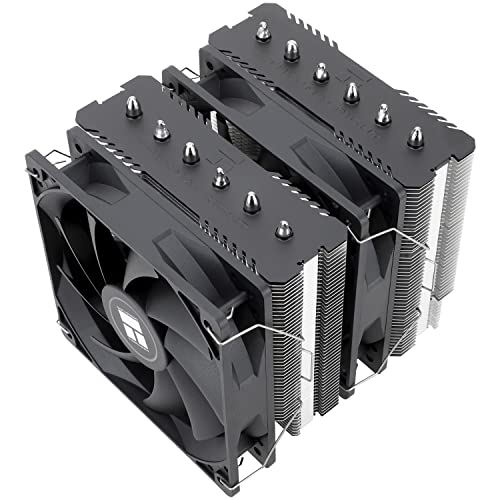
| Budget dual-tower air | Thermalright Peerless Assassin 120 SE | 25-30% | 55-70% | 85 C | Fans get audible above 65% |
| Mid-range dual-tower air | DeepCool AK620 | 25-30% | 55-70% | 85 C | Fans range 500 to 1850 RPM |
| Premium dual-tower air | Noctua NH-D15 G2 | 20-25% | 45-65% | 85 C | Large 140 mm fans stay quiet |
| Single-tower air | Arctic Freezer 36 | 25-30% | 60-75% | 80 C | Fans range 200 to 1800 RPM |
| 360 mm liquid cooler | Arctic Liquid Freezer III 360 | Pump fixed, fans 20-30% | Fans 40-60% | 85 C | Keep pump speed steady |
How a CPU Fan Curve Works
Your motherboard reads the processor temperature sensor, compares it with the curve you set, and sends a pulse-width-modulation (PWM) signal on the fan header. A PWM signal tells a four-pin fan what percentage of its maximum speed to run. The fan itself stays powered; only the speed command changes. That is why PWM fans can run very slowly without stalling and why they respond smoothly to small changes in the curve.
Three ideas matter. The first is the minimum speed, the lowest percentage the fan will run at idle. The second is the slope, how quickly the percentage rises as temperature rises. The third is the ceiling, the temperature at which the fan reaches full speed. A steep slope reacts fast but produces noisy surges, while a shallow slope keeps noise stable and lets heat sink build up in the cooler a little before the fans respond.
Why modern CPUs make the curve harder
Current Ryzen and Intel chips boost aggressively and spike in temperature within a second or two when a game loads a level or a browser opens a heavy page. A Ryzen chip may touch 90 degrees briefly even with a good cooler, by design. If your curve reacts to each spike, the fans will rev up and drop repeatedly, which is more annoying than a steady moderate hum. The cure is a shallower slope, a short response delay where the board supports it, and a ceiling placed high enough that a brief spike does not trigger full speed.
Best Starting Curve for Most Gaming PCs
Use this table as a baseline for an air cooler on a mid-range or high-end gaming processor, then adjust from there. It combines the shapes that several fan-control guides agree on.
| CPU temperature | Fan speed (PWM) | What to expect |
|---|---|---|
| 30 C | 25% | Near-silent idle on a desktop |
| 45 C | 35% | Light browsing and video |
| 60 C | 50% | Typical gaming load on an efficient chip |
| 70 C | 65% | Heavy gaming or short renders |
| 75 C | 70% | Sustained load, audible but not harsh |
| 85 C | 100% | Safety margin for stress and long renders |
Noctua’s support guidance suggests that, as a rule of thumb, you can add about 10 percent to the PWM values for CPU fans, because the cooler needs airflow across the fins even when the temperature looks fine. Spread the climb across the 55 to 75 degree range for most air-cooled builds to avoid sudden jumps in noise.
Best Silent Curve for Quiet Builds
If noise matters more than the last few degrees, hold the fans lower for longer and accept slightly higher temperatures. One quiet profile used in several guides sets 0 percent at 30 degrees if your fans support zero-RPM mode, 25 percent at 40 degrees, 40 percent at 50 degrees, 60 percent at 60 degrees, 80 percent at 70 degrees and 100 percent at 80 degrees. Only use zero-RPM on coolers with enough passive surface area, such as a large dual-tower, and only on lightly loaded systems.
Best Performance Curve for Overclocked or Hot Chips
For processors that run hot, such as a 16-core part or an overclocked chip, raise the baseline and bring the ceiling in earlier. Start with 35 percent at 40 degrees, 60 percent at 55 degrees, 80 percent at 65 degrees and 100 percent at 75 degrees. Ryzen processors that reach 90 to 95 degrees under load do better with 100 percent fan speed at about 85 to 90 degrees, which keeps a safety margin without screaming at every minor boost spike.
Curve Settings for Five Real Cooler Types
Thermalright Peerless Assassin 120 SE
This dual-tower cooler uses six copper heatpipes and two 120 mm PWM fans, stands about 155 mm tall, and is widely rated for roughly 245 to 265 W of heat. Roundups describe it as the best value air cooler in 2026. Its fans are inexpensive, so noise rises noticeably above about 65 percent. Use the gaming baseline table, but keep the 100 percent point at 85 degrees and avoid steep slopes below 60 degrees. Tom’s Hardware measured it around 34.5 dBA at maximum speed, so staying under full speed pays off.
- Best for: budget builds with a mid-range processor.
- Trade-off: tower height can interfere with tall memory modules, so check clearance before setting any curve.
DeepCool AK620
The AK620 is a dual-tower design with six copper heatpipes and two 120 mm fans running 500 to 1850 RPM, standing about 160 mm tall and rated near 250 to 260 W. Because its fans have a relatively high minimum speed, set a 25 to 30 percent idle floor and let the ramp begin near 50 degrees. Its mid-range price and strong cooling make it a good match for the baseline curve.
- Best for: mid-range builds wanting a quieter and cooler step up.
- Trade-off: heavier at roughly 1.2 kg, so mount it carefully in a moved or shipped system.
Noctua NH-D15 G2
The NH-D15 G2 has eight heatpipes and two 140 mm NF-A14x25r G2 fans, measures 168 mm tall and about 1,525 g, and carries a six-year warranty. Sources put its noise near 24.6 to 24.8 dB(A) at its quietest. In a comparison on a Ryzen 9 9950X at 230 W, one source recorded 71 degrees for the NH-D15 G2 against 74 degrees for the Peerless Assassin. Large fans mean you can keep speeds low: start at 20 percent idle and cap the mid-range around 60 percent for typical gaming.
- Best for: quiet, high-power processors and long-term builds.
- Trade-off: high cost and size, so verify case and memory clearance.
Arctic Freezer 36
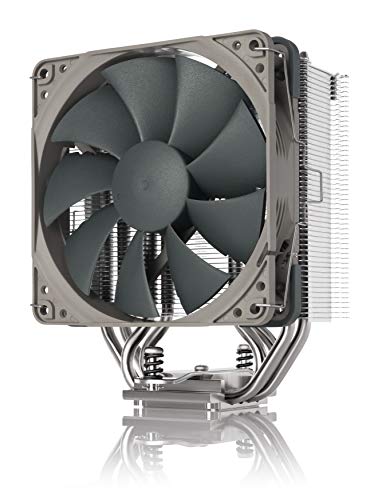
The Freezer 36 is a single-tower cooler with four heatpipes and two 120 mm P-series fans running 200 to 1800 RPM, and one review lists it at 200 W and 158 mm tall. Its lower thermal capacity means the ramp must start earlier and the ceiling should come sooner. Use 25 percent at 35 degrees, 45 percent at 50 degrees, 65 percent at 65 degrees and 100 percent at 80 degrees. The wide fan speed range gives it a very quiet floor at idle.
- Best for: mid-range chips up to about 200 W.
- Trade-off: less headroom for overclocked processors than a dual-tower.
Arctic Liquid Freezer III 360
This 360 mm all-in-one liquid cooler has a radiator about 398 by 120 by 38 mm, a PWM pump and fans running 200 to 1800 RPM on the standard model. Liquid coolers need two separate curves. Set the pump to a steady speed, not tied to temperature, because varying pump speed with CPU temperature creates flow surges and audible changes. Then tie the radiator fans to the CPU or coolant sensor with a gentle ramp: 25 percent at 40 degrees, 45 percent at 60 degrees and 80 percent at 75 degrees.
- Best for: high-power processors, compact heat from sustained loads.
- Trade-off: thick radiator needs case clearance, and pump noise cannot be fixed with a fan curve.
How to Set a Fan Curve in the BIOS: Step by Step
- Update nothing yet; record your baseline. Run a stress test or a demanding game for 15 minutes with default settings and note the peak temperature and how loud the fans are. This gives you a reference to compare against.
- Open the BIOS. Restart and press Delete or F2 during boot to enter the setup screen, then find the fan or monitor page.
- Select PWM control mode. Noctua recommends choosing PWM rather than Auto when using four-pin fans, because Auto can fail to recognize PWM fans and fall back to voltage control, which limits the speed range.
- Edit the curve points. On ASUS boards, open Monitor then Q-Fan Configuration, choose Manual and drag the points. A typical example is 30 percent at 40 degrees, 45 percent at 55 degrees, 70 percent at 70 degrees and 100 percent at 85 degrees. On Gigabyte boards, open Smart Fan 5 and adjust the graph; a common base is 20 percent at 0 degrees, 30 percent at 35 degrees, 50 percent at 50 degrees and 100 percent at 65 degrees, which you should shift upward for hot Ryzen chips.
- Save and test. Press F10 to save, boot into Windows, rerun the same load, and compare temperature and noise with your baseline.
- Adjust one point at a time. If the fans surge, flatten the slope between 55 and 75 degrees. If temperatures exceed your comfort level, raise the middle points by 5 to 10 percent.
Common Fan Curve Mistakes
- Linking every fan to CPU temperature. Case fans tied to the CPU sensor ramp up and down with every spike. Use a system or graphics-card sensor for case fans and keep the CPU sensor for the cooler’s fans only.
- Steep slopes. Jumping from 30 to 100 percent across 10 degrees produces constant surges. Spread the climb out.
- Running the pump on a curve. AIO pumps should stay at a steady speed.
- Ignoring the minimum speed. Some fans stall below 20 percent. Set a floor that keeps the fan turning reliably.
- Judging by idle only. Always check the curve under a sustained gaming or rendering load.
A Worked Example: Tuning for a Real Gaming Session
Suppose a gaming PC with a dual-tower air cooler idles at 38 degrees and reaches 72 degrees in a long game session. With the baseline curve, the fans would sit around 40 percent at idle and about 67 percent in game. If that level is too loud, drop the 60 and 70 degree points by 5 percent each and recheck. If the processor then rises to 76 degrees, you have traded 4 degrees for a noticeable drop in noise, which is usually a good deal because modern chips are designed to run safely up to 90 degrees or higher. If it climbs past 82 degrees, restore the previous values. This one-change-at-a-time approach finds your personal balance in three or four tests.
Software Options When the BIOS Is Not Enough
Windows software can offer finer control than a basic BIOS page. ASUS includes Fan Xpert inside Armoury Crate, and many boards pair with vendor utilities. Third-party tools can build curves with hysteresis and response delay, linking fans to any sensor. The trade-off is that software only runs after the operating system loads, so the BIOS curve still protects the system during startup and when the software fails. Keep a safe BIOS curve as the fallback even if you use software for daily control.
Matching Case Fans to the CPU Curve
The processor cooler is only one part of the airflow system. If the case fans run too slowly, hot air recirculates around the cooler and the CPU fan has to work harder to compensate. A balanced setup uses intake fans at the front and an exhaust fan at the rear or top, with speeds that follow a calmer curve than the CPU fan. A practical rule is to set case fans at 30 to 40 percent at idle and let them rise to 60 to 70 percent when the graphics card passes about 70 degrees. Because a gaming session heats the GPU and CPU together, linking case fans to the hotter of the two sensors, or to a motherboard sensor, gives smoother noise than tying them to the CPU alone.
| Fan role | Best sensor | Idle speed | Load speed |
|---|---|---|---|
| CPU cooler fans | CPU package temperature | 20-30% | 50-75% |
| Radiator fans (AIO) | CPU or coolant temperature | 20-30% | 40-80% |
| Front intake fans | GPU or motherboard sensor | 30-40% | 60-70% |
| Rear or top exhaust fan | Motherboard sensor | 30-40% | 55-70% |
| AIO pump | None (fixed speed) | Constant | Constant |
Seasonal and Dust Adjustments
A curve that is perfect in winter can be too quiet in summer, since a warmer room raises every temperature by several degrees. Check your results when the room temperature changes and shift the middle points up by 5 to 10 percent if peak temperatures creep higher. Dust is the other slow change. Filters and heatsink fins clog over months, which raises temperatures at the same fan speed. If the same game suddenly pushes the fans harder than it used to, clean the filters and blow out the cooler fins before you touch the curve, because the curve is rarely the actual problem.
Frequently Asked Questions
What is a good CPU fan curve?
A good curve keeps fans quiet at idle, rises gradually from about 50 to 75 degrees, and reaches full speed near 85 degrees. A baseline of 25 percent at 30 degrees, 50 percent at 60 degrees, 70 percent at 75 degrees and 100 percent at 85 degrees suits most air-cooled gaming PCs.
What temperature should my CPU fan reach 100 percent?
Most guides place the 100 percent point between 80 and 90 degrees. Choose the lower end for a quiet-focused build with a strong cooler, and the higher end for Ryzen chips that spike to 90 degrees briefly by design.
Should the CPU fan curve be steep or flat?
A flatter slope is usually better because it avoids noisy surges. Aim to spread the increase across the 55 to 75 degree range instead of jumping quickly.
Should I run my AIO pump on a fan curve?
No. Keep the pump at a constant speed, since changing pump speed with temperature creates flow surges. Control only the radiator fans with the curve.
Is PWM or DC mode better for CPU fans?
PWM is better for four-pin fans because it offers a wider speed range and lower minimum speed. Noctua advises selecting PWM manually, as Auto mode may fall back to voltage control.
Why do my fans keep speeding up and slowing down?
The curve is reacting to short temperature spikes. Flatten the slope, raise the ceiling slightly, add a response delay if your software supports it, and move case fans to a different temperature source.





Write Your Review
No reviews yet. Be the first to share your experience!