
Our Short List of 3

- Best for: Dual and triple setups on a budget, where buying identical screens matters more than maximum sharpness.
- Model: ASUS VA27EHF
- Link: https://www.amazon.com/dp/B0C7BMTX7Y
- Screen: 27-inch IPS, Full HD 1920 by 1080
- Refresh rate: 100Hz

- Best for: Laptop and desktop users who want a sharp dual 4K workspace with a single-cable dock connection.
- Model: Dell S2722QC
- Link: https://www.amazon.com/dp/B09DTDRJWP
- Screen: 27-inch IPS, 4K UHD 3840 by 2160
- Refresh rate: 60Hz

- Best for: Multi-monitor desks where clean cabling matters, and colour-consistent pairs for design and office work.
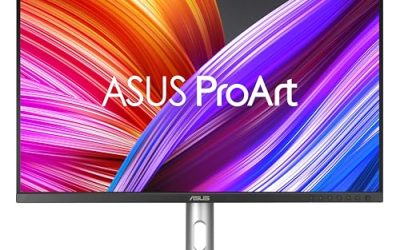
- Model: ASUS ProArt Display PA278CV
- Link: https://www.amazon.com/dp/B08LCPY1TR
- Screen: 27-inch IPS, QHD 2560 by 1440
- Refresh rate: 75Hz
All 3 Picks at a Glance
| Product | Specs | Action |
|---|---|---|
| 1. ASUS VA27EHF — Best Budget Monitor to Buy in Pairs |
| Check price on Amazon |
| 2. Dell S2722QC — Best 4K Monitor for a Dual Setup |
| Check price on Amazon |
| 3. ASUS ProArt PA278CV — Best Monitor for Daisy-Chained Multi Monitor Setups |
| Check price on Amazon |
Key takeaways
- Find the best monitors for multi monitor setup: thin-bezel 27-inch displays with matching panels, daisy-chain support and VESA mounts for dual screens.
Introduction
The best monitors for multi monitor setup are not simply the best monitors overall. A great single display can make a poor second screen, because a multi-monitor desk lives or dies on matching: identical panels, matching colours, thin bezels and a clean way to connect two or three screens to one computer. Get those details right and a dual-monitor setup feels like one wide workspace; get them wrong and the eye keeps catching the seam, the colour shift and the height mismatch.
This guide looks at 27-inch monitors that work well in pairs and triples. The picks share the traits that matter for multi-screen desks: slim bezels so the gap between screens stays small, IPS panels so colours stay consistent from the side, VESA mounting so a dual arm can hold them at exactly the same height, and connection options that suit both laptop docks and desktop graphics cards. All three were checked against their Amazon listings, with the ASIN and specifications taken from the listing.
How to Choose Monitors for a Multi Monitor Setup
Buy identical monitors when you can
The single most important rule for a multi-monitor setup is to buy the same model twice, or three times. Two different monitors almost always differ in brightness, colour temperature and bezel size, and the difference is visible every time your eyes cross the gap. Identical panels can still vary slightly, but they start from the same calibration and the same design, so matching them takes minutes rather than hours. If your budget only stretches to one good monitor now, buy a model you can still find later, and add the matching second screen when you can.
Thin bezels matter more than screen size
On a multi-monitor desk, the bezel is part of the experience. A frameless or three-sided borderless design leaves only a few millimetres of plastic between the two pictures, so windows and spreadsheets feel almost continuous. Thick bezels create a visible black bar in the middle of your work. All three picks in this guide have slim bezels on at least three sides, which is the feature to look for first.
Resolution and size should match across screens
Mixing a 4K screen with a Full HD screen of the same size causes real annoyance: text and windows change size when dragged across the gap, and Windows scaling behaves differently on each display. Keep every screen in the setup at the same size and the same resolution. A pair of 27-inch QHD monitors is a popular sweet spot, giving plenty of space without the scaling quirks of mixed resolutions. A pair of 27-inch 4K monitors is sharper but demands more from the graphics card and the laptop.
Plan the connection before you buy
Count the video outputs on your computer or dock before choosing monitors. Many laptops have only one video-capable USB-C port, so a pair of screens usually needs a USB-C dock or a monitor with DisplayPort daisy-chaining, where one cable runs from the computer to the first monitor and a second cable links the first monitor to the second. Desktop graphics cards usually have several HDMI and DisplayPort outputs, so direct connections are easier. Check whether your graphics card supports the total resolution of all your screens at once, especially with two 4K panels.
Mounting and ergonomics
Two monitors on their factory stands eat a lot of desk depth and rarely sit at exactly the same height. A VESA-compatible monitor can go on a dual monitor arm, which lines both screens up precisely, frees desk space underneath, and lets you angle the screens slightly inward. Check that each monitor has a standard 100 by 100 millimetre VESA mount and that the arm you choose supports the weight of two 27-inch panels.
Top Picks
1. ASUS VA27EHF — Best Budget Monitor to Buy in Pairs
- Best for: Dual and triple setups on a budget, where buying identical screens matters more than maximum sharpness.
- Model: ASUS VA27EHF
- Link: https://www.amazon.com/dp/B0C7BMTX7Y
- Screen: 27-inch IPS, Full HD 1920 by 1080
- Refresh rate: 100Hz
Dual and triple setups on a budget, where buying identical screens matters more than maximum sharpness.
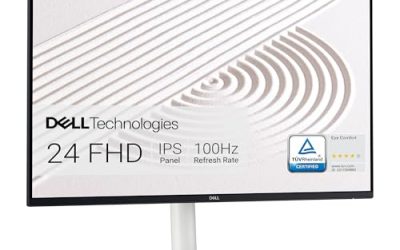
The ASUS VA27EHF is the pick for anyone building a dual or triple setup on a sensible budget. It is a 27-inch Full HD IPS panel with a frameless design, a 100Hz refresh rate and a 1 ms response time, so motion stays smooth and the bezel gap between two screens stays small. Because it costs far less than a 4K panel, buying two or three identical units is realistic, and identical units are exactly what a good multi-monitor setup needs. It has HDMI input, a VESA mount, low blue light and flicker-free backlighting, and a tilt stand for the desk.
Pros: Frameless bezels keep the gap between screens small; low enough cost to buy two or three identical panels; smooth 100Hz refresh; VESA mount ready.
Cons: Full HD at 27 inches is less sharp than QHD or 4K; no USB-C or DisplayPort input, so it needs HDMI or an adapter; no built-in speakers and no height adjustment on the included stand.
2. Dell S2722QC — Best 4K Monitor for a Dual Setup
- Best for: Laptop and desktop users who want a sharp dual 4K workspace with a single-cable dock connection.
- Model: Dell S2722QC
- Link: https://www.amazon.com/dp/B09DTDRJWP
- Screen: 27-inch IPS, 4K UHD 3840 by 2160
- Refresh rate: 60Hz
Laptop and desktop users who want a sharp dual 4K workspace with a single-cable dock connection.
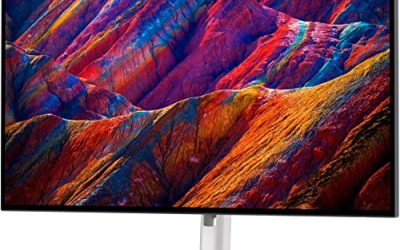
The Dell S2722QC brings 4K sharpness to a multi-monitor desk. Two of these side by side give an enormous workspace with crisp text on both screens, and the three-sided thin bezel keeps the centre gap narrow. Its USB-C port carries video and 65 watts of charging, which suits a laptop dock setup, and it also has two HDMI ports and a DisplayPort input. Built-in dual 3-watt speakers mean no extra audio hardware on the desk, and the stand adjusts for height, tilt, pivot and swivel, so matching two screens by hand is straightforward even without a monitor arm.
Pros: Sharp 4K text on both screens; USB-C video and charging from a dock; built-in speakers; fully adjustable stand makes matching two screens easy.
Cons: Two 4K panels demand a capable graphics card or dock; 60Hz refresh only; 65W USB-C charging is shared, so a dock setup needs care with power.
3. ASUS ProArt PA278CV — Best Monitor for Daisy-Chained Multi Monitor Setups
- Best for: Multi-monitor desks where clean cabling matters, and colour-consistent pairs for design and office work.
- Model: ASUS ProArt Display PA278CV
- Link: https://www.amazon.com/dp/B08LCPY1TR
- Screen: 27-inch IPS, QHD 2560 by 1440
- Refresh rate: 75Hz
Multi-monitor desks where clean cabling matters, and colour-consistent pairs for design and office work.
The ASUS ProArt PA278CV is the pick for the cleanest multi-monitor wiring. Its DisplayPort daisy-chaining lets one cable run from the computer to the first monitor and another from the first monitor to the second, cutting cable clutter and freeing ports on the laptop or dock. The 27-inch QHD IPS panel runs at 2560 by 1440 pixels with 100 percent sRGB and 100 percent Rec. 709 coverage, a Delta E under 2 and Calman verification, so colours match well across two calibrated panels. The USB-C port delivers 65 watts of charging, and the monitor includes a USB hub with four downstream USB-A ports and built-in 2-watt stereo speakers.
Pros: DisplayPort daisy-chaining simplifies two-screen wiring; factory-calibrated colour keeps two panels looking alike; QHD resolution is lighter on graphics than 4K; USB hub and speakers included.
Cons: Daisy-chaining needs a compatible graphics card or dock and the right DisplayPort version; QHD is less sharp than 4K for fine text; 65W charging may not cover large laptops.
Comparison Table
| Monitor | Size and Resolution | Bezel | Multi-Monitor Strength | VESA Mount | Speakers |
|---|---|---|---|---|---|
| ASUS VA27EHF | 27-inch, Full HD | Frameless | Cheap to buy identical pairs | Yes | No |
| Dell S2722QC | 27-inch, 4K UHD | Three-sided thin | Sharp dual 4K, USB-C from a dock | Yes | Yes, dual 3W |
| ASUS ProArt PA278CV | 27-inch, QHD | Slim | DisplayPort daisy-chaining | Yes | Yes, dual 2W |
Setting Up Two Monitors Well
Hardware is only half of a good multi-monitor setup. In Windows display settings, arrange the two screens so their edges line up with how they sit on the desk, and set the same scaling on both, or text will jump in size when dragged across. Put the primary monitor directly in front of you and the second screen angled slightly inward, with the tops of both screens at the same height and at eye level. A dual monitor arm makes this alignment far easier than two factory stands.
Give each screen a job: the main screen for the active document or application, the second screen for reference material, email or chat. This division reduces window shuffling more than raw screen space does. Finally, check the refresh rate of both panels in display settings, since Windows sometimes defaults a second monitor to a lower rate, and confirm that the graphics driver is up to date so both screens run at their native resolution.
FAQ
How many monitors can I connect to one computer?
It depends on the graphics card and the dock. Most desktop graphics cards support three or four displays at once, while most laptops support one or two external screens plus the built-in display. Check the laptop or graphics card specifications for the maximum number of displays and the maximum total resolution before buying a second or third monitor.
Should both monitors be the same model?
Yes, whenever possible. Identical monitors share the same panel, brightness, colour calibration and bezel size, so the two screens look like one workspace. Mixing models usually creates a visible colour and brightness difference at the seam, even after calibration.
What is DisplayPort daisy-chaining, and do I need it?
Daisy-chaining, also called Multi-Stream Transport, lets you connect two monitors in a chain with one cable from the computer to the first monitor and a second cable from the first monitor to the second. It is useful when the laptop or dock has only one video output. Both monitors and the graphics output must support it, and the total bandwidth limits the resolutions you can run.
Is a dual monitor arm worth it?
For two 27-inch monitors, usually yes. An arm lines both screens up at exactly the same height, angles them inward, and frees the desk space that two factory stands would occupy. Check that the arm supports the weight of both panels and that each monitor has a standard VESA mount.
Does a second monitor slow down my computer?
A second monitor adds work for the graphics processor, especially at 4K resolution, but for office work, browsing and documents the effect is small on any modern laptop or desktop. Gaming or video editing across two high-resolution screens is different and needs a capable graphics card. If the laptop feels slow after adding a screen, lower the external resolution or close graphics-heavy applications on the second display.
Conclusion
The best monitors for multi monitor setup are the ones that match: identical panels, slim bezels, the same resolution on every screen, and a connection plan that fits your computer. The ASUS VA27EHF is the best budget route to a matched pair or triple, with frameless bezels and a 100Hz panel. The Dell S2722QC is the best dual 4K option, with sharp text, USB-C docking and built-in speakers. The ASUS ProArt PA278CV is the best choice for clean daisy-chained wiring and colour-consistent pairs. Buy identical screens, mount them at the same height, and confirm stock and the seller on the live Amazon listing before ordering.
Disclosure: As an Amazon Associate, we earn from qualifying purchases.
More from Amazon
Programs that pair well with the guide above. Offers and eligibility are set by Amazon and may change.
Free shipping on eligible items, Prime Video and more. Eligible new members can start with a free trial.
Start a Prime free trialAd-free music streaming. Eligible new subscribers can start with a free trial.
Try Music Unlimited freeA Prime membership for ages 18-24 with a trial period. Eligibility is set by Amazon.
See Prime for Young AdultsAudiobooks and podcasts to listen to on the go. Eligible new members can start with a free trial.
Try Audible freeAs an Amazon Associate we earn from qualifying purchases.
Write Your Review
No reviews yet. Be the first to share your experience!