
Key takeaways
- Find the best monitors for web development with sharp 4K text, accurate color, USB-C hubs, and ergonomic stands for developers and long workdays at home.
The best monitors for web development make code easier to read, designs easier to judge, and long workdays easier on the eyes. A good development monitor is not about gaming speed or cinematic brightness. It is about crisp text at normal viewing distance, consistent color across the screen, enough space for an editor, a browser, and a terminal side by side, and a stand that lets you sit comfortably for hours. When those qualities come together, you spend less time scrolling, squinting, and second-guessing colors, and more time building.


Code editors reward high pixel density, because small fonts stay sharp instead of turning fuzzy. Browsers and design tools reward accurate color, because a shade that looks right on your screen should look right on a visitor’s screen too. This guide explains what to look for, then rounds up four 27-inch 4K monitors that fit the job well, each with a different strength.
How to Choose a Monitor for Web Development
Resolution and Size
For most developers, a 27-inch display with 3840 x 2160 resolution is the sweet spot. At that size and resolution, text is noticeably sharper than on a 27-inch 1440p panel, and you can fit two code panes, a preview window, and a chat or terminal window without constant resizing. A 24-inch 4K panel can feel cramped for split views, while a 32-inch 4K panel is excellent if your desk has the depth for it, but it costs more desk space and often more money. Ultrawide monitors are another option, and they suit developers who live in split-screen layouts, but they can complicate color work and window management, so they are a preference rather than a requirement.
Scaling matters too. On Windows and macOS, 4K at 27 inches usually works best at 150 percent scaling, which keeps interface text readable while preserving the sharpness advantage. Check that your operating system and editor handle scaling cleanly before you commit to a very high resolution on a small screen.
Text Clarity and Panel Type
An IPS panel is the safest choice for web development. IPS displays offer wide viewing angles, so colors and contrast stay consistent when you lean back, stand up, or share your screen with a colleague sitting beside you. They also tend to have good color accuracy out of the box. VA panels can offer deeper blacks, but they sometimes show color shift at an angle, which is unhelpful when you are judging a design. TN panels are fast, but their viewing angles and color reproduction are usually weaker, so they are a poor fit for this use.
Look for a matte or low-glare coating if your workspace has windows or bright overhead lights. Reflections compete with small text, and a glossy screen can turn a bright room into a mirror. A monitor with a flicker-free backlight and a low blue light mode can also help during late sessions, although the most important comfort factor is still taking regular breaks and keeping the screen at a sensible brightness.
Color Accuracy
Web developers do not need a reference-grade grading monitor, but they do need color they can trust. A monitor that covers 99 percent or 100 percent of the sRGB color space is a strong starting point, because sRGB is the color space most web content is designed for. Wider coverage of DCI-P3 is useful if you also work with photography, video, or modern displays, and it helps future-proof your setup as more content moves beyond sRGB.
Factory calibration is worth seeking out. A monitor that ships with a calibration report and a Delta E value under 2 means the colors should be close to accurate without you having to buy a calibrator or spend an afternoon adjusting settings. Delta E is a measure of color error, and lower is better. If you do serious design work, consider a hardware calibrator later, but for most web development, a well-calibrated factory setting is enough.
Connectivity and USB-C
A USB-C port with power delivery is one of the most practical features a development monitor can have. With a single cable, a laptop can receive video, charge, and connect to the monitor’s USB hub at the same time. Power delivery of 65 watts is enough for many ultrabooks, while 90 watts or more covers larger laptops that draw more power under load. If you use a desktop, USB-C matters less, but it is still useful for a second machine or a visiting laptop.
Also check for DisplayPort and HDMI inputs, so you can connect a desktop and a laptop at once, and a built-in KVM switch if you switch between two computers regularly. A KVM lets one keyboard and mouse control both machines through the monitor, which saves desk space and avoids unplugging cables. An Ethernet port on the monitor is a bonus for laptop users who want a wired network connection through the hub.
Ergonomics and Eye Comfort
You will sit in front of this screen for many hours, so the stand matters as much as the panel. Height adjustment, tilt, swivel, and pivot to portrait mode are all valuable. Portrait mode is especially useful for web development, because a long page of code or a tall web page fits naturally in a vertical orientation, and a second monitor in portrait can hold documentation or a preview while the main screen holds the editor.
Refresh Rate and Response Time
A 60 Hz refresh rate is fine for web development. Higher refresh rates feel smoother when scrolling through long files, and some developers prefer 75 Hz or more, but they are not essential for coding, writing, or design review. Response time is similarly unimportant for this work, as long as it is in the normal range for an IPS office monitor. Spend your budget on resolution, color, and connectivity first, and treat refresh rate as a bonus.
Top Picks
1. Dell UltraSharp U2723QE — Best Overall for Web Development
The Dell UltraSharp U2723QE is a 27-inch 4K monitor built around an IPS Black panel, and it is the most balanced choice in this roundup. IPS Black technology delivers a contrast ratio of around 2000:1, roughly twice that of a conventional IPS panel, so dark code themes look deeper and shadows in images hold more detail. The resolution is 3840 x 2160, the refresh rate is 60 Hz, and Dell lists 100 percent sRGB, 100 percent Rec. 709, and 98 percent DCI-P3 coverage, with DisplayHDR 400 support and a Delta E under 2.
Connectivity is a major strength. The monitor offers USB-C with 90 watts of power delivery, DisplayPort 1.4 input and output for daisy-chaining a second display, HDMI, an Ethernet port, and several USB-A ports, plus a built-in KVM switch. That combination makes it easy to run a laptop and a desktop from one screen, one keyboard, and one mouse. The stand adjusts for height, tilt, swivel, and pivot, and the slim bezels suit a dual-monitor setup.
For web development, the U2723QE covers the essentials without a weak spot: sharp text, trustworthy color, a strong hub, and comfortable ergonomics. Its main trade-offs are a 60 Hz refresh rate and a design that prioritizes work over entertainment, but neither matters much for coding and design review. If you want one monitor that does everything a developer needs and will last through several laptop upgrades, this is the pick to start with.
View the Dell UltraSharp U2723QE on Amazon
2. LG UltraFine 27UN850-W — Best Value 4K Option
The LG UltraFine 27UN850-W is a 27-inch 4K IPS monitor that delivers the core web development experience at a more approachable level than the premium picks in this guide. It offers 3840 x 2160 resolution, a 60 Hz refresh rate, VESA DisplayHDR 400 certification, and 99 percent sRGB coverage, with AMD FreeSync support and a 5 ms response time. The panel is a standard IPS type rather than IPS Black, so contrast is more ordinary, but text remains sharp and colors remain consistent across wide viewing angles.
Its USB-C port provides 60 watts of power delivery, which is enough for many thin laptops and Chromebooks, and it also carries DisplayPort and HDMI inputs. The stand adjusts for height, tilt, and pivot, so you can rotate the screen to portrait for long code files or tall pages. Built-in speakers are included, which is a small convenience for video calls and short clips, although most developers will still prefer headphones or external speakers for serious listening.
The 27UN850-W suits developers who want a genuine 4K upgrade without paying for the widest color gamut or the most powerful hub. It is a good fit for a first 4K monitor, a second screen in a dual setup, or a home office where the laptop is a light ultrabook. Its limits are the 60-watt USB-C charging, which may not keep a large laptop charged under heavy load, and the narrower color gamut compared with the ProArt and UltraSharp models here, but for general web work those limits are easy to live with.
View the LG UltraFine 27UN850-W on Amazon
3. ASUS ProArt Display PA279CRV — Best Color Accuracy
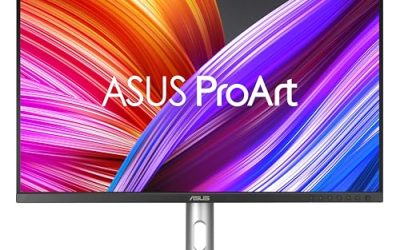
The ASUS ProArt Display PA279CRV is a 27-inch 4K monitor aimed at creators, and its color performance makes it a strong choice for developers who also handle design, photography, or front-end work where visual judgment matters. It uses a 27-inch IPS panel at 3840 x 2160 resolution, with 99 percent DCI-P3 and 99 percent Adobe RGB coverage, a Delta E under 2, and Calman Verified calibration. That combination means colors on screen should closely match the intended design, which reduces surprises when a site goes live.
Connectivity is generous for a creator monitor. USB-C delivers 96 watts of power, DisplayPort supports daisy-chaining, and HDMI is included for a second machine or a console. The ergonomic stand adjusts for height, tilt, swivel, and pivot, and the slim profile keeps the desk footprint modest. The monitor also supports VESA DisplayHDR 400, which adds some extra range for HDR content, although HDR is a secondary concern for most web work.
For a developer who reviews mockups, edits images, or checks a design system against a style guide, the PA279CRV offers a clear advantage over a general office monitor. Its 60 Hz refresh rate and work-focused feature set are the same trade-offs as the other picks here, and its color strengths matter most if your workflow includes visual design. If color accuracy is your top priority, this is the monitor to choose.
View the ASUS ProArt Display PA279CRV on Amazon
4. BenQ PD2705U — Best for Designers Who Also Code
The BenQ PD2705U is a 27-inch 4K designer monitor that fits developers who spend part of their day in design tools and part in code. It offers a 3840 x 2160 IPS panel, 99 percent sRGB and 99 percent Rec. 709 coverage, HDR10 support, and factory calibration with a Delta E of 3 or under. BenQ’s AQCOLOR technology is the brand’s name for its color tuning, and the monitor includes dedicated modes for CAD, CAM, animation, and darkroom work, which can be useful if your projects cross into those areas.
Practical features stand out. USB-C provides 65 watts of power delivery, a KVM switch lets you control two computers with one keyboard and mouse, and a Hotkey Puck controller sits on the desk so you can switch color modes and settings without reaching for the monitor’s buttons. The stand adjusts for height, tilt, swivel, and pivot, and the monitor supports ICC Sync, which helps keep color profiles consistent between the display and a connected Mac.
The PD2705U is best suited to a developer-designer hybrid workflow, where accurate color and quick mode switching matter as much as sharp text. Its USB-C power is lower than the Dell and ASUS picks, so a large laptop may need its own charger during heavy work, and its brightness is modest compared with some office monitors. For a mixed creative and coding desk, though, it is a thoughtful and well-rounded option.
View the BenQ PD2705U on Amazon
Comparison Table
| Monitor | Size and Resolution | Panel and Color | USB-C Power | Stand |
|---|---|---|---|---|
| Dell UltraSharp U2723QE | 27-inch, 3840 x 2160 | IPS Black, 100 percent sRGB, 98 percent DCI-P3 | 90 watts | Height, tilt, swivel, pivot |
| LG UltraFine 27UN850-W | 27-inch, 3840 x 2160 | IPS, 99 percent sRGB | 60 watts | Height, tilt, pivot |
| ASUS ProArt PA279CRV | 27-inch, 3840 x 2160 | IPS, 99 percent DCI-P3, 99 percent Adobe RGB | 96 watts | Height, tilt, swivel, pivot |
| BenQ PD2705U | 27-inch, 3840 x 2160 | IPS, 99 percent sRGB, 99 percent Rec. 709 | 65 watts | Height, tilt, swivel, pivot |
How to Set Up Your Development Monitor
Start by placing the screen so the top of the display is roughly at eye level and about an arm’s length away. That position keeps your neck neutral and your eyes looking slightly downward, which is more comfortable over a long session. If you use a laptop as a second screen, put the external monitor directly in front of you and the laptop to one side, so your main work stays centered.
Set the resolution to the native 3840 x 2160 and choose a scaling level that keeps code readable without wasting space. On many systems, 150 percent scaling is a good starting point at 27 inches. Then set the color mode to sRGB for general web work, and avoid vivid or dynamic modes, which oversaturate colors and make design judgment harder. Arrange your windows with intent: editor on the main screen, browser preview beside it, and terminal or documentation in a smaller window. Keep brightness matched to the room rather than at maximum.
Frequently Asked Questions
Is a 27-inch 4K monitor good for web development?
Yes, a 27-inch 4K monitor is a strong choice for web development. The high pixel density keeps small code fonts sharp, and the screen is large enough for an editor, a browser preview, and a terminal side by side. It also offers accurate color in most models, which helps when you review designs and check how a site will look for visitors.
Do I need a 4K monitor, or is 1440p enough?
A 1440p monitor at 27 inches is usable and costs less, but 4K makes a visible difference for text clarity, especially if you read code for many hours a day. The extra pixels also give you more room for split views. If your budget allows it, 4K is worth the step up, and if it does not, a good 1440p IPS monitor with accurate color is still a solid choice.
What color accuracy do web developers need?
For most web work, coverage of 99 percent or 100 percent of sRGB is enough, because web content is generally designed in sRGB. A factory-calibrated monitor with a Delta E under 2 is a useful bonus. Wider DCI-P3 coverage is helpful if you also work with photography or video, but it is not a requirement for coding and general front-end work.
Is USB-C important on a development monitor?
USB-C is very convenient if you use a laptop, because one cable can carry video, charge the laptop, and connect peripherals through the monitor’s hub. Power delivery of 65 watts suits many ultrabooks, while 90 watts or more covers larger laptops. If you use a desktop only, USB-C matters less, but it is still useful for a second machine.
Should I get one large monitor or two smaller ones?
Both setups work, and the choice depends on how you like to arrange windows. One 27-inch 4K monitor gives you a clean, sharp workspace with no bezel in the middle. Two monitors let you dedicate one screen to code and the other to a browser, documentation, or communication tools. Many developers end up with a 27-inch 4K main display and a second monitor in portrait mode, which combines both approaches.
Conclusion
The best monitors for web development share the same foundation: a sharp 4K IPS panel, accurate sRGB color, a comfortable ergonomic stand, and enough connectivity to keep a laptop setup tidy. The Dell UltraSharp U2723QE is the most balanced pick overall, with strong contrast, a powerful hub, and a KVM switch. The LG UltraFine 27UN850-W offers the core 4K experience at a more approachable level. The ASUS ProArt PA279CRV leads on color accuracy for design-heavy work, and the BenQ PD2705U suits developers who move between design tools and code. Choose the one that matches your workflow, set it up at eye level with sensible scaling, and your code, your designs, and your eyes will all benefit.
Disclosure: As an Amazon Associate, we earn from qualifying purchases.
More from Amazon
Programs that pair well with the guide above. Offers and eligibility are set by Amazon and may change.
Free shipping on eligible items, Prime Video and more. Eligible new members can start with a free trial.
Start a Prime free trialAd-free music streaming. Eligible new subscribers can start with a free trial.
Try Music Unlimited freeA Prime membership for ages 18-24 with a trial period. Eligibility is set by Amazon.
See Prime for Young AdultsAudiobooks and podcasts to listen to on the go. Eligible new members can start with a free trial.
Try Audible freeAs an Amazon Associate we earn from qualifying purchases.
Write Your Review
No reviews yet. Be the first to share your experience!