
Key takeaways
- Monitor types explained in plain language: TN, IPS, VA and OLED panels, size and resolution classes, refresh rates and shapes, matched to your desk.
Choosing a monitor looks like a hunt through spec sheets, but the first decision is simpler than the numbers suggest: which type of screen fits the way you actually sit at your desk. Panel technology decides how colors, blacks and motion look. Size and resolution decide how much fits on screen and how sharp text appears. Shape and speed then fine-tune the result. Two monitors with identical diagonal measurements can feel completely different in daily use, because the type underneath the glass shapes everything you see.
This guide explains each monitor type in plain language, using the terms printed on retail boxes and spec sheets: the four panel families, the main size and resolution classes, the refresh classes, and the shapes on sale today. It serves home office workers, students, players and anyone replacing an aging screen who wants to name the right type first, then narrow the search to models that match it.
As an Amazon Associate we earn from qualifying purchases
How to Choose
Four choices define a monitor type. Work through them in this order, because each one narrows the next: the panel sets the picture character, the size and resolution set the workspace, the refresh class sets the motion, and the shape sets how the screen sits in front of you and wraps around your desk.
Begin With the Panel Type
Every desktop monitor sold today uses one of four panel families. TN panels switch pixels fastest and remain the budget route to very high refresh rates, but colors shift when you lean back or view from the side. IPS panels hold color and brightness across wide angles, which suits shared screens and long reading sessions. VA panels produce much deeper blacks, so films and dark game scenes gain depth, though fast motion can smear on cheaper designs. OLED panels light each pixel on its own, giving perfect blacks and near-instant response, with a standing caution about static images left on screen for months on end.
Match Size and Resolution to Your Desk
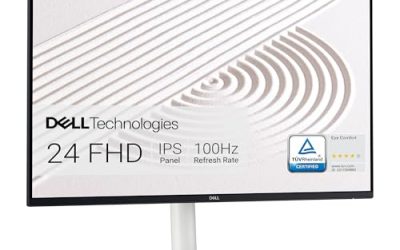
Size and resolution work as a pair, and the useful measure is pixel density: how many pixels sit in each inch of screen. A 24-inch screen at 1920 by 1080 gives roomy text and modest demands on the computer, a pairing that still suits study desks and spare rooms. At 27 inches, 2560 by 1440 is the balanced class, with sharper text and more space for side-by-side windows. Screens of 32 inches and above earn their keep at 3840 by 2160, where four windows stay readable at once. Buying size without resolution leaves text either tiny or soft, so settle the pairing before anything else.
Pick a Refresh Class Your Computer Can Feed
Refresh rate counts how many times the screen redraws each second, written in hertz. The 60Hz class remains the standard office type and handles documents, browsing and video without fuss. Classes at 100 to 144Hz make scrolling and window movement visibly smoother, and most modern laptops can drive them on the desktop without strain. Gaming classes at 165Hz and above shorten the delay between your input and the picture, but only when the graphics hardware can deliver matching frame rates in the games you play. A high-refresh screen fed by a weak graphics card simply repeats frames and wastes the panel.
Choose a Shape: Flat, Curved, Ultrawide or Portable
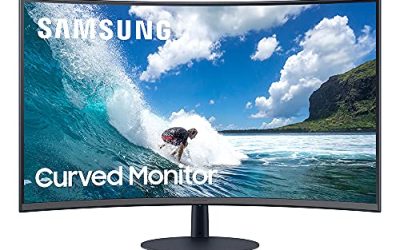
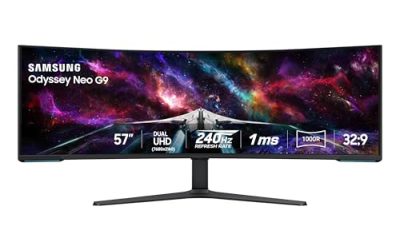
Shape is the last layer of type. Flat screens remain the default and suit any task, including color work where straight lines must stay honest. Curved screens bend the edges toward you, which evens out viewing distance on wide models and feels natural for play and films. Ultrawide screens stretch the aspect ratio to 21:9 or wider, replacing a two-monitor setup with one unbroken workspace for timelines and spreadsheets. Portable monitors form a separate class: slim USB-C screens of 14 to 17 inches that travel with a laptop and add a second display anywhere, from a train table to a spare desk.
Which One Fits Your Situation
With the four layers in mind, match the type to the seat you spend the most hours in. Most desks need a blend of traits, so weight the first situation below that sounds like your typical week.
You Read and Write All Day
Choose a 27-inch IPS screen at 2560 by 1440, or a 32-inch 4K model if your desk is deep. IPS keeps text contrast steady when you shift in your chair, the density keeps letters crisp without heavy scaling, and a 60 to 100Hz refresh class is plenty. Add a height-adjustable stand, since hours of reading punish a fixed neck angle more than any spec gap on the sheet.
You Play Fast Competitive Games
Choose a 24 or 27-inch screen from the 240Hz class or above, on a TN or fast IPS panel. At these sizes, 1920 by 1080 or 2560 by 1440 keeps frame rates high, pixel response stays quick, and the whole screen sits inside your field of view without head turns during a match. OLED models in this class add the cleanest motion of all, if your room and habits suit one.
You Watch Films in a Dim Room
Choose a VA or OLED screen, sized to your seating distance rather than your desk. VA panels hold deep blacks with no backlight glow in dark scenes, and OLED goes further by switching pixels off entirely. A gentle curve on a wide model pulls the edges into the scene. Brightness matters less here than black depth and an even, unlit background behind the picture.
You Edit Photos or Video
Choose a 27 or 32-inch IPS or OLED screen at 3840 by 2160 with wide color coverage, named on the spec sheet as a gamut such as DCI-P3. IPS holds color steady across the frame, which keeps skin tones and skies honest from edge to edge. Keep the screen flat, and plan on a colorimeter puck if your finished work goes to print or to clients.
Common Mistakes
Type errors repeat across desks because the spec sheet rewards the wrong questions. These are the mix-ups that leave buyers with a good screen of the wrong kind.
- Buying the biggest screen the desk can hold, without matching resolution to it. A 32-inch screen at 1920 by 1080 spreads the same pixels over a wider area, so text turns soft and icons grow chunky, while a 24-inch screen at 3840 by 2160 packs detail so tightly that text shrinks until scaling gives the space back. The pair matters, not the diagonal: decide the resolution class first, then pick the largest size that keeps pixel density near the comfort zone for your seating distance, roughly 100 to 140 pixels per inch for desk work. If you sit farther back than a normal desk allows, the zone shifts down, and a larger screen at a lower class can still look clean.
- Reading panel names as a league table, with IPS always above VA and OLED above everything. Each family trades something away: TN gives up viewing angles for speed, VA gives up some motion clarity for black depth, IPS gives up the deepest blacks for steady color, and OLED adds a care routine for static content. A VA screen is the right type for a film lover and the wrong type for a photo editor who leans across the desk to show work to a colleague. Ask what a panel trades away, and whether you will miss it, instead of asking where it ranks.
- Paying for a 240Hz or 360Hz class while the computer delivers far fewer frames. The screen can only show what the graphics hardware sends, so a midrange card in a demanding game may feed a fast screen at half its class rate, and the smoothness you paid for never appears. The mismatch also cuts the other way: a strong card paired with a 60Hz screen throws away motion it already renders. Match the refresh class to the frame rates your hardware holds in the titles you actually play, and leave a little headroom for heavier games you may pick up next year.
- Skipping the stand and the ports because the panel numbers look right. A fixed stand that sits too low bends your neck for years, and a screen without the input your laptop needs turns a one-cable desk into a hunt for adapters. Check height adjustment or VESA mount holes before ordering, and confirm the port list: DisplayPort for high refresh classes on a desktop, HDMI for consoles, and USB-C with power delivery if a laptop should charge through the screen. These plain fittings decide daily comfort more than a small spec gap between two panels of the same type.
- Believing an HDR badge promises a film-grade picture on any type. HDR is a signal the screen accepts, not a guarantee of how the picture looks: a basic panel without local dimming lifts blacks to gray when a bright scene arrives, which can look worse than plain SDR. The types that show HDR honestly are OLED, where each pixel sets its own light, and LCD models with full-array local dimming that darkens zones behind the image. On other types, treat the badge as compatibility only, and judge the screen by its black depth in a dim room before you judge it by the badge.
Frequently Asked Questions
Four questions come up in nearly every monitor search, and each one is really a type question in disguise.
What is the best monitor type for office work?
For most desks, a 27-inch IPS monitor at 2560 by 1440. IPS keeps text and color steady as you shift position, the density keeps documents crisp at a typical viewing distance, and the size fits two windows side by side. If your days run to spreadsheets on a deep desk, the same panel type at 32 inches and 3840 by 2160 gives more room with the same picture character.
Is OLED better than IPS for gaming?
For motion and dark scenes, yes: OLED pixels switch almost instantly and switch off fully in black areas, so fast play looks clean and night scenes hold their depth. IPS answers with steady brightness, no care routine for static images, and strong high-refresh models that suit mixed desks. Players who also work on the same screen all day often pick fast IPS; players in a dim room lean OLED.
Does a bigger monitor need a higher resolution?
Usually, yes, because pixel density falls as size grows at the same resolution. A 27-inch screen at 1920 by 1080 looks softer than its 24-inch sibling, and at 32 inches that grid turns text grainy. Stepping to 2560 by 1440 at 27 inches, or 3840 by 2160 at 32 inches, restores density. The exception is viewing distance: a big screen watched from farther away can stay at a lower class.
Are curved monitors better than flat ones?
Neither is better; they suit different desks. A curve helps on wide and ultrawide screens, where flat edges sit farther from your eyes and fade at the corners, and it wraps films and games around your view. Flat screens suit color work, design and shared viewing, since straight lines stay straight and the picture holds from a second chair. Below 27 inches, the curve is taste alone.
More from Amazon
Programs that pair well with the guide above. Offers and eligibility are set by Amazon and may change.
Free shipping on eligible items, Prime Video and more. Eligible new members can start with a free trial.
Start a Prime free trialAd-free music streaming. Eligible new subscribers can start with a free trial.
Try Music Unlimited freeA Prime membership for ages 18-24 with a trial period. Eligibility is set by Amazon.
See Prime for Young AdultsAudiobooks and podcasts to listen to on the go. Eligible new members can start with a free trial.
Try Audible freeAs an Amazon Associate we earn from qualifying purchases.
Write Your Review
No reviews yet. Be the first to share your experience!