

Key takeaways
- Pros: generous 24 GB of memory for textures, appearance data and multiple 4K displays; single-slot design fits compact workstations; modest power draw means a standard 650 W power supply is enough.
- Cons: a sizeable step up in cost from the RTX PRO 2000; the 192-bit bus is narrower than the GeForce RTX 5070 Ti, so raw rendering speed in Visualize is lower than a GeForce card in a similar market tier.
The best GPU for SolidWorks in 2026 is a certified NVIDIA RTX PRO Blackwell card sized to your assembly: the RTX PRO 2000 for small parts and modest assemblies, the RTX PRO 4000 for most professional work, and the RTX PRO 4500 or RTX PRO 5000 for very large assemblies, 4K multi-monitor desks and Visualize rendering. A GeForce RTX 5060 Ti 16GB or RTX 5070 Ti is a workable choice for students and freelancers who can live without RealView, but the graphics card rarely limits SolidWorks rebuild speed, because feature rebuilds are mostly single-threaded CPU work.
Our top picks


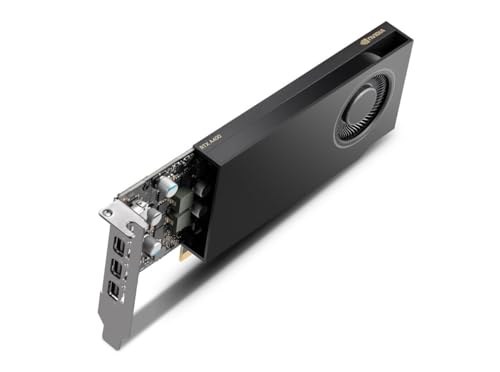

As an Amazon Associate we earn from qualifying purchases at no extra cost to you.
Quick Comparison of the 7 Picks
| Pick | Best for | Memory | Power | Key spec |
|---|---|---|---|---|
| NVIDIA RTX PRO 2000 Blackwell | Small assemblies, 1080p to 1440p | 16 GB GDDR7 ECC | 70 W | 4,352 CUDA cores, 288 GB/s |
| NVIDIA RTX PRO 4000 Blackwell | Best overall for professional CAD | 24 GB GDDR7 ECC | 140 W | 8,960 CUDA cores, 672 GB/s, single slot |
| NVIDIA RTX PRO 4500 Blackwell | Large assemblies, dual 4K | 32 GB GDDR7 ECC | 200 W | 10,496 CUDA cores, 896 GB/s |
| NVIDIA RTX PRO 5000 Blackwell | Huge assemblies, Visualize, simulation | 48 GB GDDR7 ECC | 300 W | 14,080 CUDA cores, 1,344 GB/s |
| GeForce RTX 5060 Ti 16GB | Students and hobbyists | 16 GB GDDR7 | 180 W | 4,608 CUDA cores, 448 GB/s |
| GeForce RTX 5070 Ti | Freelancers who also render | 16 GB GDDR7 | 300 W | 256-bit bus, 896 GB/s |
| GeForce RTX 5080 | Visualize and GPU rendering on a lean workstation | 16 GB GDDR7 | 360 W | 256-bit bus, 960 GB/s |
Memory sizes, bandwidth and power figures come from the manufacturers’ published specification sheets. Model availability varies by region and by workstation vendor, so check the current listing before you plan a build around any one card.
Why SolidWorks Cares About Certified Drivers
SolidWorks runs on almost any modern GPU, but the program treats certified hardware differently. Dassault Systemes publishes a hardware certification list that pairs specific professional cards with specific driver versions. Display features such as RealView Graphics and Ambient Occlusion are tied to that certified path, so on a GeForce card they appear grayed out by default. A registry workaround exists, but it is unofficial and often has to be re-applied after a service pack update, which is a poor basis for production work.
Certification also means support. If a drawing view flickers or a driver update breaks edge display, a certified configuration gives you a vendor and a reseller who must respond. Javelin Technologies, a SolidWorks reseller, reports that consumer cards are the most common source of instability it sees, and Puget Systems recommends certified cards for the same reason. Freelancers and students who never touch RealView often run GeForce cards without trouble, so treat certification as insurance, not as a law.
Best Overall: NVIDIA RTX PRO 4000 Blackwell
The RTX PRO 4000 Blackwell is the card most SolidWorks users should consider first. It is built on the GB203 chip with 8,960 CUDA cores, 280 fifth-generation Tensor cores and 70 fourth-generation RT cores. Memory is 24 GB of GDDR7 with ECC on a 192-bit bus, which gives 672 GB/s of bandwidth. It is a single-slot, full-height board that draws about 140 W through one 16-pin connector, and it has four DisplayPort 2.1b outputs.
Who it suits: engineers who open assemblies with several thousand components, work on one or two 4K monitors, and want a certified driver path. Velocity Micro and VRLA Tech both describe this class of card as the sweet spot for large assemblies and high-resolution displays.
- Pros: generous 24 GB of memory for textures, appearance data and multiple 4K displays; single-slot design fits compact workstations; modest power draw means a standard 650 W power supply is enough.
- Cons: a sizeable step up in cost from the RTX PRO 2000; the 192-bit bus is narrower than the GeForce RTX 5070 Ti, so raw rendering speed in Visualize is lower than a GeForce card in a similar market tier.
Best Entry Professional Card: NVIDIA RTX PRO 2000 Blackwell
The RTX PRO 2000 Blackwell uses the GB206 chip with 4,352 CUDA cores, 136 Tensor cores and 34 RT cores. It carries 16 GB of GDDR7 ECC memory at 288 GB/s and a 70 W board power, with a PCIe 5.0 x8 interface and a single-fan blower cooler. Because it draws so little power, it often runs from the slot alone and fits office-grade systems and small form factor workstations.
Who it suits: designers working on parts, weldments and assemblies up to about a thousand components on one or two 1080p or 1440p monitors. Velocity Micro points to this card for assemblies of that size, and Puget Systems places a PRO 2000 or better at the entry point for medium assemblies at 1080p.
- Pros: certified-class drivers at the lowest professional entry point; very quiet and cool; no extra power cable in most systems.
- Cons: 288 GB/s of bandwidth is the lowest of the group, so 4K multi-monitor setups and heavy shaded-with-edges scenes will feel it first; not suited to GPU rendering.
Best for Large Assemblies: NVIDIA RTX PRO 4500 Blackwell
The RTX PRO 4500 Blackwell has 10,496 CUDA cores, 328 Tensor cores and 82 RT cores, with 32 GB of GDDR7 ECC memory on a 256-bit bus at 896 GB/s. The workstation edition is a dual-slot, actively cooled card with a 200 W maximum power. A passive server edition with no display outputs also exists, so make sure you are buying the workstation edition for a desktop that needs monitors.
Who it suits: mechanical teams that regularly open machinery, plant layouts or vehicle assemblies, or that run two 4K displays and keep large drawings open in the background. Puget Systems suggests an RTX PRO 4500 or higher for large assemblies at 1080p.
- Pros: 32 GB of memory leaves room for Visualize scenes and simulation previews alongside the model; wide 256-bit bus; still a single-connector power design.
- Cons: the extra capacity pays off only when your assemblies actually saturate the GPU; many users would see the same modeling speed from the PRO 4000.
Best for Visualize, Simulation and Giant Models: NVIDIA RTX PRO 5000 Blackwell
The RTX PRO 5000 Blackwell has 14,080 CUDA cores, 440 Tensor cores and 110 RT cores, paired with 48 GB of GDDR7 ECC memory on a 384-bit interface for 1,344 GB/s of bandwidth. It is a dual-slot, full-length board with a 300 W maximum power. VRLA Tech positions the 48 GB class for very large assemblies, multi-monitor 4K desks and SolidWorks Visualize rendering.
Who it suits: product design studios that render in Visualize, run Flow Simulation or other GPU-assisted analysis, and keep several heavy applications open at once.
- Pros: the most memory and bandwidth in this list; ECC memory protects long renders and simulations; handles multiple high-resolution displays.
- Cons: expensive; needs a stronger power supply and good case airflow; overkill if your work is mostly parts and small assemblies.
Best GeForce for Students: GeForce RTX 5060 Ti 16GB
The GeForce RTX 5060 Ti 16GB has 4,608 CUDA cores, 16 GB of GDDR7 on a 128-bit bus (448 GB/s) and a 180 W board power through one 8-pin connector. It is not certified, which means RealView is unavailable without the registry workaround, but for coursework, personal projects and small shop drawings the card draws shaded models smoothly.
Who it suits: engineering students, hobbyists and makers who also game on the same machine and want one affordable card.
- Pros: strong value; 16 GB is plenty for typical student assemblies; doubles as a capable gaming card.
- Cons: no certification or official support; consumer drivers update on a gaming schedule, which occasionally introduces regressions in CAD viewports.
Best GeForce for Freelancers Who Also Render: GeForce RTX 5070 Ti
The GeForce RTX 5070 Ti pairs 16 GB of GDDR7 with a 256-bit bus and 896 GB/s of bandwidth at a 300 W board power. Its rendering throughput in GPU renderers and in Visualize, which uses NVIDIA Iray, is well above any entry-level professional card because it has far more compute units. Viewport behavior in SolidWorks itself is a different story: the GeForce driver path lacks the optimizations of the professional drivers, and Puget Systems has reported cases where a low-end professional card beats faster GeForce hardware in shaded-with-edges mode.
Who it suits: independent designers who send clients photoreal images and want rendering speed more than certified viewport behavior.
- Pros: excellent rendering speed for its market tier; 16 GB of memory fits most Visualize scenes; also a fine gaming card.
- Cons: uncertified; 300 W demands a quality 750 W power supply; ECC memory is not available.
Best GeForce for Rendering-Heavy Work: GeForce RTX 5080
The GeForce RTX 5080 has 16 GB of GDDR7, a 256-bit bus at about 960 GB/s and a 360 W board power. It sits above the RTX 5070 Ti in both compute and bandwidth, which shortens Visualize renders and any GPU-accelerated denoising. The memory size is the same as the 5070 Ti, so a very large scene can run out of VRAM sooner than on the 24 GB, 32 GB or 48 GB professional cards above.
Who it suits: small studios that render daily and want speed without paying for a workstation-class card.
- Pros: the fastest GeForce option in this list for rendering work; wide memory bus.
- Cons: memory capacity does not scale with its speed; uncertified; high power and heat in a closed workstation case.
Decision Matrix by Assembly Size and Display
Puget Systems publishes sizing guidance that maps assembly size and resolution to a card class. The matrix below follows the same logic and translates it into the cards covered here.
| Your situation | 1080p or 1440p desk | One or two 4K monitors |
|---|---|---|
| Parts and small assemblies (under about 500 components) | RTX PRO 2000 or GeForce RTX 5060 Ti 16GB | RTX PRO 2000 or RTX PRO 4000 |
| Medium assemblies (about 500 to 2,000 components) | RTX PRO 2000 or RTX PRO 4000 | RTX PRO 4000 |
| Large assemblies (2,000 to 5,000 components) | RTX PRO 4000 or RTX PRO 4500 | RTX PRO 4500 |
| Very large assemblies (5,000 or more) | RTX PRO 4500 | RTX PRO 5000 |
| Frequent Visualize rendering | GeForce RTX 5070 Ti or RTX 5080 | RTX PRO 5000 or GeForce RTX 5080 |
The component counts in this matrix are rules of thumb, not hard limits. Mates, configurations, lightweight loading and large-design-review mode change how heavy an assembly feels, so a smaller file with complex surfaces can be harder on a GPU than a larger file of simple parts.
A Worked Example: Why 4K Changes the Card You Need
A 1920 x 1080 monitor shows 2,073,600 pixels. A 3840 x 2160 monitor shows 8,294,400 pixels, exactly four times as many. Every shaded frame, every edge overlay and every ambient occlusion pass has to be produced for each of those pixels, and the frame buffers, depth buffers and anti-aliasing samples scale with them. Two 4K monitors therefore ask the card to drive roughly eight times the pixels of a single 1080p screen.
That is why the same assembly can feel smooth on a PRO 2000 at 1080p and stutter on the same card at 4K. If you are upgrading from one 1080p display to dual 4K, move up at least one class on the table above. If you stay at 1080p, spending extra on a bigger card brings little visible improvement during modeling.
The Hidden Bottleneck: CPU Clock Speed
Most SolidWorks operations, including feature rebuilds, sketch solving and mate resolution, run on a single thread. VRLA Tech lists insufficient single-thread clock speed as a common cause of slow large assemblies, and its SolidWorks builds pair high-clock processors, boosting up to roughly 5.7 GHz, with a certified professional card. Buying a faster GPU will not shorten a rebuild that is waiting on the processor.
A practical way to find your bottleneck is to watch Windows Task Manager while you work. If one CPU core sits near its limit while GPU usage stays low, a faster-clocking processor helps more than a bigger card. If GPU usage climbs while you rotate and zoom a heavy assembly, the card is the limit and upgrading it pays off.
- Rebuilds, mates and sketches: single-thread CPU speed, plus enough RAM that the assembly does not page to disk.
- Rotate, pan and zoom: GPU memory bandwidth and driver quality.
- Visualize renders and simulation previews: GPU compute and memory capacity.
- Opening large files: NVMe storage speed and RAM.
Ownership Realities: Drivers, Cooling and Mistakes to Avoid
Professional cards use ECC memory and a slower, more conservative driver release cadence. Install the driver version that appears on the Dassault certification page for your SolidWorks release, not simply the newest one. When a new SolidWorks service pack arrives, check the certification page again before upgrading the driver.
- Match the driver to the release. The certification list names exact driver branches for each year of the software.
- Check slot and power fit. The PRO 4000 is single slot and the PRO 4500 and PRO 5000 are dual slot; the PRO 5000 and the GeForce cards also need substantial power supply headroom.
- Confirm display outputs. The workstation editions have DisplayPort outputs, but a passive server edition does not.
- Do not mix gaming and CAD driver installs casually. Use a clean install when you swap between GeForce and professional cards.
- Keep dust out. A blower or compact card in a case with poor airflow throttles and gets loud under sustained loads.
Cards fail rarely, but warranty and replacement terms differ. Workstation vendors usually offer multi-year support and advance replacement with professional cards, which matters if a stalled workstation costs a design team billable hours.
Should You Buy Certified or GeForce?
Buy certified if SolidWorks is how you earn a living, if your employer or reseller requires supported hardware, or if you rely on RealView and Ambient Occlusion for design reviews. Buy GeForce if you are a student, a hobbyist or a freelancer who accepts the risk, if you want one card for gaming and rendering, and if you do not need official support. Cloudzy’s CAD guide draws the same line: gaming cards are acceptable for personal modeling without RealView, while certified cards matter for production use.
Power Supply and Case Planning
Match the power supply to the card before you order. The RTX PRO 2000 at 70 W and the RTX PRO 4000 at about 140 W fit almost any business desktop, which is a real advantage when you are upgrading an existing machine. The RTX PRO 4500 at 200 W and the RTX PRO 5000 at 300 W call for a workstation-grade supply with a spare connector and a case that moves air across a dual-slot cooler. The GeForce RTX 5070 Ti and RTX 5080, at 300 W and 360 W board power, are best paired with a quality 750 W or larger unit, because the processor in a CAD workstation also draws substantial power during simulation and rendering.
Leave one empty slot beside a dual-slot card if the case allows it, keep the intake filters clean, and set a sensible fan curve. A card that holds its boost clock through a long Visualize render is worth more than a few extra megahertz of factory overclock.
Frequently Asked Questions
Does SolidWorks need a professional graphics card?
SolidWorks will start and run on a GeForce card, but RealView Graphics and Ambient Occlusion are tied to certified hardware and drivers. If you depend on those features or need vendor support, choose a card from the Dassault certification list.
How much VRAM do I need for SolidWorks?
Sixteen gigabytes is enough for most users on one or two monitors. Move to 24 GB or 32 GB for very large assemblies and dual 4K displays, and to 48 GB if you also render big scenes in Visualize or run GPU-assisted simulation.
Will a faster GPU speed up rebuild times?
No. Rebuilds are mostly single-threaded CPU work, so processor clock speed and memory matter more. A faster GPU improves viewport smoothness and rendering, not feature regeneration.
Can I use an AMD or Intel card for SolidWorks?
Some AMD professional cards appear on certification lists, but the NVIDIA RTX PRO line is the most widely recommended and best supported. Consumer Radeon and Intel Arc cards are not on the certified path, so they carry the same RealView limitation as GeForce cards.
Is the RTX PRO 4000 worth it over a GeForce RTX 5070 Ti?
For viewport behavior, stability and support, yes. For pure rendering speed in Visualize, the GeForce card is faster. Choose by whether your daily work is modeling and drawings or photoreal rendering.





Write Your Review
No reviews yet. Be the first to share your experience!