
Our Short List of 3

- Best for: Home office work, study, browsing, and light gaming.
- Screen: 27-inch IPS, 1920 by 1080, 100Hz, 1ms MPRT
- Sync: Adaptive-Sync
- Ports: HDMI, VESA mountable
- Extras: Low Blue Light, Flicker Free, frameless design, 3-year warranty

- Best for: Mixed-use desks, video calls, streaming, and everyday work.
- Screen: 27-inch, 1920 by 1080, up to 100Hz, 1ms response
- Colour: 100 percent sRGB
- Sync: AMD FreeSync
- Ports: DisplayPort, 2 x HDMI, VESA wall-mountable
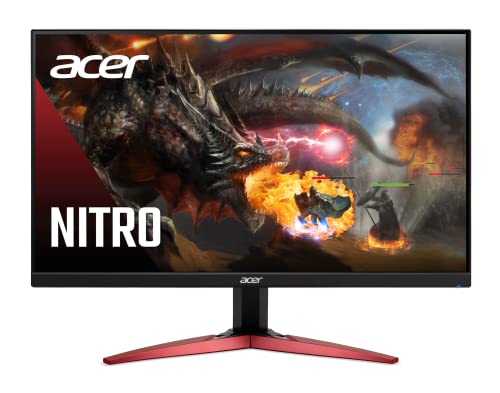
- Best for: Budget gaming, fast-paced titles, and competitive play.
- Screen: 23.8-inch VA, 1920 by 1080, 165Hz, 1ms VRB
- Sync: AMD FreeSync Premium
- Ports: 1 x DisplayPort 1.2, 2 x HDMI 2.0
- Extras: ZeroFrame design, built-in speaker, VESA mountable
All 3 Picks at a Glance
| Product | Specs | Action |
|---|---|---|
| 1. ASUS VA27EHF — Best 27-Inch Monitor for Everyday Work |
| Check price on Amazon |
| 2. Sceptre E275W-FW100T — Best Budget All-Rounder With Speakers |
| Check price on Amazon |
| 3. Acer Nitro KG241Y Sbiip — Best Fast Gaming Monitor for 200 Dollars |
| Check price on Amazon |
Key takeaways
- Find the best monitors for 200 dollars with our 2026 guide to 27-inch and 24-inch displays for work, study and gaming, compared on panel, refresh and ports.
Introduction
Finding the best monitors for 200 dollars is easier than it used to be, because the budget segment has improved fast. A monitor in this price band no longer means a washed-out TN panel with thick bezels and a wobbly stand. Today you can get a sharp IPS or VA display, a 100Hz or even 165Hz refresh rate, thin bezels, and enough ports for a laptop and a desktop at the same time.
The trick is knowing where the compromises hide. Some budget monitors cut corners on the stand, offering tilt only and no height adjustment. Others advertise a high refresh rate but pair it with a slow panel that smears in fast motion. And a few still ship with only a single HDMI port, which becomes a problem the moment you want to connect a second device.
This guide compares three monitors that fit a budget of 200 dollars, each chosen for a different strength: a 27-inch IPS screen for everyday work, a 27-inch all-rounder with built-in speakers, and a fast 24-inch gaming display. All three are sold on Amazon US, and every specification below comes from the product listing.
How to Choose a Monitor for 200 Dollars
Size and resolution
At this budget, 24-inch and 27-inch screens dominate, and almost all of them use a Full HD resolution of 1920 by 1080. On a 24-inch screen, Full HD looks crisp. On a 27-inch screen, the same resolution is a little softer, because the pixels are spread over a larger area, but text is still perfectly readable for office work, browsing, and video.
A 27-inch screen gives you more room for side-by-side windows, which helps with spreadsheets, research, and editing. A 24-inch screen takes up less desk space and suits smaller setups. If you sit close to the screen, 24 inches is often the more comfortable choice.
Panel type
IPS panels are the safest pick for mixed use. They keep colours consistent when you view the screen from an angle, which matters if you share your screen or sit off-centre. VA panels offer deeper blacks and stronger contrast, so dark scenes in games and films look richer, but colours can shift more at wide angles. Avoid old TN panels at this budget unless you only care about raw speed.
Refresh rate and response time
A 60Hz screen refreshes the image 60 times per second, which is fine for office work. A 100Hz screen feels noticeably smoother when you scroll documents and move windows, and it is a worthwhile step up for general use. Gamers should look for 144Hz or 165Hz, plus a fast response time of around 1 millisecond, to keep fast motion clear. Adaptive sync support, such as AMD FreeSync, helps prevent screen tearing in games.
Ports and ergonomics
Check the ports before you buy. At least one HDMI port is essential, and a DisplayPort is useful for higher refresh rates on a desktop graphics card. A VESA mount pattern of 100 by 100 millimetres lets you attach the monitor to an arm or a wall mount later. Tilt adjustment is standard, but height adjustment is rare in this price band, so plan for a monitor riser or an arm if your desk setup needs it.
Built-in speakers and eye care
Built-in speakers on budget monitors are basic, but they are handy for video calls and casual video watching, and they save desk space. Low blue light modes and flicker-free backlights reduce eye strain during long sessions, and they are worth having if you work at a screen all day.
Top Picks
1. ASUS VA27EHF — Best 27-Inch Monitor for Everyday Work
- Best for: Home office work, study, browsing, and light gaming.
- Screen: 27-inch IPS, 1920 by 1080, 100Hz, 1ms MPRT
- Sync: Adaptive-Sync
- Ports: HDMI, VESA mountable
- Extras: Low Blue Light, Flicker Free, frameless design, 3-year warranty
Home office work, study, browsing, and light gaming.
The ASUS VA27EHF is a 27-inch IPS monitor with a Full HD resolution of 1920 by 1080, a 100Hz refresh rate, and a 1 millisecond MPRT response time. It is the most balanced pick in this guide: a large, colour-accurate screen that is smooth enough for casual gaming and comfortable for long workdays.
The IPS panel delivers wide 178-degree viewing angles, so colours stay true even when you look at the screen from the side. Adaptive-Sync support keeps motion tear-free, and the frameless design makes the monitor look far more expensive than its budget suggests. ASUS includes its Eye Care features, with low blue light and flicker-free technology, plus a three-year warranty.
Connectivity is simple: an HDMI port and a VESA mount pattern, with a tilt-adjustable stand. There is no DisplayPort and no height adjustment, which are the main compromises. For a home office, study desk, or a second screen, those trade-offs are easy to live with.
2. Sceptre E275W-FW100T — Best Budget All-Rounder With Speakers
- Best for: Mixed-use desks, video calls, streaming, and everyday work.
- Screen: 27-inch, 1920 by 1080, up to 100Hz, 1ms response
- Colour: 100 percent sRGB
- Sync: AMD FreeSync
- Ports: DisplayPort, 2 x HDMI, VESA wall-mountable
Mixed-use desks, video calls, streaming, and everyday work.
The Sceptre E275W-FW100T is a 27-inch monitor with a Full HD resolution, a refresh rate of up to 100Hz, and a 1 millisecond response time. It covers 100 percent of the sRGB colour gamut, which is a strong result for a budget display and makes it a good fit for photo viewing and everyday creative work.
Where this monitor stands out is value. It includes a DisplayPort alongside two HDMI ports, so you can connect a desktop and a laptop without swapping cables. It also has built-in speakers, AMD FreeSync support, and an eye-care design with a frameless bezel. That combination is hard to find at this budget.
The panel is a good all-rounder rather than a specialist: it is not the fastest gaming screen here, and the stand offers tilt only. But for a mixed-use desk where one monitor has to do everything — work calls, streaming, documents, and the occasional game — it is the most flexible pick of the three.
3. Acer Nitro KG241Y Sbiip — Best Fast Gaming Monitor for 200 Dollars
- Best for: Budget gaming, fast-paced titles, and competitive play.
- Screen: 23.8-inch VA, 1920 by 1080, 165Hz, 1ms VRB
- Sync: AMD FreeSync Premium
- Ports: 1 x DisplayPort 1.2, 2 x HDMI 2.0
- Extras: ZeroFrame design, built-in speaker, VESA mountable
Budget gaming, fast-paced titles, and competitive play.
The Acer Nitro KG241Y Sbiip is a 23.8-inch VA gaming monitor with a Full HD resolution, a 165Hz refresh rate, and a 1 millisecond VRB response time. It is the fastest screen in this guide, and the right pick if gaming is your priority.
The 165Hz refresh rate makes a real difference in fast-paced games, and AMD FreeSync Premium keeps the action smooth without tearing. The ZeroFrame design gives it slim bezels, and the monitor includes one DisplayPort 1.2 and two HDMI 2.0 ports, plus a built-in speaker. The VA panel delivers stronger contrast than IPS, so dark game scenes look deeper.
The trade-off is size: at 23.8 inches, it is smaller than the other two picks, and VA panels show more colour shift at wide angles. For a gaming-first setup, or as a second monitor paired with a larger work screen, those are acceptable compromises.
Comparison Table
| Monitor | Size and Panel | Resolution | Refresh Rate | Response Time | Ports | Built-in Speakers |
|---|---|---|---|---|---|---|
| ASUS VA27EHF | 27-inch IPS | 1920 by 1080 | 100Hz | 1ms MPRT | HDMI | No |
| Sceptre E275W-FW100T | 27-inch | 1920 by 1080 | Up to 100Hz | 1ms | DisplayPort, 2 x HDMI | Yes |
| Acer Nitro KG241Y Sbiip | 23.8-inch VA | 1920 by 1080 | 165Hz | 1ms VRB | DisplayPort, 2 x HDMI | Yes |
Mistakes to Avoid When Buying a Budget Monitor
The most common mistake is buying on size alone. A 32-inch budget screen sounds impressive, but at Full HD resolution the image looks soft, and the panel quality is often worse than a good 27-inch display at the same budget. A smaller, better panel beats a bigger, weaker one.
Another mistake is ignoring the stand. Many budget monitors only tilt, with no height or swivel adjustment. If your desk and chair put the screen too low, you will end up stacking books under the stand or buying an arm anyway, so factor that into your decision.
Finally, do not assume the monitor runs at its advertised refresh rate out of the box. Many displays ship set to 60Hz, and you must change the setting in your operating system to unlock 100Hz or 165Hz. Also check that your cable supports the refresh rate you want: an old HDMI cable may limit you, while DisplayPort usually handles high refresh rates without trouble.
How to Set Up Your New Monitor
Start by connecting with the best cable you have: DisplayPort for high refresh rates on a desktop, HDMI for laptops and consoles. Then set the refresh rate in your operating system, because many monitors default to 60Hz even when the panel supports more. On Windows, this is under display settings and advanced display settings; on macOS, it is under display settings and refresh rate.
Next, adjust the brightness to match your room. A screen that is too bright in a dim room causes eye strain, while a dim screen in a bright room washes out. Enable the low blue light mode in the evening if your monitor offers one. Finally, position the top of the screen at or slightly below eye level, about an arm’s length away, and tilt it back a few degrees.
FAQ
What is the best monitor for 200 dollars for working from home?
The ASUS VA27EHF is the strongest work pick in this guide. Its 27-inch IPS panel keeps colours accurate at wide viewing angles, the 100Hz refresh rate makes scrolling smooth, and the eye-care features help during long days. If you need built-in speakers or more ports, the Sceptre E275W-FW100T is the better all-rounder.
Is a 27-inch Full HD monitor sharp enough?
For most people, yes. Text and video look fine at normal viewing distances, and the larger screen gives you more room for side-by-side windows. If you do detailed photo editing or sit very close to the screen, a 24-inch Full HD panel looks sharper, or you can step up to a higher-resolution display.
Do I need 165Hz if I do not play games?
No. For office work, browsing, and video, 100Hz already feels smooth, and 60Hz is perfectly usable. High refresh rates matter most in fast-paced games, where they make motion clearer and controls feel more responsive.
What ports should a budget monitor have?
At least one HDMI port is essential, and a DisplayPort is useful for higher refresh rates from a desktop graphics card. Two or three inputs in total let you connect a laptop and a desktop at once. A VESA mount pattern is also worth having, so you can add a monitor arm later.
Are built-in monitor speakers good enough?
Built-in speakers on budget monitors are basic but usable for video calls, system sounds, and casual video. They will not replace dedicated speakers or headphones for music and films, but they save desk space and are handy as a backup.
Conclusion
The best monitors for 200 dollars prove that a tight budget no longer forces a bad screen. The ASUS VA27EHF is the pick for a large, comfortable work display. The Sceptre E275W-FW100T is the most flexible all-rounder, with three inputs and built-in speakers. And the Acer Nitro KG241Y Sbiip is the fastest option, built for gaming at 165Hz.
Choose by your main use: screen size and colour accuracy for work, flexibility for a shared desk, or refresh rate for games. Whichever you pick, check the ports and the stand before you order, set the refresh rate after you plug it in, and confirm the exact model number on the live listing before buying.
Disclosure: As an Amazon Associate, we earn from qualifying purchases.
More from Amazon
Programs that pair well with the guide above. Offers and eligibility are set by Amazon and may change.
Free shipping on eligible items, Prime Video and more. Eligible new members can start with a free trial.
Start a Prime free trialAd-free music streaming. Eligible new subscribers can start with a free trial.
Try Music Unlimited freeA Prime membership for ages 18-24 with a trial period. Eligibility is set by Amazon.
See Prime for Young AdultsAudiobooks and podcasts to listen to on the go. Eligible new members can start with a free trial.
Try Audible freeAs an Amazon Associate we earn from qualifying purchases.
Write Your Review
No reviews yet. Be the first to share your experience!