
Our Short List of 3

- Best for: Compact wireless drawing at a desk or on the go
- Pen: battery-free Wacom Pen 4K, 4096 pressure levels
- Active area: 152.0 x 95.0 mm
- Connection: Bluetooth and USB
- ExpressKeys: 4 customizable ExpressKeys

- Best for: Wider drawing area for larger sketches and photo edits
- Pen: battery-free Wacom Pen 4K, 4096 pressure levels
- Active area: 216.0 x 135.0 mm
- Connection: Bluetooth and USB
- ExpressKeys: 4 customizable ExpressKeys
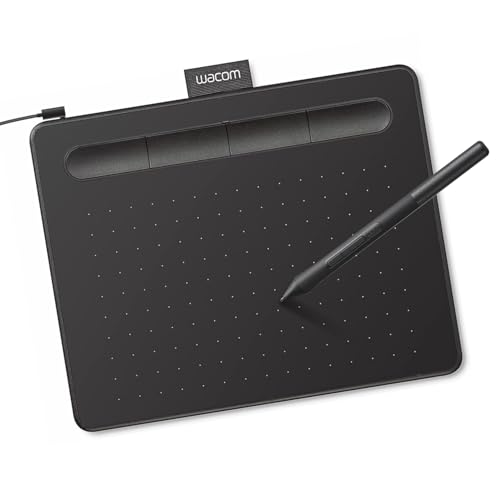
- Best for: A wired desk setup with no charging to manage
- Pen: battery-free Wacom Pen 4K, 4096 pressure levels
- Active area: 152.0 x 95.0 mm
- Connection: USB only, no Bluetooth
- ExpressKeys: 4 customizable ExpressKeys
All 5 Picks at a Glance
| Product | Specs | Action |
|---|---|---|
| Wacom Intuos Small Bluetooth Graphics Drawing Tablet, 4 Customizable ExpressKeys, Portable for Teachers, Students and Creators, Compatible with Chromebook Mac OS Android and Windows – Black |
| Check price on Amazon |
| Wacom Intuos Medium Bluetooth Graphics Drawing Tablet, Portable for Teachers, Students and Creators, 4 Customizable ExpressKeys, Compatible with Chromebook Mac OS Android and Windows – Black |
| Check price on Amazon |
| Wacom Intuos Small Graphics Drawing Tablet, includes Training & Software; 4 Customizable ExpressKeys Compatible With Chromebook Mac Android & Windows, photo/video editing, design & education,Black |
| Check price on Amazon |
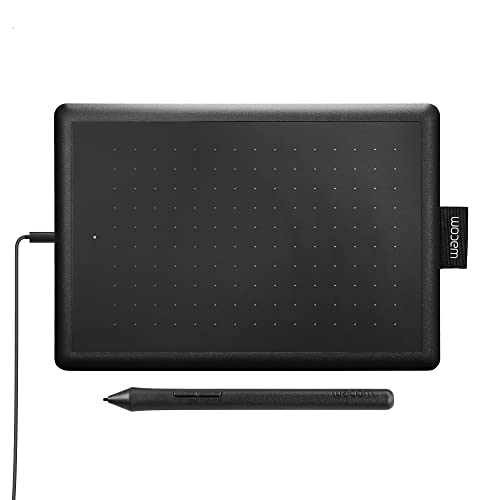 One by Wacom Small Graphics Drawing Tablet 8.3 x 5.7 Inches, Portable Versatile for Students and Creators, Ergonomic 2048 Pressure Sensitive Pen Included, Compatible with Chromebook Mac and Windows |
| Check price on Amazon |
 Wacom Cintiq 16, Drawing Tablet with QHD Screen & Pro Pen 3 |
| Check price on Amazon |
Our Top Picks
Choosing a Wacom tablet comes down to how you draw, where you draw, and whether you want to look at a screen or at a different display while your hand moves on a blank surface. A pen tablet keeps your eyes on your computer monitor, while a pen display lets you draw on the image itself, and that single difference shapes desk space, hand comfort, and daily habit more than any single feature on a box.
That split guides this set, which covers four screenless Wacom pen tablets and one Wacom pen display, all from the same brand so the pen feel and driver habits stay familiar across the group. The four pen tablets suit entry-level drawing, school work, photo edits, and note-taking, while the pen display suits illustrators and designers who want to draw on a QHD screen with a Pro Pen 3. Use the sections below to match active area, pen pressure, and connection to your own work.
Quick Picks
As an Amazon Associate we earn from qualifying purchases
| Product | Best for | Key spec from title |
|---|---|---|
| Wacom Intuos Small Bluetooth Graphics Drawing Tablet, 4 Customizable ExpressKeys, Portable for Teachers, Students and Creators, Compatible with Chromebook Mac OS Android and Windows – Black | Compact wireless drawing at a desk or on the go | 4 Customizable ExpressKeys, Bluetooth |
| Wacom Intuos Medium Bluetooth Graphics Drawing Tablet, Portable for Teachers, Students and Creators, 4 Customizable ExpressKeys, Compatible with Chromebook Mac OS Android and Windows – Black | Wider drawing area for larger sketches and photo edits | 4 Customizable ExpressKeys, Bluetooth |
| Wacom Intuos Small Graphics Drawing Tablet, includes Training & Software; 4 Customizable ExpressKeys Compatible With Chromebook Mac Android & Windows, photo/video editing, design & education,Black | A wired desk setup with no charging to manage | 4 Customizable ExpressKeys |
| One by Wacom Small Graphics Drawing Tablet 8.3 x 5.7 Inches, Portable Versatile for Students and Creators, Ergonomic 2048 Pressure Sensitive Pen Included, Compatible with Chromebook Mac and Windows | Simple entry-level drawing and school work | 2048 pressure levels, 8.3 x 5.7 Inches |
| Wacom Cintiq 16, Drawing Tablet with QHD Screen & Pro Pen 3 | Drawing directly on a QHD pen display | QHD Screen, Pro Pen 3 |
How to Choose
Active Area and Pen Pressure
Active area sets how much room your hand has for a stroke, and pen pressure sets how much line change you get from a light touch versus a firm push. The Intuos Small models give you a 152.0 x 95.0 mm active area, the Intuos Medium gives you a 216.0 x 135.0 mm active area, and the One by Wacom Small gives you a smaller drawing zone with fewer pressure levels. A larger area suits broad arm movement and curves, while a smaller area suits wrist movement and a tight desk. If you draw with line work, aim for 4096 levels; if you draw with simple notes, 2048 levels serve you well.
Pen Display or Pen Tablet
A pen tablet has no screen, so you draw on a flat surface while you watch your computer monitor, and that habit takes a few days to feel natural. A pen display puts the image under your pen, so hand and eye meet on the same surface, and that direct link helps with fine detail, tracing, and color work. Pen tablets are more compact and easier to carry in a bag, while a pen display needs a firm desk spot, a compatible video link, and room for its 16-inch body. Pick a pen tablet for flexible desk use, and pick a pen display when drawing on the image matters most to your daily work.
Connection and Desk Setup
Bluetooth models free you from a cable while you draw, and that freedom helps when you move between a desk, a sofa, and a classroom table. Wired models draw power over a USB cable, so you never manage a charge cycle, and that link suits a fixed desk where the tablet stays in one place. Check that your computer has a free USB port, and check that your display link matches the Cintiq 16, which needs a USB-C link with DisplayPort Alt Mode or Thunderbolt, or an HDMI link with an adapter. A cable path and a desk surface keep the pen, the tablet, and your arm in a calm working line.
Software Fit and Hand Comfort
Every tablet here works with common drawing, photo, and note apps on Windows, Mac, and Chromebook, with Android support on select Intuos models, so check your app list against the model you pick. ExpressKeys give you four shortcut buttons on the Intuos models, and those buttons can hold undo, brush size, zoom, and other commands you use again and again. The One by Wacom Small has no ExpressKeys, so it suits people who prefer on-screen menus and a plain pen. Hold the pen in your usual grip, rest your wrist on the tablet edge, and give your hand a pause after long sessions to keep drawing comfortable.
The 5 Best Options
Wacom Intuos Small Bluetooth Graphics Drawing Tablet, 4 Customizable ExpressKeys, Portable for Teachers, Students and Creators, Compatible with Chromebook Mac OS Android and Windows – Black
- Best for: Compact wireless drawing at a desk or on the go
- Pen: battery-free Wacom Pen 4K, 4096 pressure levels
- Active area: 152.0 x 95.0 mm
- Connection: Bluetooth and USB
- ExpressKeys: 4 customizable ExpressKeys
Compact wireless drawing at a desk or on the go
The small active area can feel cramped for broad arm strokes and large sketches.
This small Bluetooth Intuos pairs a compact body with a wireless link, so you can draw at a desk, in a classroom, or with a laptop on your lap without a cable. Its 4096-level battery-free Pen 4K responds to light and firm pressure, its four ExpressKeys hold your most-used commands, and its 152.0 x 95.0 mm active area suits short strokes, notes, and photo edits. The tablet weighs 250 g, fits in a bag with a laptop, and works with Windows, Mac, Chromebook, and select Android devices. It is a fit for people who want Wacom pen feel in a portable form.
Wacom Intuos Medium Bluetooth Graphics Drawing Tablet, Portable for Teachers, Students and Creators, 4 Customizable ExpressKeys, Compatible with Chromebook Mac OS Android and Windows – Black
- Best for: Wider drawing area for larger sketches and photo edits
- Pen: battery-free Wacom Pen 4K, 4096 pressure levels
- Active area: 216.0 x 135.0 mm
- Connection: Bluetooth and USB
- ExpressKeys: 4 customizable ExpressKeys
Wider drawing area for larger sketches and photo edits
The medium body needs more desk room and more bag room than a small tablet.
This medium Bluetooth Intuos gives you the same Pen 4K and ExpressKeys as its small sibling, with a wider 216.0 x 135.0 mm active area that suits longer strokes, larger sketches, and photo edits with more room to move. Its Bluetooth link frees the tablet from a cable, its battery runs for up to 15 hours on a charge, and its 410 g body fits in a bag. The larger surface helps illustrators and designers who draw with arm movement, and the four ExpressKeys keep undo, zoom, and brush commands close at hand. It suits a desk that has room for a medium tablet.
Wacom Intuos Small Graphics Drawing Tablet, includes Training & Software; 4 Customizable ExpressKeys Compatible With Chromebook Mac Android & Windows, photo/video editing, design & education,Black
- Best for: A wired desk setup with no charging to manage
- Pen: battery-free Wacom Pen 4K, 4096 pressure levels
- Active area: 152.0 x 95.0 mm
- Connection: USB only, no Bluetooth
- ExpressKeys: 4 customizable ExpressKeys
A wired desk setup with no charging to manage
The USB cable tethers the tablet to your computer, so you cannot draw away from a desk.
This wired Intuos Small is the same small tablet as the Bluetooth model, minus the wireless link and the built-in battery, so it draws power over its USB cable and stays ready whenever you plug it in. You get the same 4096-level Pen 4K, the same four ExpressKeys, and the same 152.0 x 95.0 mm active area, in a body that weighs 230 g. That simple wired link suits a fixed desk, a school computer, and anyone who prefers no charging routine at all. It is the plain, direct route into Wacom pen drawing for a desk that already has a free USB port.
One by Wacom Small Graphics Drawing Tablet 8.3 x 5.7 Inches, Portable Versatile for Students and Creators, Ergonomic 2048 Pressure Sensitive Pen Included, Compatible with Chromebook Mac and Windows
- Best for: Simple entry-level drawing and school work
- Pen: battery-free pen, 2048 pressure levels
- Tablet size: 8.3 x 5.7 inches
- Connection: USB-A
- In the box: 3.3 ft USB cable, 3 replacement nibs
Simple entry-level drawing and school work
It has no ExpressKeys, so shortcuts live in on-screen menus instead.
One by Wacom Small is the plain entry point in this set, with a battery-free pen, 2048 pressure levels, and a simple USB link that needs no ExpressKeys and no wireless setup. Its 8.3 x 5.7 inch body is easy to place on a desk and easy to carry in a bag, and its pen feels natural for notes, sketches, homework, and simple drawings. The tablet works with Windows, Mac, and Chromebook, and its 3.3 ft USB cable and 3 replacement nibs come in the box. It suits students, new drawers, and anyone who wants a Wacom pen tablet with as little fuss as possible.
Wacom Cintiq 16, Drawing Tablet with QHD Screen & Pro Pen 3
- Best for: Drawing directly on a QHD pen display
- Display: 16-inch QHD, 2560 x 1600
- Pen: Pro Pen 3, 8192 pressure levels, tilt support
- Pen keys: 3 shortcut keys on the pen
- Legs: built-in fold-out legs
Drawing directly on a QHD pen display
It needs a compatible USB-C or HDMI video link, so check your computer ports first.
The Cintiq 16 is the only pen display in this set, and it changes the habit at once: you draw on a 16-inch QHD screen at 2560 x 1600, with your pen, your line, and your image on the same surface. Its Pro Pen 3 brings 8192 pressure levels, tilt support, and three shortcut keys on the pen, while fold-out legs set a 20-degree working angle for long drawing sessions. The display covers DCI-P3 and sRGB color ranges, and its pen holder mounts on either side of the display. It suits illustrators, designers, and animators who want to draw on the image itself.
Which One Fits Your Situation
For Entry-Level Drawing and School Work
Pick One by Wacom Small for simple notes, sketches, and homework, or pick the wired Intuos Small if you want ExpressKeys and 4096 pressure levels on a fixed desk. Both are compact, both use a USB cable, and both keep the setup plain. Add the Bluetooth Intuos Small only if you want to draw away from a cable, in a classroom or with a laptop on your lap.
For Larger Sketches and Photo Edits at a Desk
Pick the Intuos Medium Bluetooth for a wider active area, longer strokes, and photo edits with room to move, and use its Bluetooth link when you want the tablet free of a cable. Its four ExpressKeys keep undo, zoom, and brush size close at hand, and its medium body still fits a desk with room for a keyboard and a monitor. It is a calm, roomy choice for daily drawing and editing work.
For Drawing Directly on a Screen
Pick the Cintiq 16 when you want your hand, your pen, and your image on the same surface, with a QHD display, a Pro Pen 3, and tilt support for fine detail. Its fold-out legs set a comfortable working angle, and its pen holder mounts on either side for left or right hand use. Give it a firm desk spot and a compatible video link, and it becomes your main drawing surface.
Common Mistakes
- Buying a pen display when a pen tablet would fit your desk and your habits, and then finding no room for its 16-inch body.
- Picking a small active area for broad arm strokes, then running out of room on every long curve.
- Assuming every model has Bluetooth, and then learning that the wired Intuos Small and the One by Wacom Small use a USB cable only.
- Skipping the port check for the Cintiq 16, and then finding that your computer lacks a compatible USB-C or HDMI video link.
- Forgetting ExpressKeys when you pick the One by Wacom Small, and then hunting through on-screen menus for undo, zoom, and brush size.
Frequently Asked Questions
Which Wacom tablet is best for entry-level drawing?
One by Wacom Small is the plain entry point, with a battery-free pen, 2048 pressure levels, and a simple USB link. If you want ExpressKeys and finer pressure control, the wired Intuos Small adds 4096 levels and four shortcut buttons in the same small body. Both suit notes, sketches, and school work, so pick the one that matches how much control you want from your pen.
What is the difference between the two Intuos Small models?
The Bluetooth model, CTL-4100WL, adds a wireless link and a built-in battery, so you can draw away from a cable for up to 15 hours. The wired model, CTL-4100, draws power over USB and has no battery to charge. Both share the same Pen 4K, 4096 pressure levels, four ExpressKeys, and 152.0 x 95.0 mm active area.
Do I need a pen display to draw well?
No. A pen tablet can serve illustrators, designers, and photo editors well, once the habit of watching a monitor while drawing on a blank surface feels natural. A pen display helps when you want to draw on the image itself, trace fine detail, and work with color on screen. Pick the habit that fits your desk, your arm movement, and your daily work.
What should I check before I pick the Cintiq 16?
Check that your computer has a compatible USB-C link with DisplayPort Alt Mode or Thunderbolt, or an HDMI link with an adapter, and check that your desk has room for a 16-inch display. Also check that you have a free USB port for the pen link, and that your drawing app runs on Windows or Mac. Those four checks keep setup simple.
More from Amazon
Programs that pair well with the guide above. Offers and eligibility are set by Amazon and may change.
Free shipping on eligible items, Prime Video and more. Eligible new members can start with a free trial.
Start a Prime free trialAd-free music streaming. Eligible new subscribers can start with a free trial.
Try Music Unlimited freeA Prime membership for ages 18-24 with a trial period. Eligibility is set by Amazon.
See Prime for Young AdultsAudiobooks and podcasts to listen to on the go. Eligible new members can start with a free trial.
Try Audible freeAs an Amazon Associate we earn from qualifying purchases.
Write Your Review
No reviews yet. Be the first to share your experience!