

Key takeaways
- Find the best second monitors for work, study, and everyday multitasking, with clear guidance on size, resolution, ports, and desk fit.
Our top picks
Introduction
A second monitor changes the way a desk works. Instead of switching back and forth between windows, you can keep email open on one screen and a document on the other, watch a video call on one side while taking notes on the other, or spread a spreadsheet wide enough to read without constant scrolling. For many people, the second screen becomes the quiet workhorse of the setup: it holds reference material, chat windows, calendars, and research while the main screen stays focused on the task in hand.
Choosing the best second monitors is a little different from choosing a main monitor. The second screen does not always need to be the largest display on the desk. It needs to be comfortable to glance at for hours, easy to connect, simple to position beside a laptop or a primary monitor, and consistent enough in colour and brightness that moving your eyes between screens does not feel jarring.
The four picks below cover different needs: a sharp 27-inch QHD panel for detailed work, two slim 24-inch Full HD panels that sit neatly beside a laptop or a larger main display, and a curved 24-inch panel for people who want a wider-feeling view without taking up much more desk space.
At a Glance
| Monitor | Size and Resolution | Panel | Refresh Rate | Key Connections | Best For |
|---|---|---|---|---|---|
| ASUS ProArt Display PA278CV | 27 inches, QHD 2560 x 1440 | IPS | 75 Hz | USB-C, DisplayPort, HDMI, USB hub | Detailed work and a large second screen |
| ASUS VA24DQ | 24 inches, Full HD 1920 x 1080 | IPS | 75 Hz | HDMI, DisplayPort, VGA | Everyday second-screen work |
| ASUS VZ24EHF | 24 inches, Full HD 1920 x 1080 | IPS | 100 Hz | HDMI | Slim desks and a neat side-by-side setup |
| Sceptre C248W-1920RN | 24 inches, curved, Full HD 1920 x 1080 | VA | 75 Hz | HDMI x2, VGA | A wider-feeling view and built-in speakers |
1. ASUS ProArt Display PA278CV

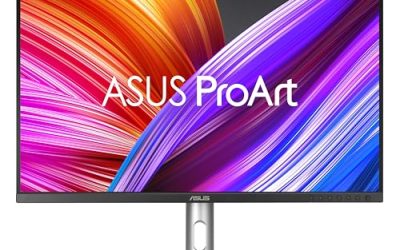
The ASUS ProArt Display PA278CV is the largest and most capable monitor in this guide, and it suits a second-screen role where detail matters. Its 27-inch IPS panel uses QHD resolution, which is 2560 x 1440, so text, spreadsheets, timelines, and image editing panels have more room than on a Full HD screen of the same size. That extra room is useful when the second monitor holds a reference document, a design canvas, or a code editor while the main screen holds the primary workspace. The IPS panel gives wide viewing angles, so colours stay consistent when you glance across from an angle.
Colour handling is a clear strength. The PA278CV is factory calibrated and Calman Verified, with full sRGB and Rec. 709 coverage, so colours stay close to what you expect from a properly set up display. That matters for photo, video, and design work. The panel brightness is listed at 350 nits, which helps the screen stay readable in a bright room. Connectivity is strong too: USB-C, DisplayPort, and HDMI, plus a USB hub and DisplayPort daisy-chaining. The stand is height adjustable and supports tilt and pivot, so you can line the top edge up with your main monitor and turn the panel upright for long documents.
Listing Features
- 27-inch IPS panel with QHD 2560 x 1440 resolution
- Full sRGB and Rec. 709 coverage, factory calibrated and Calman Verified
- USB-C, DisplayPort, HDMI, and a USB hub
- DisplayPort daisy-chaining for multi-screen setups
- Height adjustable stand with tilt and pivot
- 75 Hz refresh rate and 5 ms response time
Considerations
- The 27-inch size needs more desk width than a 24-inch second monitor, so measure the space beside your main screen first.
- QHD resolution gives more workspace, but text will look smaller than on a Full HD panel of the same size unless you adjust display scaling.
- Check that your USB-C port carries a video signal, because not every USB-C port does.
2. ASUS VA24DQ
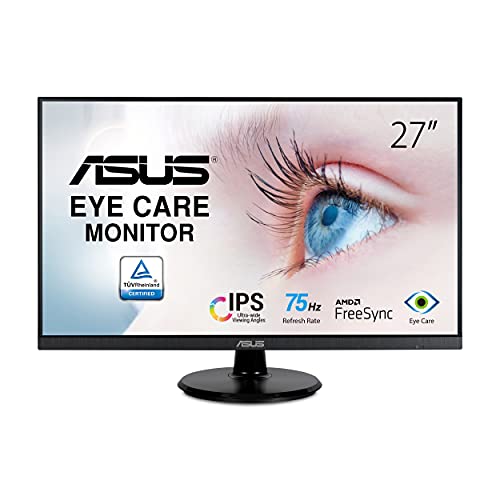
The ASUS VA24DQ is a straightforward 24-inch Full HD monitor that fits the second-screen role very well. Its 23.8-inch IPS panel uses 1920 x 1080 resolution, which is a comfortable match for a laptop screen or a 24-inch main monitor, because text and windows stay a similar size when you move them between screens. The IPS panel gives wide viewing angles of 178 degrees, so the image stays clear when the monitor sits off to one side. A 75 Hz refresh rate with Adaptive-Sync support keeps everyday motion smooth.
The frameless design is one of the most useful details for a second monitor. Thin bezels make two screens sit closer together visually, so the gap between the screens feels smaller and the desk looks neater. The VA24DQ also has flicker-free technology and a low blue light setting, which are helpful for long sessions where the second screen holds email, notes, or reference material all day. Connectivity is broad: HDMI, DisplayPort, and VGA, with HDMI and DisplayPort cables included in the box. The stand supports tilt adjustment, and the display is VESA-compatible for wall mounting or for use on a monitor arm.
Listing Features
- 24-inch IPS panel with Full HD 1920 x 1080 resolution
- Frameless design for a neater multi-display setup
- 75 Hz refresh rate with Adaptive-Sync support
- HDMI, DisplayPort, and VGA connections
- HDMI and DisplayPort cables included in the box
- Flicker-free technology and low blue light settings
- Tilt-adjustable stand and VESA mounting support
Considerations
- Full HD resolution is clear for text and everyday work, but it gives less workspace than the QHD panel in the first pick.
- The stand adjusts for tilt only, so you will need a monitor arm or a riser if you want height adjustment or a portrait orientation.
- Use HDMI or DisplayPort for the clearest image where your computer has those outputs, and keep VGA for older computers.
3. ASUS VZ24EHF

The ASUS VZ24EHF is the slimmest monitor in this guide, and that slim profile is a real advantage on a crowded desk. Its 23.8-inch IPS panel measures only 6.5 mm at its thinnest point, so it takes up very little depth and sits neatly beside a laptop or a main monitor without crowding the keyboard. The Full HD 1920 x 1080 resolution matches a typical laptop or 24-inch main screen well, and the frameless design helps the two screens feel like one continuous workspace rather than two separate boxes.
At 100 Hz, with Adaptive-Sync and a 1 ms moving picture response time, scrolling and window movement look smoother than on a usual 60 Hz office monitor, and casual video on the second screen feels more fluid. The IPS panel gives wide viewing angles, and the listing notes flicker-free and low blue light technologies for comfortable viewing during long sessions. Connectivity is simple: HDMI covers most laptops and desktops with an HDMI output or an adapter. The monitor is wall mountable, so it can go on an arm to match your main screen height, and a three-year warranty is listed.
Listing Features
- 24-inch IPS panel with Full HD 1920 x 1080 resolution
- Ultra-slim 6.5 mm profile at its thinnest point
- 100 Hz refresh rate with Adaptive-Sync and 1 ms moving picture response time
- Frameless design for almost-seamless multi-display setups
- HDMI connection
- Low blue light and flicker-free technologies
- Wall mountable, with a three-year warranty listed
Considerations
- HDMI is the main video input listed, so check that your computer has a spare HDMI output or a suitable adapter before choosing this model.
- The stand is simple, so a monitor arm is the easiest way to adjust height or turn the panel upright.
- Full HD resolution is a good match for a 24-inch second screen, but it gives less room for large spreadsheets than a QHD panel.
4. Sceptre C248W-1920RN

The Sceptre C248W-1920RN is a curved 24-inch screen, which takes a different approach from the other monitors in this guide. The 1800R curve wraps the image slightly around your field of view, which can make a second monitor feel wider without taking up more desk width. The panel is a VA type with Full HD 1920 x 1080 resolution, a 3000 to 1 contrast ratio, and wide colour coverage, so dark areas in video and images look deeper than on many flat panels. A 75 Hz refresh rate with Adaptive-Sync support keeps motion smooth for everyday use.
Connectivity is generous: two HDMI ports and a VGA port, so you can leave two devices connected and switch between them without swapping cables. Built-in speakers are a practical bonus for video calls or video playback, because you do not need separate speakers for basic sound. The monitor is VESA wall mountable. The curved design is a matter of taste: at an angle it can feel natural, while beside a flat main screen in a straight line it will look a little different.
Listing Features
- 24-inch curved VA panel with Full HD 1920 x 1080 resolution
- 1800R screen curvature
- 3000 to 1 contrast ratio
- 75 Hz refresh rate with Adaptive-Sync support
- Two HDMI ports and one VGA port
- Built-in speakers
- VESA wall mountable
Considerations
- A curved panel feels different from a flat panel, so it is best where you are happy for the two displays to have different shapes.
- VA panels give strong contrast, but viewing angles can be narrower than on an IPS panel, so position the screen where you will view it most directly.
- Built-in speakers are convenient for calls and video, but they are not a substitute for separate speakers or headphones if sound quality is a priority.
How to Choose a Second Monitor
Start with size and resolution together, because they decide how much you can see and how comfortable text will feel. A 24-inch Full HD monitor is a safe choice for most second-screen uses: email, chat, documents, browser tabs, and video calls all look clear, and the text size matches many laptops and 24-inch main monitors. A 27-inch QHD monitor gives more room for spreadsheets, timelines, design work, and research. If your main monitor is 27 inches, a 27-inch second monitor will line up more neatly in height.
Panel type matters for how the screen looks from an angle. IPS panels are a good default for a second monitor because they keep colours and brightness steady when you view the screen from the side, which is how a second monitor is used most of the time. VA panels give stronger contrast and deeper dark tones, which can suit video and media. For a second screen that will hold text all day, IPS is usually the simpler choice.
A 75 Hz or 100 Hz panel makes scrolling and window movement look smoother than a 60 Hz panel, and that small difference is noticeable when you use the second screen all day. Ports decide whether the monitor will actually connect to your computer without extra adapters. Most laptops have HDMI or USB-C, and most desktops have HDMI and DisplayPort. If your laptop has USB-C with video output, a monitor with USB-C can connect with a single cable.
Colour and brightness should be close enough to your main monitor that moving your eyes between screens does not feel tiring. A monitor with brightness around 250 nits or higher and an IPS panel is usually a good match for a modern laptop or main monitor. If you do colour-sensitive work, look for a monitor with factory calibration and full sRGB coverage, like the ProArt model in this guide. Think about the stand before you buy: a height-adjustable stand makes alignment easy, while a tilt-only stand may need a riser or a monitor arm.
Fit and Installation Considerations
Measure your desk before you order. A second monitor needs width beside the main monitor, depth for the stand, and clearance for cables at the back. A 24-inch monitor is about 21 to 22 inches wide with its bezels, while a 27-inch monitor is about 24 inches wide. Leave a small gap between the screens so the bezels do not press together, and leave room at the back for the video cable and the power cable to bend without strain.
Check your computer for a spare video output. A laptop with HDMI and USB-C can usually drive a second monitor through either output, but confirm that the USB-C port carries video if you plan to use it. A desktop with a graphics card will usually have several outputs. Make sure you have the right cable: HDMI to HDMI is the simplest, and DisplayPort to DisplayPort is also simple.
Once the monitor is connected, open display settings and arrange the screens to match their physical positions. If the second monitor is on the left, drag its icon to the left of the main screen, so the mouse moves naturally between them. Set the second monitor to extend the desktop rather than duplicate it, because duplicating shows the same image on both screens and does not give you extra space. Set the resolution to the panel native resolution for the sharpest text, and increase scaling a little on a QHD panel if text looks too small.
Position the second monitor so you do not have to turn your head sharply to use it. For most desks, the main monitor stays directly in front of you and the second monitor sits at a slight angle to one side. Keep the screens at a similar height and distance from your eyes, route the cables behind the desk, and leave a little slack so the monitor can tilt or move without pulling the cables tight.
Frequently Asked Questions
What size is best for a second monitor?
A 24-inch monitor is a good default for a second screen, because it fits beside most laptops and main monitors without taking over the desk, and Full HD resolution keeps text a comfortable size. A 27-inch monitor is a better choice if you want more workspace for spreadsheets, design work, or research, and if you have enough desk width. Match the second monitor to your main monitor where you can: a 27-inch second screen lines up neatly with a 27-inch main screen, while a 24-inch second screen feels more balanced beside a smaller main screen.
Should a second monitor match the main monitor?
Matching size and resolution makes the two screens feel like one workspace, because windows keep the same size when you drag them across. It is not a strict requirement, though. Many people use a smaller second monitor for email and chat while the main monitor handles the primary task, and that works well as long as the second screen is comfortable to read and sits at a similar height.
Can I use a second monitor with a laptop?
Yes, in most cases. A laptop with an HDMI port can connect directly to a monitor with HDMI, and a laptop with USB-C that carries video can connect to a monitor with USB-C or to an HDMI or DisplayPort monitor through an adapter or a hub. Check which ports carry video, then use display settings to extend the desktop onto the second monitor.
Do I need a monitor arm for a second monitor?
You do not need one, but an arm makes a second monitor easier to position well. The included stand works fine if it puts the screen at the right height and angle, but a stand that only tilts cannot raise the screen to match a taller main monitor. A monitor arm lets you adjust height, distance, and angle, and it frees desk space underneath. All four monitors in this guide list VESA mounting support.
Conclusion
The best second monitors are the ones that fit your desk, connect cleanly to your computer, and stay comfortable to glance at all day. For detailed work, the ASUS ProArt Display PA278CV stands out with its 27-inch QHD IPS panel, full sRGB and Rec. 709 coverage, USB-C and DisplayPort connections, and a height-adjustable stand. For everyday work, the ASUS VA24DQ is a balanced choice with a 24-inch Full HD IPS panel, a frameless design, and broad HDMI, DisplayPort, and VGA connectivity. For a slim desk, the ASUS VZ24EHF gives a 24-inch Full HD IPS panel in an ultra-slim body with a 100 Hz refresh rate. For a wider-feeling view, the Sceptre C248W-1920RN adds a curved 24-inch VA panel with built-in speakers and two HDMI ports.
Whichever model you choose, measure the space, check the ports on your computer, and take a few minutes to align the screens in display settings once the monitor is connected.
As an Amazon Associate, we earn from qualifying purchases.
More from Amazon
Programs that pair well with the guide above. Offers and eligibility are set by Amazon and may change.
Free shipping on eligible items, Prime Video and more. Eligible new members can start with a free trial.
Start a Prime free trialAd-free music streaming. Eligible new subscribers can start with a free trial.
Try Music Unlimited freeA Prime membership for ages 18-24 with a trial period. Eligibility is set by Amazon.
See Prime for Young AdultsAudiobooks and podcasts to listen to on the go. Eligible new members can start with a free trial.
Try Audible freeAs an Amazon Associate we earn from qualifying purchases.
Write Your Review
No reviews yet. Be the first to share your experience!