

Key takeaways
- The best gaming monitors for Xbox Series S compared on resolution, refresh rate, response time and HDMI ports, with 1440p and 1080p picks matched to the console.
As an Amazon Associate we earn from qualifying purchases.
The Xbox Series S is a small console with a clear sweet spot. Microsoft positioned it around 1440p gaming, and that single fact should drive your monitor choice more than any marketing label. A huge 4K panel built for the larger consoles is not automatically the right partner here. What the Series S rewards is a sharp 1440p or clean 1080p screen, a high refresh rate on paper, low response time, and an HDMI connection that is simple to set up at a desk.
That is why this guide focuses only on monitors that match that profile. Every pick below is a gaming monitor with either 2560 x 1440 or 1920 x 1080 resolution, a refresh rate well above a basic office display, and HDMI input for the console. Screen sizes stay in the desk-friendly range, mostly 27 inches for 1440p and a smaller 23.8-inch option for 1080p, because most Series S setups live on a desk rather than across a living room.
A note on expectations. A monitor listing 165Hz or 170Hz describes what the panel can display, not a promise that every game will run at that rate. Games decide their own performance modes. Read the specification as headroom: the monitor is ready when a game offers a higher frame rate mode.
Disclosure: This article contains affiliate links. If you buy through a link on this page, the site may earn a commission at no extra cost to you.
Our top picks
Best for: Colour and Motion
Check price on AmazonQuick Picks
- Best overall for most Series S desks: Dell G2724D — a 27-inch 1440p Fast IPS monitor with a 165Hz refresh rate, 1ms response time listed by Dell, and a fully adjustable stand.
- Best for colour and motion: LG UltraGear 27GP850-B — a 27-inch 1440p Nano IPS monitor with a 165Hz refresh rate, 1ms GtG response time, and FreeSync Premium support.
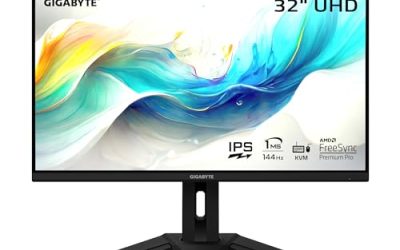
- Best with extra desk features: GIGABYTE M27Q — a 27-inch 1440p monitor with a 170Hz refresh rate, a built-in KVM switch, and two HDMI ports.
- Best straightforward 1440p value layout: Acer Nitro KG271U N3bmiipx — a 27-inch 1440p IPS monitor with up to 180Hz over DisplayPort, up to 0.5ms response time listed by Acer, and two HDMI 2.0 ports.
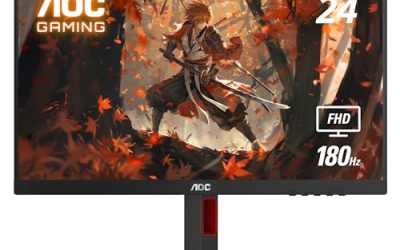
- Best compact 1080p option: ASUS TUF Gaming VG249Q1A — a 23.8-inch 1080p IPS monitor with an overclockable 165Hz refresh rate, 1ms MPRT, and FreeSync Premium.
1. Dell G2724D — Best Overall for Most Series S Desks

The Dell G2724D is the easiest recommendation in this group because it does the basics without adding anything a Series S owner does not need. Its 27-inch Fast IPS panel runs at 2560 x 1440, which lines up directly with the resolution the Series S was designed around. Text in menus looks crisp at a normal desk distance, game worlds hold more detail than on a 1080p screen of the same size, and the panel does not ask the console to handle a 4K image it was not built to prioritise.
The listing describes a 165Hz refresh rate and a 1ms response time, with AMD FreeSync Premium and NVIDIA G-SYNC Compatible support. Those sync features are listed for the monitor itself, and they also make the screen a sensible second display for a PC later. For console use, the practical points are simpler: there is HDMI connectivity alongside DisplayPort, the stand adjusts for height, tilt, swivel and pivot, and the design is plain enough to sit in a work-and-play setup without looking out of place.
If you share the desk with a laptop or PC, the DisplayPort input covers that machine while HDMI stays free for the console.
Specifications
- Screen size: 27 inches
- Panel: Fast IPS, flat
- Resolution: 2560 x 1440 (1440p)
- Refresh rate: 165Hz
- Response time: 1ms as listed
- Adaptive sync: AMD FreeSync Premium, NVIDIA G-SYNC Compatible as listed
- Ports: HDMI and DisplayPort as listed
- Stand: Height, tilt, swivel and pivot adjustment
Pros
- Native 1440p resolution matches the Series S target closely
- Fully adjustable stand included
- Fast IPS panel with wide viewing angles
- Simple port layout for a console plus a PC
Cons
- No built-in USB hub for desk peripherals
- Flat panel only, with no curved option in this model
- HDR support is basic compared with larger, more expensive monitors
View the Dell G2724D on Amazon
2. LG UltraGear 27GP850-B — Best for Colour and Motion

The LG UltraGear 27GP850-B uses a Nano IPS panel, which is LG’s way of describing an IPS display with a wider colour range than a standard IPS screen. The listing gives a 27-inch 2560 x 1440 resolution, a 165Hz refresh rate, and a 1ms GtG response time. For a Series S owner who also watches video, edits photos, or plays on a PC at the same desk, that colour range is the reason to pick this monitor over a plainer 1440p screen.
Motion handling is the other strength. A 1ms GtG listing and a high refresh rate are the two specifications that matter most for fast camera movement, and this model pairs them with AMD FreeSync Premium and NVIDIA G-SYNC Compatible support in the listing. The stand adjusts for tilt, height and pivot, and the three-sided borderless design keeps the focus on the picture rather than the frame.
The 27GP850-B makes most sense when its wider colour and strong motion specifications will actually be used every day, especially on a shared console and PC desk.
Specifications
- Screen size: 27 inches
- Panel: Nano IPS, flat
- Resolution: 2560 x 1440 (1440p)
- Refresh rate: 165Hz as listed
- Response time: 1ms GtG as listed
- Adaptive sync: AMD FreeSync Premium, NVIDIA G-SYNC Compatible as listed
- HDR: VESA DisplayHDR 400 as listed
- Ports: HDMI and DisplayPort as listed
- Stand: Tilt, height and pivot adjustment
Pros
- Nano IPS panel with wide colour coverage as listed
- Fast 1ms GtG response time specification
- Adjustable stand with pivot for a second-screen layout
- Strong fit for a shared console and PC desk
Cons
- Colour advantage is wasted if the desk is console-only and viewed head-on
- No built-in speakers that most buyers should rely on for game audio
- Design is clearly gaming-styled, which may not suit every room
View the LG UltraGear 27GP850-B on Amazon
3. GIGABYTE M27Q — Best With Extra Desk Features

The GIGABYTE M27Q matches the same 27-inch 1440p formula and then adds desk features the other picks do not have. The listing describes a Super Speed IPS panel at 2560 x 1440, a 170Hz refresh rate, and a 0.5ms MPRT response time. It also lists a built-in KVM switch and USB-C connectivity, which let one keyboard and mouse move between two machines connected to the same screen.
For a Series S setup, the KVM is about the rest of the desk. If a work laptop and a PC share the monitor, switching inputs and peripherals is tidier here. The listing includes two HDMI 2.0 ports and DisplayPort, so the console gets its own HDMI input. The M27Q also lists FreeSync Premium and VESA DisplayHDR 400 — panel specifications from the listing, while what you see in a game still depends on that game’s own modes.
Specifications
- Screen size: 27 inches
- Panel: Super Speed IPS, flat
- Resolution: 2560 x 1440 (1440p)
- Refresh rate: 170Hz
- Response time: 0.5ms MPRT as listed
- Adaptive sync: FreeSync Premium as listed
- HDR: VESA DisplayHDR 400 as listed
- Ports: Two HDMI 2.0, DisplayPort, USB-C and USB ports as listed
- Extra: Built-in KVM switch
Pros
- Built-in KVM simplifies a multi-device desk
- Two HDMI ports leave room for the console and another device
- High 170Hz refresh rate and fast response time listing
- USB-C input is useful for a modern laptop
Cons
- Extra features add complexity if you only ever connect the console
- KVM and USB functions are irrelevant to the console itself
- Stand and styling are bulkier than the Dell option
View the GIGABYTE M27Q on Amazon
4. Acer Nitro KG271U N3bmiipx — Best Straightforward 1440p Layout

The Acer Nitro KG271U keeps the formula simple: a 27-inch IPS panel, 2560 x 1440 resolution, and a port layout that is easy to understand before you buy. Acer’s listing describes up to 180Hz refresh over DisplayPort and 144Hz using the HDMI port, a response time of 1ms GtG and up to 0.5ms GtG, HDR10 support, and one DisplayPort 1.2 plus two HDMI 2.0 ports.
That HDMI detail matters for console buyers. The headline figure belongs to DisplayPort, a PC connection. Over HDMI, the listing gives 144Hz — comfortably above the frame rates most games target, and documented over the exact connection the console uses, with a second HDMI port spare. The rest is deliberately plain: no KVM, no USB-C, just a zero-frame design, FreeSync as listed, and the core 1440p specification.
Specifications
- Screen size: 27 inches
- Panel: IPS, flat
- Resolution: 2560 x 1440 (1440p)
- Refresh rate: Up to 180Hz over DisplayPort, 144Hz over HDMI as listed
- Response time: 1ms GtG, up to 0.5ms GtG as listed
- HDR: HDR10 support as listed
- Ports: One DisplayPort 1.2 and two HDMI 2.0 as listed
- Adaptive sync: AMD FreeSync as listed
Pros
- HDMI refresh rate is stated clearly in the listing
- Two HDMI ports for console plus another device
- Clean 1440p IPS specification with no unnecessary extras
- Zero-frame design suits a tidy desk
Cons
- Highest refresh figure requires DisplayPort, not HDMI
- No height-focused ergonomic stand story compared with the Dell
- No USB-C or KVM features for a multi-device desk
View the Acer Nitro KG271U on Amazon
5. ASUS TUF Gaming VG249Q1A — Best Compact 1080p Option

Not every Series S desk needs 1440p. The ASUS TUF Gaming VG249Q1A is a 23.8-inch monitor with a 1920 x 1080 IPS panel, and at this smaller size 1080p still looks sharp. The listing describes an overclockable 165Hz refresh rate, 1ms MPRT, Extreme Low Motion Blur, FreeSync Premium, and Shadow Boost, with DisplayPort and HDMI connections and built-in speakers.
The smaller screen is the point. A 23.8-inch monitor fits narrow desks and secondary setups where a 27-inch panel would crowd the space, and suits players who sit close and prefer a compact view. The trade-off is detail: a 27-inch 1440p monitor shows more. Its stand is simpler than the Dell and LG picks, so check the listing for the adjustment range if you plan to use a monitor arm.
Specifications
- Screen size: 23.8 inches
- Panel: IPS, flat
- Resolution: 1920 x 1080 (1080p)
- Refresh rate: Up to 165Hz overclocked as listed
- Response time: 1ms MPRT as listed
- Adaptive sync: FreeSync Premium as listed
- Ports: DisplayPort and HDMI as listed
- Extra: Built-in speakers, VESA mountable as listed
Pros
- Compact size fits small and shared desks
- Sharp 1080p picture at this screen size
- High refresh rate and low response time listings
- Built-in speakers cover basic audio without extra gear
Cons
- Less detail and screen space than the 1440p picks
- Smaller picture is less immersive for story-driven games
- Simpler stand than the larger monitors in this guide
View the ASUS TUF Gaming VG249Q1A on Amazon
How to Choose a Gaming Monitor for Xbox Series S
Start with resolution, because it narrows the field fastest. The Series S was designed with 1440p in mind, so a 27-inch 1440p monitor is the natural match for a desk setup. A 1080p monitor still makes sense at 24 inches or below, where the smaller screen keeps the image sharp and the setup compact. A large 4K monitor is not wrong, but it solves a problem this console does not have, and the money is usually better spent on refresh rate, panel quality, or a good stand.
Next, read the refresh rate by connection, not by headline. Manufacturers often quote the highest rate over DisplayPort. The console connects over HDMI, so look for the HDMI figure in the listing, as the Acer pick states clearly. Do not treat any refresh figure as a guarantee for a specific game.
Response time and panel type shape how motion feels. IPS panels, used by every pick here, offer wide viewing angles and consistent colour. Response figures are measured in different ways, such as GtG and MPRT, so compare them as a general guide rather than exact scores.
Check ports against your whole desk. One HDMI port is enough for the console alone. Two are worth having if another device also needs the screen. USB-C and KVM features are conveniences for computers and do nothing for the console itself. Finally, consider the stand: height adjustment matters over a long evening, and a VESA mount lets an arm solve a basic stand. Treat built-in speakers as a backup; headphones or separate speakers usually serve better.
Frequently Asked Questions
Is 1440p or 1080p better for the Xbox Series S?
For most desk setups, 1440p is the better match because the console was designed around that resolution and a 27-inch 1440p screen looks noticeably sharper than a 27-inch 1080p screen. At smaller sizes around 24 inches, 1080p still looks sharp and keeps the setup compact. Choose by screen size first: 1440p at 27 inches, 1080p at 24 inches or below.
Do I need a 4K monitor for the Xbox Series S?
No. A 4K monitor will accept the console’s signal, but the Series S is positioned as a 1440p console, so you would be paying for resolution the system is not designed to prioritise. A good 1440p monitor with a high refresh rate and low response time is the more balanced purchase for this console, especially at a desk.
Does a high refresh rate monitor make every game smoother?
No. The monitor can only display the frames the game and console provide. A high refresh rate panel gives headroom for titles that offer higher frame rate modes, and it often comes with faster response times that help motion clarity. Check each game’s own performance settings rather than expecting the monitor to change a game’s target on its own.
Which connection should I use between the Series S and the monitor?
Use HDMI, which is the console’s video output. Connect the cable supplied with the console to an HDMI input on the monitor, then select that input in the monitor’s menu. DisplayPort on these monitors is for a PC sharing the same screen, not for the console.
Should I care about adaptive sync on a console monitor?
Adaptive sync is a monitor specification that lets the display adjust to varying frame output, and listings for these picks name FreeSync or G-SYNC Compatible support. Treat it as a useful monitor feature to have, especially if a PC shares the screen, rather than as the deciding factor for a console-only desk. Resolution, HDMI refresh rate, response time, and stand comfort matter more day to day.
What screen size suits a Series S desk setup?
A 27-inch screen suits most desks and pairs naturally with 1440p resolution at a typical desk viewing distance. A 23.8-inch or 24-inch screen suits smaller desks and close seating, where 1080p remains sharp. Measure your desk depth before choosing, because a larger screen placed too close can feel harder to take in during fast games.
Conclusion
The best gaming monitors for Xbox Series S are not the biggest or the most extreme screens available. They are the monitors whose specifications line up with what this console actually does: 1440p resolution at a desk-friendly size, a high refresh rate over HDMI, low response time, and ports that fit the rest of your setup.
Choose the Dell G2724D for the most balanced all-round package, the LG UltraGear 27GP850-B for wider colour and fast motion specifications, or the GIGABYTE M27Q if a KVM and extra ports will tidy a multi-device desk. The Acer Nitro KG271U covers the same 1440p job with a clearly stated HDMI refresh rate, and the ASUS TUF Gaming VG249Q1A is the right answer when the desk is small and 1080p is enough. Match the pick to your desk and your other devices, confirm the current listing details before you order, and the Series S will have a screen that suits it properly.
More from Amazon
Programs that pair well with the guide above. Offers and eligibility are set by Amazon and may change.
Free shipping on eligible items, Prime Video and more. Eligible new members can start with a free trial.
Start a Prime free trialAd-free music streaming. Eligible new subscribers can start with a free trial.
Try Music Unlimited freeA Prime membership for ages 18-24 with a trial period. Eligibility is set by Amazon.
See Prime for Young AdultsAudiobooks and podcasts to listen to on the go. Eligible new members can start with a free trial.
Try Audible freeAs an Amazon Associate we earn from qualifying purchases.
Write Your Review
No reviews yet. Be the first to share your experience!