

Key takeaways
- Best Linux tablets on Amazon US: four tablets with a documented Linux route, from the Surface Go 3 to a colour e-ink notebook, with honest limits.
True Linux tablets are rare on Amazon US, and that fact shapes this whole guide. The tablets built for Linux from the first boot — the Juno Tab 4, the Purism Librem 11, and the PINE64 PineTab2 — sell through their makers’ own stores, not through Amazon US. What Amazon US does carry is a small set of tablets with a documented Linux route: one with a community kernel project that tracks every feature, one whose maker lists Ubuntu as a preload option for the model line, one that runs Linux tools inside a built-in container, and one whose whole system is Linux-based even though it is a notebook rather than a general-purpose computer. This guide covers those four. Each section names the Linux route, names what does not work, and tells you what to confirm on the live listing before you buy. Nothing here is presented as practical use; every spec comes from the listing, the maker spec sheet, or a public support matrix.


What to look for
Judge a Linux tablet by its support table before you judge it by its chip. A tablet that boots Linux is not the same as a tablet that works on Linux. The parts that fail most often are the cameras, the touch controller and pen, the accelerometer that drives auto-rotation, suspend and battery reporting, and the Wi-Fi and Bluetooth drivers in the mainline kernel. A good pick has a vendor table, a kernel project matrix, or a maker document that says which of those parts work. If no such document exists for a model, treat the Linux claim as unproven and move on.
Architecture is the second fork. An x86 tablet boots a normal installer from a USB stick and runs every desktop app you already use, including containers and virtual machines. An ARM tablet needs a device-specific image, a container, or the vendor OS, and some apps are never built for ARM. That is why the ARM picks in this guide cost less, and why the x86 picks cost more. Pick the architecture to match the software you need, not the other way around.
Form matters too. A detachable slate with a separate keyboard feels like a tablet in the hand and a laptop on a desk. A folding 2-in-1 with an attached keyboard is a laptop that folds flat, not a slate you hold in one hand. An e-ink notebook is a writing tool, not a computer, and it will never run a browser or a terminal. Decide which shape fits your day before you compare chips.
Condition deserves a hard look on Amazon US. Many tablet listings on Amazon US are renewed or used units, and several of the Linux-capable machines here are sold by marketplace sellers rather than by the maker. Confirm the listing shows a new unit, confirm the exact model code, and read the seller notes on the listing itself. A listing that discloses a reseal or an upgrade is not the same as a factory-sealed unit, and the article flags those cases wherever they apply.
Memory and storage set the ceiling for what the machine can do. Eight gigabytes of memory is the floor for a full desktop with a browser open; four gigabytes leaves little room once a container or a second app joins in. Storage of 128GB fills up fast once a distro, a container image, and a few projects land on it, so check whether the tablet takes a microSD card or a second drive. Battery figures in this guide are the makers’ own figures, and the article says so wherever a figure appears.
Microsoft Surface Go 3
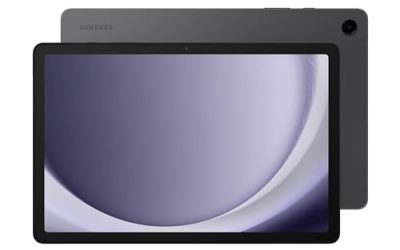
The Surface Go 3 is the safest Linux buy on Amazon US, because its Linux support is tracked in public by the linux-surface kernel project. The listing is the tablet alone, model 8VC-00001, with a 10.5-inch PixelSense touchscreen at 1920×1280 in a 3:2 shape, a Core i3-10100Y chip, 8GB of memory, and a 128GB SSD. It also has Wi-Fi 6, one USB-C port, Surface Connect, and a microSDXC slot. Microsoft lists the weight at 544 g without a cover and the battery at up to 11 hours, both maker figures. The Type Cover keyboard and the pen are separate buys, so budget for those if you want a laptop shape.
On Linux it runs the linux-surface kernel, and the project matrix marks every Go 3 feature as supported except hibernate and performance modes. The cameras work through libcamera on kernel 6.14 or newer, which makes this the only tablet in this guide apart from the direct-only Juno where a video call on the built-in camera is documented to work. Touch, pen, rotation, suspend, and Wi-Fi are all marked working in the same matrix. That is a rare level of certainty for a tablet, and it is the main reason this pick leads the guide.
The limits are age and speed. This is a 2021 tablet with a low-power Y-series chip, and it is a good second machine for notes, SSH, and a browser, and a poor one for compiling large projects or keeping dozens of browser tabs open. The 128GB SSD is small once a distro and a few projects are on it, though the microSDXC slot helps for files. The listing is sold by a marketplace seller as a device-only unit, so confirm model 8VC-00001 and a new unit on the live listing, and confirm the Type Cover you buy matches the Go 3 rather than the Go 2. A tracker checked the listing in stock on November 24, 2026, which is the freshest stock signal in this guide.
Lenovo ThinkPad L13 Yoga Gen 5
The ThinkPad L13 Yoga Gen 5 is the convertible in this guide, and its Linux claim comes from Lenovo itself. The listing is a 13.3-inch 1920×1200 IPS touchscreen with a Core Ultra 5 125U chip, 16GB of DDR5 memory, and a 512GB SSD, plus Thunderbolt 4, a fingerprint reader, a 1080p IR webcam, a backlit keyboard, and a 46Wh battery. It weighs 1.32 kg, which makes it the heaviest pick here by a wide margin, and it folds flat rather than splitting apart, so it is a laptop that folds, not a slate.
Lenovo’s PSREF spec sheet for this model line lists Ubuntu Linux as a preload option next to Windows, which is the Linux reason to buy it. The footnote is honest about what that preload leaves out: Intel RST RAID, the MIPI computer-vision camera, WWAN, and Human Presence Detection. The standard 1080p webcam is not on that exclusion list. Note that the Amazon listing itself ships with Windows 11 Pro, so Linux on this unit means a fresh install from a USB stick, not a preload. That is a normal path on an x86 ThinkPad, and the PSREF entry is what makes it a documented path rather than a guess.
Two cautions belong in the open. The listing discloses that the machine was resealed to upgrade the memory and SSD, with a three-year warranty from the seller on the upgraded parts, so confirm the factory configuration and the exact model code on the live listing before you buy. Lenovo now marks this model as withdrawn, which is why marketplace sellers are the place to find new units. A pen garage is fitted on some models only, so check the listing photos if you want the pen to live inside the chassis. Trackers showed the listing in stock in mid-November 2026, with a mirror showing it in stock two days before this guide was written.
Lenovo Chromebook Duet Gen 9
The Chromebook Duet Gen 9 is the cheapest tablet in this guide that runs Linux tools reliably from the first day, as long as you accept Linux inside a container. The listing is the 8GB model, 83HH0001US, with a 10.95-inch 1920×1200 IPS touchscreen at 400 nits, an 8-core MediaTek Kompanio 838 ARM chip, 8GB of LPDDR4X memory, and 128GB of storage, with two USB-C ports that charge and drive a DisplayPort 1.4 monitor, an 8MP webcam, and a 29Wh battery. The detachable keyboard and a USI Pen 2 come in the box, and the listing copy names MIL-STD-810H durability. Trackers showed the listing in stock on November 24, 2026. Get the 8GB model: the Linux container shares memory with ChromeOS, and 4GB runs out quickly.
Linux here means ChromeOS’s built-in Linux development environment, a Debian container you switch on in Settings. Google’s own page is clear about the limits: cameras are not yet supported, and hardware acceleration is not yet supported, including GPU and video decode. In practice that is a terminal, apt, VS Code, and Python on an ARM tablet with a keyboard, which is plenty for SSH and scripting. You cannot wipe ChromeOS and install a normal distro on this tablet the way you can on the x86 picks, so treat it as a Chromebook that happens to run Linux tools.
Two details need confirming on the live listing. The listing copy names 128GB PCIe NVMe SSD while Lenovo’s own spec sheet names eMMC storage for this model line, so the storage type is in conflict across sources and the listing is the document to trust. The listing also notes a one-year warranty from the seller, MichaelElectronics2, rather than a maker warranty, so read the seller notes on the listing itself. The ARM chip is the other limit to weigh: some desktop apps are never built for ARM, so check that the tools you need have ARM builds before you buy.
reMarkable Paper Pro
The reMarkable Paper Pro is the pen and e-ink pick, and it is the most honest about what it is not. The bundle includes the 11.8-inch colour e-ink tablet with a reading light and the Marker Plus pen with the eraser end. ReMarkable’s developer portal says plainly that its paper tablets are Linux-based, and that is the Linux claim for this pick. It is a notebook for handwriting and reading, not a general-purpose computer, and this section says so up front.
The Linux part you can actually use is developer mode. ReMarkable’s developer documentation says it gives SSH access as the root user, but turning it on needs a factory reset, disables most of secure boot, and modifications are not covered by the Limited Warranty. Apps have to be cross-compiled with ReMarkable’s SDK, so this is a hackable notebook, not a tablet you install a desktop on. There is no browser, no terminal app, and no video playback in the normal system, and the colour e-ink screen is built for ink, not for moving images.
The Type Folio keyboard is a separate accessory and is not in this bundle, so do not expect to type long documents on it. The stock evidence is the thinnest in this guide: the direct Amazon crawls are 252 to 347 days old, and the freshest signals are mirrors from the last few days, so open the live listing and confirm a buying option before you count on it. If you want a browser, a terminal, and video on the same device, pair this notebook with one of the x86 picks above instead of trying to make it do their job.
Compare the Linux tablets side by side
| Tablet | Screen | Chip | Memory / Storage | Linux route | Watch out |
|---|---|---|---|---|---|
| Microsoft Surface Go 3 | 10.5-inch 1920×1280 touch | Intel Core i3-10100Y | 8GB / 128GB SSD | linux-surface kernel | Hibernate and performance modes unsupported; Type Cover and pen are separate buys |
| Lenovo ThinkPad L13 Yoga Gen 5 | 13.3-inch 1920×1200 touch | Intel Core Ultra 5 125U | 16GB / 512GB SSD | Ubuntu preload option in Lenovo PSREF | Listing was resealed for a memory and SSD upgrade; ships with Windows 11 Pro |
| Lenovo Chromebook Duet Gen 9 | 10.95-inch 1920×1200 touch | MediaTek Kompanio 838 | 8GB / 128GB | Debian container in ChromeOS | No camera support and no hardware acceleration in the container; cannot wipe ChromeOS |
| reMarkable Paper Pro | 11.8-inch colour e-ink | E-ink notebook chip | Not a general-purpose PC | Linux-based OS with root SSH developer mode | No browser, terminal, or video; developer mode needs a factory reset |
Frequently asked questions
Can I install a normal Linux distro on any of these tablets?
On the two x86 picks, yes. The Surface Go 3 and the ThinkPad L13 Yoga Gen 5 both boot a normal installer from a USB stick, and both have a documented Linux route — the linux-surface kernel matrix for the Surface, and Lenovo’s Ubuntu preload option in the PSREF sheet for the ThinkPad. On the Duet, no: Linux lives in a Debian container inside ChromeOS, and you cannot wipe ChromeOS for a normal distro. On the reMarkable Paper Pro, no: its Linux-based OS stays in charge, and developer mode gives SSH access rather than a desktop you install.
Which one works best as a daily tablet?
It depends on what daily means for you. For a full desktop with a browser, a terminal, and a video call, the Surface Go 3 is the strongest pick, because its camera support is documented and its support matrix is public. For light terminal work, SSH, and scripting on a low spend, the Duet is the cheapest route that works from the first day. For handwriting and reading, the reMarkable Paper Pro is in a class of its own, but it will never be your only computer. The ThinkPad is the pick for heavy multitasking and desk work, since it has the most memory and storage, but it is a folding laptop rather than a slate you hold in one hand.
Do I need a keyboard, and does one come in the box?
The Duet is the only pick with a keyboard in the box, and its USI Pen 2 is included too. The Surface Go 3 listing is tablet only, so the Type Cover and pen are separate buys — confirm the cover matches the Go 3. The ThinkPad has its keyboard attached, since it folds rather than splits apart. The reMarkable Paper Pro bundle has no keyboard at all, and its Type Folio keyboard is a separate accessory. Check the listing photos and the included-items list before you buy, since bundles change and a missing keyboard is the most common surprise in this category.
How to choose
Begin with the job, not the chip. If you want a full Linux desktop in a tablet shape, buy the Surface Go 3 and a Type Cover, and accept its modest speed and small SSD. If you want the most capable machine and you are happy with a folding laptop, buy the ThinkPad, read the reseal disclosure on the listing, and confirm the factory configuration. If you want the lowest spend and your work lives in a terminal, buy the 8GB Duet and accept the container limits, especially the missing camera support. If you want a paper notebook that happens to run Linux under the hood, buy the reMarkable Paper Pro and pair it with a real computer for everything else.
Whatever you pick, check three things on the live listing before you buy: that the unit is new, that the model code matches the one in this guide, and that the Linux route named here still matches the listing and the maker page. Linux tablet listings change fast, sellers change, and a support matrix is only useful if you read it before checkout. When in doubt, the pick with the public support table is the safer buy, and in this guide that is the Surface Go 3.
Disclosure: As an Amazon Associate, we may earn a commission from qualifying purchases made through links in this article, at no additional cost to you.
More from Amazon
Programs that pair well with the guide above. Offers and eligibility are set by Amazon and may change.
Free shipping on eligible items, Prime Video and more. Eligible new members can start with a free trial.
Start a Prime free trialAd-free music streaming. Eligible new subscribers can start with a free trial.
Try Music Unlimited freeA Prime membership for ages 18-24 with a trial period. Eligibility is set by Amazon.
See Prime for Young AdultsAudiobooks and podcasts to listen to on the go. Eligible new members can start with a free trial.
Try Audible freeAs an Amazon Associate we earn from qualifying purchases.
Write Your Review
No reviews yet. Be the first to share your experience!