

Key takeaways
- Pen tablet or pen display? Compare five drawing tablets for PC by active area, pressure levels, stylus, shortcut controls and connection type.
Every drawing tablet for PC work falls into one of two families, and picking the right family matters more than any single specification. Screenless pen tablets are flat drawing surfaces with no screen of their own: you move the pen on the tablet while watching your monitor. Pen displays put a screen directly under the pen, so you draw on the image itself. This guide compares five models across both families, three screenless tablets and two pen displays, and explains the specs that separate them.
Beyond the type, the details worth comparing are active area, pen pressure levels, stylus design, shortcut controls, connection method and operating system support. All five models below use a battery-free pen, so the stylus never needs charging. None works on its own: the screenless tablets are input surfaces for a computer, and both pen displays must also connect to one before they can be used.
As an Amazon Associate, we earn from qualifying purchases.
Quick answer
Choose the type first. Screenless pen tablets — the Wacom Intuos Small, Huion H640P and Wacom Intuos Medium Bluetooth — are compact drawing surfaces you use while watching your monitor. Pen displays — the Huion Kamvas 13 Gen 3 and XPPen Artist 13.3 Pro — put a 13.3-inch screen under the pen. Then compare active area, pressure levels and shortcut controls.
Wacom Intuos Small, Wired (CTL-4100), Black
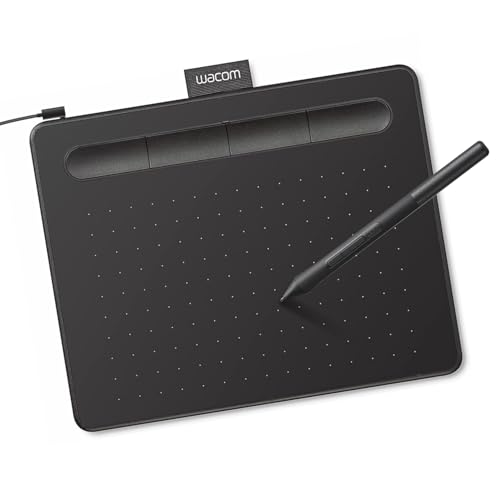
The Intuos Small is a screenless pen tablet, the most compact pick in this guide. Its active area measures 152 x 95mm, which suits sketching, note annotation and photo retouching on a small desk, though long strokes are drawn with the fingers and wrist rather than the whole arm. The battery-free Wacom Pen 4K offers 4,096 pressure levels, and four customizable ExpressKeys sit on the tablet for shortcuts.
It connects by a USB-A cable and works with Windows, macOS, Chromebook and Android systems. The current listing also bundles software, including two years of CLIP STUDIO PAINT PRO, which makes this a straightforward first tablet for someone who does not yet own drawing software.
| Specification | Detail |
|---|---|
| Type | Screenless pen tablet |
| Active area | 152 x 95mm |
| Pressure levels | 4,096 |
| Pen | Wacom Pen 4K, battery-free |
| Shortcut controls | 4 customizable ExpressKeys |
| Connection | USB-A cable |
| Compatibility | Windows, macOS, Chromebook, Android |
| ASIN | B079HL9YSF |
HUION Inspiroy H640P Drawing Tablet, 6×4 Inch

The H640P is also a screenless pen tablet, sized around a 6×4 inch active area; the listing text describes the working surface as 6.3 x 3.9 inches. It doubles the pressure sensitivity of the two Wacom models here, with 8,192 pressure levels from the battery-free PW100 stylus, and adds six customizable hot keys along the side. The listing also specifies a 233PPS report rate and 5,080 LPI resolution.
Connection is by Micro USB. Compatibility is broad: Windows 7 or later, macOS 10.11 or later, Android 6.0 or later, and Linux in the form of Ubuntu. For a small-format tablet, it leans hardest into shortcut controls and pen sensitivity rather than surface size.
| Specification | Detail |
|---|---|
| Type | Screenless pen tablet |
| Active area | 6 x 4 inches (6.3 x 3.9 inch working surface per listing) |
| Pressure levels | 8,192 |
| Pen | PW100 stylus, battery-free |
| Shortcut controls | 6 customizable hot keys |
| Report rate / resolution | 233PPS / 5,080 LPI |
| Connection | Micro USB |
| Compatibility | Windows 7+, macOS 10.11+, Android 6.0+, Linux (Ubuntu) |
| ASIN | B075T6MTJX |
Wacom Intuos Medium Bluetooth (CTL6100WLK0), Black

The Intuos Medium is the larger screenless option in this guide. Its active area grows to 216 x 135mm, or 8.5 x 5.3 inches, which gives drawing strokes more room and maps more naturally onto a widescreen monitor. It uses the same battery-free Pen 4K with 4,096 pressure levels and the same four ExpressKeys as the Small model.
What sets it apart is the connection: Bluetooth is built in alongside USB, so the tablet can sit on the desk without a cable running to the computer. It works with Chromebook, Mac, Android and Windows systems. Choose it if the Small model’s surface feels cramped, or if a wireless desk setup matters to you.
| Specification | Detail |
|---|---|
| Type | Screenless pen tablet |
| Active area | 216 x 135mm (8.5 x 5.3 inches) |
| Pressure levels | 4,096 |
| Pen | Wacom Pen 4K, battery-free |
| Shortcut controls | 4 ExpressKeys |
| Connection | Bluetooth and USB |
| Compatibility | Chromebook, Mac, Android, Windows |
| ASIN | B079NWPZTG |
HUION Kamvas 13 (Gen 3) Pen Display, Black (GS1333)
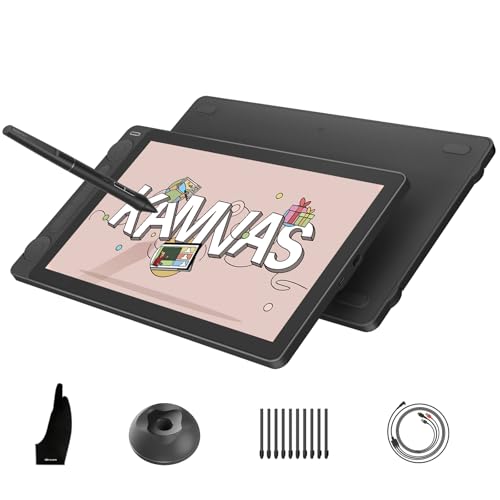
The Kamvas 13 (Gen 3) is a pen display, a different kind of device from the three tablets above: you draw directly on its 13.3-inch screen. The display is full-laminated with a resolution of 1920×1080, uses anti-sparkle Canvas Glass, and covers 99 percent of sRGB. The PenTech 4.0 stylus, model PW600L, is battery-free and reaches 16,384 pressure levels, the highest figure in this guide, and dual dials on the display add another way to adjust brush size or zoom.
It is not a standalone device and must connect to a computer. Compatibility covers Windows, macOS, Linux, and Android devices that support USB3.1 with DP1.2. It suits artists who find the hand-eye separation of a screenless tablet awkward and want the pen to land exactly where the line appears.
| Specification | Detail |
|---|---|
| Type | Pen display (draw on the screen) |
| Display | 13.3-inch full-laminated, 1920×1080 |
| Surface / color | Anti-sparkle Canvas Glass, 99 percent sRGB |
| Pressure levels | 16,384 |
| Pen | PenTech 4.0 PW600L stylus, battery-free |
| Shortcut controls | Dual dials |
| Connection | Connects to a computer; Android via USB3.1 with DP1.2 |
| Compatibility | Windows, macOS, Android, Linux |
| ASIN | B0F13T9H31 |
XPPen Artist 13.3 Pro Pen Display
The Artist 13.3 Pro is the second pen display here, also built around a 13.3-inch screen that you draw on directly. Its fully-laminated FHD display covers 123 percent of sRGB, and the battery-free PA2 stylus provides 8,192 pressure levels with tilt support, so shading strokes respond to pen angle as well as pressure. A Red Dial and eight shortcut keys handle zoom and tool switching.
An adjustable stand is included, and the display connects with a 3-in-1 cable. Like the Kamvas, it is not a standalone product and requires a computer. Between the two displays, this one suits artists who use tilt-sensitive brushes and want a stand in the box rather than a second dial control.
| Specification | Detail |
|---|---|
| Type | Pen display (draw on the screen) |
| Display | 13.3-inch FHD, fully-laminated |
| Color | 123 percent sRGB |
| Pressure levels | 8,192, with tilt support |
| Pen | PA2 stylus, battery-free |
| Shortcut controls | Red Dial and 8 shortcut keys |
| Included / connection | Adjustable stand included, 3-in-1 cable |
| ASIN | B07VPHR6GD |
How to Choose
Start with the type. A screenless pen tablet keeps your existing monitor as the canvas and takes up little desk space, but your hand moves in one place while your eyes look at another, which takes practice. A pen display removes that disconnect because the image sits under the pen, at the cost of a larger device and a screen fixed at 13.3 inches for both displays here.
Next, match active area to your monitor and stroke style. The 152 x 95mm Intuos Small and the 6×4 inch H640P fit small desks and short strokes; the 216 x 135mm Intuos Medium gives longer strokes room to travel. Pressure levels are worth comparing but should not be the only deciding factor: the range here runs from 4,096 on the Wacom tablets to 16,384 on the Kamvas 13 (Gen 3), and every pen in this guide is battery-free, so charging a stylus is never part of the routine.
Then check the controls and the cable. Shortcut hardware varies from four ExpressKeys on the Wacom models to six hot keys on the H640P, dual dials on the Kamvas, and a Red Dial with eight keys on the Artist 13.3 Pro. Connections differ too: USB-A on the Intuos Small, Micro USB on the H640P, Bluetooth or USB on the Intuos Medium, and a 3-in-1 cable on the Artist 13.3 Pro. Finally, confirm operating system support, since Linux is listed for the H640P and the Kamvas but not for the Intuos models here.
Who Should Skip
Skip all five of these models if you want a device that draws without a computer attached. The screenless tablets are input surfaces only, and both pen displays must connect to a computer before the pen does anything. Skip the screenless tablets if you already know the hand-eye separation of drawing on a desk while watching a separate monitor frustrates you; that is exactly the problem the two pen displays solve. Skip the pen displays if your desk cannot spare the room for a 13.3-inch screen device, or if you mostly edit photos with short, precise strokes and would never use the extra screen. And skip the smallest tablets if you draw with long arm movements, because a compact active area will keep interrupting them.
FAQ
What is the difference between a pen tablet and a pen display?
A pen tablet, like the Intuos models and the H640P, is a screenless surface: the pen moves on the tablet while you watch your computer monitor. A pen display, like the Kamvas 13 (Gen 3) and the Artist 13.3 Pro, has a built-in screen, so you draw directly on the image.
Do any of these tablets work without a computer?
No. All five models require a computer. The screenless tablets only send pen input to the computer, and both pen displays must be connected to a computer to show an image and respond to the pen.
How much do pressure levels matter?
Pressure levels describe how finely the pen senses how hard you press, which affects line weight and opacity. The models here range from 4,096 to 16,384 levels. Higher figures can feel smoother for brush work, but active area, pen feel and shortcut controls shape the experience just as much.
Which connection type should I choose?
Pick based on your desk and computer. The Intuos Medium Bluetooth can run wirelessly, the Intuos Small uses USB-A, the H640P uses Micro USB, and the Artist 13.3 Pro uses a 3-in-1 cable. Check which ports your computer actually has before deciding.
Final Verdict
For a first or compact setup, the Wacom Intuos Small covers the basics with bundled software, while the Huion H640P offers more pressure levels and more shortcut keys in the same screenless format. The Intuos Medium Bluetooth is the screenless upgrade for more drawing room and a cable-free desk. If drawing directly on the image matters most, the Kamvas 13 (Gen 3) brings the highest pressure figure and dual dials, and the XPPen Artist 13.3 Pro answers with tilt support and an included stand. Decide the type first, and the right model follows from your desk, your monitor and your stroke style.
More from Amazon
Programs that pair well with the guide above. Offers and eligibility are set by Amazon and may change.
Free shipping on eligible items, Prime Video and more. Eligible new members can start with a free trial.
Start a Prime free trialAd-free music streaming. Eligible new subscribers can start with a free trial.
Try Music Unlimited freeA Prime membership for ages 18-24 with a trial period. Eligibility is set by Amazon.
See Prime for Young AdultsAudiobooks and podcasts to listen to on the go. Eligible new members can start with a free trial.
Try Audible freeAs an Amazon Associate we earn from qualifying purchases.

Write Your Review
No reviews yet. Be the first to share your experience!