

Key takeaways
- What does a motherboard do? A plain-language guide to power delivery, chipset and CPU links, memory, BIOS, ports and slots, with a step-by-step example.
A motherboard is the main circuit board that physically holds the processor, memory and expansion cards, and it carries power and data between them. Without it the parts could not talk to each other. It also stores the startup firmware, provides ports for peripherals, and decides which components can work together at all. The plain-language walk-through below follows the board from the power plug to the keyboard port, naming each physical part along the way and ending with a worked example you can trace on your own PC.
The board as a central hub
Think of the board as the road network of a PC. The processor, memory, graphics card and drives are the buildings, and the board supplies the roads, the traffic rules and the electricity. A fast part on a slow road still waits in traffic, so the board’s design sets some of the limits of the whole machine. It rarely makes a PC faster by itself, yet it can be the reason a fast part never reaches its full potential, which is why understanding it pays off before any upgrade.
Its jobs fall into four groups: deliver power, route data, hold firmware and offer connections. Each is covered in turn, with the physical part that does it.
Power delivery
The power supply sends several voltages to the board through the large 24-pin connector and a separate 4-pin or 8-pin connector near the CPU socket. The board must then convert these into the lower, precisely controlled voltage the processor needs. The circuit that does the conversion is called the VRM, usually visible as a row of small coils and metal blocks beside the socket.
A VRM that runs hot or is underbuilt can cause the processor to slow itself down. That is why entry-level boards have limits on the power-hungry chips they suit, and why boards for unlocked processors often carry heatsinks over the VRM.
Data routing: socket, chipset and lanes
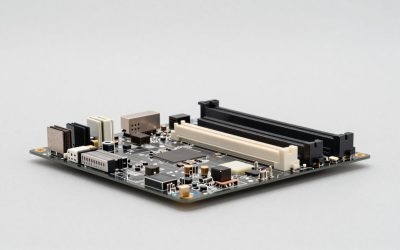
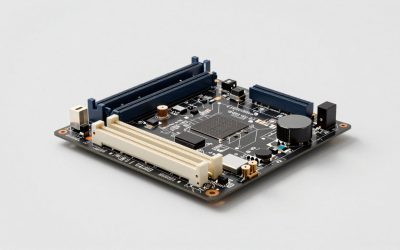
The CPU socket is where the processor sits. Modern processors include the memory controller and the main PCIe lanes for the graphics card, so those connections run straight from the CPU. The chipset, usually under a heatsink, handles the rest: extra USB ports, SATA connectors, more PCIe lanes and links to some M.2 drives. The chipset-to-CPU link has a limited capacity, so many fast devices sharing it can contend for bandwidth.
The chipset also sets the feature list for a given socket, such as overclocking permission and the number of ports. Each board maker builds its lines around these chipsets, and the piece on which company makes the best motherboards looks at how brands position those lines.
Memory slots
The DIMM slots hold the system memory. The board supports a single memory generation, either DDR4 or DDR5, and the notch position stops you inserting the wrong one. Four slots are common on full-size boards, and two are common on compact ones. Memory installed in the right pair of slots runs in dual-channel mode, which doubles the width of the data path. The manual shows which slots to fill first.
Storage and expansion slots
- PCIe x16: the long slot nearest the CPU, normally used for the graphics card.
- Smaller PCIe slots: sound cards, capture cards, extra network adapters.
- M.2 slots: small sockets for compact SSDs mounted flat on the board.
- SATA ports: cable connections for 2.5-inch drives, 3.5-inch drives and optical drives.
Some boards share resources, so filling one M.2 slot can switch off a set of SATA ports. The specification sheet states these cases.
Firmware: BIOS, UEFI and the battery
A flash chip on the board stores the firmware, commonly called the BIOS or, in its modern form, UEFI. When you press the power button, this firmware runs a power-on self test, checks that the processor and memory respond, finds the boot drive and hands control to the operating system. Its settings screen is where you pick the boot drive, enable memory profiles and set fan behavior.
A coin-cell battery, commonly a CR2032, keeps the clock and settings alive. Updating the firmware can add support for newer processors, but it needs stable power and must never be interrupted. Many boards offer a recovery method such as dual firmware chips or a USB flashing button, though only some models include them.
Ports and headers
The rear panel holds USB, network, audio and sometimes video outputs. Inside, pin headers connect the case’s front USB ports, power button, reset button, status lights and fans. If you are unsure which items arrive in the retail box, the box contents guide lists the usual cables, antennas and screws.
Quick reference: part, job and warning sign
| Board part | What it does | Warning sign when it struggles |
|---|---|---|
| VRM | Converts supply voltage for the CPU | Processor slows down under long loads |
| CPU socket | Holds and connects the processor | No startup, bent pins on some designs |
| Chipset | Routes extra USB, SATA and PCIe | Missing ports or devices |
| DIMM slots | Hold memory modules | Memory not detected, boot failure |
| Flash chip and battery | Store firmware and settings | Wrong clock, settings reset |
| Rear I/O | Peripheral connections | Dead USB or audio jacks |
Worked example: following one click
You click Play on a game. The mouse signal travels through a USB port into the chipset, which passes it to the processor. The processor requests game files from the SSD, which arrives over an M.2 slot, and loads them into memory over the DIMM slots. The graphics card, seated in the PCIe x16 slot, receives instructions and sends video to the monitor. The VRM keeps the processor powered the whole way through. Every step crosses the board, which is why a single weak link such as a slow slot can matter.
How to tell whether the board is the problem
Many faults blamed on the board turn out to be something else. Work from the cheapest check to the hardest, and stop if a step needs force.
- Power the PC off and unplug it. Reseat the memory modules and the 24-pin and CPU power connectors until they click, without forcing them.
- Remove extra cards and drives, leaving one memory module, the graphics card and one drive.
- Look at any diagnostic LEDs or listen for beep codes, then match them against the manual.
- Clear the CMOS only if the manual advises it. Unplug the supply first, and remember that your saved settings will return to defaults.
- If the symptoms persist, contact the seller or maker, since removing the board may affect the warranty.
Myths worth dropping
- “The motherboard stores the games.” It does not, as drives do.
- “A better board means more FPS.” The graphics card and processor decide that.
- “Any board fits any case.” Form factor and mounting holes must match.
- “The board only matters at purchase.” It also sets your upgrade path, since the socket and memory type cap which processors and modules you can add later.
Related guides
Frequently asked questions
Does the motherboard affect gaming performance?
Indirectly. The graphics card and processor decide frame rates, and a board does not add speed on its own. It sets limits, though: which processors fit, how fast memory can run, how many drives you can add and whether the power delivery can keep a demanding chip stable. A weak board can hold a strong CPU back, but a strong board cannot lift a weak one.
What happens when a motherboard fails?
Symptoms vary. The PC may show no signs of power, restart at random, fail to complete startup, lose USB ports or stop recognizing memory or drives. Because other parts can cause the same signs, rule out the power supply, memory and cables first. A diagnostic LED or beep code, where the board has one, narrows the cause.
Does the motherboard store your files?
No. Files live on the SSD or hard drive. The board only holds a small amount of firmware in a chip and a few settings, such as boot order and the clock, powered by a coin-cell battery. Replacing a board does not erase drives, although the operating system may need reactivation or new drivers afterward.
Do all motherboards work with all CPUs?
No. A processor only fits boards with its socket, and even then the chipset and firmware version must support it. The maker’s CPU support list for the specific board model is the authority. Memory is the same story: the board accepts one memory generation, not both, so check the slot type before buying modules.
What is the small round battery on the board for?
It is usually a CR2032 coin cell that keeps the clock running and holds BIOS settings while the PC is unplugged. A weak cell often shows up as a wrong date and time or settings that reset after a power cut. Replacing it is simple, but the PC must be off and unplugged, and your custom settings will return to defaults.






Write Your Review
No reviews yet. Be the first to share your experience!