
Our Short List of 3
All 4 Picks at a Glance
| Product | Specs | Action |
|---|---|---|
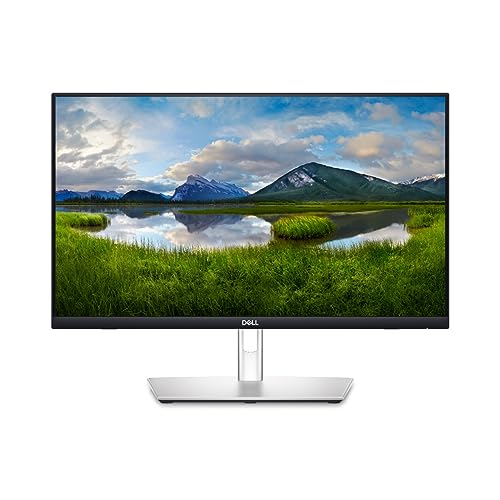 1. Dell P2424HT 24-Inch Touch USB-C Hub Monitor | Check price on Amazon | |
 2. Dell P2418HT 24-Inch Touch Monitor | Check price on Amazon | |
 3. ASUS VT229H 21.5-Inch Touch Monitor | Check price on Amazon | |
 4. ViewSonic TD2230 22-Inch Touch Monitor | Check price on Amazon |
Key takeaways
- Our guide to the best touch monitors covers 10-point touch, IPS panels, USB-C and stand options for work, kiosks and home desks.
Finding the best touch monitors starts with a simple question: how will fingers meet the screen in your daily routine? A touch monitor is not a tablet and it is not a standard display with a gimmick attached. It is a desktop screen that accepts taps, swipes, pinches, and drags, and the best touch monitors make that interaction feel natural instead of fiddly. For a home office, a touch screen can speed up scrolling through long documents, signing forms, or navigating a dashboard. For a shop counter, a reception desk, or a classroom, the same screen becomes a checkout display, a check-in kiosk, or a shared whiteboard. The difference between a good choice and a frustrating one usually comes down to touch technology, panel quality, connectivity, and the stand.
The best touch monitors in this guide are all full desktop displays with 10-point multi-touch, which means they can track ten fingers at once. That matters when you pinch to zoom a map, rotate an image with two hands, or let two people point at different parts of a diagram. Every pick here is a complete monitor, not a portable add-on or a drawing tablet, and each one connects to a Windows PC or laptop in the usual way. Before you buy, check that your computer runs a touch-friendly operating system, that you have a spare USB port for the touch link, and that your desk has room for a screen you will reach toward often.
This guide walks through how to choose a touch monitor, compares four solid models side by side, and helps you match a screen to your desk and your software. The four picks cover different sizes, stands, and connection options, from a compact 21.5-inch screen for a reception desk to a 24-inch USB-C hub monitor that can anchor a whole workstation. Read the caveats for each pick before deciding, and confirm the exact model and configuration on the listing before you place an order, because several of these monitors are sold in more than one variant.
How to Choose
1. Touch technology and touch points
Most modern touch monitors use projected capacitive touch, the same technology found in phones and tablets. It responds to a light tap from a bare finger and supports multi-touch gestures. Older infrared touch screens work with gloves and styluses but can feel less precise at the edges. Look for 10-point touch if you want pinch, rotate, and two-handed gestures to work smoothly. Also check whether the touch layer works with a passive stylus, since that matters for signing documents and sketching.
2. Panel type and image quality
An IPS panel is the safest choice for a touch monitor because it keeps colors steady when you view the screen from an angle, which happens constantly when you lean in to tap something. A Full HD resolution of 1920 by 1080 is standard at 21.5 and 24 inches and looks sharp at normal desk distance. Pay attention to brightness and anti-glare coating as well. A glossy screen shows fingerprints and reflections more readily, while a matte or anti-glare finish stays readable under office lights.
3. Size and desk space
A 21.5-inch touch monitor fits a small desk, a reception counter, or a checkout station without crowding the workspace. A 24-inch screen gives you more room for side-by-side windows and is easier to read from a normal sitting distance, but it also asks for more desk depth because you need to reach it comfortably. If the screen is beyond a comfortable reach, you will use touch less and less over time. For a kiosk or a shared station, a larger screen is easier for visitors to read and tap.
4. Stand, tilt, and mounting
The stand matters more on a touch monitor than on a regular display, because every tap pushes against the screen. A sturdy stand that does not wobble when you tap the corners is essential. Look for a stand that tilts back far enough to bring the screen toward you, and ideally one that adjusts in height, swivels, or pivots into portrait orientation. If you plan to mount the screen on an arm or a wall, confirm that it has VESA mounting holes and note the pattern size.
5. Connectivity and the touch link
A touch monitor needs two connections: one for the picture and one for touch. The picture usually travels over HDMI or DisplayPort, while touch travels over USB. Some newer models carry picture, touch, data, and charging over a single USB-C cable, which keeps the desk tidy and suits a laptop setup. Before you buy, list the ports on your computer and match them to the monitor. A monitor with HDMI and VGA covers older machines, while DisplayPort and USB-C suit newer desktops and laptops. The USB touch cable is not optional: if it is unplugged, the screen still shows a picture, but taps do nothing.
6. Operating system support
Touch works most smoothly on Windows, where the operating system includes built-in touch gestures, an on-screen keyboard, and handwriting input. On a Mac, touch support depends on the manufacturer. Some monitors ship with a driver that enables touch and gestures on macOS, while others show a picture but ignore taps entirely. If you use a Mac, check the manufacturer page for your exact model and confirm driver support before you buy. A monitor that works perfectly on one system can be a plain display on another.
7. Durability, glass, and daily use
A touch screen gets handled far more than a regular monitor, so the glass and the bezel deserve attention. Hardened glass with a high hardness level resists scratches from rings, styluses, and daily cleaning. A frameless or slim-bezel design looks modern and makes edge swipes easier. A reception desk or a classroom screen may need tougher glass than a home office display, and a microfiber cloth with a screen-safe cleaner keeps the surface clear without damaging the coating.
Top Picks
1. Dell P2424HT 24-Inch Touch USB-C Hub Monitor
View the Dell P2424HT on Amazon
The Dell P2424HT is the most versatile pick in this guide, and it suits a modern desk where one cable should do as much as possible. It is a 23.8-inch Full HD IPS touch monitor with 10-point touch, and it connects over USB-C with power delivery, so a compatible laptop can charge, send video, and use touch through a single cable. It also carries HDMI and DisplayPort inputs, a built-in RJ45 network port, and USB ports for accessories, which makes it a genuine hub monitor rather than a bare display. The articulating stand tilts, swivels, adjusts in height, pivots into portrait orientation, and folds down toward the desk, so you can set it upright for reading or lay it low for signing and sketching.
The panel is a Full HD IPS display with wide viewing angles, which keeps colors steady when you lean in from the side to tap a menu. Dell describes it as the first monitor of its size with an RJ45 network connection, a detail that matters in offices where a wired network is required. A speaker sits along the top edge, which is handy for video calls and short clips. The touch layer handles ten points at once, so pinch, zoom, and two-finger scrolling work the way they do on a tablet.
Who it is for: anyone building a tidy laptop or desktop workstation around a single USB-C cable, and anyone who wants a touch screen that can tilt flat for signing, sketching, or collaborative work.
Caveats: this is the newest and most feature-rich pick here, so confirm the exact configuration on the listing before ordering. More than one ASIN has appeared for this model in search results, so check that the listing names the P2424HT with USB-C and RJ45. The USB-C hub features depend on your laptop supporting video and power over USB-C, so confirm that on your machine as well.
2. Dell P2418HT 24-Inch Touch Monitor
View the Dell P2418HT on Amazon
The Dell P2418HT is the established workhorse of the touch monitor world, and it remains a sensible choice for offices, classrooms, and checkout stations. It is a 23.8-inch Full HD IPS monitor with 10-point touch, an anti-glare coating, and a stand that tilts, swivels, adjusts in height, and pivots. The screen can rotate into portrait orientation, which suits long documents, menus, and sign-in sheets. The touch layer is projected capacitive, so it responds to a bare finger with the familiar feel of a tablet, and it supports the full set of Windows touch gestures.
The P2418HT connects over HDMI, DisplayPort, and VGA, which covers a wide range of desktops, including older machines that still rely on VGA. A USB port carries the touch signal. The IPS panel gives wide viewing angles, so a colleague standing beside your desk sees the same colors you do, and the stand is sturdy enough to stay put when you tap the corners of the screen.
Who it is for: offices, schools, clinics, and shops that need a dependable touch screen for daily use, and anyone whose computer still needs VGA or DisplayPort rather than USB-C.
Caveats: this is an older model, first released several years ago, so confirm current availability and the exact configuration on the listing before ordering. It has no USB-C video input and no built-in network port, so it suits a traditional desktop setup better than a single-cable laptop dock. The 60Hz refresh rate is standard for office work and is not aimed at fast-paced gaming.
3. ASUS VT229H 21.5-Inch Touch Monitor
View the ASUS VT229H on Amazon
The ASUS VT229H is the compact pick in this guide, and it is a good fit for a reception desk, a small home office, or a kiosk where a 24-inch screen would crowd the counter. It is a 21.5-inch Full HD IPS monitor with 10-point touch, a frameless design, and a 7H hardness glass surface that resists scratches from daily use. The IPS panel gives 178-degree viewing angles, so the picture stays clear when visitors look at the screen from the side. ASUS includes its Eye Care technology, with a flicker-free backlight and a blue light filter, which helps during long days in front of the screen.
Connectivity covers HDMI and VGA, with a USB cable carrying the touch signal. The monitor is VESA compatible, so you can mount it on an arm or a wall if the desk stand does not suit your setup. ASUS backs it with a three-year warranty with advanced replacement, which is a reassuring detail for a screen that will be touched all day. The frameless front makes edge swipes feel natural, and the compact footprint leaves room on the desk for a keyboard or a phone.
Who it is for: reception desks, small offices, classrooms, and home desks where a compact touch screen is more practical than a large one, and anyone who wants a straightforward touch monitor without hub features.
Caveats: there is no DisplayPort and no USB-C video input, so check your computer ports before ordering. The stand tilts but does not adjust in height or pivot into portrait orientation, so a monitor arm is the way to go if you need those adjustments. The 21.5-inch screen is smaller than the other picks here, so it suits one window at a time better than a side-by-side layout.
4. ViewSonic TD2230 22-Inch Touch Monitor
View the ViewSonic TD2230 on Amazon
The ViewSonic TD2230 is built for shared and public use, and it shows in the details. It is a 22-inch Full HD IPS monitor with 10-point projected capacitive touch, a durable 7H scratch-resistant glass front, and built-in speakers. The connectivity is generous for a monitor of this size: HDMI, DisplayPort, and VGA for video, plus a USB link for touch. That combination covers nearly any desktop, from a modern office PC to an older checkout terminal, without an adapter.
The TD2230 is VESA compatible and its stand adjusts to a comfortable viewing angle, which matters when the screen will be tapped by many different people during the day. ViewSonic includes eye care features such as a blue light filter and a flicker-free backlight, and the IPS panel keeps the image steady from wide angles. The dual speakers are convenient for kiosk audio and video calls, though they are modest in volume and best suited to a quiet room.
Who it is for: retail counters, kiosks, classrooms, and shared workstations where the screen will be touched by many hands and connected to a variety of computers.
Caveats: the stand is simpler than the articulating stands on the Dell models, so it tilts but does not provide the same range of height and pivot adjustment. There is no USB-C video input, so a laptop that only has USB-C will need an adapter or a dock. As with every pick here, confirm the exact model on the listing, since ViewSonic sells several similar touch monitors with close model numbers.
Comparison Table
| Monitor | Size and panel | Touch | Video inputs | Stand and mounting |
|---|---|---|---|---|
| Dell P2424HT | 23.8-inch Full HD IPS | 10-point capacitive | USB-C, HDMI, DisplayPort | Height, tilt, swivel, pivot, folds low; VESA |
| Dell P2418HT | 23.8-inch Full HD IPS | 10-point capacitive | HDMI, DisplayPort, VGA | Height, tilt, swivel, pivot; VESA |
| ASUS VT229H | 21.5-inch Full HD IPS | 10-point capacitive | HDMI, VGA | Tilt only; VESA |
| ViewSonic TD2230 | 22-inch Full HD IPS | 10-point capacitive | HDMI, DisplayPort, VGA | Tilt; VESA |
Which One Is Right for You?
If you want one cable to connect a laptop, charge it, and carry touch, the Dell P2424HT is the pick to start with. Its USB-C hub, network port, and articulating stand make it the most complete workstation screen in this guide. Check that your laptop supports video and power over USB-C before you rely on the single-cable setup.
If you need a dependable touch screen for a traditional desktop, the Dell P2418HT is the safer choice. Its HDMI, DisplayPort, and VGA inputs cover older and newer machines alike, and its height-adjustable stand with pivot suits offices and classrooms.
If desk space is tight, the ASUS VT229H is the pick. Its 21.5-inch frameless screen fits a reception counter or a small home office, and the hardened glass and three-year warranty suit daily handling.
If the screen will be used by many people or connected to many different computers, the ViewSonic TD2230 is the pick. Its three video inputs, durable glass, and built-in speakers suit retail counters, kiosks, and classrooms. Whichever model you choose, confirm the exact model on the listing before ordering.
Frequently Asked Questions
Do touch monitors work with any computer?
A touch monitor works as a regular display with almost any computer that has a matching video output, but touch itself needs a USB connection and an operating system that supports touch input. Windows includes built-in touch support, so most of these monitors handle taps and gestures with no extra software. On a Mac, touch depends on a driver from the monitor manufacturer, and some models do not support touch on macOS at all.
What is the difference between 10-point touch and single-point touch?
Single-point touch tracks one finger, which is enough for tapping a button but not for gestures. Ten-point touch tracks up to ten fingers at once, so you can pinch to zoom, rotate an image with two fingers, and scroll with two fingers while another finger holds a menu open. Every monitor in this guide supports 10-point touch, which is the standard to look for in a modern touch screen.
Can I use a stylus on a touch monitor?
Most projected capacitive touch monitors respond to a passive stylus, which is a pen-shaped tool with a soft tip that mimics a finger. A passive stylus works for tapping, signing, and simple sketching. An active stylus with pressure sensitivity usually does not work on a desktop touch monitor, because the monitor has no digitizer layer for it. If fine drawing is your main task, a dedicated display tablet may suit you better.
How do I clean a touch monitor?
Use a soft microfiber cloth, lightly dampened with water or a screen-safe cleaner, and wipe gently in straight lines. Avoid paper towels, which can scratch the coating, and avoid spraying liquid directly onto the screen. Unplug the monitor or switch it off first so you can see smudges clearly and avoid accidental taps. A quick wipe once a day keeps fingerprints from building up on a screen that gets touched often.
Disclosure: As an Amazon Associate, we may earn from qualifying purchases.
More from Amazon
Programs that pair well with the guide above. Offers and eligibility are set by Amazon and may change.
Free shipping on eligible items, Prime Video and more. Eligible new members can start with a free trial.
Start a Prime free trialAd-free music streaming. Eligible new subscribers can start with a free trial.
Try Music Unlimited freeA Prime membership for ages 18-24 with a trial period. Eligibility is set by Amazon.
See Prime for Young AdultsAudiobooks and podcasts to listen to on the go. Eligible new members can start with a free trial.
Try Audible freeAs an Amazon Associate we earn from qualifying purchases.
Write Your Review
No reviews yet. Be the first to share your experience!