

Key takeaways
- AMD AM4 (Ryzen 1000 to 5000 series and the Ryzen 5000G chips): DDR4 only.
- AMD AM5 (Ryzen 7000, 8000 and 9000 series): DDR5 only. There is no DDR4 AM5 board.
- Intel LGA 1200 (10th and 11th generation Core): DDR4 only.
- Intel LGA 1700 (12th, 13th and 14th generation Core): both. The chips support DDR4 and DDR5, and motherboard makers sold separate DDR4 and DDR5 versions of boards such as the B660, B760, H610, Z690 and Z790 families.
- Intel LGA 1851 (Core Ultra 200S series): DDR5 only.
No, a DDR5 motherboard cannot use DDR4 memory, and a DDR4 motherboard cannot use DDR5. The two standards use different slot keying, different voltages and a different module design, so the sticks will not seat correctly and would not work electrically even if forced. The only way to run the memory type you want is to pick a motherboard built for it, which on some Intel platforms means choosing between two board variants that share one CPU socket.
Our top picks


As an Amazon Associate we earn from qualifying purchases at no extra cost to you.
Why DDR4 and DDR5 are not interchangeable
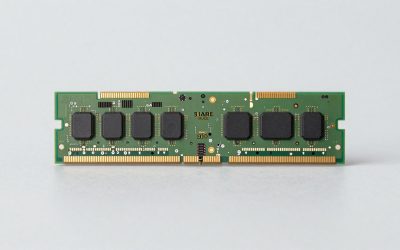
Desktop DDR4 and DDR5 modules both use 288 pins, which is why many people assume they fit the same slot. They do not. The notch in the connector edge sits at a different position on each type, so a DDR4 module lines up with the key in a DDR4 slot and misses the key in a DDR5 slot. The keying is a deliberate safety feature. Pushing a module against the wrong key can crack the module, bend the slot contacts or damage both.
Even without the notch, the electrical design is different. According to the JEDEC specifications, DDR4 runs at a nominal 1.2 V, while DDR5 runs at 1.1 V and moves voltage regulation onto the module itself through a power management chip. A DDR5 stick is therefore a small self-regulating board, whereas a DDR4 stick relies on the motherboard for clean power. DDR5 also splits each module into two independent 32-bit subchannels, instead of the single 64-bit channel used by DDR4, and it includes on-die error correction inside the memory chips. A memory controller on a CPU is designed for one signaling scheme or the other, so there is no setting in the BIOS that can bridge them.
| Feature | DDR4 | DDR5 |
|---|---|---|
| Desktop module pins | 288 | 288 |
| Nominal voltage | 1.2 V | 1.1 V |
| Voltage regulation | On the motherboard | On the module (PMIC) |
| Channel layout per module | One 64-bit channel | Two 32-bit subchannels |
| Typical JEDEC base speed | DDR4-2133 to DDR4-3200 | DDR5-4800 and above |
| Common enthusiast kits | DDR4-3200 to DDR4-3800 | DDR5-6000 to DDR5-8000 |
| Max capacity per module (mainstream) | 32 GB | 48 GB and 64 GB |
| Slot key position | Different notch location | Different notch location |
Which platforms use which memory
The confusion usually comes from the CPU side. The processor, not the motherboard alone, decides what memory is supported, because the memory controller lives inside the CPU. Boards are then built around the controller. Here is how the major desktop platforms line up.
- AMD AM4 (Ryzen 1000 to 5000 series and the Ryzen 5000G chips): DDR4 only.
- AMD AM5 (Ryzen 7000, 8000 and 9000 series): DDR5 only. There is no DDR4 AM5 board.
- Intel LGA 1200 (10th and 11th generation Core): DDR4 only.
- Intel LGA 1700 (12th, 13th and 14th generation Core): both. The chips support DDR4 and DDR5, and motherboard makers sold separate DDR4 and DDR5 versions of boards such as the B660, B760, H610, Z690 and Z790 families.
- Intel LGA 1851 (Core Ultra 200S series): DDR5 only.
That LGA 1700 detail is the reason people ask this question. A chip like a 12th generation Core i5 can sit in a DDR4 board or a DDR5 board, but a single board still commits to one memory type. You choose at the moment you buy the motherboard, and you cannot change your mind later without replacing it.
How to tell what your board uses
Before buying memory, confirm the type in a few seconds using one of these routes, in order of reliability.
- Read the motherboard model name or the box. Many DDR4 versions of LGA 1700 boards carry a “D4” suffix in the model name, and DDR5 boards often show “D5” or simply omit the suffix. Treat the suffix as a clue and confirm with the next step.
- Open the manufacturer’s specification page. The memory section lists the supported type, maximum speed, maximum capacity and the number of slots. The qualified vendor list (QVL) on the same page shows kits that were validated by the board maker.
- Look at the slot itself. With the board out of the case or by flashlight, compare the notch position against a module you already own.
- Use system information software. On Windows, a hardware information tool reports the installed memory type, speed and slots in use. This is useful on a prebuilt where you have no documentation.
What happens if you try anyway
A DDR4 stick pushed toward a DDR5 slot will either stop short because the key blocks it or, if forced, bend or crack something. The risk is not a software error. It is physical damage. Never apply extra pressure to a module that does not drop in with moderate, even force.
Adapters that claim to convert one type to the other do not exist for desktop memory in any practical form, because the issue is the memory controller and the voltage design, not just the connector. BIOS updates cannot add support for a different memory type either. If a seller promises a “DDR4 to DDR5 adapter,” treat the claim as a red flag.
Do you actually need DDR5?
If you are upgrading from an older system, the question becomes whether moving to DDR5 is worth a new motherboard and, often, a new CPU. The honest answer depends on your workload and on the memory market at the time you buy.
Gaming
For most games at 1440p and 4K, the graphics card is the limit and memory type changes the frame rate by a small margin. At 1080p with a fast GPU, faster memory can lift minimum frame rates, and DDR5-6000 is the common sweet spot on AM5. A well-tuned DDR4-3600 kit with tight timings narrows the gap on platforms that still allow it, such as AM4 or a DDR4 LGA 1700 board.
Content creation and compression
Workloads such as video encoding, large project compilation and scientific simulations lean on memory bandwidth. DDR5 offers a clear bandwidth advantage, and it is also available in larger single modules, which makes 96 GB and 192 GB configurations possible in four-slot boards. If you routinely run out of memory, capacity matters more than speed.
Office, browsing and light use
A general-use PC gains very little from DDR5. In this case, keeping a working DDR4 system and adding capacity is the efficient move, particularly when DDR4 kits cost far less per gigabyte than DDR5 ones.
A worked upgrade example
Consider a gamer with a 12th generation Core i5 on a DDR4 LGA 1700 board with 16 GB of DDR4-3200, who wants smoother frame rates in newer titles. There are three realistic paths.
- Keep the board, add memory. Move to 32 GB of DDR4-3600. Cost is limited to the kit, and the board and CPU stay in place. This fixes stutter caused by running out of memory.
- Keep the board, upgrade the GPU. If the games are GPU-bound, a newer graphics card gives a much larger improvement than any memory swap.
- Change platform. A DDR5 LGA 1700 board, or a move to AM5, requires a new board, new memory and, for AM5, a new CPU. This path makes sense only when you want a longer upgrade runway.
In this scenario, path one or two solves the visible problem for the least spending. Path three is a long-term investment, not a quick fix.
Memory market realities in 2026
DDR5 has been subject to sharp price swings, and reports through 2026 describe periods where a 32 GB kit cost several times what it did in 2024. This is a market condition, not a technical one, but it changes the decision. When DDR5 is expensive, buyers on DDR4 platforms hold off on platform changes, and budget builders consider DDR4 boards where they exist. When prices ease, the case for a DDR5 platform improves because new CPU generations only support it. Check current retail listings from several stores before you commit, and avoid buying mismatched kits on the assumption that you can fix compatibility later.
One workaround popular with budget builders is to start with a single 16 GB DDR5 module or a 2 x 8 GB pair and upgrade capacity when prices drop. Running a single module halves the available channels, which reduces bandwidth, so a matched pair is better when you can afford it.
Compatibility checklist before you buy
- Confirm the motherboard’s memory type from the manufacturer’s spec page.
- Check the maximum supported speed. Many boards list a “rated” speed that is reachable only with overclocking profiles such as XMP or EXPO.
- Count the slots and the maximum capacity per slot.
- Prefer kits on the QVL for the board, especially for high speeds.
- Check cooler clearance if the kit has tall heatspreaders.
- Update the BIOS if the board is older than the CPU or the memory kit, because early firmware can be unstable with newer kits.
- Confirm that the CPU supports the memory type. On LGA 1700 this is always true, while on AM5 only DDR5 applies.
Laptops and small form factors
Laptops and mini PCs use SO-DIMM modules, which are physically smaller than desktop DIMMs. The same rule applies: DDR4 SO-DIMMs and DDR5 SO-DIMMs are keyed differently and not interchangeable. Some laptops solder memory directly to the board, in which case no upgrade is possible at all. Always check the service manual or the manufacturer’s listing before you buy a module for a laptop.
Common mistakes to avoid
- Buying memory first. Pick the platform, then the memory. Memory bought before the board often ends up being the wrong type.
- Trusting a “D4” or “D5” guess. Verify from the manufacturer’s page rather than assuming from the model name.
- Mixing kits. Combining two different kits, even of the same speed, can force the system to run at the lowest common setting or fail to boot.
- Ignoring the profile. A new kit runs at its base JEDEC speed until you enable XMP or EXPO in the BIOS, so you might be using a fraction of the speed you paid for.
- Forcing a module. If it does not click in with moderate pressure, stop and recheck the type and the orientation.
Quick decision matrix
| Your situation | Best move | Reason |
|---|---|---|
| AM4 system, 16 GB, mostly gaming | Add DDR4 to 32 GB | Platform is DDR4 only, so capacity is the cheapest fix |
| DDR4 LGA 1700 board, memory is fine | Upgrade GPU first | Memory type rarely limits modern games |
| Building new on AM5 | Buy DDR5-6000 kit | AM5 accepts only DDR5, with 6000 as the usual sweet spot |
| Building new on Intel Core Ultra 200S | Buy DDR5 | The platform supports only DDR5 |
| Tight budget, existing LGA 1700 chip | Consider a DDR4 board | DDR4 kits can cost far less per gigabyte |
| Heavy workstation use | DDR5 with high-capacity modules | Higher bandwidth and larger modules |
Related memory types that also cause confusion
ECC and registered memory
Server and workstation platforms use registered or ECC modules that carry extra chips and sometimes extra pins. Consumer boards generally do not accept registered modules, and the reverse also holds. Some AM5 and AM4 boards accept unbuffered ECC modules, but only as ordinary memory without the error-reporting benefit unless the CPU and board both support it. Check the specification page for the word “ECC” before buying such a kit.
Newer module styles on DDR5
DDR5 has its own sub-variants. Standard unbuffered modules are the norm on every consumer board. Newer clocked modules, often called CUDIMM, add a clock driver on the module and are aimed at the highest speeds on recent Intel platforms. They are still DDR5, they use the same slot, and boards that do not support the clocked design may run them in a bypass mode at lower speeds. If you see a very fast kit, confirm that your board and CPU list support for that speed class rather than assuming it will run at the advertised rating.
Why the “same pin count” idea misleads people
Because both desktop standards have 288 pins, forum posts sometimes suggest that one can be adapted to the other. The pin count tells you only how many contacts the connector has. The assignment of those contacts, the signaling, the voltage and the chip on the stick that handles power all differ. That is why the compatibility rule is absolute and why no software setting or firmware release changes it.
Planning a platform move step by step
If you decide the platform change is worth it, a short order of operations avoids wasted purchases.
- List what you already own. Note the CPU, motherboard, memory, cooler and power supply. The cooler mounting kit may need a new bracket for AM5 or LGA 1851, so check the cooler maker’s compatibility page.
- Choose the CPU first. The CPU determines the socket, which determines the memory type. This is the step that prevents a mismatch.
- Pick the board with the features you need. Count M.2 slots, USB ports, PCIe lanes and memory slots. Check that the board lists the memory speed you plan to run.
- Select memory that matches the board. Choose a matched two-module kit from the QVL where possible, and favor a speed that the platform runs without extra tuning.
- Update the BIOS before the first real use. Many boards ship with firmware that predates the newest CPUs. A flashback feature lets you update without a CPU installed on some models.
- Enable the memory profile. After the first boot, enable XMP or EXPO so the kit runs at its rated speed, then verify stability with a memory test before you rely on it for work.
Following that order means your DDR4 or DDR5 choice always follows from the CPU and board instead of being a guess. If you realize that the cost of the full chain is too high, stay on your current platform and upgrade the part that limits you most, usually the graphics card or the amount of memory.
Reselling and reusing old memory
When you leave DDR4 behind, the old kit still has value. Matched DDR4 kits in popular speeds sell steadily because many budget and office systems still use them. Reuse is another option: a spare DDR4 platform is handy as a home server, a media box or a child’s first PC. Before selling, confirm the capacity and speed printed on the module label, remove any stickers carefully, and pack the sticks in an anti-static sleeve with a rigid cover so the edge connectors are protected.
Frequently Asked Questions
Can I put DDR4 in a DDR5 slot if it fits?
It will not fit properly because the notch positions differ. If a module can be forced in, it is seated incorrectly and risks cracking the module or bending the slot contacts. Even if it somehow made contact, the memory controller and voltage design are not compatible, so the system would not run.
Are there motherboards that take both DDR4 and DDR5?
Standard desktop boards accept only one type. Intel LGA 1700 is the platform with both DDR4 and DDR5 board versions, but each board is built for one. You decide at purchase, and a single board does not accept both at once.
Can a BIOS update add DDR4 support to a DDR5 board?
No. The limitation is physical slot keying and the electrical design of the memory controller and the board, so firmware cannot change it. A BIOS update helps with stability and with supporting newer kits of the right type.
Is DDR5 noticeably faster than DDR4 in games?
The difference is usually small at 1440p and 4K, where the graphics card sets the limit. It is more visible at 1080p with a fast GPU and in memory-heavy tasks. A balanced build with a strong GPU and enough capacity beats one that spends heavily on memory speed alone.
Can I reuse my old DDR4 when I move to AM5?
No. AM5 supports only DDR5, so your DDR4 kit would need to stay in the old system, be sold, or be used in a secondary build. Plan the memory budget as part of the platform change.
How do I check which memory my current PC uses?
Look at the motherboard’s manufacturer specification page using its exact model name, or open a system information tool in Windows that reports the memory type. A visual check of the slot notch against a known module also works if the case is open.
More from Amazon
Programs that pair well with the guide above. Offers and eligibility are set by Amazon and may change.
Free shipping on eligible items, Prime Video and more. Eligible new members can start with a free trial.
Start a Prime free trialAd-free music streaming. Eligible new subscribers can start with a free trial.
Try Music Unlimited freeA Prime membership for ages 18-24 with a trial period. Eligibility is set by Amazon.
See Prime for Young AdultsAudiobooks and podcasts to listen to on the go. Eligible new members can start with a free trial.
Try Audible freeAs an Amazon Associate we earn from qualifying purchases.




Write Your Review
No reviews yet. Be the first to share your experience!