
Our Short List of 3

- Best for: Sculptors with a permanent desk setup who want the largest canvas in this list.
- 21.5-inch Full HD display with 1920 x 1080 resolution
- Pro Pen 2 with 8192 pressure levels and tilt recognition
- Active area of 19.5 x 11.5 inches
- Adjustable stand included in the box
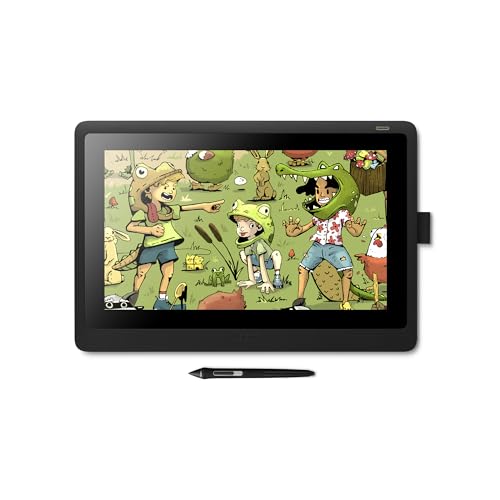
- Best for: Sculptors with limited desk space who still want to draw directly on the screen.
- 15.4-inch Full HD display
- Pro Pen 2 with 8192 pressure levels and tilt response
- Model number DTK1660K0A
- Works with Mac and Windows computers

- Best for: Detail-focused sculptors who want the finest pressure steps in a compact display.
- 13.3-inch drawing tablet with screen
- 16384 pressure levels with X3 Pro stylus
- Tilt recognition of plus or minus 60 degrees
- 8 shortcut keys and a red dial
All 4 Picks at a Glance
| Product | Specs | Action |
|---|---|---|
| Wacom Cintiq 22 |
| Check price on Amazon |
| Wacom Cintiq 16 |
| Check price on Amazon |
| XP-Pen Artist 13.3 Pro V2 |
| Check price on Amazon |
 Wacom Intuos Pro Small (2025) |
| Check price on Amazon |
Key takeaways
- Five drawing tablets for ZBrush sculpting, from large pen displays to a compact pro pad, compared on pressure, screen size, tilt and controls.
Sculpting in ZBrush is a different job from sketching a flat illustration, and the tablet you choose shapes every stroke of it. A sculptor spends hours pushing and pulling dense geometry, rotating the model constantly, and feathering brush strength from a whisper to a full press. That work rewards a pen with a pressure curve, a surface large enough for arm movements, and shortcut controls that keep the other hand off the keyboard. A tablet built only for quick notes will feel cramped within a week.
This guide is for character sculptors, creature designers, jewelry modelers and hobbyists moving from mouse sculpting to a pen for the first time. Every tablet below was picked because its Amazon listing names ZBrush among the software it works with, and every specification in the product sections comes from the name and details shown on that Amazon listing. Four of the five are pen displays with a screen, and one is a screenless pro pad for sculptors who already own a good monitor.
Quick Picks
As an Amazon Associate we earn from qualifying purchases
| Product | Best for | Key spec from title |
|---|---|---|
| Wacom Cintiq 22 | Large-screen sculpting at a desk | 21.5-inch Full HD display |
| Wacom Cintiq 16 | A smaller Wacom display for tight desks | 15.4-inch Full HD display |
| XP-Pen Artist 13.3 Pro V2 | Fine pressure control in a compact display | 16384 pressure levels |
| Huion Kamvas Pro 13 | Portable direct-on-screen sculpting | Full-laminated 13.3-inch screen |
| Wacom Intuos Pro Small (2025) | Screenless pro sculpting on the move | Pro Pen 3 with 8192 pressure levels |
How to Choose
Pen display or screenless pad
A pen display lets you sculpt directly on the model, which shortens the learning curve because your hand and your eye land in the same place. That direct feel helps when you are blocking out forms or carving fine wrinkles, since you can see the brush cursor exactly where the nib touches. A screenless pad costs less for the same pen quality and keeps your desk clear, but it asks your hand to draw on the pad while your eyes watch the monitor. Sculptors who already own a large, color-accurate monitor often prefer the pad, while newcomers and artists who sculpt for hours usually settle faster with a display.
Pressure levels and tilt
Pressure levels decide how smoothly a brush grows from light to heavy, and tilt decides how naturally a brush leans into a stroke like a real carving tool. A pen with 8192 levels already gives a smooth ramp for most sculpting, while 16384 levels add finer steps at the lightest end of the press, where delicate surface detail lives. Tilt support matters when you use brushes that change shape with the pen angle, such as flattening a plane or raking a texture across a surface. Check that both figures appear on the listing itself, and treat a pen without tilt as a compromise you will notice on organic forms.
Screen size and desk space
Screen size sets how much of the model you can see while keeping the brush controls in reach. A 21.5-inch display shows a full bust at a comfortable zoom and leaves room for the interface, yet it claims a permanent spot on the desk and needs a sturdy stand. A 13.3-inch display fits a small desk or a bag, but you will zoom and pan more often during long sessions. Match the display to the desk you actually own, not the desk you imagine, and measure the space before ordering so the tablet does not end up leaning against a wall.
Shortcut controls and drivers
ZBrush rewards sculptors who can switch brushes, adjust brush size and rotate the model without reaching for the keyboard every few seconds. Express keys, a dial and a touch bar all serve that purpose, and the best layout is the one you can operate without looking down. A dial suits brush size and zoom, while a row of keys suits brush switching and undo. Driver quality matters just as much as hardware, because a driver that drops the pen mid-stroke breaks concentration. Look for listings that name ZBrush directly, and confirm the tablet supports your operating system version before you commit.
The 5 Best Options
Wacom Cintiq 22
- Best for: Sculptors with a permanent desk setup who want the largest canvas in this list.
- 21.5-inch Full HD display with 1920 x 1080 resolution
- Pro Pen 2 with 8192 pressure levels and tilt recognition
- Active area of 19.5 x 11.5 inches
- Adjustable stand included in the box
Sculptors with a permanent desk setup who want the largest canvas in this list.
The listing mentions a 3-month ZBrush 2021 learning offer, which dates from 2021 and may no longer apply, so confirm it is still sold before buying.
The Cintiq 22 is the large-screen anchor of this list, built for sculptors who want to see a whole character while they work. Its 21.5-inch display keeps the model, the brush palette and the subtool list visible at once, so you spend less time zooming in and out during a session. The Pro Pen 2 tracks with 8192 pressure levels and tilt recognition, which gives clay-like control when you push forms around or smooth a surface. An adjustable stand comes in the box, and the tablet connects over HDMI and USB.
Wacom Cintiq 16
- Best for: Sculptors with limited desk space who still want to draw directly on the screen.
- 15.4-inch Full HD display
- Pro Pen 2 with 8192 pressure levels and tilt response
- Model number DTK1660K0A
- Works with Mac and Windows computers
Sculptors with limited desk space who still want to draw directly on the screen.
The listing mentions a 3-month ZBrush 2021 learning offer, which dates from 2021 and may no longer apply, so confirm it is still sold before buying.
The Cintiq 16 brings the same Wacom pen experience to a smaller display that fits desks where the 22-inch model would dominate. Its 15.4-inch Full HD screen still shows enough of the model for comfortable sculpting, and the Pro Pen 2 delivers the same 8192 pressure levels with tilt response. Sculptors who work in a bedroom studio or share a desk with a second monitor will appreciate the smaller footprint, and the tablet pairs with both Mac and Windows machines. It is the straightforward choice when you want a Wacom display without rearranging the room.
XP-Pen Artist 13.3 Pro V2
- Best for: Detail-focused sculptors who want the finest pressure steps in a compact display.
- 13.3-inch drawing tablet with screen
- 16384 pressure levels with X3 Pro stylus
- Tilt recognition of plus or minus 60 degrees
- 8 shortcut keys and a red dial
Detail-focused sculptors who want the finest pressure steps in a compact display.
An older crawl of this listing showed no featured offers, so confirm it is still sold before buying.
The Artist 13.3 Pro V2 is the pressure king of this list, with 16384 levels that catch the lightest touch for fine detail work. Its 13.3-inch display keeps the tablet portable enough to move between a desk and a laptop setup, while eight shortcut keys and a red dial put brush size and tool switching under your left hand. The listing states that the shortcuts can be customized for Photoshop and ZBrush, which is exactly the workflow a sculptor needs. A foldable stand, spare nibs and a glove come in the box.
Huion Kamvas Pro 13
The Kamvas Pro 13 is the portable display in this list, a 13.3-inch full-laminated screen that removes the gap between nib and cursor. Full lamination matters in ZBrush because the brush lands exactly where you expect it to, with no parallax offset to correct while you carve an edge. The battery-free PW507 pen offers 8192 pressure levels with tilt support, and four press keys plus a touch bar handle zooming and brush adjustments. The listing names ZBrush among the art software it supports, and an adjustable stand is included.
Specs
- 13.3-inch full-laminated IPS screen with 1920 x 1080 resolution
- 120 percent sRGB color gamut
- PW507 battery-free stylus with 8192 pressure levels
- Tilt support of plus or minus 60 degrees
- 4 press keys and 1 touch bar
- Adjustable stand included
- Works with Windows 7 or later, macOS 10.12 or later, and Linux Ubuntu
- Software list names ZBrush among supported programs
Best for: Sculptors who want a portable laminated display with the cursor sitting right under the nib.
Watch out for: Stock signals for this listing conflict between sources, so confirm it is still sold before buying.
ASIN: B07G1TC12R
Wacom Intuos Pro Small (2025)
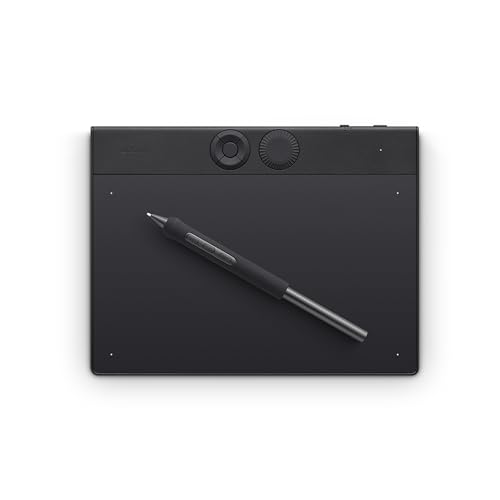
- Best for: Sculptors with a good monitor who want a light, portable pro pad.
- Active area of 7.4 x 4.1 inches with a 16:9 aspect ratio
- Pro Pen 3 with 8192 pressure levels and tilt support
- Pen resolution of 5080 lines per inch
- 5 customizable ExpressKeys and 1 mechanical dial
Sculptors with a good monitor who want a light, portable pro pad.
The small active area suits short strokes better than broad arm sweeps, so confirm it is still sold before buying.
The Intuos Pro Small is the only screenless tablet here, and it suits sculptors who already own a monitor they trust. Its 2025 redesign pairs the customizable Pro Pen 3 with 8192 pressure levels, tilt support and a fine 5080 lines-per-inch resolution, while five ExpressKeys and a mechanical dial sit at the top within easy reach of the keyboard hand. Bluetooth and USB-C connections let it move between machines, and the whole tablet weighs only 240 grams. The Amazon listing names ZBrush among the leading apps it integrates with.
Which One Fits Your Situation
You sculpt at a fixed desk all day
Pick the Wacom Cintiq 22. Its 21.5-inch display shows the full model while keeping the interface in view, and the included stand holds a comfortable working angle through long sessions. The large active area also suits broad strokes when you block out major forms. You will zoom less often, which keeps long sculpting days moving at a steady pace.
Your desk is small or shared
Pick the Wacom Cintiq 16 or the Huion Kamvas Pro 13. Both give you a direct-on-screen display without claiming the whole desk, and both travel more easily than the 22-inch model. Choose the Cintiq 16 for the Wacom pen feel, or the Kamvas Pro 13 for full lamination in a lighter body.
Fine detail is your main work
Pick the XP-Pen Artist 13.3 Pro V2. Its 16384 pressure levels give the finest steps at a light touch, which helps when you carve wrinkles, pores and jewelry detail. The red dial and eight keys keep brush adjustments close at hand. The compact display still fits a small desk, so fine work does not demand a large studio.
You already own a monitor you love
Pick the Wacom Intuos Pro Small (2025). It adds pro pen quality, shortcut keys and a dial without duplicating the screen you already have, and it slips into a bag at 240 grams. Just be ready for a short adjustment period while your hand learns the screenless mapping. Its Bluetooth connection also frees you from cables when you move between machines.
Common Mistakes
- Buying a tablet that never names ZBrush on its listing, then discovering the driver maps poorly to sculpting brushes.
- Choosing a display larger than the desk, so the tablet ends up stored away instead of used daily.
- Ignoring tilt support, which matters for brushes that change shape with the pen angle on organic forms.
- Treating pressure levels as the only figure that matters, while shortcut layout and driver stability shape daily comfort far more.
- Forgetting that a pen display needs a computer to run, since none of these tablets sculpt on their own.
Frequently Asked Questions
Can I sculpt in ZBrush with a screenless tablet?
Yes, and many professional sculptors do exactly that. A screenless pad maps your hand movements to the monitor, so you look at the screen while the pen moves on the pad. The mapping feels strange for the first few days, then becomes second nature. Choose a pad with an active area that fits your stroke length, and keep the display option in mind if the adjustment period frustrates you.
How many pressure levels do I need for ZBrush?
A pen with 8192 levels already handles most sculpting well, from blocking out forms to smoothing surfaces. Moving to 16384 levels adds finer steps at the lightest end of the press, which shows up mainly in delicate detail such as skin texture and fine wrinkles. Pressure levels matter less than tilt support and a stable driver, so do not pick a tablet on this number alone.
Does a pen display replace my monitor?
No, a pen display is a second screen that shows your sculpting canvas while your main monitor keeps the rest of the interface. You still need a computer to run ZBrush, and you still need a monitor for reference images, menus and file management. Think of the display as a drawing surface that happens to show the model, not as a standalone computer.
Is a bigger tablet always better for sculpting?
Not always, because a bigger tablet demands more desk space and longer arm movements that tire the shoulder during long sessions. A large display suits sculptors who block out whole characters, while a compact display or a small pad suits detail work and travel. Match the size to your desk, your arm and the kind of models you build most often.
More from Amazon
Programs that pair well with the guide above. Offers and eligibility are set by Amazon and may change.
Free shipping on eligible items, Prime Video and more. Eligible new members can start with a free trial.
Start a Prime free trialAd-free music streaming. Eligible new subscribers can start with a free trial.
Try Music Unlimited freeA Prime membership for ages 18-24 with a trial period. Eligibility is set by Amazon.
See Prime for Young AdultsAudiobooks and podcasts to listen to on the go. Eligible new members can start with a free trial.
Try Audible freeAs an Amazon Associate we earn from qualifying purchases.
Write Your Review
No reviews yet. Be the first to share your experience!