

Our Short List of 3
All 4 Picks at a Glance
| Product | Specs | Action |
|---|---|---|
 Epson EcoTank ET-2850 | Check price on Amazon | |
 Canon MegaTank G3270 | Check price on Amazon | |
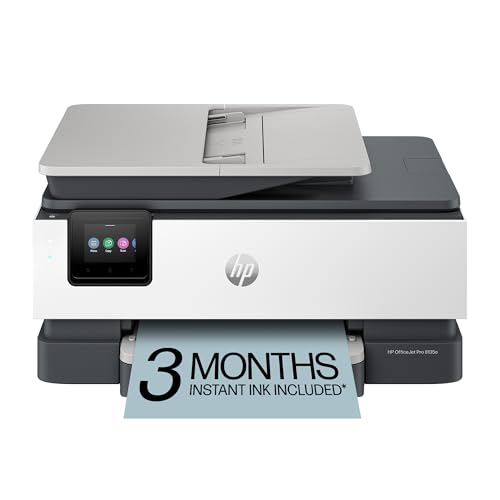 HP OfficeJet Pro 8135e | Check price on Amazon | |
 Epson EcoTank ET-4800 | Check price on Amazon |
Key takeaways
- Find the best printers for print and cut Cricut projects with vivid inkjet color, sticker paper support, and reliable Print Then Cut results.
The best printers for print and cut Cricut projects are inkjet printers, and the reason is simple: a Cricut machine does not print at all. In a Print Then Cut project, your printer lays the design onto sticker paper, vinyl, or cardstock, and the Cricut then reads the registration marks and cuts around the printed shapes. The printer therefore decides how vivid your stickers look, how clean the colors stay after cutting, and whether thick craft media feeds without jamming. A laser printer is a poor fit for this work, because toner can crack along cut lines and many laser models refuse coated sticker paper, so every printer in this guide is an inkjet.
Cricut Print Then Cut has a few specific demands that an ordinary home printer may not meet. The printer needs to handle sticker paper and light cardstock, print with enough color accuracy that your designs match what you see on screen, and keep ink costs manageable when you print whole sheets of stickers at a time. The four printers below all meet those demands, with refillable ink tank models leading the group for crafters who print in volume.
How to Choose
1. Inkjet, Not Laser
Print Then Cut is an inkjet workflow. Inkjet ink soaks into sticker paper and printable vinyl, which keeps colors vivid and prevents flaking when the blade passes through the sheet. Laser toner sits on the surface of the paper and can crack or peel at the cut edge, and the heat of a laser printer can warp coated media. Choose an inkjet printer and confirm that it accepts the media you plan to use, such as matte sticker paper, glossy sticker paper, and printable vinyl.
2. Print Quality and Color Accuracy
Sticker designs live or die on color. A printer with a high print resolution and separate inks for black and color will reproduce gradients, skin tones, and fine line art more faithfully than a basic four-cartridge budget model. Look for a maximum color resolution of 4800 by 1200 dpi or higher, and check whether the printer handles borderless printing, which lets a design run to the edge of the sheet. If your designs use photographs, a printer with photo-quality output will show the difference clearly.
3. Ink System and Running Costs
Cricut crafters print in bursts: a whole sheet of planner stickers here, a batch of labels there. Cartridge printers can become expensive fast when every sheet uses a large area of color. Refillable ink tank printers, such as the EcoTank and MegaTank models in this guide, hold far more ink per fill and bring the cost of each printed sheet down sharply. If you print only a few sheets a month, a cartridge model with an included ink trial may be enough, but heavy sticker makers should lean toward a tank system.
4. Paper Handling and Media Support
Print Then Cut projects use more than plain copy paper. Your printer should feed sticker paper, printable vinyl, and cardstock up to a reasonable weight without jamming or skewing, because a skewed sheet throws off the registration marks and ruins the cut. A rear paper feed is a useful feature for thicker media, since it gives the sheet a straighter path through the printer. Check the maximum paper weight the printer supports and match it to the media you use most.
5. Print Then Cut Size Limits
Cricut Design Space limits the printable area of a Print Then Cut project, so your printer does not need to be a wide-format machine. A standard letter-size printer covers the usual project sizes, and what matters more is that the printer holds the sheet straight and prints the registration marks cleanly. If you plan to make large wall decals or full-sheet labels, confirm that your Cricut model and your material size line up before choosing a printer.
6. Connectivity and Software
Most Cricut users design on a phone, tablet, or laptop, so wireless printing matters. Wi-Fi with mobile printing support lets you send a design from the same device you used to create it, and a companion app helps with setup and ink monitoring. A small color display on the printer makes it easier to check settings and clear jams without opening an app. USB is a useful fallback when Wi-Fi is unreliable.
7. Scanning and Copying
A printer with a built-in scanner earns its place in a craft room. You can scan hand-drawn art into Design Space, copy templates, and digitize printed ephemera for new projects. An automatic document feeder is a bonus if you scan multi-page documents, but a flatbed scanner is enough for most craft work. All four printers in this guide include scanning and copying, so you do not need a separate device.
Top Picks
Epson EcoTank ET-2850
The Epson EcoTank ET-2850 is a wireless color all-in-one printer with a refillable ink tank system, and it is the most popular choice among Cricut crafters for one reason: ink. Instead of small cartridges, it uses large refillable tanks that hold enough ink for thousands of pages, which keeps the cost of each sticker sheet low when you print in volume. The printer handles print, scan, and copy, with automatic two-sided printing, and it connects over Wi-Fi with mobile printing support.
Print quality is strong for the class, with sharp text and vivid color on sticker paper and printable vinyl, and the rear paper feed helps thicker media move through without skewing. The 1.44-inch color display keeps setup and ink checks simple. The black model linked here is the standard configuration for home craft rooms.
Who it is for: Crafters who print stickers and labels often and want low ink costs without giving up print quality.
Caveats: The printer has no automatic document feeder, so multi-page scanning is done one page at a time on the flatbed. The ink tanks need a careful first fill, so follow the setup guide closely and keep the printer level while filling.
Canon MegaTank G3270
The Canon MegaTank G3270 is a wireless all-in-one inkjet printer with a refillable MegaTank ink system, and it is the Canon counterpart to the EcoTank approach. Its integrated ink tanks deliver high page yields from a single set of ink bottles, which suits long sticker-printing sessions, and the printer produces borderless photo prints with rich, saturated color. Print, scan, and copy are all included, with Wi-Fi, mobile printing, and a 1.35-inch backlit LCD for control.
The G3270 prints at up to 4800 by 1200 dpi in color, which helps fine details in sticker art stay crisp, and it handles a range of media weights for craft paper and sticker sheets. The compact footprint fits easily on a craft desk, and the black finish matches most Cricut machines. This is a strong pick for crafters who want Canon color output with tank-system running costs.
Who it is for: Cricut users who prefer Canon color and want borderless prints with a refillable ink system.
Caveats: Like most tank printers in this class, it has no automatic document feeder, so scanning is flatbed only. The paper tray holds a modest stack, so keep spare sticker paper nearby during large print runs.
HP OfficeJet Pro 8135e
The HP OfficeJet Pro 8135e is a wireless all-in-one color inkjet printer with print, scan, copy, and fax, plus an automatic document feeder and automatic two-sided printing. It uses HP cartridges rather than a tank system, and it includes a three-month Instant Ink trial, which suits crafters who print in lighter volumes and prefer cartridges to be sent automatically. The printer has a 2.7-inch color touchscreen, self-healing Wi-Fi, and a 225-sheet input tray, which is the largest paper capacity in this guide.
Color output is vivid on sticker paper, and the automatic document feeder makes it easy to scan hand-drawn designs or multi-page documents into your craft workflow. The printer supports mobile printing from phones and tablets, and it handles the media weights used for printable vinyl and light cardstock. This is the pick for a shared home printer that also serves a Cricut craft room.
Who it is for: Households that need a full-featured home office printer with an automatic document feeder and also run Cricut Print Then Cut projects.
Caveats: Cartridge ink costs more per page than a tank system, so heavy sticker printing adds up over time. The Instant Ink trial ends after three months, so plan for the ongoing cartridge cost before you commit.
Epson EcoTank ET-4800
The Epson EcoTank ET-4800 is a wireless all-in-one Supertank printer with print, scan, copy, and fax, and it adds the two features the ET-2850 lacks: an automatic document feeder and Ethernet. The refillable ink tank system uses Epson 522 ink bottles and includes enough ink for up to two years of printing in typical home use, which makes it the lowest running-cost printer in this guide for high-volume sticker makers. Print speeds reach 10 pages per minute in black and 5 in color, with a 1.44-inch color display and mobile printing support.
The 30-sheet automatic document feeder is genuinely useful in a craft room, letting you scan stacks of sketches or printed templates without babysitting the flatbed. The rear feed and straight paper path handle sticker paper and cardstock well, and the scanner lid lifts to copy thicker items. This is the most complete printer here for a dedicated craft space.
Who it is for: Serious Cricut crafters who print and scan often and want the lowest ink costs plus an automatic document feeder.
Caveats: The ET-4800 is larger than the other printers in this guide, so measure your craft desk before ordering. The fax function is irrelevant for most crafters, so do not pay extra for it unless your household needs it.
Comparison Table
| Printer | Ink System | Functions | Automatic Document Feeder | Best For |
|---|---|---|---|---|
| Epson EcoTank ET-2850 | Refillable ink tanks | Print, scan, copy | No | Low-cost sticker printing in volume |
| Canon MegaTank G3270 | Refillable MegaTank | Print, scan, copy | No | Borderless prints with vivid Canon color |
| HP OfficeJet Pro 8135e | Cartridges with Instant Ink trial | Print, scan, copy, fax | Yes | Shared home office and craft room |
| Epson EcoTank ET-4800 | Refillable ink tanks | Print, scan, copy, fax | Yes | High-volume crafting with frequent scanning |
Which One Is Right for You?
If you print stickers every week, a tank printer will save you the most over time, and the choice comes down to features. The Epson EcoTank ET-2850 is the simplest route to low ink costs, while the ET-4800 adds an automatic document feeder and Ethernet for a busier craft room. If you prefer Canon color and borderless photo output, the Canon MegaTank G3270 matches the tank-system running costs with a different color character. If your printer also serves a home office and you print in lighter volumes, the HP OfficeJet Pro 8135e gives you the feeder, the touchscreen, and the largest paper tray in this guide, with cartridges instead of tanks.
Whichever printer you choose, use the right media setting in the print dialog: choose the sticker paper or photo paper setting that matches your sheet, and let the ink dry fully before you place the sheet on the cutting mat. A wet print smudges under the Cricut rollers and throws off the registration marks, which is the most common reason a Print Then Cut project fails.
Frequently Asked Questions
Can I use a laser printer for Cricut Print Then Cut?
No, an inkjet printer is the right tool for this work. Cricut Print Then Cut is designed around inkjet printing, because inkjet ink bonds with sticker paper and printable vinyl. Laser toner sits on the surface and can crack along cut lines, and the heat inside a laser printer can warp coated media, so stick with an inkjet model.
Why does my Cricut fail to read the registration marks?
The most common causes are a print that is too light, glossy media reflecting the sensor light, or a sheet that fed in skewed. Print the registration marks at the highest quality setting, use matte sticker paper if glossy paper keeps failing, and make sure the sheet loads straight. Let the ink dry fully before cutting, and keep the room lighting steady while the machine scans.
Do I need a printer with an automatic document feeder for Cricut projects?
No, a flatbed scanner is enough for most craft work, since you usually scan one drawing or template at a time. An automatic document feeder helps if you scan multi-page documents often, but it is not required for Print Then Cut. Choose a printer with a feeder only if the rest of your household or office work benefits from it.
What paper should I use for Cricut stickers?
Matte sticker paper is the easiest starting point, because it feeds reliably and the Cricut sensor reads its registration marks without glare. Glossy sticker paper gives brighter colors but can confuse the sensor in bright rooms, so try one sheet before a large run. Printable vinyl is the choice for waterproof stickers, and light cardstock works for tags and toppers. Match the media setting in your print dialog to the sheet you load.
Disclosure: As an Amazon Associate, we may earn from qualifying purchases.
More from Amazon
Programs that pair well with the guide above. Offers and eligibility are set by Amazon and may change.
Free shipping on eligible items, Prime Video and more. Eligible new members can start with a free trial.
Start a Prime free trialAd-free music streaming. Eligible new subscribers can start with a free trial.
Try Music Unlimited freeA Prime membership for ages 18-24 with a trial period. Eligibility is set by Amazon.
See Prime for Young AdultsAudiobooks and podcasts to listen to on the go. Eligible new members can start with a free trial.
Try Audible freeAs an Amazon Associate we earn from qualifying purchases.
Write Your Review
No reviews yet. Be the first to share your experience!