
Key takeaways
- Compare the best laptops for multiple monitors, with Thunderbolt, USB4 and HDMI outputs that drive two or three external displays at a desk setup.
A laptop screen on its own runs out of room quickly once a spreadsheet, a document, a chat window, and a browser full of tabs all compete for the same panel. The fix is a second and third display, but not every laptop can feed them. What decides the question is the display output hardware the maker publishes: how many ports carry a DisplayPort signal, whether those ports are Thunderbolt 4 or USB4, and whether a full-size HDMI socket sits alongside them so one monitor can connect without an adapter.
Every laptop in this roundup publishes at least two video-capable USB-C ports plus an HDMI output, which is the combination that runs two external monitors directly and a third through the HDMI socket or a dock. The five machines below come from ASUS, Lenovo, LG, and HP, and they span 14-inch ultraportables, a 17-inch lightweight, and a 16-inch thin-and-light. The buying guide after the product sections explains how display outputs, daisy-chaining, and dock bandwidth interact, and the FAQ answers the setup questions that come up most often.
Disclosure: As an Amazon Associate, we earn from qualifying purchases made through links on this page, at no extra cost to you.
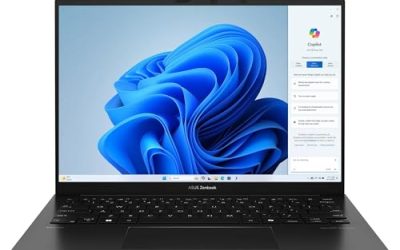
ASUS Zenbook 14 OLED (UX3405) with Core Ultra 9 285H
The Zenbook 14 OLED in this configuration pairs Intel’s Core Ultra 9 285H with 32GB of LPDDR5X memory and a 1TB SSD, and its port layout is the reason it leads this list. ASUS fits two Thunderbolt 4 ports, each carrying DisplayPort video, alongside an HDMI 2.1 socket and a USB 3.2 Gen 1 Type-A port for older peripherals. That layout runs one external monitor from each Thunderbolt port with plain USB-C to DisplayPort cables, and a third screen from the HDMI socket, all while the internal 14-inch OLED stays active.
The built-in display is a WUXGA (1920 x 1200) OLED touchscreen with a 500-nit HDR peak, so the laptop panel holds its own next to desktop monitors rather than becoming the screen nobody wants to use. Intel Arc graphics handle the multi-display output, and Wi-Fi 7 covers networking. At under three pounds, the machine still travels well between desks, which suits a worker who docks at home and at an office on different days. Windows 11 Home is the published operating system for this listing.
Specs
- Processor: Intel Core Ultra 9 285H
- Memory: 32GB LPDDR5X
- Storage: 1TB SSD
- Display: 14-inch WUXGA (1920 x 1200) OLED touchscreen
- Graphics: Intel Arc (integrated)
- Display outputs: 2 x Thunderbolt 4 (DisplayPort over USB-C), 1 x HDMI 2.1
- Other ports: 1 x USB 3.2 Gen 1 Type-A, audio combo jack
- Wireless: Wi-Fi 7
- Operating system: Windows 11 Home
Lenovo ThinkPad X1 Carbon Gen 13 Aura Edition (21NS0013US)
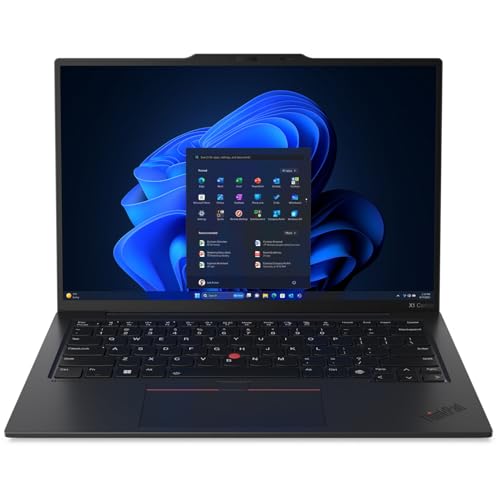
Lenovo’s flagship business ultraportable earns its place here on port selection and published display support. The X1 Carbon Gen 13 carries two Thunderbolt 4 ports and a full-size HDMI 2.1 output, so two external monitors connect over USB-C and a third over HDMI without any adapter in the chain. Lenovo builds the machine around the Intel Core Ultra 7 258V with 32GB of on-package LPDDR5X memory, and this configuration (model 21NS0013US) ships with a 2TB PCIe Gen 5 SSD.
The internal screen is a 14-inch 2.8K (2880 x 1800) OLED panel running at 120Hz, and the chassis keeps the traditional ThinkPad keyboard, TrackPoint, and a 1080p IR camera with a privacy shutter for video calls. Two USB-A 3.2 Gen 1 ports remain for legacy gear that has not moved to USB-C. Wi-Fi 7 and Windows 11 Pro round out a specification aimed at managed work environments, and the whole package weighs roughly 2.4 pounds, light enough that a dual-monitor desk at each end of a commute is a realistic pattern.
Specs
- Processor: Intel Core Ultra 7 258V
- Memory: 32GB LPDDR5X-8533 (on package)
- Storage: 2TB PCIe Gen 5 SSD
- Display: 14-inch 2.8K (2880 x 1800) OLED, 120Hz
- Graphics: Intel Arc 140V (integrated)
- Display outputs: 2 x Thunderbolt 4 (DisplayPort over USB-C), 1 x HDMI 2.1
- Other ports: 2 x USB 3.2 Gen 1 Type-A, audio combo jack
- Wireless: Wi-Fi 7, Bluetooth 5.4
- Operating system: Windows 11 Pro
LG gram 17 (17Z90TL-H) with Core Ultra 7 258V
The gram 17 takes a different route to a multi-monitor desk: it starts with a 17-inch WQXGA (2560 x 1600) IPS touchscreen, which already covers much of the area a second small monitor would add, and then publishes the same dual-Thunderbolt layout as the 14-inch machines. LG’s listing for this model spells out two Thunderbolt 4 ports with DisplayPort carried over USB-C, two USB 3.2 Gen 1 Type-A ports, and an HDMI 2.1 socket, so two external displays connect directly and a third can join over HDMI.
Inside, this configuration runs the Intel Core Ultra 7 258V with Intel Arc 140V graphics, 32GB of LPDDR5 memory, and a 1TB SSD, with Windows 11 Pro installed. The gram line is built around low weight for its screen size, which makes this the pick for someone who wants a large built-in canvas on the road and a three-screen desk at home. The touchscreen also helps when the laptop sits open beside the external monitors as an input surface rather than a fourth display.
Specs
- Processor: Intel Core Ultra 7 258V
- Memory: 32GB LPDDR5
- Storage: 1TB SSD
- Display: 17-inch WQXGA (2560 x 1600) IPS touchscreen
- Graphics: Intel Arc 140V (integrated)
- Display outputs: 2 x Thunderbolt 4 (DisplayPort over USB-C), 1 x HDMI 2.1
- Other ports: 2 x USB 3.2 Gen 1 Type-A, audio combo jack
- Wireless: Wi-Fi 7
- Operating system: Windows 11 Pro
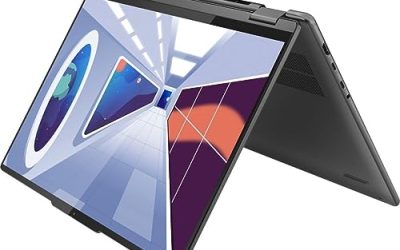
HP Spectre x360 14 (14-eu0023dx) 2-in-1
HP’s Spectre x360 14 is the convertible in this group, and its hinge does not come at the expense of display outputs. HP publishes two Thunderbolt 4 ports with DisplayPort 1.4 video and an HDMI 2.1 output on the 14-eu0000 series, which is the same two-plus-one arrangement as the clamshell machines above: two external monitors over USB-C, a third over HDMI, or a pair of screens through a single Thunderbolt dock. This configuration (model 14-eu0023dx) pairs the Intel Core Ultra 7 155H with 32GB of LPDDR5 memory and a 2TB SSD.
The 14-inch 2.8K (2880 x 1800) OLED touchscreen folds flat into tablet mode, which gives the internal panel a second job as a sketching or note-taking surface when the external monitors carry the main workload. Intel Arc graphics drive the displays, Wi-Fi 6E handles networking, and a fingerprint reader is built in. Windows 11 Home is the operating system published for this listing. For a desk that mixes document work with pen input, this is the most flexible arrangement of the five.
Specs
- Processor: Intel Core Ultra 7 155H
- Memory: 32GB LPDDR5
- Storage: 2TB SSD
- Display: 14-inch 2.8K (2880 x 1800) OLED touchscreen, 120Hz
- Graphics: Intel Arc (integrated)
- Display outputs: 2 x Thunderbolt 4 (DisplayPort 1.4 over USB-C), 1 x HDMI 2.1
- Other ports: 1 x USB Type-A, audio combo jack
- Wireless: Wi-Fi 6E
- Operating system: Windows 11 Home
ASUS Zenbook S 16 (UM5606) with Ryzen AI 9 365
The Zenbook S 16 is the AMD entry in this roundup and the largest thin machine here. It runs the Ryzen AI 9 365 with Radeon 880M graphics, 24GB of LPDDR5X memory, and a 1TB SSD behind a 16-inch 3K (2880 x 1800) OLED touchscreen. ASUS publishes a full port set for the model — two USB4 Type-C ports with display output and power delivery, one USB 3.2 Gen 2 Type-A port, an HDMI 2.1 socket, and an SD 4.0 card reader — and describes the layout as supporting up to four displays including the internal panel.
In practice that means two external monitors over the USB4 ports and a third over HDMI, with the card reader sparing a USB slot for anyone who moves photos as part of the working day. The chassis is about 1.1 cm thin and roughly 1.5 kg, so it still moves between rooms easily. Windows 11 Pro is the operating system on this listing. Buyers who prefer an AMD platform, or who want the biggest built-in screen that still counts as thin-and-light, will land here.
Specs
- Processor: AMD Ryzen AI 9 365
- Memory: 24GB LPDDR5X
- Storage: 1TB PCIe SSD
- Display: 16-inch 3K (2880 x 1800) OLED touchscreen, 120Hz
- Graphics: AMD Radeon 880M (integrated)
- Display outputs: 2 x USB4 Type-C (DisplayPort, power delivery), 1 x HDMI 2.1
- Other ports: 1 x USB 3.2 Gen 2 Type-A, SD 4.0 card reader, audio combo jack
- Operating system: Windows 11 Pro
How to Choose a Laptop for a Multi-Monitor Desk
Count video outputs, not USB-C ports. A USB-C socket only feeds a monitor if it carries DisplayPort alternate mode or Thunderbolt. Every laptop above publishes DisplayPort video on both of its USB-C ports, which is the detail to confirm on any other model under consideration. A machine with one video-capable USB-C port and no HDMI tops out at a single external display without a dock that adds its own display hardware.
Decide between direct cables and a dock. Direct cables are the simplest path: one USB-C to DisplayPort cable per monitor, plus an HDMI cable for a third screen. A Thunderbolt dock trades that cable bundle for a single connection at the laptop, and the dock then drives two monitors and the peripherals. Docks suit anyone who undocks daily; direct cables suit a desk that never moves. Either way, the laptop’s published outputs set the ceiling — a dock cannot add displays beyond what the port and graphics hardware support, except for docks with their own display chips, which handle video differently and suit static content better than motion.
Match the ports to the monitors. Two 4K monitors at 60Hz fit comfortably on Thunderbolt 4 or USB4, and HDMI 2.1 covers a 4K screen on its own. Older HDMI 1.4 sockets limit a 4K monitor to 30Hz, which is why every model here publishes HDMI 2.1. High-refresh gaming panels need DisplayPort bandwidth, so plan those on the USB-C outputs rather than the HDMI socket when both are in play.
Use daisy-chaining where it is published. Some monitors pass a DisplayPort signal through to a second monitor (Multi-Stream Transport). On Windows, a Thunderbolt port can feed a daisy-chain of compatible monitors, which cuts cable runs on a tidy desk. Confirm that both the laptop port and the first monitor publish MST support before relying on it, because the chain fails silently to a single screen when one link lacks it.
Keep the internal screen in the plan. With two or three external monitors attached, the laptop panel usually stays on as a fourth surface for chat, mail, or reference material. All five machines here have internal displays worth keeping in the layout — OLED panels on the ASUS and HP models, a 2.8K OLED on the Lenovo, and a 17-inch IPS on the LG — so none of them forces a closed-lid setup.
Frequently Asked Questions
How many external monitors can these laptops run at the same time?
Each of the five publishes two video-capable USB-C ports (Thunderbolt 4 or USB4) plus an HDMI 2.1 output. That supports two external monitors connected directly over USB-C and a third over HDMI, alongside the internal display. A Thunderbolt dock can consolidate the connections into one cable at the laptop, but the display count still comes from the laptop’s own outputs and graphics hardware.
Can a single USB-C cable run two monitors?
Yes, in two ways. A Thunderbolt dock connected by one cable can drive two monitors from its own video outputs. Alternatively, monitors that publish DisplayPort daisy-chaining (MST) can link in series from one port on Windows. What a plain USB-C hub without display hardware cannot do is split one port into two independent screens — the video signal has to come from somewhere, and hubs that lack display chips only pass through the single signal the port provides.
Is Thunderbolt required, or does plain USB-C work?
Plain USB-C works when the port publishes DisplayPort alternate mode, as the USB4 ports on the Zenbook S 16 do. Thunderbolt 4 guarantees that capability on every certified port, which removes the guesswork: any Thunderbolt 4 port feeds a monitor. The port to avoid for displays is a charge-and-data-only USB-C socket, which carries no video signal at all. The spec sheet’s display line, not the shape of the socket, is what settles it.
Will two 4K monitors run at full resolution and refresh from these laptops?
Yes. Thunderbolt 4 and USB4 each carry enough bandwidth for a 4K display at 60Hz per port, and the HDMI 2.1 output on every model here also handles 4K at 60Hz and beyond. The limits appear at the extremes — very high refresh rates at 4K, or three external 4K screens plus the internal panel at once — where the graphics hardware’s total display bandwidth becomes the ceiling. For office and creative layouts at 4K and 60Hz, all five machines have headroom.
Conclusion
The right laptop for multiple monitors is decided by a short list of published facts: two video-capable USB-C ports, an HDMI 2.1 socket, and graphics hardware rated for several displays. The Zenbook 14 OLED and the ThinkPad X1 Carbon Gen 13 cover that brief in the most portable form, the LG gram 17 adds the largest built-in screen, the Spectre x360 14 adds a folding touchscreen for pen work, and the Zenbook S 16 covers AMD buyers with a 16-inch panel. Pick by the desk the machine will serve — direct cables for a fixed setup, a Thunderbolt dock for one that moves — and any of the five will run a two- or three-monitor layout without adapters stacked on adapters.
More from Amazon
Programs that pair well with the guide above. Offers and eligibility are set by Amazon and may change.
Free shipping on eligible items, Prime Video and more. Eligible new members can start with a free trial.
Start a Prime free trialAd-free music streaming. Eligible new subscribers can start with a free trial.
Try Music Unlimited freeA Prime membership for ages 18-24 with a trial period. Eligibility is set by Amazon.
See Prime for Young AdultsAudiobooks and podcasts to listen to on the go. Eligible new members can start with a free trial.
Try Audible freeAs an Amazon Associate we earn from qualifying purchases.
Write Your Review
No reviews yet. Be the first to share your experience!