
Key takeaways
- Compare simple tablets for seniors with dementia: big icons, photo video calling, voice control and easy family setup help for caregivers at home today.
Disclosure: As an Amazon Associate, we may earn a commission from qualifying purchases made through links in this article, at no additional cost to you. Product specifications are taken from manufacturer and retailer listings.


If you are shopping for a tablet for a parent, spouse or relative living with dementia, you are probably not really shopping for a tablet. You are shopping for a way to stay connected: a familiar face on a video call, a grandchild’s photo that appears without anyone having to open an app, a screen that never asks for a password at the wrong moment. The hardware matters less than how calmly and predictably it behaves on an ordinary afternoon.
That is why this guide is written for caregivers and family members rather than for the person who will use the tablet day to day. In most households, a family member chooses the device, sets it up, trims it down to a handful of large, obvious options, and then supports it from a distance. The best tablets for seniors with dementia are the ones that make that job manageable: big text and icons, photo-based calling, as few passwords and pop-ups as possible, and settings a relative can adjust without a long, confusing phone walkthrough.
One thing needs to be said plainly at the start. A tablet does not treat dementia, and no device in this guide should be bought with that expectation. What a well-chosen, well-configured tablet can do is reduce friction around everyday connection and entertainment: seeing family, looking at photographs, listening to familiar music, watching a favourite programme. Those are worthwhile goals, and they are the only ones this article claims.
Our top picks
Best for: Voice-First Calling
Check price on AmazonBest for: Pen Input and a Familiar Interface
Check price on AmazonWhat Actually Helps: The Features That Matter Most
Before comparing models, it helps to know which features genuinely make a difference for someone with memory loss, and which are just specification-sheet decoration.
A simple, unchanging home screen. Consistency matters more than power. A home screen that shows the same few large tiles in the same places every day — call family, photos, music, video — is far easier to use than a full app drawer. Look for tablets that let you enlarge icons and text, remove or hide apps that are not needed, and pin the essentials to the first screen.
Video calling by photograph, not by number. Dialling from a contacts list of names and numbers can be a real barrier. Calling works best when the person simply taps a familiar face. Voice-initiated calling goes one step further: saying a name out loud removes the need to navigate at all. Both approaches appear in the picks below.
Fewer passwords, fewer surprises. Updates that change the layout overnight, sign-in prompts, and purchase confirmations all create moments of confusion and distress. A good setup disables in-app purchases, turns off unnecessary notifications, and avoids accounts that demand frequent re-authentication. Where a tablet offers a restricted or kiosk-style mode that locks the device down to approved apps, that is a genuine advantage for this use.
Family setup and remote help. Ideally, a relative configures everything before handing the tablet over: contacts with photos, a photo library, streaming apps already signed in, brightness and volume set comfortably. Some ecosystems also let family members manage content and settings through their own phone, which is far kinder than troubleshooting by phone call.
A screen that is easy on the eyes, and a case that survives the table. Text should be large and high-contrast, and the display big enough that photos feel like photographs rather than thumbnails. A folio or stand case matters too, because propping a tablet up for a hands-free call is much easier than holding it.
You may also come across dedicated senior tablets sold as subscriptions outside the big retail stores — GrandPad is the best-known example — which pair simplified hardware with a managed service and family app. They are a legitimate option for some families, but they are not sold as standard Amazon listings, so they are not picks in this guide. The three tablets below are mainstream devices that a caregiver can simplify to a similar end.
Our Three Picks at a Glance
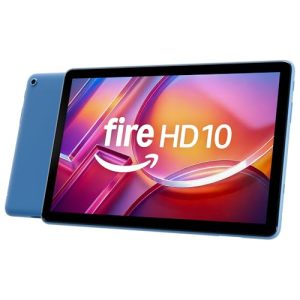
- Amazon Fire HD 10 (13th gen, 2023) — the voice-first option. Alexa can start a video call when someone simply asks, and Show Mode turns the tablet into a photo frame when it is idle.
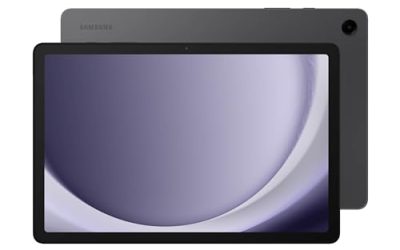
- Lenovo Tab M11 (11 inch, 128GB) — the big, clear screen option. An 11-inch display, generous storage and microSD support make it well suited to photo libraries and reading.
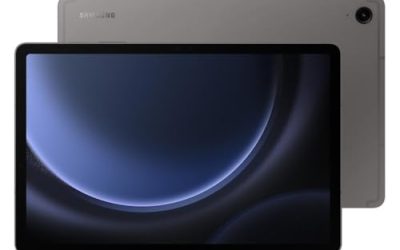
- Samsung Galaxy Tab S6 Lite (2024) — the pen-and-touch option. A 10.4-inch screen, Samsung’s straightforward interface and an included S Pen give an alternative to fingertip tapping.
1. Amazon Fire HD 10 (13th Gen, 2023) — Best for Voice-First Calling
See the Amazon Fire HD 10 on Amazon
For many people living with dementia, the most reliable interface is no interface at all: just speaking. That is the Fire HD 10’s strongest argument. With Alexa built in, a video call to a family member can begin with a spoken request rather than a sequence of taps through menus. For someone who finds touchscreens confusing, or whose hands are not steady, removing those steps can be the difference between calling independently and not calling at all.
The second feature that suits this audience is Show Mode, which turns the tablet into something closer to a digital photo frame. Left on a kitchen counter or bedside table, it can cycle through family photographs instead of sitting dark and inert. Familiar faces appearing throughout the day is a gentle, passive form of connection that asks nothing of the person at all — no tapping, no remembering, no decisions.
According to the manufacturer and retailer listings, the Fire HD 10 has a 10.1-inch display at 1920 x 1200 resolution, an octa-core processor, 3GB of RAM, battery life rated at up to 13 hours, and microSD expansion up to 1TB. For this use, the specification that matters most is the screen: at just over ten inches with a sharp resolution, contact photos and video call faces are large and recognisable. The long rated battery life also helps, because a tablet that is often flat is a tablet that generates anxious phone calls; a device that comfortably lasts the day, and lives on its charger in one fixed spot, fits a routine much better.
Caregiver setup tips for this tablet: create the short list of calling contacts before handing it over, and practise the voice command together while you are in the room. Turn off purchasing and trim notifications. Decide on one permanent home for the tablet — ideally near a comfortable chair, plugged in — because a device that always lives in the same place is far easier to find and use. Keep expectations realistic, too: voice assistants sometimes mishear, so the voice route should complement photo-based calling rather than replace every other option.
Consider it if: your relative responds better to speaking than to tapping, and you want the tablet to double as an always-on photo frame between calls.
2. Lenovo Tab M11 (11 Inch, 128GB) — Best Big Screen for Photos and Reading
See the Lenovo Tab M11 on Amazon
The Lenovo Tab M11 takes a different approach: no voice-assistant headline feature, just a large, clear screen and plenty of room for the things that matter. Its 11-inch display is the biggest in this guide, which pays off in two ways. First, on-screen text and icons can be enlarged generously without feeling cramped, so a simplified home screen of a few big tiles still looks calm rather than crowded. Second, photographs — often the most valued content on a device like this — are shown at a size where faces are easy to recognise and enjoy.
The listing for this model records an 11-inch display, a MediaTek Helio G88 processor, 4GB of RAM and 128GB of storage in Luna Grey, with configurations for this line offered with a folio case. That folio matters more than it might sound: a case that stands the tablet upright turns video calls into something closer to sitting across a table, with no need to hold the device steady for the length of a conversation. It also protects the tablet and gives it a defined, book-like presence that some people find easier to handle than a bare slab of glass.
Storage is the other quiet strength here. With 128GB built in and microSD support, a family member can load a deep library of photographs — decades of birthdays, holidays and grandchildren — plus familiar music and downloaded programmes, so the tablet remains useful and comforting even if Wi-Fi drops out or streaming menus prove too much. Pre-loading content is one of the most effective caregiver strategies of all: the person using the tablet browses a finished, familiar collection instead of facing the open internet.
Caregiver setup tips for this tablet: spend your setup time on content and layout rather than accounts. Fill the photo library, arrange the home screen around three or four large shortcuts, set the text size as large as is comfortable, and disable the app store and browser if they cause confusion. Because this is a general-purpose Android tablet rather than a locked-down senior device, the simplifying work is yours to do — the upside is that you are not tied to any subscription or managed service, and the tablet can be re-purposed for another family member later.
Consider it if: photographs, reading and watching familiar programmes matter more than voice control, and you are happy to do the one-time setup work yourself in exchange for a big screen and lots of storage.
3. Samsung Galaxy Tab S6 Lite (2024) — Best for Pen Input and a Familiar Interface
See the Samsung Galaxy Tab S6 Lite (2024) on Amazon
The Galaxy Tab S6 Lite (2024) earns its place for one distinctive reason: the S Pen included with it. Some people who struggle with fingertip touch — because of tremor, reduced sensation, or simply a lifetime of holding a pen more confidently than tapping glass — find a stylus more precise and more natural. Tapping a large photo tile with a pen can succeed where a fingertip produces missed or double touches, and the pen also suits simple pleasures like crosswords, drawing and handwriting-style notes for those who still enjoy them.
Samsung’s interface is the other consideration. Many families already know Samsung phones, and a tablet that behaves like the phone a caregiver uses every day is easier to set up and to support over the phone. Text and display size can be increased in settings, the home screen can be stripped back to essentials, and Samsung’s ecosystem offers parental-style controls that can be repurposed to limit which apps are visible and usable — a practical route to the locked-down, kiosk-style experience this audience benefits from.
Per the manufacturer and retailer listings, this 2024 model has a 10.4-inch display at 2000 x 1200 resolution, includes the S Pen, supports microSD expansion, and carries a large battery positioned for long video playback, rated at up to around 14 hours in Samsung’s materials. The 10.4-inch size sits between the other two picks: large enough for clear text and recognisable faces on calls, slightly easier to hold than the biggest screens. The microSD slot again serves the pre-loading strategy — a card of family photos and familiar music can be prepared on a computer and simply inserted.
Caregiver setup tips for this tablet: attach the pen to the case or keep it in one fixed spot, because a small loose accessory is easily mislaid; consider a case with a pen holder. Set up the simplified home screen, enlarge the display scaling, and walk through one complete video call together before leaving the tablet behind. If your relative already uses, or used to use, a Samsung phone, lean on that familiarity in how you arrange contacts and shortcuts.
Consider it if: fingertip tapping is unreliable but a pen feels natural, or your family already knows Samsung’s way of doing things and wants setup and support to feel familiar.
How a Caregiver Should Set Any of These Up
Whichever tablet you choose, the setup session matters more than the model number. A calm hour of preparation prevents weeks of small frustrations.
- Do everything before handover. Sign in to accounts yourself, connect Wi-Fi, install updates, and let the device settle. The person receiving the tablet should never meet a setup wizard.
- Build a home screen of very few, very large things. Video calling with photo contacts, the photo library, one music or radio app, and one video app is a complete and dignified set for most people.
- Remove or hide everything else. App stores, browsers, email and settings are sources of accidental purchases, confusing prompts and changed layouts. Restrictive or kiosk-style settings exist for exactly this reason.
- Turn off purchasing and most notifications. A quiet tablet that never demands attention is a trustworthy tablet.
- Pre-load memories. Photographs with familiar faces, favourite songs and beloved programmes turn the device into something personal rather than a piece of technology.
- Give it one home. Same place, same charger, ideally standing in its case. Routine and place are powerful supports for memory.
- Practise together, then write it down simply. Make one call together in person. Leave a short, large-print card with the two or three steps that matter — and your phone number.
Frequently Asked Questions
Can a tablet help treat dementia?
No. A tablet does not treat, slow or reverse dementia, and nothing in this guide should be read that way. What a simplified tablet can do is support connection and routine — video calls with family, familiar photographs and music — which many caregivers find valuable for comfort and contact. Questions about care and treatment belong with the person’s doctor and care team.
What about dedicated senior tablets like GrandPad?
Services such as GrandPad pair a simplified tablet with a subscription and a family management app, and they are sold outside Amazon rather than as standard retail listings. Some families prefer that fully managed route; others prefer a mainstream tablet they set up once and own outright, which is what the three picks above offer. Neither approach is automatically right — it depends on how much ongoing management your family wants to hand over.
How do I stop accidental purchases and confusing pop-ups?
Disable in-app and one-click purchasing in the device settings, remove payment methods where the platform allows it, turn off notifications for all but essential apps, and hide or restrict the app store. Setting this up before handover, rather than after the first confusing incident, is one of the kindest things a caregiver can do.
Which of these three is simplest overall?
For the person using it, the Fire HD 10 asks the least, because a call can start with a spoken request and the idle screen can simply show photographs. The Lenovo Tab M11 is simplest in a different way — a big, calm screen with pre-loaded content and nothing to sign into. The Tab S6 Lite suits someone who handles a pen better than a fingertip. The honest answer is that the best-matched tablet is the one whose main interaction style fits your relative, set up patiently by you.
What if my relative has never used a touchscreen?
Start with one function only — usually photo-based video calling — and practise it together several times. Add nothing else until that feels routine, and accept that some people will always prefer the tablet as a photo frame they look at rather than a device they operate. That is still a good outcome, and it is one reason the always-on photo display approach works so well.
Final Thoughts
Choosing a tablet for a senior with dementia is really an act of editing: taking a powerful, complicated device and reducing it to a few large, familiar, unchanging things — a daughter’s face that starts a call, a lifetime of photographs, a favourite song. The Amazon Fire HD 10 does that editing with voice control and its photo-frame Show Mode. The Lenovo Tab M11 does it with a big, clear screen and room for a whole family’s worth of pre-loaded memories. The Samsung Galaxy Tab S6 Lite does it with a pen that can succeed where fingertips struggle, inside an interface many families already know.
None of them will be perfect, and none of them replaces your presence, your patience or professional care. But set up thoughtfully and kept in one familiar place, the right tablet can make the distance between you and someone you love feel a little smaller, a little more often — and for most families reading this guide, that is exactly the point.
More from Amazon
Programs that pair well with the guide above. Offers and eligibility are set by Amazon and may change.
Free shipping on eligible items, Prime Video and more. Eligible new members can start with a free trial.
Start a Prime free trialAd-free music streaming. Eligible new subscribers can start with a free trial.
Try Music Unlimited freeA Prime membership for ages 18-24 with a trial period. Eligibility is set by Amazon.
See Prime for Young AdultsAudiobooks and podcasts to listen to on the go. Eligible new members can start with a free trial.
Try Audible freeAs an Amazon Associate we earn from qualifying purchases.
Write Your Review
No reviews yet. Be the first to share your experience!