
Our Short List of 3

- Best for: Photographers who print and publish online from the same catalog.
- 27-inch IPS panel, 3840 x 2160 resolution
- 99 percent DCI-P3 and 99 percent Adobe RGB coverage
- Factory pre-calibrated, Delta E under 2, Calman Verified
- VESA DisplayHDR 400

- Best for: Mac users who want P3 color and a tidy one-cable Lightroom desk.
- 27-inch IPS panel, 3840 x 2160 resolution
- 99 percent sRGB, 100 percent Rec.709, 95 percent P3
- Factory-calibrated, Delta E of 3 or less, DisplayHDR 400
- USB-C with 90W power delivery, DisplayPort, HDMI, USB hub

- Best for: Print-focused photographers who hardware-calibrate and soft-proof.
- 27-inch IPS panel, 3840 x 2160 resolution, 400 nits brightness
- 99 percent Adobe RGB, 99 percent DCI-P3, 100 percent sRGB
- Delta E of 1.5 or less, 16-bit 3D LUT, 10-bit color
- HDR10 support, Nano Matte anti-reflection panel
All 5 Picks at a Glance
| Product | Specs | Action |
|---|---|---|
| ASUS ProArt Display PA279CRV |
| Check price on Amazon |
| BenQ PD2706U |
| Check price on Amazon |
| BenQ SW272U |
| Check price on Amazon |
 Dell UltraSharp U2723QE |
| Check price on Amazon |
 LG UltraFine 27UP850K-W |
| Check price on Amazon |
Key takeaways
- Compare five 4K IPS monitors for Lightroom editing with wide color coverage, factory calibration, USB-C hubs, and hardware calibration options.
A Lightroom monitor has one job above all others: showing color the way the file actually holds it, so a slider move on screen predicts what an export or a print will look like. The decision is less about screen size bragging rights and more about color gamut, calibration support, and panel consistency, because a wide-gamut file edited on a narrow-gamut screen quietly loses the saturated tones you worked to capture.
This guide is for photographers who edit in Lightroom Classic or Lightroom on a desktop or laptop and want a 27-inch 4K IPS screen built for photo work. The picks below are the ASUS ProArt Display PA279CRV, BenQ PD2706U, BenQ SW272U, Dell UltraSharp U2723QE, and LG UltraFine 27UP850K-W, chosen from their Amazon listings for gamut coverage, factory calibration, and calibration features.
Quick Picks
As an Amazon Associate we earn from qualifying purchases
| Product | Best for | Key spec from title |
|---|---|---|
| ASUS ProArt Display PA279CRV | Print and web work in one screen | 99 percent DCI-P3 and Adobe RGB |
| BenQ PD2706U | Mac-based Lightroom desks | 95 percent P3 with 90W USB-C |
| BenQ SW272U | Hardware-calibrated print output | 99 percent Adobe RGB, 16-bit 3D LUT |
| Dell UltraSharp U2723QE | Hub-heavy laptop workstations | IPS Black panel with RJ45 Ethernet |
| LG UltraFine 27UP850K-W | Straightforward 4K editing value | DCI-P3 95 percent with HDR 400 |
How to Choose
Match the gamut to your output
Lightroom works in a wide internal color space, so the monitor decides how much of that space you can actually see. A screen covering 100 percent of sRGB is enough for web-only publishing, while photographers who print benefit from Adobe RGB coverage, and anyone delivering stills alongside video should look for high DCI-P3 figures. Each listing here states its coverage plainly, from the LG at 95 percent DCI-P3 to the two BenQ and ASUS models that reach into Adobe RGB territory.
Check the calibration path before buying
Every panel drifts over time, so the question is how the monitor gets corrected. Factory calibration with a stated Delta E figure, like the sub-2 value on the ASUS and Dell listings, gives a reliable starting point for Lightroom work. The next step up is hardware calibration, where correction data is stored inside the monitor itself; the BenQ SW272U supports that through its Palette Master Ultimate software, while the other picks rely on software profiling through your operating system and a separate calibrator device you supply.
Weigh resolution and screen size for your catalog
At 27 inches, a 3840 by 2160 panel gives Lightroom’s interface room to breathe while keeping image detail sharp at a normal desk distance, which is why every pick here shares that size and resolution. Larger screens spread the same pixels thinner, and smaller 4K panels shrink sliders and text until loupe work gets tiring. If you routinely cull thousands of frames, also consider how the stand and bezel design fit a second screen beside the main editing display later on.
Count the ports your workflow really uses
A USB-C input with power delivery turns the monitor into the desk’s docking point, passing video, data, and laptop charging over one cable; the picks here offer 90 to 96 watts. Built-in USB hubs keep card readers and backup drives attached when the laptop leaves, and the Dell adds an RJ45 Ethernet port for wired network storage. Photographers who offload cards at the desk should note that the BenQ SW272U includes an SD card reader in the monitor itself, which removes one more adapter from the import routine.
The 5 Best Options
ASUS ProArt Display PA279CRV
- Best for: Photographers who print and publish online from the same catalog.
- 27-inch IPS panel, 3840 x 2160 resolution
- 99 percent DCI-P3 and 99 percent Adobe RGB coverage
- Factory pre-calibrated, Delta E under 2, Calman Verified
- VESA DisplayHDR 400
Photographers who print and publish online from the same catalog.
No hardware calibration; long-term accuracy depends on software profiling with your own calibrator.
The PA279CRV suits Lightroom editors who split their output between the web and print, because its listing pairs 99 percent DCI-P3 with 99 percent Adobe RGB coverage on one 27-inch 4K IPS panel. ASUS ships it factory pre-calibrated to a Delta E under 2 and Calman Verified, so the sRGB and Adobe RGB modes start from a documented baseline. A USB-C port with 96 watts of power delivery, DisplayPort with daisy-chain support, and a full ergonomic stand make it an easy center for a laptop-based editing desk.
BenQ PD2706U
- Best for: Mac users who want P3 color and a tidy one-cable Lightroom desk.
- 27-inch IPS panel, 3840 x 2160 resolution
- 99 percent sRGB, 100 percent Rec.709, 95 percent P3
- Factory-calibrated, Delta E of 3 or less, DisplayHDR 400
- USB-C with 90W power delivery, DisplayPort, HDMI, USB hub
Mac users who want P3 color and a tidy one-cable Lightroom desk.
Adobe RGB coverage is not stated on the listing, so dedicated print-first workflows should compare the SW272U.
BenQ aims the PD2706U at designers and photographers working on Macs, and its listing leads with a Mac-ready 4K IPS panel covering 99 percent sRGB and 95 percent P3. The monitor is factory-calibrated with a Delta E of 3 or less and carries BenQ’s AQCOLOR technology with a uniformity feature, which matters when a Lightroom background or sky gradient must stay even across the frame. The included Hotkey Puck G2 switches color modes and settings from the desk, and the built-in KVM lets one keyboard and mouse serve two computers.
BenQ SW272U
- Best for: Print-focused photographers who hardware-calibrate and soft-proof.
- 27-inch IPS panel, 3840 x 2160 resolution, 400 nits brightness
- 99 percent Adobe RGB, 99 percent DCI-P3, 100 percent sRGB
- Delta E of 1.5 or less, 16-bit 3D LUT, 10-bit color
- HDR10 support, Nano Matte anti-reflection panel
Print-focused photographers who hardware-calibrate and soft-proof.
It is the most specialized and costly route here; casual editors will not use the calibration depth it offers.
The SW272U is the print photographer’s pick in this group, built around a fine-coated Nano Matte panel with TUV anti-reflection certification that is meant to mimic paper texture on screen. Its listing states 99 percent Adobe RGB, 99 percent DCI-P3 and Display P3, and 100 percent sRGB coverage, with a Delta E of 1.5 or less and a 16-bit 3D LUT. Hardware calibration through Palette Master Ultimate stores corrections in the monitor, and the Paper Color Sync feature targets screen-to-print matching for Lightroom output.
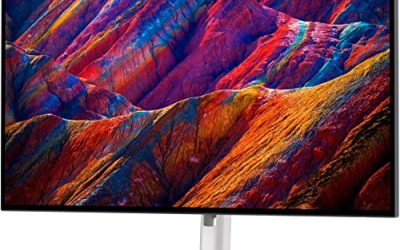
Dell UltraSharp U2723QE
- Best for: Laptop editors who want one cable for display, charging, drives, and wired networking.
- 27-inch IPS Black panel, 3840 x 2160 resolution
- 2000 to 1 contrast ratio, 400 nits brightness
- 98 percent DCI-P3, 100 percent sRGB and Rec.709
- Delta E under 2, VESA DisplayHDR 400
Laptop editors who want one cable for display, charging, drives, and wired networking.
Adobe RGB coverage is not the headline here, and the ASIN belongs to an older B09 series, so confirm the exact listing before ordering.
Dell’s U2723QE takes a different route to editing comfort: an IPS Black panel with a 2000 to 1 contrast ratio, double the figure of a standard IPS screen, which helps shadow detail in moody Lightroom edits read more clearly. The listing rates it at 98 percent DCI-P3 with 100 percent sRGB and Rec.709 coverage and a Delta E under 2. It is also the strongest hub in this roundup, adding RJ45 Ethernet, a KVM switch, and daisy-chain DisplayPort output alongside 90-watt USB-C charging for a laptop.
LG UltraFine 27UP850K-W
- Best for: Editors who want wide-color 4K and laptop charging without calibration extras.
- 27-inch IPS panel, 3840 x 2160 resolution
- DCI-P3 95 percent coverage, VESA DisplayHDR 400
- 400 nits brightness, 60 Hz refresh, 5 ms response
- USB-C with 90W power delivery, DisplayPort, two HDMI
Editors who want wide-color 4K and laptop charging without calibration extras.
No factory Delta E figure or hardware calibration is stated on the listing, so pair it with a calibrator for critical color.
The 27UP850K-W is the straightforward route into 4K Lightroom editing: a 27-inch IPS panel with 95 percent DCI-P3 coverage and VESA DisplayHDR 400, finished in white with a slim-bezel design. Its USB-C port delivers up to 90 watts to a laptop while carrying the picture, and the port set covers DisplayPort, two HDMI inputs, and two USB 3.0 connections for a reader and a backup drive. Built-in speakers handle call audio and casual playback, and the stand adjusts for height, pivot, and tilt at the desk.
Which One Fits Your Situation
You print your best work at home
Choose the BenQ SW272U. Its Adobe RGB coverage, hardware calibration, and paper-simulating matte panel are built for soft-proofing in Lightroom’s Print module, and the SD card reader keeps the import step at the desk. The ASUS PA279CRV is the fallback if you print occasionally but publish online most of the time.
Your Lightroom desk is a MacBook
Choose the BenQ PD2706U. Its P3 coverage matches the color space Apple displays use, the M-book mode targets Mac color behavior, and 90 watts over USB-C charges the laptop while the KVM shares your keyboard and mouse with a second machine when you need one. The Hotkey Puck also keeps color mode changes within reach during long culling sessions.
You edit on a laptop with a tangle of drives
Choose the Dell UltraSharp U2723QE. One USB-C cable brings the picture and charging, while the hub, Ethernet port, and KVM keep backup drives and wired networking attached to the monitor instead of the laptop, so the desk stays connected when the computer travels. Its IPS Black contrast also helps when your edits lean on deep shadow detail.
You want 4K color on a simpler setup
Choose the LG UltraFine 27UP850K-W. It covers the Lightroom essentials, namely a 4K IPS panel, 95 percent DCI-P3, and 90-watt USB-C charging, without asking you to pay for calibration hardware or hub extras you may never plug in. Add an external calibrator later and the same screen grows with your standards as your editing gets more demanding.
Common Mistakes
- Editing in a wide-gamut mode while exporting for the web without soft-proofing to sRGB, which shifts saturated colors on ordinary screens.
- Skipping calibration after the first month, even though every panel drifts and Lightroom decisions quietly drift with it.
- Judging exposure and shadow detail in a bright room on a glossy screen, where reflections lift the blacks you see.
- Connecting a laptop over HDMI at a reduced color depth or refresh setting instead of using the USB-C or DisplayPort input the listing specifies.
- Buying for screen size alone and ending up with low pixel density that makes focus checking at full magnification unreliable.
Frequently Asked Questions
Is a 4K monitor worth it for Lightroom editing?
For most photographers, yes. A 3840 by 2160 panel shows more of the image at fit-to-screen size, keeps interface text sharp beside the photo, and makes focus and noise checks at full magnification more trustworthy. The benefit depends on viewing distance and eyesight, but at 27 inches the pixel density suits a normal editing desk well.
Do I need Adobe RGB coverage for Lightroom?
Only if your output uses it. Lightroom develops in a wide color space, and an Adobe RGB screen reveals more of the saturated greens and cyans that printers can reproduce. If everything you make ends up online as sRGB files, a strong sRGB and DCI-P3 panel covers your needs, and soft-proofing handles the conversion decisions.
How often should a Lightroom monitor be calibrated?
A practical rhythm is every four to six weeks for regular editing, and again before a critical print run or a client delivery. Panels drift gradually rather than all at once, so short, routine calibrations keep the profile honest. Hardware-calibration models store the correction in the monitor; the rest rely on your operating system profile.
Can one USB-C cable really run the whole desk?
On these picks, mostly yes. A single USB-C connection carries the 4K picture, laptop charging up to the stated wattage, and the monitor’s USB hub, which can hold a card reader and backup drive. Check the wattage against your laptop’s charger rating, and keep Ethernet expectations with the Dell, the only pick here listing an RJ45 port.
More from Amazon
Programs that pair well with the guide above. Offers and eligibility are set by Amazon and may change.
Free shipping on eligible items, Prime Video and more. Eligible new members can start with a free trial.
Start a Prime free trialAd-free music streaming. Eligible new subscribers can start with a free trial.
Try Music Unlimited freeA Prime membership for ages 18-24 with a trial period. Eligibility is set by Amazon.
See Prime for Young AdultsAudiobooks and podcasts to listen to on the go. Eligible new members can start with a free trial.
Try Audible freeAs an Amazon Associate we earn from qualifying purchases.
Write Your Review
No reviews yet. Be the first to share your experience!