
Our Short List of 3


All 3 Picks at a Glance
| Product | Specs | Action |
|---|---|---|
| 2. Lenovo Legion Pro 7i Gen 8 — the most video memory in this guide | Check price on Amazon | |
| 3. Lenovo Legion Pro 5i Gen 9 (64 GB) — optimal RAM and 4 TB for local data | Check price on Amazon | |
 4. ASUS ROG Strix G18 — an 18-inch screen for layout-heavy work | Check price on Amazon |
Key takeaways
- Four Windows laptops matched to the Esri ArcGIS Pro recommended spec: 32 GB of RAM or more, a discrete GPU with 8 GB of VRAM or more, and fast SSD storage.
As an Amazon Associate, we earn from qualifying purchases made through links on this page.
GIS work punishes weak hardware in specific ways. A laptop that handles documents and spreadsheets without complaint can crawl once a project holds several large raster layers, a lidar point cloud and a 3D scene at the same time. Geoprocessing tools run for minutes or hours, the visualization cache grows quietly in the background, and a map layout with dense symbology needs graphics memory every time the view redraws. The sensible way to buy for this work is to shop against a published yardstick rather than against marketing labels, and for GIS that yardstick is the system requirements page Esri maintains for ArcGIS Pro.
Every laptop in this guide meets or beats the recommended tier of the ArcGIS Pro 3.8 requirements that Esri publishes. That means at least 32 GB of RAM, a discrete graphics processor with at least 8 GB of dedicated video memory, a multicore CPU well past the four cores Esri recommends, and solid-state storage with room for the application, project data and the visualization cache. Two of the four picks reach the 64 GB of RAM that Esri lists as optimal. Because Esri publishes ArcGIS Pro for Windows only, every pick here is a Windows machine; QGIS users get a note on how the same hardware maps to that application further down.
What to look for in a GIS laptop
RAM is the first gate
Esri sets the ArcGIS Pro floor at 8 GB of RAM, recommends 32 GB, and lists 64 GB or more as optimal. The floor is enough to open the application; it is not enough for a working project with imagery, a browser full of documentation and a video call competing for memory. Treat 32 GB as the practical entry point for professional work, and pick 64 GB if you routinely keep several projects open, process large rasters, or work with point clouds. Memory fitted in two SO-DIMM slots can be changed later; memory soldered to the board cannot, so check how the RAM is fitted before you buy.
A discrete GPU with 8 GB of video memory
Esri recommends a discrete GPU rather than integrated graphics, with 8 GB or more of dedicated video memory. The GPU must support DirectX 12 at feature level 12.0, OpenGL 4.5, or Vulkan 1.3 to hit the recommended rendering tier. Video memory is the ceiling for 3D scenes: a detailed city model or a large terrain surface will use what the card has and then slow down. Esri also notes that higher screen resolutions need more video memory and a stronger GPU, which matters if you pick a machine with a 4K-class panel or drive a large external monitor. Every GPU in this guide clears the 8 GB bar, and two of them carry 12 GB.
CPU cores for geoprocessing
Esri recommends four cores and lists ten cores as optimal. Most geoprocessing tools use several threads at once, and background processing keeps the interface responsive while a tool runs. The processors in this guide carry between 16 and 24 cores, so all of them sit at or past the optimal line. Esri also flags that some tools need a CPU with AVX2 support, which every processor here has.
Storage: SSD capacity, not just speed
Esri asks for 32 GB of free space and recommends that it sit on a solid-state drive. The quieter constraint is the visualization cache, which Esri says can consume up to 32 GB by itself. On top of that, GIS data is bulky: a single county of high-resolution imagery or a modest lidar collection can pass the size of the application many times over. A 1 TB drive is workable if your archive lives on a server or external drive; 2 TB or more keeps active projects local. A second M.2 slot, where the manufacturer provides one, is the cheapest future upgrade on the machine.
Deep learning raises the GPU bar
Most of ArcGIS Pro runs on the requirements above, but the deep learning tools add their own. Esri requires an NVIDIA GPU with CUDA compute capability 5.0 at minimum and recommends 7.5 or later, a current NVIDIA driver, and 16 GB or more of dedicated video memory for larger models. No laptop GPU in this guide reaches 16 GB; the 12 GB cards come closest. Small and mid-size models train and run inference on these machines, while very large models belong on a desktop card or a cloud GPU.
The picks
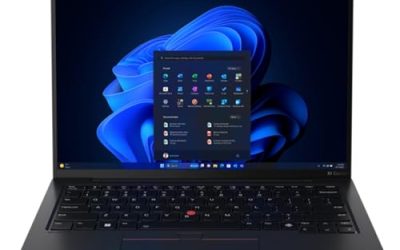
1. Lenovo ThinkPad P16v Gen 2 — the workstation pick with 64 GB and a 4K-class screen
See it on Amazon — ASIN B0H7SX9NT9
The ThinkPad P16v Gen 2 is the only true mobile workstation in this guide, and it is built the way GIS departments tend to buy: professional graphics, plenty of memory, and a screen suited to long editing sessions. The listed configuration pairs an Intel Core Ultra 9 185H processor with 16 cores and a top speed of 5.1 GHz, an NVIDIA RTX 3000 Ada Generation laptop GPU with 8 GB of GDDR6 video memory, 64 GB of DDR5-5600 memory in two SO-DIMM slots, and a 2 TB PCIe Gen4 SSD. That clears the Esri recommended tier on every line and reaches the optimal RAM figure.
The 16-inch WQUXGA panel resolves 3840 x 2400 with a listed brightness of 800 nits, which gives a map layout room to breathe and keeps labels legible at small sizes. The RTX 3000 Ada is a professional card, so it runs the driver branch NVIDIA maintains for professional applications, and its CUDA compute capability of 8.9 clears Esri’s deep learning recommendation of 7.5. At a listed weight from 2.2 kg, it is also the lightest machine here, which matters for analysts who split time between an office desk and fieldwork with a GNSS receiver in the bag.
Who it suits: GIS professionals who want workstation manners, 64 GB of RAM and a high-resolution panel in one machine, and who value a professional GPU over raw gaming-class speed.
Limits to know: the 8 GB of video memory meets the Esri recommendation without headroom to spare, and the high-resolution panel itself asks more of that memory in 3D views, exactly as Esri warns. The listing is a seller-configured unit in which the seller fits the memory and drive before shipping, so confirm the exact configuration on the product page before ordering.
2. Lenovo Legion Pro 7i Gen 8 — the most video memory in this guide
See it on Amazon — ASIN B0BWS8YJ6R
The Legion Pro 7i Gen 8 is a gaming laptop on paper, but its specification reads like a GIS brief. The Intel Core i9-13900HX brings 24 cores and 32 threads, the NVIDIA GeForce RTX 4080 laptop GPU carries 12 GB of GDDR6 video memory at up to 175 watts, and the listed configuration includes 32 GB of DDR5 memory and a 1 TB PCIe Gen4 SSD behind a 16-inch 2560 x 1600 panel with a 240 Hz refresh rate. Against the Esri sheet, the CPU passes the optimal core count by a wide margin, RAM matches the recommended tier, and the 12 GB of video memory is the largest buffer in this guide.
That video memory is the reason to pick this machine. Large 3D scenes, dense point clouds and GPU-accelerated Spatial Analyst work all press on the graphics card, and 12 GB leaves more room before the card has to swap data in and out. The RTX 4080’s CUDA compute capability of 8.9 also clears Esri’s deep learning guidance, and 12 GB is the closest any laptop here gets to the 16 GB Esri recommends for larger models. Lenovo fits two M.2 slots in this chassis, so a second SSD can join the first when the project archive outgrows 1 TB.
Who it suits: analysts whose work leans on 3D scenes, lidar and imagery, and anyone who wants the strongest CUDA GPU they can carry for ArcGIS Pro deep learning tools.
Limits to know: 32 GB of RAM is the recommended tier rather than the optimal one, and heavy multitaskers may feel that before they feel the GPU. The machine ships with Windows 11 Home in this listing, which lacks some management features that larger IT departments use; check your organization’s policy. It is a seller listing with memory and storage fitted by the seller, so verify the configuration on the page.
3. Lenovo Legion Pro 5i Gen 9 (64 GB) — optimal RAM and 4 TB for local data
See it on Amazon — ASIN B0F4X77MWS
This configuration of the Legion Pro 5i Gen 9 is aimed at the two resources GIS projects consume quietly: memory and disk. It lists an Intel Core i9-14900HX with 24 cores, an NVIDIA GeForce RTX 4070 laptop GPU with 8 GB of GDDR6 video memory running at up to 140 watts in this chassis, 64 GB of DDR5 memory, and 4 TB of SSD storage, behind the same 16-inch 2560 x 1600, 240 Hz panel as its sibling. Windows 11 Pro is fitted, which suits analysts whose machines join a managed work network.
The 64 GB of RAM reaches the figure Esri lists as optimal, and it changes daily work in a concrete way: several projects, a large attribute table, a browser and a call can stay open together while a geoprocessing tool runs in the background. The 4 TB of storage is the other half of the pitch. Imagery archives, elevation data and point clouds that would force a 1 TB machine onto external drives can live on the internal SSD, where the visualization cache also has room to grow toward the 32 GB Esri allows for. The RTX 4070 clears the recommended GPU tier and carries CUDA compute capability 8.9 for the deep learning tools.
Who it suits: analysts who keep big local datasets, run long geoprocessing jobs with other work open beside them, and would rather have memory and storage headroom than the fastest GPU.
Limits to know: the RTX 4070’s 8 GB of video memory is the recommended floor, so very large 3D scenes and larger deep learning models will hit its ceiling before they hit the Legion Pro 7i’s. This is a seller-configured listing with memory, storage and bundled software fitted by the seller, so read the configuration lines on the product page carefully before ordering.
4. ASUS ROG Strix G18 — an 18-inch screen for layout-heavy work
See it on Amazon — ASIN B0F3JC4Z88
The Strix G18 makes one argument and makes it well: screen size. Its 18-inch panel resolves 2560 x 1600, which shows more of a map at a readable scale and gives the layout view space for legends, layer lists and attribute tables without a second monitor. Behind the panel, the listed configuration pairs an Intel Core i9-14900HX with 24 cores, an NVIDIA GeForce RTX 4080 laptop GPU with 12 GB of GDDR6 video memory, 32 GB of DDR5 memory in two SO-DIMM slots, a 2 TB SSD, and Windows 11 Pro.
Against the Esri requirements, that is the recommended RAM tier, an optimal-tier core count, and the joint-largest video memory in this guide, so 3D scenes and CUDA-based tools get the same headroom as the Legion Pro 7i. ASUS lists memory support up to 64 GB for this chassis, so the RAM can grow to the optimal tier later with two larger modules. For a desk-bound analyst producing printed and exported layouts, the big panel is a daily quality-of-life gain rather than a spec-sheet flourish.
Who it suits: cartographers and layout-heavy GIS users who work at one desk, want a large built-in display, and still need a 12 GB GPU for 3D and imagery work.
Limits to know: at roughly 3.0 kg before the power supply goes in the bag, this is the least portable pick here, and it is a poor match for regular fieldwork. The listing is a seller-configured unit with bundled extras, so confirm the fitted memory, storage and GPU on the product page before ordering.
Side-by-side comparison
| Laptop | CPU | GPU (video memory) | RAM | Storage | Display |
|---|---|---|---|---|---|
| Lenovo ThinkPad P16v Gen 2 | Core Ultra 9 185H, 16 cores | RTX 3000 Ada (8 GB) | 64 GB | 2 TB SSD | 16-inch, 3840 x 2400 |
| Lenovo Legion Pro 7i Gen 8 | Core i9-13900HX, 24 cores | GeForce RTX 4080 (12 GB) | 32 GB | 1 TB SSD | 16-inch, 2560 x 1600 |
| Lenovo Legion Pro 5i Gen 9 | Core i9-14900HX, 24 cores | GeForce RTX 4070 (8 GB) | 64 GB | 4 TB SSD | 16-inch, 2560 x 1600 |
| ASUS ROG Strix G18 | Core i9-14900HX, 24 cores | GeForce RTX 4080 (12 GB) | 32 GB | 2 TB SSD | 18-inch, 2560 x 1600 |
FAQ
Can ArcGIS Pro run on a Mac?
Esri publishes ArcGIS Pro for Windows only, with Windows 11 as the supported client system, so there is no native macOS build to install. That is why every pick in this guide is a Windows laptop. If your work is in QGIS instead, QGIS is published for Windows, macOS and Linux, and the hardware guidance in this guide still applies to its heavier 3D and point cloud tasks.
How much RAM does a GIS laptop actually need?
Esri’s own figures are 8 GB minimum, 32 GB recommended and 64 GB or more as optimal for ArcGIS Pro 3.8. Coursework and light editing can live at 32 GB. If your projects hold large rasters or point clouds, or you keep several projects open at once, the 64 GB configurations in this guide are the safer long-term choice.
Is a GeForce gaming GPU acceptable, or do I need a workstation GPU?
Esri’s requirements are written around capability rather than brand: a discrete GPU, 8 GB or more of dedicated video memory, and support for DirectX 12, OpenGL 4.5 or Vulkan 1.3. The GeForce cards here meet those bars, and their CUDA support covers the deep learning tools. A workstation card such as the RTX 3000 Ada in the ThinkPad adds the professional driver branch and the purchasing route many IT departments prefer. Either route runs the software; the deciding factors are video memory, drivers and your support needs.
What changes if I want to use the deep learning tools?
Esri adds three conditions: an NVIDIA GPU with CUDA compute capability 7.5 or later as the recommended level, a current NVIDIA driver, and 16 GB or more of video memory recommended for larger models. Every GPU in this guide has compute capability 8.9. None reaches 16 GB of video memory, so the 12 GB picks are the practical ceiling for laptop-based training and inference; very large models are better sent to a desktop or cloud GPU.
Does QGIS need the same hardware as ArcGIS Pro?
QGIS publishes lighter guidance than Esri and runs comfortably on modest machines for 2D editing. The workload decides: large rasters, 3D views and point clouds in QGIS press on the same resources, so a discrete GPU with 8 GB of video memory and 32 GB of RAM remain sensible targets. If you split time between QGIS and ArcGIS Pro, buy for the ArcGIS Pro figures and QGIS is covered as well.
Conclusion
Buy against the Esri sheet and the choice narrows quickly. For a professional workstation with optimal-tier memory and the finest screen here, take the ThinkPad P16v Gen 2. For the largest video memory and the strongest CUDA GPU, take the Legion Pro 7i Gen 8. For maximum RAM and storage to keep big datasets local, take the 64 GB Legion Pro 5i Gen 9. For a desk-bound layout machine with a genuinely large display, take the ROG Strix G18. All four clear the ArcGIS Pro recommended tier on every line Esri publishes.
More from Amazon
Programs that pair well with the guide above. Offers and eligibility are set by Amazon and may change.
Free shipping on eligible items, Prime Video and more. Eligible new members can start with a free trial.
Start a Prime free trialAd-free music streaming. Eligible new subscribers can start with a free trial.
Try Music Unlimited freeA Prime membership for ages 18-24 with a trial period. Eligibility is set by Amazon.
See Prime for Young AdultsAudiobooks and podcasts to listen to on the go. Eligible new members can start with a free trial.
Try Audible freeAs an Amazon Associate we earn from qualifying purchases.





Write Your Review
No reviews yet. Be the first to share your experience!