
Our Short List of 3

- Display: 16-inch FHD+ WUXGA, 1920 by 1200, 16:10 aspect ratio, 300 nits brightness
- Processor: AMD Ryzen AI 5 330 with AMD XDNA NPU
- Memory: 16GB DDR5 RAM
- Storage: 512GB SSD
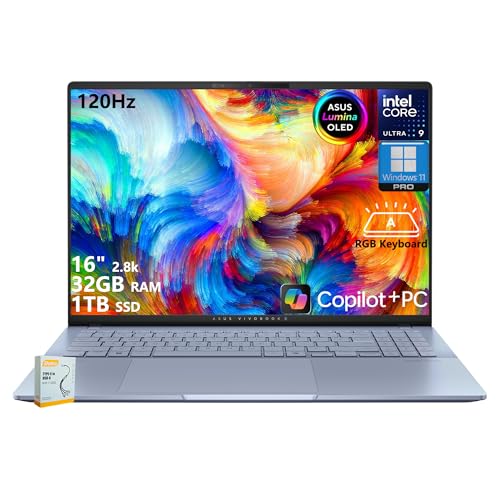
- Display: 16-inch OLED, 2880 by 1800, 120Hz refresh rate
- Processor: Intel Core Ultra 9 285H, 16 cores, up to 5.4 GHz, with Intel AI Boost NPU
- Memory: 32GB DDR5 RAM
- Storage: 1TB SSD
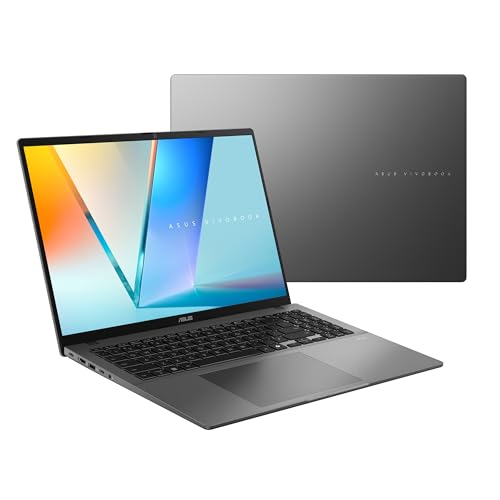
- Display: 16-inch WUXGA touch display, 16:10 aspect ratio
- Processor: Intel Core Ultra 9 386H
- Memory: 32GB RAM
- Storage: 1TB SSD
All 4 Picks at a Glance
| Product | Specs | Action |
|---|---|---|
| 1. ASUS Vivobook 16 (Ryzen AI 5 330) — Best Overall Value |
| Check price on Amazon |
| 2. ASUS Vivobook S16 (Intel Core Ultra 9 285H) — Best Display for Remote Sessions |
| Check price on Amazon |
| 3. ASUS Vivobook S16 (Intel Core Ultra 9 386H) — Best for Heavy Multitasking |
| Check price on Amazon |
 4. ASUS Vivobook 16 Flip (Intel Core Ultra 7 355) — Best Flexible Pick |
| Check price on Amazon |
Key takeaways
- Discover the best laptops for remote desktop work: sharp 16-inch displays, fast Wi-Fi, plenty of memory, and Windows 11 Pro options for smooth remote sessions.
Remote desktop work puts a very specific set of demands on a laptop. You are not rendering video or playing games on the machine in front of you; instead, you are streaming another computer’s screen, typing into applications that run somewhere else, and switching between local tools and a remote session all day. That means the display, the wireless connection, the keyboard, and the amount of memory matter far more than raw graphics power.
The best laptops for remote desktop share a few traits: large, sharp screens so remote windows stay readable without constant zooming, enough memory to run a remote client alongside a browser, chat apps, and office software, and modern Wi-Fi so the session stays responsive. They also last long enough on battery for a workday away from a desk. The five laptops below were chosen with exactly that workload in mind, and every one is a full Windows laptop listed on Amazon.
Disclosure: As an Amazon Associate, we earn from qualifying purchases.
How to Choose a Laptop for Remote Desktop
Screen size and resolution
Screen quality matters most for remote desktop work, because the remote computer’s display is squeezed into your laptop’s panel. A 16-inch screen gives you noticeably more room for remote windows, documents, and chat panels than a 13-inch or 14-inch display. A Full HD panel is workable, but a higher-resolution display such as WUXGA at 1920 by 1200 or a 2.8K or 3.2K OLED panel renders small remote text more crisply, which reduces eye strain. All five laptops here have 16-inch displays, and three use high-resolution OLED panels.
Memory and multitasking
Remote desktop clients are not especially heavy, but the rest of your workday is. A browser with a dozen tabs, a video meeting, a messaging app, and a local spreadsheet can easily consume more memory than the remote session itself. For that reason, 16GB of RAM is a sensible minimum, and 32GB gives you comfortable headroom if you keep many applications open or run two remote sessions at once. Four of the five laptops here ship with 32GB, and the fifth has 16GB paired with an efficient processor.
Wi-Fi and connectivity
A remote desktop session lives or dies on the network connection. Wi-Fi 6 is the baseline to look for, and Wi-Fi 7 is a bonus on newer machines because it handles congested networks more gracefully. A USB-C hub with Ethernet can also help at a fixed desk, so modern USB-C ports matter. Every laptop in this roundup includes Wi-Fi 6 or Wi-Fi 7, and most include USB-C, USB-A, and HDMI ports for an external monitor.
Windows 11 Pro versus Windows 11 Home
Windows 11 Pro can act as a remote desktop host, meaning other computers can connect to it, while Windows 11 Home can only act as a client that connects out to another machine. If you only ever connect from your laptop to a work computer or a server, Windows 11 Home is fine. If colleagues or your own devices need to connect into this laptop, choose Windows 11 Pro. Two picks in this guide run Windows 11 Pro, and three run Windows 11 Home.
Keyboard, webcam, and battery
You will type on this keyboard for hours, so a full-size, backlit keyboard is worth prioritizing. A good webcam matters too, because remote workers spend much of the day on video calls, and an infrared camera adds Windows Hello face sign-in. Battery life is the last piece: a laptop that lasts through a workday lets you move between rooms, cafes, and coworking spaces without hunting for an outlet. Look for a large battery, generally 70 watt-hours or more, if all-day unplugged use matters to you.
What you do not need
Remote desktop work does not need a discrete graphics card. The heavy graphical work happens on the remote machine, and integrated graphics are more than enough to decode a streamed desktop smoothly. Spending extra on a gaming GPU adds weight, heat, and fan noise without improving the remote session. A fast processor still helps keep the local side snappy, but a modern mid-range or high-end mobile processor is plenty.
Our Top Picks
1. ASUS Vivobook 16 (Ryzen AI 5 330) — Best Overall Value
- Display: 16-inch FHD+ WUXGA, 1920 by 1200, 16:10 aspect ratio, 300 nits brightness
- Processor: AMD Ryzen AI 5 330 with AMD XDNA NPU
- Memory: 16GB DDR5 RAM
- Storage: 512GB SSD
The ASUS Vivobook 16 built around the AMD Ryzen AI 5 330 is the most balanced pick here for everyday remote desktop work. Its 16-inch FHD+ display runs at 1920 by 1200 in a 16:10 aspect ratio, giving you extra vertical room for documents and remote windows. The Ryzen AI 5 330 includes an AMD XDNA neural processing unit rated for up to 50 TOPS, which supports on-device AI features in Windows 11.
Pros: Windows 11 Pro means this laptop can host incoming remote desktop connections as well as connect out to other machines. The 16:10 display is a practical advantage for reading remote desktops and long documents. The efficient Ryzen AI processor and 10-hour battery rating suit a full workday away from an outlet.
Cons: 16GB of memory is the floor rather than the ceiling, so heavy multitaskers may want one of the 32GB picks below. The FHD+ display is sharp enough for remote work but less crisp than the OLED panels on the higher-end models here. At around 4.14 pounds it is not the lightest laptop in this guide.
Who it suits: Remote workers who want a capable 16-inch laptop with Windows 11 Pro, a comfortable screen, and all-day battery life, and who connect out to a work PC or server.
2. ASUS Vivobook S16 (Intel Core Ultra 9 285H) — Best Display for Remote Sessions
- Display: 16-inch OLED, 2880 by 1800, 120Hz refresh rate
- Processor: Intel Core Ultra 9 285H, 16 cores, up to 5.4 GHz, with Intel AI Boost NPU
- Memory: 32GB DDR5 RAM
- Storage: 1TB SSD
If the remote desktop is what you stare at all day, display quality deserves the top priority, and this Vivobook S16 delivers the sharpest screen in this roundup short of the 3.2K model below. Its 16-inch OLED panel runs at 2880 by 1800 with a 120Hz refresh rate, so text in a remote window looks crisp and scrolling feels smooth, and OLED contrast helps with dark remote interfaces.
Pros: The 2.8K OLED display is a genuine upgrade for reading small text in remote windows over long sessions. With 32GB of memory and a 1TB SSD, it handles a remote client, a browser, video calls, and local applications simultaneously. Windows 11 Pro supports hosting remote desktop connections, and at 3.31 pounds it is easy to carry between home, office, and coworking spaces.
Cons: The high-resolution OLED panel draws more power than a standard display, so battery life will depend heavily on brightness settings. The port selection is limited, so a USB-C hub may be needed for a full desk setup with an external monitor and wired network.
Who it suits: Remote workers who spend most of the day inside a remote desktop and want the clearest possible view of it, with generous memory and a light chassis.
3. ASUS Vivobook S16 (Intel Core Ultra 9 386H) — Best for Heavy Multitasking
- Display: 16-inch WUXGA touch display, 16:10 aspect ratio
- Processor: Intel Core Ultra 9 386H
- Memory: 32GB RAM
- Storage: 1TB SSD
The 2026 ASUS Vivobook S16 with the Intel Core Ultra 9 386H is the multitasking pick of this guide. It pairs a current-generation Intel processor with 32GB of RAM and a 1TB SSD, which keeps a remote session smooth while a browser, a meeting app, and local documents stay open in the background. Its 16-inch WUXGA touch display adds a useful option for tapping through remote interfaces.
Pros: The current Ultra 9 processor, 32GB of memory, and 1TB SSD give this laptop plenty of headroom for two remote sessions, many browser tabs, and local apps running at once. The touch display is handy for quick navigation and signing documents, and Wi-Fi 6 keeps the remote connection stable on modern home and office networks.
Cons: Windows 11 Home can connect out to remote machines but cannot host incoming connections, so it is not the right choice if other devices need to connect into this laptop. The WUXGA resolution is lower than the OLED panels elsewhere in this guide, so very small remote text is slightly less crisp.
Who it suits: Remote workers who run demanding local workloads alongside their remote session and connect outward to remote machines rather than hosting connections on this laptop.
4. ASUS Vivobook 16 Flip (Intel Core Ultra 7 355) — Best Flexible Pick
- Display: 16-inch WUXGA OLED touch display, 16:10 aspect ratio
- Processor: Intel Core Ultra 7 355
- Memory: 32GB RAM
- Storage: 1TB SSD
The ASUS Vivobook 16 Flip adds something none of the other laptops here offer: a convertible design. Its 16-inch OLED touch display folds back, so the laptop works as a traditional machine for typing into a remote session, then flips into tent or tablet mode for reviewing documents, joining a video call, or presenting a remote screen across the table. Wi-Fi 7 gives it the most modern wireless connection in this guide.
Pros: The flip design is genuinely useful for showing your screen to others or working in tight spaces such as trains and small cafe tables. The OLED touch panel is bright and sharp, and touch input works well for navigating remote desktops. Wi-Fi 7 provides the fastest wireless connection in this roundup, which helps when many devices share a network, and 32GB of memory with a 1TB SSD covers multitasking.
Cons: Windows 11 Home means this laptop works as a remote desktop client but cannot host incoming connections. The convertible hinge and touch panel add complexity compared with a standard clamshell, and the WUXGA resolution is lower than the 2.8K and 3.2K OLED panels on the other Vivobook S16 models here.
Who it suits: Remote workers who value flexibility, such as consultants and trainers who present from their laptop, and frequent travelers who work in cramped spaces.
5. ASUS Vivobook S16 (AMD Ryzen AI 9 365) — Best Premium Pick
The top pick in this guide is the ASUS Vivobook S16 powered by the AMD Ryzen AI 9 365. It combines the highest-resolution display here with the largest storage capacity and a generous 75Wh battery, making it the most complete remote desktop machine of the five. Its 16-inch OLED panel runs at 3200 by 2000 with a 120Hz refresh rate and 600 nits of brightness.
- Display: 16-inch OLED, 3200 by 2000, 120Hz refresh rate, 600 nits brightness, 100 percent DCI-P3 color
- Processor: AMD Ryzen AI 9 365, 10 cores, up to 5.0 GHz, up to 50 TOPS NPU
- Memory: 32GB DDR5 RAM
- Storage: 2TB SSD
- Operating system: Windows 11 Home
- Graphics: Integrated AMD Radeon 880M
- Connectivity: USB-C 4.0, USB-C 3.2, 2 USB-A 3.2, HDMI 2.1, MicroSD card reader, Bluetooth
- Battery: 75Wh
- Weight and thickness: 3.3 pounds, 0.63 inches thick
- Extras: RGB backlit keyboard, FHD infrared camera, Harman Kardon audio
Pros: The 3.2K OLED display is the best screen in this guide for long remote desktop sessions, with sharp text, high brightness, and wide color coverage. The 2TB SSD is twice the storage of the other picks, leaving room for local files and large downloads, and the 75Wh battery supports long unplugged workdays. USB-C 4.0 and HDMI 2.1 make it easy to connect an external monitor for a dual-screen setup, and the infrared camera enables Windows Hello face sign-in.
Cons: Windows 11 Home cannot host incoming remote desktop connections, so buyers who need that feature should choose one of the Windows 11 Pro models instead. As with the other OLED models, battery life depends on screen brightness.
Who it suits: Remote professionals who want the best display and the most storage in a portable 16-inch laptop, and who connect out to remote systems.
Comparison Table
| Laptop | ASIN | Display | Processor | Memory | Storage | Operating System | Wi-Fi |
|---|---|---|---|---|---|---|---|
| ASUS Vivobook 16 | B0G52L99RJ | 16-inch FHD+ 1920 by 1200 | AMD Ryzen AI 5 330 | 16GB DDR5 | 512GB SSD | Windows 11 Pro | Wi-Fi 6 |
| ASUS Vivobook S16 | B0FMXLDC3X | 16-inch OLED 2880 by 1800, 120Hz | Intel Core Ultra 9 285H | 32GB DDR5 | 1TB SSD | Windows 11 Pro | Wi-Fi 6 |
| ASUS Vivobook S16 | B0GYML5H4B | 16-inch WUXGA touch | Intel Core Ultra 9 386H | 32GB | 1TB SSD | Windows 11 Home | Wi-Fi 6 |
| ASUS Vivobook 16 Flip | B0HCVVQM7M | 16-inch OLED touch WUXGA | Intel Core Ultra 7 355 | 32GB | 1TB SSD | Windows 11 Home | Wi-Fi 7 |
| ASUS Vivobook S16 | B0FF4BFXB3 | 16-inch OLED 3200 by 2000, 120Hz | AMD Ryzen AI 9 365 | 32GB DDR5 | 2TB SSD | Windows 11 Home | Bluetooth and USB-C 4.0 |
Frequently Asked Questions
What makes a laptop good for remote desktop work?
A good remote desktop laptop prioritizes what you interact with all day: a large, sharp display so the remote screen stays readable, enough memory to run the remote client alongside your browser and other apps, and fast, stable Wi-Fi so the session stays responsive. A comfortable backlit keyboard, a decent webcam, and solid battery life matter too, while a discrete graphics card is not necessary because the remote machine handles the heavy graphical work.
How much RAM do I need for remote desktop?
For most remote workers, 16GB of RAM is enough to run a remote desktop client, a browser, a messaging app, and office software at the same time. If you keep many browser tabs open, run two remote sessions at once, or use memory-hungry local applications, 32GB gives you comfortable headroom. Four of the five laptops in this guide have 32GB, and the remaining model has 16GB, which suits lighter workloads.
Is Windows 11 Pro necessary for remote desktop?
It depends on which direction the connection goes. Any Windows 11 laptop, Home or Pro, can connect out to a remote computer using the Remote Desktop client or third-party tools. Only Windows 11 Pro can host incoming connections. If you only connect from your laptop to a work PC or server, Windows 11 Home is fine; if colleagues or your own devices need to remote into this laptop, choose a Windows 11 Pro model such as the Vivobook 16 with ASIN B0G52L99RJ or the Vivobook S16 with ASIN B0FMXLDC3X.
Does screen resolution matter for remote desktop?
Yes, more than it does for most other work. A remote desktop is rendered as an image on your screen, so higher resolution keeps small text and interface elements legible. A 16-inch display at WUXGA resolution or above is a good target, and the OLED panels on several picks in this guide add contrast that helps with long reading sessions.
Can I use an external monitor with these laptops?
Yes. Every laptop in this guide has ports for an external display, including HDMI on most models and USB-C on all of them. A second monitor is one of the best upgrades for remote desktop work, because you can keep the remote session full-screen on one display while chat, email, and notes stay on the other.
Conclusion
The best laptops for remote desktop work make the remote screen easy to read, the connection stable, and the workday comfortable, and all five picks here do that in different ways. The Vivobook 16 with ASIN B0G52L99RJ is the sensible starting point, with Windows 11 Pro, a 16:10 display, and all-day battery life. The Vivobook S16 with ASIN B0FMXLDC3X adds a superb 2.8K OLED display and 32GB of memory while keeping Windows 11 Pro. The Vivobook S16 with ASIN B0GYML5H4B suits heavy multitasking, the Vivobook 16 Flip with ASIN B0HCVVQM7M is the flexible pick with Wi-Fi 7, and the Vivobook S16 with ASIN B0FF4BFXB3 is the premium option with a 3.2K OLED panel and 2TB of storage.
Before you decide, check whether you need Windows 11 Pro to host incoming connections or only need a client to connect out, then choose based on display quality, memory, and how much you move around. Any of these five laptops will handle remote desktop work well.
More from Amazon
Programs that pair well with the guide above. Offers and eligibility are set by Amazon and may change.
Free shipping on eligible items, Prime Video and more. Eligible new members can start with a free trial.
Start a Prime free trialAd-free music streaming. Eligible new subscribers can start with a free trial.
Try Music Unlimited freeA Prime membership for ages 18-24 with a trial period. Eligibility is set by Amazon.
See Prime for Young AdultsAudiobooks and podcasts to listen to on the go. Eligible new members can start with a free trial.
Try Audible freeAs an Amazon Associate we earn from qualifying purchases.
Write Your Review
No reviews yet. Be the first to share your experience!