

Key takeaways
- Burn-in and retention: OLED pixels age with use. Vary your content, use dark mode, let the panel run its automatic refresh cycles and avoid leaving static windows on screen for hours. The MSI warranty covers burn-in for three years, which is reassuring.
- Brightness limiting: OLED dims large bright scenes to protect the panel. This is normal and most visible in white-heavy web pages.
- Text rendering: QD-OLED and WOLED have non-standard subpixel layouts. Use ClearType tuning in Windows and a slight scaling increase if text looks fuzzy.
- Cleaning: use a dry microfibre cloth. Do not press on the panel and avoid alcohol on anti-reflection coatings.
- Common mistakes: connecting by the wrong port, leaving the refresh rate at 60 Hz after setup, and forgetting to enable adaptive sync in the GPU control panel.
The best gaming monitor for most players in 2026 is a 27-inch 1440p QD-OLED running at 240 to 360 Hz, with the MSI MPG 271QRX and Alienware AW2725DF as the top 360 Hz choices, the ASUS ROG Swift PG27AQDP at 480 Hz for pure speed, and the MSI MPG 321URX if you want 4K at 32 inches. If your budget is tight, the Gigabyte GO27Q24A brings OLED to a lower price tier, and a fast IPS such as the MSI MAG 274QF X24 remains the safe pick for bright rooms and static desktop work. The right choice depends on your graphics card, your room lighting and the games you play.
Our top picks


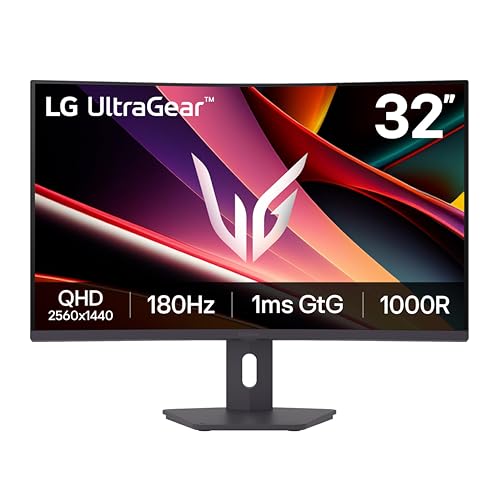
As an Amazon Associate we earn from qualifying purchases at no extra cost to you.
Quick comparison of the seven picks
| Pick | Best for | Panel | Resolution / refresh | Brightness (SDR / HDR peak) | Key ports | Price tier |
|---|---|---|---|---|---|---|
| MSI MPG 271QRX | Best 1440p all-rounder | 26.5 in QD-OLED | 2560×1440, 360 Hz | About 250 nits / up to 1,000 nits | DP 1.4a, 2x HDMI 2.1, USB-C 90 W | Upper mid-range |
| Alienware AW2725DF | Colour accuracy and 360 Hz | 26.7 in QD-OLED | 2560×1440, 360 Hz | About 250 nits SDR | 2x DP 1.4, 1x HDMI 2.1 | Upper mid-range |
| ASUS ROG Swift PG27AQDP | Fastest 1440p refresh | 26.5 in WOLED | 2560×1440, 480 Hz | About 250 nits / up to 1,300 nits | DP 1.4, 2x HDMI 2.1 | Premium |
| MSI MPG 321URX | 4K at 240 Hz | 32 in QD-OLED | 3840×2160, 240 Hz | About 250 nits / up to 1,000 nits | DP 1.4 with DSC, 2x HDMI 2.1, USB-C 90 W, KVM | Premium |
| LG UltraGear 27GR95QE | Proven 240 Hz OLED | 26.5 in WOLED | 2560×1440, 240 Hz | About 200 nits / up to 1,000 nits | DP 1.4, 2x HDMI 2.1, USB hub | Mid-range |
| Gigabyte GO27Q24A | Cheapest OLED entry | 27 in QD-OLED | 2560×1440, 240 Hz | About 200 nits / up to 400 nits | DP 1.4, 2x HDMI 2.1 | Budget to mid-range |
| MSI MAG 274QF X24 | Bright rooms, no burn-in worry | 27 in Rapid IPS | 2560×1440, 240 Hz | About 250 nits | DP 1.4a, HDMI 2.0b | Budget |
Specifications come from manufacturer pages and independent labs such as RTINGS and TFTCentral. Sizes marked 27 inches are often 26.5 or 26.7 inches of actual viewable diagonal. Price tiers are relative: budget is roughly the cost of a good IPS panel, premium is at the top of the gaming monitor market.
OLED or IPS: the decision in plain terms
An OLED panel lights each pixel individually, so blacks are truly black and response times are around 0.03 ms grey to grey, compared with about 0.5 to 1 ms for fast IPS. Motion looks sharper at the same refresh rate, and HDR highlights have far more contrast. The costs are lower full-screen brightness, a risk of image retention or burn-in with static content, text fringing on some subpixel layouts, and a higher price.
IPS panels are brighter for office use, show no burn-in risk, and cost less. They are the logical choice for a room with strong daylight or for a desk used mainly for spreadsheets with occasional gaming. Most buyers who mostly play games and watch video in a controlled room are better off with OLED in 2026.
Best overall 1440p: MSI MPG 271QRX
The MPG 271QRX is a 26.5-inch QD-OLED running at 2560×1440 and 360 Hz with a 0.03 ms response time. MSI lists VESA DisplayHDR True Black 400, about 250 nits in SDR and up to 1,000 nits in a small HDR window, G-Sync Compatible and FreeSync Premium Pro. Ports include DisplayPort 1.4a, two HDMI 2.1 and a USB-C port with 90 W power delivery, which lets a laptop connect and charge on one cable. MSI’s warranty covers three years including burn-in, and RTINGS rates it highly for PC gaming, with the main drawback being input lag at lower refresh rates with variable refresh enabled.
Who it suits: competitive and cinematic players who want 360 Hz and a rich HDR picture, and laptop users who want single-cable docking. Trade-offs: brightness limits, text clarity on a triangular subpixel layout and a premium over IPS.
Best colour and design: Alienware AW2725DF
Dell’s AW2725DF is a 26.7-inch QD-OLED with the same 1440p 360 Hz, 0.03 ms specification, and 99.3 percent DCI-P3 coverage. It has two DisplayPort 1.4 ports and one HDMI 2.1, but HDMI is limited to 144 Hz at 1440p, so connect your PC by DisplayPort for the full refresh. Reviewers praise its colour accuracy and design, with FreeSync Premium Pro and G-Sync Compatible support, and a stand that adjusts for height, tilt, swivel and pivot. It has a three-year warranty.
Who it suits: players who value out-of-box colour accuracy and a clean aesthetic. Trade-off: only one HDMI port, and you must use DisplayPort to hit the top refresh rate.
Best for pure speed: ASUS ROG Swift OLED PG27AQDP
The PG27AQDP is a 26.5-inch WOLED panel at 2560×1440 and 480 Hz with a 0.03 ms response time. ASUS rates peak HDR brightness at up to 1,300 nits, certifies DisplayHDR True Black 400, and covers 99 percent DCI-P3. It provides one DisplayPort 1.4 and two HDMI 2.1 ports, and it holds its full 480 Hz over either interface with adaptive sync and HDR on. Its custom heatsink helps keep the panel cool and uniform.
Who it suits: competitive esports players with a strong GPU who can push 400-plus frames per second. Trade-off: premium price, and the difference between 360 Hz and 480 Hz is subtle unless the game is highly optimised.
Best 4K: MSI MPG 321URX
The MPG 321URX is a 32-inch 4K QD-OLED at 240 Hz with a 0.03 ms response time, DisplayHDR True Black 400, around 250 nits full-screen and up to 1,000 nits peak, and 99 percent DCI-P3. Ports include DisplayPort 1.4 with Display Stream Compression, two full-bandwidth HDMI 2.1 ports, USB-C with 90 W power delivery and a built-in KVM switch. Its pixel density is much higher than 27-inch 1440p, so text is crisper than on lower-resolution OLED panels.
Who it suits: players with an RTX 5080 or RTX 5090 class or high-end Radeon card who want cinematic visuals, and creators who split time between gaming and editing. Trade-offs: pushing 4K at high frame rates requires a powerful GPU, and for competitive shooters a 1440p high-refresh display is easier to drive.
Best proven OLED value: LG UltraGear 27GR95QE
LG’s 27GR95QE is a 26.5-inch WOLED at 2560×1440 and 240 Hz, with a 0.03 ms response time, around 98.5 percent DCI-P3, 200 nits typical SDR brightness and up to 1,000 nits in HDR. It has two HDMI 2.1 ports, one DisplayPort 1.4, a USB hub, a headphone jack and optical audio out. It is an older model compared with the latest 360 Hz panels, but its picture quality and feature set remain strong and it often sells at a lower price.
Who it suits: players who want OLED motion without paying for 360 Hz. Trade-off: lower SDR brightness and an older design.
Best budget OLED: Gigabyte GO27Q24A
Gigabyte’s GO27Q24A offers a 27-inch QD-OLED at 2560×1440 and 240 Hz with 0.03 ms response, 99 percent DCI-P3, about 200 nits SDR and 400 nits HDR peak, plus two HDMI 2.1 ports and one DisplayPort 1.4. It has a semi-glossy anti-reflection surface and a five-year warranty in some regions. It lacks USB-C and has simpler features, but it makes OLED affordable for mainstream budgets.
Who it suits: first-time OLED buyers and budget builds. Trade-offs: limited brightness, a basic stand and fewer ports.
Best IPS: MSI MAG 274QF X24
The MAG 274QF X24 is a 27-inch Rapid IPS panel at 2560×1440 and 240 Hz with a 0.5 ms grey-to-grey response, about 250 cd/m2 brightness, FreeSync Premium and a wide colour gamut of about 93 percent Adobe RGB. Connectivity is DisplayPort 1.4a, HDMI 2.0b and an audio jack, with no USB hub. The stand only tilts, so a VESA arm is a worthwhile upgrade.
Who it suits: bright rooms, shared desks, mixed work and play, and anyone who prefers to avoid OLED care. Trade-off: contrast is about 1,000:1, so dark scenes look grey compared with OLED.
How to choose: a decision matrix
| Your situation | Choose | Why |
|---|---|---|
| Competitive shooters, strong GPU | PG27AQDP or MPG 271QRX | Highest refresh and lowest persistence |
| Laptop and desktop on one screen | MPG 271QRX or MPG 321URX | USB-C 90 W and (321URX) KVM |
| Single-player cinematic games, high-end GPU | MPG 321URX | 4K OLED with HDR |
| Mid budget, wants OLED | LG 27GR95QE or Gigabyte GO27Q24A | OLED motion at lower prices |
| Bright room or office use | MSI MAG 274QF X24 | No burn-in risk, brighter |
Match refresh rate to your GPU
A monitor can only show the frames your graphics card produces. If your game averages 150 frames per second, a 240 Hz monitor is plenty and a 480 Hz monitor adds little. For 360 Hz you generally want 250-plus frames per second in the games you play, which usually means esports titles at medium settings.
Pixel density in numbers
A 27-inch 1440p monitor has about 109 pixels per inch. A 32-inch 4K monitor has about 138. A 27-inch 4K monitor reaches about 163. Higher density means sharper text and smoother edges, but also more GPU load. The step from 109 to 138 is noticeable at normal desk distance of 60 to 80 cm, and it is one reason people choose 4K for mixed gaming and work.
Bandwidth quick check
Uncompressed 1440p at 360 Hz with 10-bit colour needs more than DisplayPort 1.4 can carry without Display Stream Compression, which monitors enable automatically. DSC is visually lossless to most eyes but can disable some features, such as certain scaling modes, and may slow input switching. HDMI 2.1 ports offer more bandwidth than HDMI 2.0, but the Alienware’s single HDMI port is limited at 1440p, so verify port specifications before buying.
Ownership realities: OLED care and what wears first
- Burn-in and retention: OLED pixels age with use. Vary your content, use dark mode, let the panel run its automatic refresh cycles and avoid leaving static windows on screen for hours. The MSI warranty covers burn-in for three years, which is reassuring.
- Brightness limiting: OLED dims large bright scenes to protect the panel. This is normal and most visible in white-heavy web pages.
- Text rendering: QD-OLED and WOLED have non-standard subpixel layouts. Use ClearType tuning in Windows and a slight scaling increase if text looks fuzzy.
- Cleaning: use a dry microfibre cloth. Do not press on the panel and avoid alcohol on anti-reflection coatings.
- Common mistakes: connecting by the wrong port, leaving the refresh rate at 60 Hz after setup, and forgetting to enable adaptive sync in the GPU control panel.
Setup checklist after unboxing
- Connect by DisplayPort unless the model’s HDMI port supports your target refresh rate.
- Set the refresh rate in Windows display settings, not only in games.
- Enable adaptive sync in the GPU control panel and the monitor menu.
- Turn on HDR in Windows only for HDR games and video, and calibrate it with the Windows HDR Calibration app.
- Update firmware through the manufacturer’s tool, since early panels often receive fixes for flicker and sleep behaviour.
HDR on gaming monitors: what the badges mean
The DisplayHDR True Black 400 badge on the OLED models in this guide is a different promise from the DisplayHDR 400 badge on an entry-level LCD. True Black certification requires near-zero black levels and a peak of at least 400 nits in a small window, which on OLED produces real contrast because a black pixel is fully off. A basic DisplayHDR 400 LCD has no local dimming, so HDR content looks only marginally different from SDR. If HDR matters to you, the OLED panels are the clear winners, and the IPS option should be treated as an SDR monitor with an HDR input.
Peak brightness figures need context. The 1,000 nit and 1,300 nit numbers apply to a small window, typically around 1 to 10 percent of the screen, and fall steeply as the bright area grows. Full-screen white on these panels is closer to 250 nits, which is why a white document in a bright room looks dimmer than on an IPS monitor. For dark-room gaming this is rarely a problem, and for daylight offices it can be.
Console and multi-device use
Several of these monitors work well with consoles as well as PCs. The HDMI 2.1 ports on the MSI, LG, ASUS and Gigabyte models handle 4K at 120 Hz or 1440p at high refresh from current consoles, with variable refresh rate. Consoles do not benefit from 360 or 480 Hz, so a console-first buyer should favour the 4K MPG 321URX or the cheaper 240 Hz models. The USB-C port with 90 W power delivery on the MSI models is the most practical feature for laptop users, since it carries video, charges the laptop and can pass keyboard and mouse through the built-in hub or KVM.
The Alienware AW2725DF is the exception on HDMI, because its single HDMI port is capped at a lower refresh rate at 1440p. That makes it a better match for PC-only desks that can use DisplayPort.
Worked example: sizing a monitor to your desk
A 27-inch 16:9 monitor is about 60 cm wide and 34 cm tall. A 32-inch monitor is about 71 cm wide and 40 cm tall. On a standard 60 cm deep desk, a 27-inch screen at 70 cm eye distance fills roughly 40 degrees of your horizontal view, which is comfortable for competitive play, while a 32-inch screen at the same distance fills about 46 degrees and may force head movement to see the corners of the map. If your desk is shallower than 70 cm, a 27-inch panel is the safer pick, and a 32-inch 4K panel should sit on an arm so you can push it back.
For the stand, check the VESA mounting standard. All of the monitors here use a 100 x 100 mm pattern in some form, but the Alienware and ASUS stands also add swivel and pivot, while the MSI MAG IPS model has a tilt-only stand. A monitor arm adds flexibility and frees desk space.
Burn-in avoidance routine in numbers
- Brightness: run the panel at 120 to 150 nits for desktop work. Burn-in risk rises with brightness and time, so lower brightness roughly halves wear at the same usage hours.
- Taskbar: auto-hide the Windows taskbar or move it periodically, since a static bar across the bottom is the most common retention source.
- Screen timeout: set the display to turn off after five to ten minutes of inactivity, and let the monitor run its refresh cycle when it enters standby. Do not unplug it straight away.
- Wallpaper and icons: use a changing wallpaper or a dark theme, and avoid leaving a bright static game HUD on screen in menus for long periods.
With these habits, OLED is a reasonable long-term choice for gaming, and the warranty provides a safety net. If you spend most of your day with static spreadsheets or code editors, the IPS option remains the more sensible monitor for the main desk.
Frequently Asked Questions
Is OLED worth it for gaming?
For gamers who value motion clarity and contrast, yes. OLED response times are about 0.03 ms, and dark scenes look dramatically better than on IPS. The downsides are cost, brightness limits and the need to avoid static images for long periods.
Do I need a 360 Hz or 480 Hz monitor?
Only if you play fast competitive games at very high frame rates. For most players, 240 Hz delivers the large step up from 144 Hz, and higher refresh rates give diminishing returns.
Is 4K or 1440p better for gaming?
1440p is easier to drive at high frame rates and suits competitive play. 4K looks sharper and suits single-player games when you have a high-end GPU. Many players choose 1440p at 27 inches and 4K at 32 inches.
Will OLED burn in with normal use?
Manufacturers have added pixel shifting and refresh routines, and modern panels are more resilient than early models. Mixed gaming and video use rarely causes problems, but long hours of a static taskbar or spreadsheet can. Warranty coverage for burn-in is a useful tiebreaker.
Which port should I use?
Use DisplayPort for the best compatibility with the highest refresh rates on PC. Use HDMI 2.1 for consoles and for GPUs without a free DisplayPort output. Check each monitor’s spec sheet, since the Alienware limits its HDMI port.
Do I need G-Sync or FreeSync?
Adaptive sync removes tearing and stutter, and every monitor in this guide supports it. Most work with both Nvidia and AMD cards, so enable it in your GPU control panel rather than paying extra for a branded module.


Write Your Review
No reviews yet. Be the first to share your experience!