
Key takeaways
- Compare the best tablets for kids with autism by AAC app support, Guided Access, parental controls, volume limits, and durability for home daily routines.
Choosing a tablet for a child with autism is not really about the fastest screen or the biggest game library. For most families, the tablet is a daily support tool: a way for a child to ask for help, follow a visual schedule, calm down with a familiar routine, and move through the day with fewer surprises. That changes what “best” means. The right pick stays locked to the app your child needs, keeps volume at a level you set, survives being dropped, and does not quietly open a browser or a store in the middle of a school morning.

This guide is written for parents and caregivers, and it is deliberately narrow. The three tablets below were chosen for accessibility features, app locking, parental controls, and the communication and learning apps on each platform — not for general entertainment value. A tablet is a support tool that many families and therapists use for learning and communication; it is not a medical device, and no tablet on this list treats autism. The value comes from the apps you choose, the routines you build around them, and the adults who guide their use.
Disclosure: As an Amazon Associate, we may earn a commission from qualifying purchases made through links in this article, at no additional cost to you. Product specifications are taken from manufacturer and retailer listings.
Our top picks
Best for: AAC and App Locking
Check price on AmazonHow This List Differs From General Kids’ Tablet Roundups
A general “tablets for kids” article usually ranks screens, game performance, and streaming battery life. Those things matter far less here, and some point in the wrong direction. An open app store full of tempting games is a problem when the goal is to keep a child inside one communication app for a whole therapy session. A loud speaker is a problem when a child is sensitive to sound. A fragile, premium tablet is a problem when it will be carried room to room, taken to school, and occasionally thrown during a difficult moment.
So this list asks different questions. Can the tablet lock a child into a single app, and how hard is that lock to escape? Does the platform carry a deep library of AAC (augmentative and alternative communication) apps, visual schedule apps, and social-story tools? Can a parent set a maximum volume, limit screen time, and approve every download? Is the tablet cheap enough, or sturdy enough in a case, that a cracked screen is an inconvenience rather than a disaster? Each pick below answers those questions differently, because families’ needs — and replacement budgets — differ a lot.
What Actually Matters When You Shop
AAC and communication app support
For a non-speaking or minimally speaking child, the tablet may become a voice. AAC apps let a child tap pictures, symbols, or words to build messages, request things, and answer questions. The platform’s app library matters more than the hardware: some AAC apps are exclusive to one operating system, and switching platforms later can mean buying an expensive app again and rebuilding every vocabulary page from scratch. Before you choose a tablet, ask your child’s speech-language therapist or teacher which AAC app they recommend and which platform it runs on. That answer should drive the purchase, not the other way around.
Staying in one app: Guided Access and app pinning
The single most useful feature for many families is locking the tablet into one app and keeping it there. Apple’s Guided Access does exactly this: a triple-click starts a session that confines the child to the open app, can disable parts of the screen, and requires a passcode to exit. Apple’s Assistive Access goes further, presenting a simplified home screen with large, curated apps. Android tablets offer app pinning and kid modes with a similar goal. Whatever the platform, test the lock yourself first, and check whether a determined child can reach settings, the store, or the home screen.
Visual schedules and routine apps
Predictability helps many children with autism feel safe. Visual schedule apps turn the day into a sequence of pictures — wake up, brush teeth, school, snack, home — that a child can check, follow, and tick off. Timer apps that show time passing visually, first-then boards, and social-story apps all live on ordinary tablets; the hardware requirement is simply a clear screen, reliable touch response, and enough storage for apps and for photos of your child’s real classroom, bus, and family.
Volume limits and hearing comfort
Some children seek sound out; others are distressed by it. Either way, a parent-set maximum volume protects hearing and keeps a classroom or car ride manageable. Look for a system-level volume limit you can lock with a passcode or parent account, rather than relying on the child leaving the volume buttons alone. Pair the tablet with comfortable, volume-limited headphones for outings, and check the fit — many children only tolerate headphones that do not press too hard or sit inside the ear.
Durability, cases, and the cost of a bad day
Assume the tablet will be dropped. Plan for it: a thick bumper case with a handle, a screen protector, and a stand that survives being knocked off a table are part of the real cost of ownership. This is also where a lower-cost tablet earns its place — a device that is inexpensive to replace can be the sensible choice for a child still learning to handle electronics gently, reserving a pricier tablet for later or for supervised sessions only.
Parental controls and content boundaries
You want control over downloads, purchases, web access, and daily time limits, managed from your own phone or account rather than on the child’s device. Strong controls also let you whitelist only the apps your child should see, so the home screen stays calm and predictable.
1. Apple iPad 11-inch (A16) — Best for AAC and App Locking
See the Apple iPad 11-inch (A16) on Amazon
If your child’s speech therapist has a specific AAC app in mind, there is a good chance it was built for the iPad first. The iPad’s library for augmentative and alternative communication is the richest of any tablet platform, and that ecosystem — not the hardware — is why this tablet leads the list. Vocabulary apps, symbol-based communication boards, visual schedulers, and social-story tools are all well represented, and many schools build their programs around them, so home and school can use the same setup.
The second reason is control. Guided Access locks the iPad into a single app behind a passcode, so a therapy session stays a therapy session instead of drifting into videos. You can circle areas of the screen to disable them — useful when an app has a settings gear or an advertisement corner you need a child to ignore. Assistive Access offers an even simpler interface with large text and only the apps you choose, suiting children overwhelmed by a standard home screen. Screen Time controls, managed through your own Apple account, add download approval and content restrictions.
The 11-inch A16 model is the sensible entry point into that ecosystem: a large, clear screen for symbol grids — important when a communication board needs many good-sized buttons on one page — and enough performance headroom that it will not feel outdated while your child’s vocabulary system grows. AAC is a long-term commitment; children often use the same system for years, and a tablet that stays responsive protects everyone’s effort.
The trade-offs are cost and fragility. This is the most expensive route on the list, and the glass-fronted iPad needs a serious bumper case before it goes near a playground or school bag. Buy the case at the same time, and consider a dedicated device: a tablet that is only the child’s communication and learning tool is far easier to keep consistent than a shared family iPad.
Choose the iPad if: a therapist or teacher has recommended an AAC app on Apple’s platform, you want the strongest single-app locking with Guided Access, or the tablet will be a long-term communication device that must stay consistent for years.
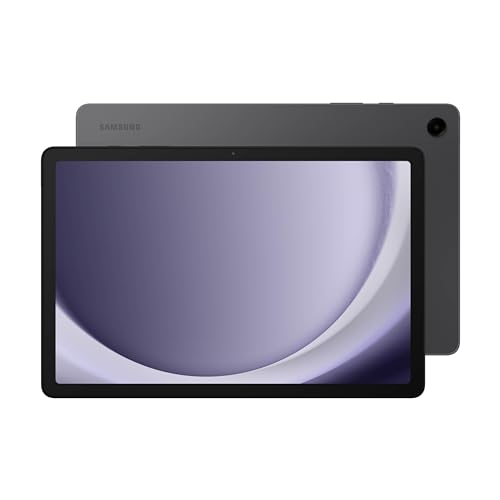
2. Samsung Galaxy Tab A9+ — Best Big Screen for Routines and Schedules
See the Samsung Galaxy Tab A9+ on Amazon
The Galaxy Tab A9+ (11-inch, 128GB, model SM-X210) is the Android pick for families who want a large screen for visual schedules and learning apps without flagship pricing. An 11-inch display gives schedule strips, choice boards, and picture stories room to breathe, and larger targets are easier for children still developing fine motor control to tap accurately. The 128GB of storage holds plenty of apps, photos, and offline videos, and microSD expansion means you never have to delete a child’s favorite calming videos to make space.
Samsung Kids is the feature that earns this tablet its place. It creates a separate, child-facing space with its own home screen, where only the apps you approve appear. You can set daily time limits, review usage, and keep the main Android environment — settings, store, browser — behind your own controls. For a child who benefits from a calm, unchanging home screen, presenting just a schedule app, a communication app, and one or two favorites, with nothing else competing for attention, is worth a great deal. The full Google Play library covers the mainstream schedule, timer, and learning apps most families use, and the four-speaker setup delivers clear speech output at modest volumes — which matters when an app speaks for your child in a noisy room.
Set expectations correctly, though. Android’s AAC library is good but not as deep as Apple’s, and some specialist apps are unavailable here — check with your child’s therapist first if AAC is the primary job. App pinning and Samsung Kids together give solid containment, but walk through the escape routes during setup: notifications, split-screen gestures, and settings shortcuts are the usual leaks.
Choose the Galaxy Tab A9+ if: visual schedules and learning apps are the main job, you want a big screen with strong kid-mode controls for less than the iPad route, or your family already uses Android and Google services.
3. Amazon Fire HD 8 (2024) — Best First Tablet and Backup
See the Amazon Fire HD 8 (2024) on Amazon
The Fire HD 8 (2024) has a different job: it is the tablet you can hand over with the least anxiety. It is compact and light enough for small hands, its 8-inch HD display (1280 x 800) is perfectly adequate for schedule apps, picture books, and calming videos, and — this is the point — if it is dropped down the stairs or left on a bus, replacing it hurts far less than replacing either tablet above. Many families deliberately start here, learn what their child actually uses, and only then invest in a larger primary device. Others keep one as the travel and backup tablet, loaded with the same familiar apps so a broken primary tablet never means a broken routine.
Amazon Kids is a genuinely strong parental control system, and it is why this small tablet works for this audience rather than merely being cheap. From your own Amazon account you can approve every app and book before it appears, set daily time limits and bedtime shut-offs, filter content by age, and review what your child has been doing. The child profile presents a contained, curated environment instead of the open store, keeping the experience predictable. Battery life rated up to 13 hours covers a full day of school, therapy, and travel, and microSD expansion up to 1TB means a large library of familiar videos and audiobooks can live on the device for offline use — no streaming suggestions, no autoplay rabbit holes.
The limits are real. Fire OS uses Amazon’s app store rather than Google Play, and the specialist AAC selection there is thin compared with the iPad’s library. If a full communication system is the goal, this is not the tablet to build it on. Treat the Fire HD 8 as the routine, reading, and schedule tablet — roles it handles well inside Amazon Kids — and let a pick above carry any serious AAC workload. Its smaller screen also shows fewer, smaller buttons in picture-board apps, which can frustrate a child who needs large targets.
Choose the Fire HD 8 if: you want a low-cost first tablet to learn your child’s habits with, you need a spare that keeps routines running when the main tablet breaks, or parent-managed content controls matter more than specialist app depth.
Setting Up Any of These Tablets: A Caregiver’s Checklist
Whichever tablet you choose, the first hour of setup does more for your child than the hardware choice itself.
- Create the child profile first. Set up Samsung Kids, Amazon Kids, or a supervised Apple account before installing anything, so the child never sees the unrestricted tablet.
- Install the core apps, then stop. The AAC app your therapist recommended, one visual schedule app, one visual timer, and one or two calming favorites. A sparse home screen is a feature.
- Turn on the app lock and test it. Start Guided Access or app pinning, then try to escape it as a curious child would — swipe, tap corners, hold buttons, pull down notifications.
- Set and lock a maximum volume in settings, protected by your passcode or parent account, and re-check it after system updates.
- Block purchases and downloads. Every new app should require your approval on your device.
- Fit the case before first use. Bumper case, screen protector, and a stand or handle your child can grip.
- Build the first schedule together. Photograph your child’s real morning — their bed, toothbrush, school door — and load those pictures into the schedule app. Familiar images beat generic clip art.
- Agree the routine with school and therapy. The same schedule format and AAC layout in both places helps a child generalize skills instead of relearning them.
A Note on Choosing AAC Apps
This decision matters more than the tablet itself, so do not make it alone from an app store chart. Ask your child’s speech-language therapist, occupational therapist, or special education teacher which system they recommend, and whether the school already has licenses or training for a particular app. Consistency between home and school, a layout that can grow from a few core words to full sentences, and adults who model the system by tapping it themselves during everyday conversation are what make AAC work over time. The tablet carries the system; the people around the child make it a voice.
Frequently Asked Questions
Is a tablet a treatment for autism?
No. A tablet does not treat autism, and nothing in this guide should be read that way. Tablets are support tools: they carry communication apps, visual schedules, and learning activities that many families, teachers, and therapists find helpful in daily life. Decisions about therapy or intervention belong with your child’s own clinical and educational team.
Which tablet is best if my child is non-speaking?
Start with the AAC app, not the tablet. Ask your child’s speech-language therapist which communication app fits; if it is one of the major AAC systems, the iPad’s library and Guided Access locking make it the usual recommendation. Buy the platform the recommended app runs on, and keep the layout consistent everywhere.
How do I stop my child leaving the learning app?
Use the built-in lock: Guided Access on the iPad, app pinning plus Samsung Kids on the Galaxy Tab A9+, or the child profile in Amazon Kids on the Fire HD 8. Set a passcode your child does not know, and re-test the lock after updates, which occasionally reset restriction settings.
What size screen is best?
For AAC grids and visual schedules, bigger is generally easier: the 11-inch screens on the iPad and Galaxy Tab A9+ show more buttons at a tappable size. The 8-inch Fire HD 8 wins on portability and small hands. If your child carries the tablet all day, weight and grip may matter more than screen area.
Bottom Line
For most families whose priority is communication, the Apple iPad 11-inch (A16) is the strongest choice: the deepest AAC app library, Guided Access and Assistive Access to keep a child in the right app, and controls a parent manages from their own account. If visual schedules and learning apps on a big screen are the main job, the Samsung Galaxy Tab A9+ delivers an 11-inch display and a proper Samsung Kids environment for less. And the Amazon Fire HD 8 earns its place as the low-risk starter or backup — inexpensive to replace, tightly controlled through Amazon Kids, and good enough for routines, reading, and familiar media.
Whichever you pick, fit the case, set the volume limit, lock the app, and choose the communication tools together with the therapist and teachers who know your child. The tablet is the easy part; the consistency you build around it is what helps.
More from Amazon
Programs that pair well with the guide above. Offers and eligibility are set by Amazon and may change.
Free shipping on eligible items, Prime Video and more. Eligible new members can start with a free trial.
Start a Prime free trialAd-free music streaming. Eligible new subscribers can start with a free trial.
Try Music Unlimited freeA Prime membership for ages 18-24 with a trial period. Eligibility is set by Amazon.
See Prime for Young AdultsAudiobooks and podcasts to listen to on the go. Eligible new members can start with a free trial.
Try Audible freeAs an Amazon Associate we earn from qualifying purchases.







Write Your Review
No reviews yet. Be the first to share your experience!