
Our Short List of 3
All 3 Picks at a Glance
| Product | Specs | Action |
|---|---|---|
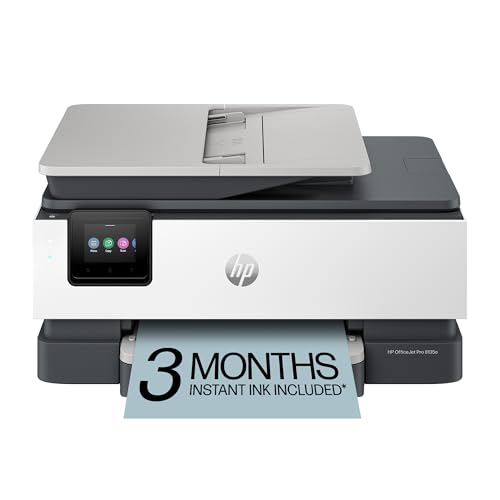 1. HP OfficeJet Pro 8135e — Best All-Round Wireless Printer | Check price on Amazon | |
 2. Canon PIXMA TR4720 — Best Simple Wireless Printer for Home | Check price on Amazon | |
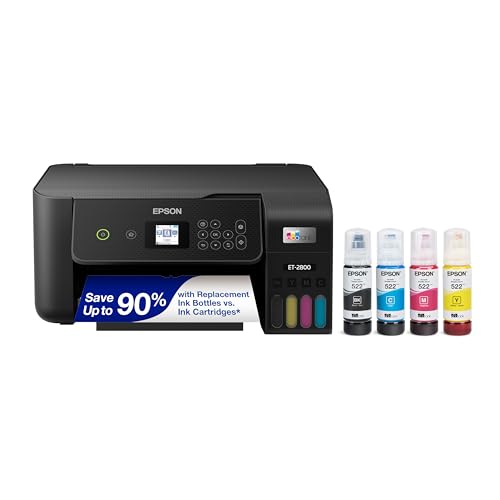 3. Epson EcoTank ET-2800 — Best Wireless Printer for Low Ink Costs | Check price on Amazon |
Key takeaways
- Find the best wireless printers for laptops with easy Wi-Fi setup, mobile printing, and low running costs. Compare HP, Canon, and Epson picks for home use.
The best wireless printers for laptops let you print from anywhere in your home or office without plugging in a cable, hunting for a driver disc, or moving your laptop to the printer. A good wireless printer connects to your Wi-Fi network once, then appears on every laptop, phone, and tablet on that network. You send a document from the couch, the kitchen table, or a home office, and the pages are waiting when you walk over.
That convenience only helps if the printer is reliable, affordable to run, and easy to set up. This guide explains what to look for in a wireless printer for laptop use, from Wi-Fi setup and mobile printing to ink costs and print speed, and then compares three all-in-one models that suit different households. All three print, scan, and copy over Wi-Fi, and each one fits a different pattern of use, whether you print a lot, print occasionally, or want to stop buying cartridges altogether.
Why Wireless Printing Matters for Laptop Users
Laptops are made to move, and a wired printer ties them down. With a wireless printer, your laptop stays where you work, and the printer stays where it fits best, perhaps on a shelf, in a corner, or in another room. Multiple people can share one printer without unplugging cables or passing a laptop around, which is useful in a household with two or more laptops, or in a small home office.
Wireless printing also covers phones and tablets. Most modern printers support mobile printing apps and services, so you can print a boarding pass, a school form, or a photo from your phone without turning on the laptop at all. That flexibility is the main reason most buyers now choose wireless models over USB-only printers, even when the wired option costs less.
The trade-off is setup. A wireless printer needs a stable Wi-Fi connection, and the first setup can take longer than plugging in a USB cable. Once it is connected, though, day-to-day printing is simpler, and most printers now include self-healing Wi-Fi features that reconnect automatically if the network drops briefly.
How to Choose a Wireless Printer for Your Laptop
Wi-Fi Setup and Compatibility
Look for a printer that supports dual-band Wi-Fi, or at least the 2.4 GHz band your router uses most reliably, plus Wi-Fi Direct for printing without a router. Check that it works with your laptop’s operating system, whether Windows or macOS, and that the manufacturer’s app is available for your phone. A printer with a touchscreen or a clear setup guide is easier to connect the first time, and a model that supports Apple AirPrint and Mopria will print from phones and tablets without extra software.
Print, Scan, Copy, and Fax
Most wireless printers for laptops are all-in-one models, which means they print, scan, and copy, and some also fax. An automatic document feeder is worth having if you scan or copy multi-page documents, because it feeds pages through without you lifting the lid for each one. Duplex printing, which prints on both sides automatically, saves paper and is useful for schoolwork, reports, and forms.
Ink Costs and Running Costs
The purchase cost of a printer is only part of the total cost. Inkjet printers that use cartridges are usually cheaper to buy but cost more per page over time, especially if you print in color. Tank printers, such as Epson EcoTank models, cost more upfront but use refillable ink bottles that print thousands of pages, which can work out cheaper for heavy users. Look at the page yield of the included ink or bottles, whether the printer is compatible with a subscription ink service, and how often you actually print. A household that prints a few pages a week has different needs from one that prints homework, worksheets, and work documents every day.
Print Speed and Quality
Print speed is usually measured in pages per minute, with separate figures for black and color. For home use, a speed of around 10 pages per minute in black is adequate for most documents, while faster speeds matter more if you print long reports or batch jobs. Print quality matters for photos and color documents, so check the resolution and whether the printer handles borderless photo printing if that is important to you. Paper capacity also matters: a 100-sheet tray is fine for light use, while a larger tray means less refilling for busy households.
Size, Noise, and Placement
Measure the space where the printer will live, including room for the paper tray and the document feeder to open. Wireless printers can sit farther from your laptop than wired ones, but they still need power and a stable Wi-Fi signal. If the printer will sit in a bedroom or a shared living space, a quieter model is worth prioritizing. Keep the printer within good Wi-Fi range, away from thick walls and metal objects that can weaken the signal.
Top Picks: Best Wireless Printers for Laptops
1. HP OfficeJet Pro 8135e — Best All-Round Wireless Printer
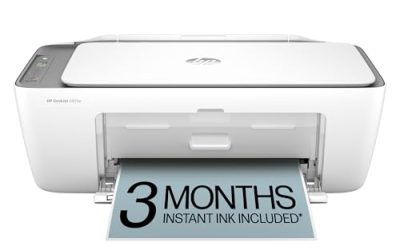
The HP OfficeJet Pro 8135e is the most complete wireless printer in this guide. It is an all-in-one color inkjet that prints, scans, copies, and faxes, with an automatic document feeder, automatic duplex printing, and a touchscreen for easy setup and everyday use. It connects over Wi-Fi, supports mobile printing from laptops, phones, and tablets, and includes HP’s self-healing Wi-Fi, which helps the printer reconnect on its own if the network drops.
For laptop users, the appeal is how little friction there is after setup. You can print from Windows or macOS, from the HP Smart app, or from a phone, and the printer handles everyday documents, forms, and color pages reliably. Print speeds are suitable for home office use, with faster black printing than color, and the 225-sheet input tray means less frequent refilling than smaller home printers. The included trial of HP Instant Ink can also help new owners get started, with ink delivered before they run out, although you should check the current terms before relying on a subscription.
This is the pick for a home office or a busy household that wants fax, a document feeder, and duplex printing in one machine. Its main drawback is that it uses ink cartridges, so running costs depend on how much you print and whether you use a subscription plan. If you want the fullest feature set and a straightforward wireless experience, this is the strongest all-round choice here.
Key details: Wireless all-in-one color inkjet, print, scan, copy, fax, automatic document feeder, duplex printing, touchscreen, Wi-Fi with self-healing connection, mobile printing.
2. Canon PIXMA TR4720 — Best Simple Wireless Printer for Home
The Canon PIXMA TR4720 is a compact all-in-one wireless printer that covers the essentials without unnecessary complexity. It prints, scans, copies, and faxes, with an automatic document feeder, mobile printing, and a straightforward setup process that suits first-time printer owners. Its black design and smaller footprint fit easily on a desk or shelf, and it works well in a home where printing is occasional rather than constant.
For laptop users, the TR4720 does what most households actually need: it prints homework, forms, tickets, and everyday documents from a laptop or phone over Wi-Fi, and it scans and copies when you need a digital copy of a paper document. Canon’s printing app makes it easy to print from a phone, and the printer supports common wireless printing standards, so you do not need to install complicated software to get started.
Choose this model if you want a reliable, uncomplicated wireless printer for light to moderate home use and you do not need the larger paper tray or faster speeds of a bigger office model. Keep an eye on ink levels if you print in color often, because like most cartridge printers, its running costs rise with heavy color use. For everyday home printing, though, it is a practical and good-value choice.
Key details: Wireless all-in-one inkjet, print, copy, scan, fax, automatic document feeder, mobile printing, compact design, black finish.
3. Epson EcoTank ET-2800 — Best Wireless Printer for Low Ink Costs
The Epson EcoTank ET-2800 takes a different approach to printing costs. Instead of cartridges, it uses refillable ink tanks that you fill from bottles, and a single set of bottles can print thousands of pages. That makes it a strong choice for households that print a lot, such as families with school-age children, home-schooling households, or anyone who prints worksheets, study materials, and color documents regularly.
It is a wireless all-in-one that prints, scans, and copies, with Wi-Fi, Wi-Fi Direct, and mobile printing support, so it works with laptops, phones, and tablets on your network. Setup involves filling the tanks the first time, which takes a little longer than inserting cartridges, but after that, refilling is simple and infrequent. The printer is designed for basic home printing, so it does not include a fax function or an automatic document feeder, which keeps it simpler and more affordable than office-focused models.
Choose the ET-2800 if your main concern is the long-term cost of ink and you print often enough for tank printing to pay off. If you rarely print, a cartridge model may be simpler, because ink in a tank printer still needs regular use to stay in good condition. For heavy home printing, though, the EcoTank approach is hard to beat on running costs.
Key details: Wireless cartridge-free all-in-one, refillable EcoTank ink bottles, print, scan, copy, Wi-Fi and Wi-Fi Direct, mobile printing, high page yield from included ink.
Comparison Table
| Printer | Functions | Wireless | Ink System | Best For |
|---|---|---|---|---|
| HP OfficeJet Pro 8135e | Print, scan, copy, fax | Wi-Fi, mobile printing | Cartridges, Instant Ink trial included | Best all-round home office printer |
| Canon PIXMA TR4720 | Print, scan, copy, fax | Wi-Fi, mobile printing | Cartridges | Simple, compact home printing |
| Epson EcoTank ET-2800 | Print, scan, copy | Wi-Fi, Wi-Fi Direct, mobile printing | Refillable ink tanks | Lowest long-term ink costs |
How to Set Up a Wireless Printer With a Laptop
Start by placing the printer within good Wi-Fi range of your router and your usual working spot, then plug it in and follow the on-screen setup or the manufacturer’s app. Most printers will ask you to select your Wi-Fi network and enter the network password, or they will connect through the app on your phone. Once the printer is on the network, add it on your laptop through the system printer settings, where it should appear automatically if both devices are on the same network.
Test the connection with a simple document before you need to print something urgent, and try printing from your phone as well so you know mobile printing works. If the printer does not appear, check that your laptop and printer are on the same Wi-Fi band, restart both devices, and make sure your router is not isolating wireless devices from each other. Keeping the printer’s firmware updated also helps, because updates often improve Wi-Fi stability and compatibility with new laptop operating systems.
For the best reliability, give the printer a stable spot and avoid moving it between rooms after setup, because a weaker signal in a new location can cause intermittent printing problems. If your home has Wi-Fi dead spots, a printer placed near the router, or near a Wi-Fi extender, will usually be more reliable than one tucked into a far corner.
Troubleshooting Common Wireless Printing Problems
If print jobs disappear or stall, first check that the printer is powered on, has paper and ink, and shows a connected Wi-Fi status. A printer that has gone to sleep may need a moment to wake up before it accepts a job. If the problem persists, restart the printer and the laptop, and check for a firmware or driver update from the manufacturer.
If the laptop cannot find the printer, confirm that both are on the same network name, and that the network is not a guest network that blocks devices from seeing each other. Temporarily moving the laptop closer to the printer can help diagnose a weak signal. If mobile printing works but laptop printing does not, the issue is often a driver or a firewall setting on the laptop rather than the printer itself.
Poor print quality usually points to low ink, clogged nozzles, or the wrong paper setting. Run the printer’s cleaning cycle, check ink levels, and make sure the paper type in the print dialog matches the paper loaded in the tray. For faded color prints, a nozzle check and alignment from the printer’s maintenance menu will usually identify the cause.
FAQ
Do wireless printers work with any laptop?
Most modern wireless printers work with Windows and macOS laptops, and many also work with Chromebooks through standard wireless printing services. Check the manufacturer’s compatibility list for your operating system version before buying, especially if you use an older laptop or a less common operating system.
Can I print from my laptop if the printer is in another room?
Yes, as long as both the laptop and the printer are connected to the same Wi-Fi network and the signal is strong enough. The printer does not need to be in the same room, or even on the same floor, provided the Wi-Fi coverage reaches it reliably.
Is a wireless printer slower than a wired printer?
For everyday documents, the difference is usually negligible. Large files, such as high-resolution photos or long color documents, can take a little longer to transfer over Wi-Fi than over USB, but for most home and home-office printing, wireless speed is more than adequate.
Do I need the internet to print wirelessly?
You need a local Wi-Fi network for most wireless printing, but you do not always need an active internet connection. Many printers also support Wi-Fi Direct, which lets a laptop connect directly to the printer without a router. Cloud printing features, such as printing from outside the home, do require internet access.
How can I keep wireless printing costs down?
Use duplex printing to save paper, print in draft or grayscale mode for everyday documents, and choose a printer with an ink system that matches how much you print. Tank printers suit heavy users, while cartridge printers with a subscription plan can suit moderate users who want predictable ink delivery.
Conclusion
The best wireless printers for laptops are the ones that match how you actually print. The HP OfficeJet Pro 8135e is the best all-round choice, with fax, a document feeder, duplex printing, and reliable Wi-Fi for a home office. The Canon PIXMA TR4720 is the simplest option for everyday home printing, with a compact design and straightforward wireless setup. The Epson EcoTank ET-2800 is the best choice for heavy printers who want to stop buying cartridges and cut long-term ink costs with refillable tanks.
Pick the model that fits your print volume, your space, and your budget, set it up once on your Wi-Fi network, and test it from your laptop and your phone. Once it is connected, wireless printing should feel invisible: you send a document from wherever you are working, and the printer takes care of the rest.
Disclosure: As an Amazon Associate, we earn from qualifying purchases.
More from Amazon
Programs that pair well with the guide above. Offers and eligibility are set by Amazon and may change.
Free shipping on eligible items, Prime Video and more. Eligible new members can start with a free trial.
Start a Prime free trialAd-free music streaming. Eligible new subscribers can start with a free trial.
Try Music Unlimited freeA Prime membership for ages 18-24 with a trial period. Eligibility is set by Amazon.
See Prime for Young AdultsAudiobooks and podcasts to listen to on the go. Eligible new members can start with a free trial.
Try Audible freeAs an Amazon Associate we earn from qualifying purchases.
Write Your Review
No reviews yet. Be the first to share your experience!