

Key takeaways
- Find the best tablets for 3D modeling, from pen-first Android slates to full Windows 2-in-1s that run desktop CAD and sculpting apps.
The best tablets for 3D modeling combine a precise stylus, a color-accurate display, and enough processing power to handle dense meshes without stuttering. A tablet that is fine for sketching can fall apart the moment a sculpt passes a few million polygons, a CAD assembly gains hundreds of parts, or a render preview starts eating memory. Choosing well means matching the hardware to the software you actually use, because the tablet that runs a desktop CAD package is a very different machine from the one built around a mobile sculpting app.

This guide covers four tablets that suit different 3D modeling workflows. One is the strongest choice for mobile sculpting, one is the most versatile Android option, one runs full desktop modeling software, and one is built entirely around pen-on-paper drawing feel. Every pick below is a complete tablet, not an accessory, and each one is suited to a distinct kind of modeler, from hobbyists learning sculpting to professionals who need a portable workstation.
How to Choose
1. Stylus precision and pressure levels
A stylus is the heart of any modeling tablet. Look for pressure sensitivity in the thousands of levels, low latency, tilt support, and a tip that feels stable against the glass. A pen that lags or wobbles makes fine detail work frustrating, and a pen that needs charging at the wrong moment interrupts a session. Battery-free pens that draw power from the screen itself are the most convenient option for long sculpting sessions.
2. Display size, resolution, and color accuracy
Modeling is visual work, so the screen matters as much as the chip. A larger display gives you room for tool palettes beside the viewport, while high resolution keeps edges and wireframes crisp. Color accuracy matters when your models are headed for renders, product visuals, or client presentations. An OLED panel generally delivers deeper blacks and stronger contrast, which helps when judging materials and lighting in a viewport.
3. Processing power and memory
Dense sculpts, subdivision surfaces, and large assemblies punish weak hardware. A tablet with a fast multi-core processor and at least 12 GB of memory handles heavier scenes far more smoothly than a budget slate. Memory matters most when you keep several apps open at once, such as a sculpting app, a reference browser, and a file manager. If you plan to work with models that contain millions of polygons, prioritize the strongest chip and the most memory you can afford.
4. Software compatibility
Before buying, confirm that the tablet runs the apps you need. Some sculpting and painting apps are available on every platform, while full desktop CAD, parametric modeling, and professional rendering tools generally require Windows or macOS. A tablet that runs a desktop operating system opens the door to the widest software library, while a mobile tablet depends on the apps available in its own store. Make a list of your essential apps first, then choose the platform that supports them all.
5. Storage capacity and file handling
3D project files grow quickly, especially when they include high-resolution textures, baked maps, and multiple versions of a scene. A tablet with 256 GB of storage is a sensible minimum for serious work, and 512 GB or more is better if you keep large libraries of assets on the device. A microSD slot is a useful bonus on Android tablets, since it lets you expand storage cheaply. Also consider how easily the tablet moves files to a desktop, a cloud drive, or an external drive.
6. Battery life and portability
Modeling sessions often happen away from a desk, on a couch, in a studio, or on a train. A tablet that lasts a full working session on battery is far more useful than one that needs a charger after a couple of hours. Weight matters too, especially if you hold the tablet in one hand while drawing with the other. A slim, light tablet with a long-lasting battery is the most flexible choice for artists who move around.
7. Ecosystem, accessories, and long-term support
Keyboards, stands, screen protectors, and replacement pen tips all affect the day-to-day experience. A tablet with a strong accessory ecosystem is easier to turn into a full workstation, and a manufacturer with a record of long software support keeps the device useful for years. Check how long the tablet is promised to receive operating system updates, and whether spare pens and tips are easy to buy.
Top Picks
Apple iPad Pro 13-Inch (M4)
The iPad Pro 13-inch with the M4 chip is the strongest tablet for mobile 3D sculpting. Its Ultra Retina XDR display is bright, sharp, and color-accurate, which makes judging materials and lighting in a viewport far easier than on a dimmer panel. The M4 chip handles dense sculpts with ease, and the tablet stays responsive when a scene grows heavy with detail. The 13-inch screen gives you room for tool palettes beside the model, and the thin, light body makes it comfortable to hold during long sessions.
The iPad Pro works with the Apple Pencil Pro, which offers pressure sensitivity, tilt, hover preview, and a squeeze gesture for quick tool changes. Hover is especially useful in sculpting, because you can preview where a brush will land before touching the screen. Popular sculpting apps such as Nomad Sculpt run beautifully on this hardware, and the tablet also handles 3D painting, retopology, and rendering preview apps with ease. The large storage options mean you can keep full project libraries on the device.
This tablet is for modelers who sculpt on the go, digital artists who want the smoothest mobile workflow, and professionals who use the iPad as a companion to a desktop workstation. It is less suited to anyone who needs desktop-only CAD software, since the iPad runs its own app library rather than full desktop applications. If your workflow lives in mobile sculpting and painting apps, this is the tablet to beat.
Key specifications include a 13-inch Ultra Retina XDR display, the Apple M4 chip with a 10-core CPU and 10-core GPU, 512 GB of storage, a 12 MP front camera and 12 MP back camera, LiDAR scanner, Wi-Fi 6E, Face ID, and all-day battery life. It is sold in a Space Black finish in this configuration.
Caveats: the stylus is sold separately, desktop CAD applications are not available, and the 13-inch model is the largest and most expensive iPad. Confirm that your essential apps exist on iPadOS before buying.
Samsung Galaxy Tab S10 Ultra
The Galaxy Tab S10 Ultra is the largest Android tablet in this guide, and its huge 14.6-inch Dynamic AMOLED 2X display is a genuine advantage for modeling. The extra screen space lets you keep reference images, layer panels, and tool menus open beside the viewport without crowding the model itself. The included S Pen is battery-free, pressure-sensitive, and stores magnetically on the back of the tablet, so it is always charged and ready.
The Dimensity 9300 Plus chip and 12 GB of memory keep sculpting and painting apps running smoothly, and the tablet handles multitasking well, so you can run a sculpting app beside a browser full of reference material. Samsung DeX mode turns the tablet into a desktop-like workspace when connected to an external display, which is useful for organizing projects and files. The S Pen has very low latency, and the anti-reflection coating on the display keeps the screen readable under bright studio lights.
This tablet is for Android users who want the biggest possible canvas, artists who like a pen that never needs charging, and modelers who value a large screen for complex scenes. It is also a strong choice for anyone who wants a tablet that doubles as a media and productivity device. It is less suited to anyone who needs desktop CAD software, since it runs Android apps rather than Windows programs.
Key specifications include a 14.6-inch Dynamic AMOLED 2X display with a 2960 by 1848 resolution, the MediaTek Dimensity 9300 Plus processor, 12 GB of memory, 256 GB of storage, an included S Pen, a 11,200 mAh battery, Wi-Fi 7, and Android 14. It ships in a Moonstone Gray finish in this configuration.
Caveats: the sheer size makes one-handed use impractical, the keyboard cover is sold separately, and some professional 3D apps are not available on Android. Confirm app availability before buying.
Microsoft Surface Pro 11
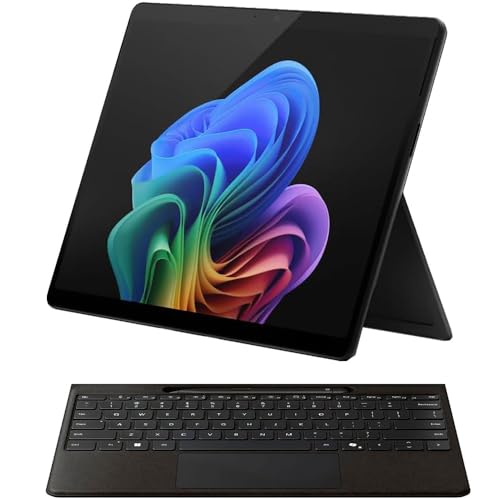
The Surface Pro 11 is the only pick here that runs full desktop Windows, which makes it the most versatile tablet for 3D modeling. It runs desktop CAD, parametric modeling, sculpting, and rendering software without compromise, so it can serve as a genuine portable workstation rather than a companion device. The 13-inch OLED touchscreen is sharp and vibrant, and the Snapdragon X Elite chip delivers strong performance with excellent battery efficiency.
This configuration is a bundle that includes the Surface Pro Keyboard, so the tablet can switch between a pen-first slate and a laptop-style workstation in seconds. The keyboard is useful for modeling tasks that need shortcuts, numeric input, and file management, while the touchscreen and pen handle sculpting and direct manipulation. With 16 GB of memory and 1 TB of storage, it has room for large assemblies, texture libraries, and multiple professional applications installed side by side.
This tablet is for modelers who need desktop software, engineers who work in CAD, and anyone who wants one device that covers both modeling and general computing. It is the best choice in this guide for parametric modeling, engineering visualization, and rendering work. It is less suited to artists who want the lightest possible tablet, since the Surface Pro is heavier than a pure slate once the keyboard is attached.
Key specifications include a 13-inch OLED touchscreen display, the Qualcomm Snapdragon X Elite processor, 16 GB of memory, 1 TB of storage, Windows 11, an included Surface Pro Keyboard in this bundle, and a slim, portable design with a built-in kickstand.
Caveats: this listing is a bundle that includes the keyboard, the pen is sold separately, and some older Windows applications may still be catching up with ARM-based processors. Confirm that your essential desktop software supports the Snapdragon platform before buying.
Wacom MovinkPad Pro 14
The Wacom MovinkPad Pro 14 is built for artists who care above all about how the pen feels on the screen. Its 14-inch OLED display has a matte, paper-like texture that adds friction under the pen, giving strokes a natural, controlled feel that glossy screens cannot match. The included Pro Pen 3 is battery-free, pressure-sensitive, and designed for long drawing sessions without fatigue.
The tablet runs Android 15 on a Snapdragon 8s Gen 3 chip with 12 GB of memory and 256 GB of storage, so it handles sculpting and painting apps smoothly. Because it is a standalone tablet, it needs no computer at all: you can sculpt, paint, and sketch anywhere, then export files to a desktop later. The OLED panel delivers deep blacks and vivid color, which helps when judging materials and lighting. At 6 mm thick, it is remarkably slim for a 14-inch device, and it weighs far less than a laptop.
This tablet is for digital sculptors, illustrators, and concept artists who prioritize pen feel and screen quality over raw computing power. It is an excellent choice for artists who sketch and sculpt in mobile apps and want the most natural drawing surface available. It is less suited to engineers who need desktop CAD, since it runs Android rather than Windows.
Key specifications include a 14-inch 3K OLED display with an anti-glare matte screen, the Snapdragon 8s Gen 3 processor, 12 GB of memory, 256 GB of storage, the battery-free Pro Pen 3, Android 15, and a slim all-in-one design that needs no computer.
Caveats: Android limits access to desktop CAD software, the app library is smaller than on Windows or iPadOS, and the keyboard is not included. Confirm that your sculpting apps are available on Android before buying.
Comparison Table
| Feature | iPad Pro 13 (M4) | Galaxy Tab S10 Ultra | Surface Pro 11 | MovinkPad Pro 14 |
|---|---|---|---|---|
| Display | 13-inch Ultra Retina XDR | 14.6-inch Dynamic AMOLED 2X | 13-inch OLED touchscreen | 14-inch 3K OLED, matte |
| Processor | Apple M4 | Dimensity 9300 Plus | Snapdragon X Elite | Snapdragon 8s Gen 3 |
| Memory | 16 GB | 12 GB | 16 GB | 12 GB |
| Storage | 512 GB | 256 GB | 1 TB | 256 GB |
| Stylus | Apple Pencil Pro, sold separately | S Pen included, battery-free | Pen sold separately | Pro Pen 3 included, battery-free |
| Operating system | iPadOS | Android 14 | Windows 11 | Android 15 |
| Desktop CAD support | No | No | Yes | No |
| Keyboard | Sold separately | Sold separately | Included in this bundle | Not included |
| Best for | Mobile sculpting | Largest Android canvas | Full desktop modeling | Natural pen feel |
Which One Is Right for You?
Choose the iPad Pro 13-inch (M4) if you sculpt in mobile apps and want the fastest, smoothest tablet experience available. Its display, chip, and Pencil Pro combination is unmatched for on-the-go sculpting, and it pairs well with a desktop workstation for finishing work.
Choose the Galaxy Tab S10 Ultra if you want the biggest screen in this guide and prefer Android. The 14.6-inch display and included S Pen make it a strong choice for artists who keep many panels open and never want to hunt for a charger for their pen.
Choose the Surface Pro 11 if your work depends on desktop software. It is the only tablet here that runs full CAD, parametric modeling, and rendering tools, and the included keyboard turns it into a complete portable workstation.
Choose the Wacom MovinkPad Pro 14 if pen feel matters most to you. Its matte OLED screen and Pro Pen 3 deliver the most paper-like drawing experience in this guide, and it is the lightest way to carry a 14-inch creative canvas.
If you are still unsure, start from your software list. Desktop CAD points to the Surface Pro 11. Mobile sculpting apps point to the iPad Pro or the MovinkPad Pro. Android loyalty and a huge screen point to the Tab S10 Ultra. Matching the platform to your apps first makes the rest of the decision easy.
Frequently Asked Questions
Can a tablet replace a desktop for 3D modeling?
It depends on the work. A Windows tablet such as the Surface Pro 11 can run the same desktop software as a laptop, so it can replace a desktop for many modeling tasks. Mobile tablets such as the iPad Pro and Android slates excel at sculpting and concept work, but they cannot run desktop CAD applications. Many artists use a tablet for sculpting and sketching, then finish renders and engineering work on a desktop.
How much memory does 3D modeling need on a tablet?
For light sculpting and learning, 8 GB of memory is workable. For serious work with dense meshes, large textures, and several apps open at once, 12 GB is a sensible minimum and 16 GB is better. Memory has a direct effect on how large a scene you can keep open without slowdowns, so prioritize it if you work with complex models.
Does screen size matter for 3D modeling?
Yes, a larger screen gives you room for tool palettes, layer panels, and reference images beside the viewport, which speeds up workflow. A 13-inch or 14-inch display is a good balance of workspace and portability for most modelers. Smaller tablets are more portable but force you to hide and reopen panels constantly.
Is a matte screen better than a glossy screen for sculpting?
A matte screen adds friction under the pen, which gives strokes a more controlled, paper-like feel and reduces glare under bright lights. A glossy screen can look slightly sharper and more vibrant. The choice comes down to personal preference, but artists who draw for hours often prefer the tactile feedback of a matte surface.
Disclosure: As an Amazon Associate, we may earn from qualifying purchases.
More from Amazon
Programs that pair well with the guide above. Offers and eligibility are set by Amazon and may change.
Free shipping on eligible items, Prime Video and more. Eligible new members can start with a free trial.
Start a Prime free trialAd-free music streaming. Eligible new subscribers can start with a free trial.
Try Music Unlimited freeA Prime membership for ages 18-24 with a trial period. Eligibility is set by Amazon.
See Prime for Young AdultsAudiobooks and podcasts to listen to on the go. Eligible new members can start with a free trial.
Try Audible freeAs an Amazon Associate we earn from qualifying purchases.


Write Your Review
No reviews yet. Be the first to share your experience!