

Key takeaways
- Who it suits: photographers, designers and hybrid creators who also game or edit video.
- Pros: 16GB of headroom, Studio drivers, low power draw, strong support in Adobe’s apps, 10-bit output on supported displays.
- Cons: the extra memory costs more than a 12GB card that would serve most Photoshop users equally well. Avoid the 8GB version of the same model.
The best graphics card for Photoshop in 2026 for most people is the GeForce RTX 5060 Ti 16GB, because Photoshop does not need a flagship, but it does reward a card with plenty of video memory, stable drivers and good support for Adobe’s GPU-accelerated features. Adobe’s official minimum is only 1.5GB of GPU memory with 4GB recommended for 4K displays, so any modern card works; the real question is how much headroom you want for large files, multiple monitors and local AI tools.
This guide is for photographers, retouchers, illustrators and designers choosing a card for a Windows desktop. It explains what Photoshop really uses the GPU for, what it does not, and which six cards make sense at each budget tier. Specifications are drawn from the manufacturers’ spec sheets, and system requirements come from Adobe’s published technical requirements for Photoshop on desktop.
Our top picks


As an Amazon Associate we earn from qualifying purchases at no extra cost to you.
Quick comparison of the best graphics cards for Photoshop
| Pick | Best for | Memory | Bandwidth | Board power | Market tier |
|---|---|---|---|---|---|
| GeForce RTX 5060 Ti 16GB | Best overall for most users | 16GB GDDR7 | 448 GB/s | 180W | Mid-range |
| GeForce RTX 5070 | Large files and dual 4K displays | 12GB GDDR7 | 672 GB/s | 250W | Upper mid-range |
| GeForce RTX 5070 Ti | Pro retouching plus video work | 16GB GDDR7 | 896 GB/s | 300W | Premium |
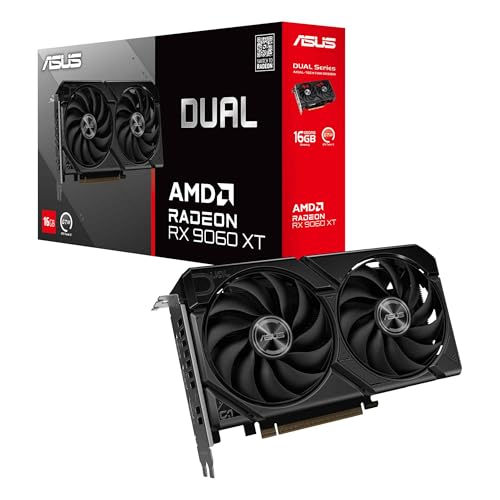
| Radeon RX 9060 XT 16GB | Best value alternative | 16GB GDDR6 | 320 GB/s | 160W | Mid-range |
| GeForce RTX 5060 | Budget Photoshop PC | 8GB GDDR7 | 448 GB/s | 145W | Budget |
| Intel Arc B580 | Cheapest capable option | 12GB GDDR6 | 456 GB/s | 190W | Budget |
Prices have been unusually volatile in 2026 because of memory supply pressure, so this guide uses tiers rather than numbers. Compare current listings before you buy, and remember that the cheapest tier often delivers the best value for Photoshop specifically.
What Photoshop uses the GPU for
Features that are GPU-accelerated
Photoshop uses the graphics card for the canvas display and many tools: zooming and panning, rotating the canvas, the Blur Gallery, Smart Sharpen, Camera Raw processing, Select and Mask refinements, Liquify, Perspective Warp and Neural Filters. Camera Raw in particular can use the GPU for denoise, enhance and masking, which makes it the place where a faster card is most visible to photographers. Adobe lists a DirectX 12 compatible card as required for Windows, so older cards that lack it are not supported.
Features that are not
Many operations still run on the processor, including most filters, layer merging, saving, opening large files and the majority of actions and scripts. This is why a mid-range card plus a fast processor, plenty of RAM and a quick NVMe scratch disk beats an expensive card paired with a slow system. Generative features that use Adobe’s Firefly models typically run in Adobe’s cloud, so they depend more on your internet connection than your GPU. Local AI tools such as Neural Filters and some Camera Raw features do use the card and its memory.
How much VRAM is enough
Adobe states 1.5GB minimum and 4GB recommended for 4K and larger displays. In practice, 8GB is a comfortable minimum for current work, 12GB gives headroom for 100-megapixel files and two or three 4K displays, and 16GB is useful when the same machine edits video or runs local AI tools. Run out of video memory and Photoshop does not crash; it offloads work to the processor and the program slows down.
Best overall: GeForce RTX 5060 Ti 16GB
With 4,608 CUDA cores, 16GB of GDDR7 on a 128-bit bus and a 180W rating, the RTX 5060 Ti 16GB offers more memory than Photoshop strictly needs and enough compute for Camera Raw denoise and Neural Filters at a sensible tier. It runs on a mid-range power supply and fits most cases, and NVIDIA’s Studio driver branch is validated for Adobe applications.
- Who it suits: photographers, designers and hybrid creators who also game or edit video.
- Pros: 16GB of headroom, Studio drivers, low power draw, strong support in Adobe’s apps, 10-bit output on supported displays.
- Cons: the extra memory costs more than a 12GB card that would serve most Photoshop users equally well. Avoid the 8GB version of the same model.
Best for large files and multiple monitors: GeForce RTX 5070
The RTX 5070 has 6,144 CUDA cores, 12GB of GDDR7 on a 192-bit bus (672 GB/s) and a 250W rating. The wider bus helps with high-resolution canvases and several displays, and the compute advantage over the 5060 Ti shows up in Camera Raw denoise and Liquify on big files. Twelve gigabytes is plenty for Photoshop alone.
- Who it suits: retouchers working with 60-100 megapixel files, stitched panoramas and dual 4K monitors.
- Pros: strong bandwidth, quicker AI-accelerated tasks, comfortable memory for pure Photoshop use.
- Cons: less memory than the 16GB cards, which matters if you add video editing; a 650W supply is a safe minimum.
Best premium: GeForce RTX 5070 Ti
The RTX 5070 Ti brings 16GB of GDDR7 on a 256-bit bus (896 GB/s), 8,960 CUDA cores and a 300W rating. For Photoshop alone it is overkill, but for studios that also grade video in DaVinci Resolve or Premiere Pro, run local AI image tools, or use Lightroom Classic with heavy masking, it is a balanced choice.
- Who it suits: professionals mixing photo, video and AI work on one machine.
- Pros: fast across the whole Adobe suite, 16GB of fast memory, strong encoders for video.
- Cons: poor value if Photoshop is the only application you run, and it needs a 750W supply.
Best AMD option: Radeon RX 9060 XT 16GB
The RX 9060 XT 16GB has 2,048 stream processors, 16GB of GDDR6 on a 128-bit bus (320 GB/s) and a 160W rating. Photoshop supports modern Radeon cards for display and most accelerated tools, and the card undercuts comparable NVIDIA models at many retailers. The trade-off is that a few Adobe AI features and third-party plug-ins are better optimized for NVIDIA.
- Who it suits: value-minded designers and photographers who also game.
- Pros: 16GB at a mid-range tier, efficient, quiet in most designs, strong gaming performance.
- Cons: less polished driver validation for creative apps, and some Camera Raw and plug-in features are faster on GeForce.
Best budget: GeForce RTX 5060
The RTX 5060 has 3,584 CUDA cores, 8GB of GDDR7 on a 128-bit bus (448 GB/s) and a 145W rating, which makes it one of the cheapest ways to get a current-generation card with Studio driver support. For 24-45 megapixel files, a single 1440p or 4K monitor and ordinary retouching, it is enough. If your files are huge or you edit video too, step up.
- Who it suits: students, hobbyists and anyone building a Photoshop PC on a strict budget.
- Pros: low power draw, small cards fit compact cases, Studio driver support.
- Cons: 8GB limits large files, multi-monitor setups and local AI work over time.
Cheapest capable option: Intel Arc B580
The Arc B580 has 12GB of GDDR6 on a 192-bit bus (456 GB/s), 2,560 shaders and a 190W rating. It meets Adobe’s DirectX 12 requirement and offers more memory than the RTX 5060 at a similar or lower tier. Photoshop works well on it for general editing, but Intel driver support for creative applications is less proven, so it carries more risk if your income depends on the machine.
- Who it suits: hobbyists who want 12GB at the lowest tier and accept some driver risk.
- Pros: 12GB of memory, current-generation features, good value.
- Cons: fewer Adobe-validated drivers, and some AI-accelerated tools are slower or less tested than on NVIDIA.
Decision matrix: which card for which Photoshop user
| Your work | Typical file size | Displays | Recommended card |
|---|---|---|---|
| Hobby editing, social graphics | Under 30MP | One 1080p or 1440p | RTX 5060 or Arc B580 |
| Wedding or portrait photographer | 24-45MP | One or two 4K | RTX 5060 Ti 16GB or RX 9060 XT 16GB |
| Landscape stitching, commercial retouching | 60-100MP+ | Two 4K | RTX 5070 |
| Photo plus video plus AI tools | Mixed | Two 4K or more | RTX 5070 Ti |
| Illustrator or UI designer, no photo editing | Small documents | One | Integrated graphics may be enough, or an RTX 5060 |
A worked example: how much VRAM does a big file use?
A 100-megapixel image at 16 bits per channel with three channels occupies roughly 100,000,000 pixels x 3 channels x 2 bytes, or about 600MB for a single layer. Photoshop does not push the whole file onto the GPU at once, but the display and acceleration paths use tiles and caches that grow with zoom level and layer count. A document with ten such layers can reach 6GB in system memory and still display smoothly if the GPU holds the visible region efficiently. This is why a 12GB card feels fine on large files while an 8GB card can feel tight when you also run Neural Filters and a second monitor, and why system RAM (at least 32GB for heavy work) and scratch disks matter more than the graphics card for file size itself.
How to choose a Photoshop GPU
1. Prioritize memory over compute
Photoshop rarely saturates a modern card, so pick the amount of VRAM that suits your files and displays rather than the highest shader count. A 12-16GB card is a safe target for most professionals.
2. Choose a driver ecosystem you trust
NVIDIA’s Studio drivers are tested against Adobe applications and updated less frequently than Game Ready drivers, which makes them the lower-risk path for paid work. AMD and Intel work, but you should check Adobe’s compatibility notes and community reports before relying on them.
3. Count your displays and color depth
If you use a wide-gamut 10-bit monitor, check that your card and cable support 10-bit output at your refresh rate. DisplayPort 1.4 or 2.1 is a better choice than older HDMI versions for high resolutions. Hardware calibration happens on the monitor and its colorimeter, not the GPU, so do not pay extra for a graphics card in the name of color accuracy.
4. Do not neglect the rest of the PC
For Photoshop, a fast single-core processor, 32GB of RAM, and a dedicated NVMe scratch disk produce larger gains than a graphics upgrade past the mid-range. If your machine feels slow when opening files or applying filters, the GPU is probably not the cause.
5. Plan power and case fit
Cards such as the RTX 5060 and RX 9060 XT run on a 550-650W power supply and fit small cases. The RTX 5070 Ti and above need a 750W unit and more space, so verify clearance before ordering.
Setting up Photoshop to use your new card
After installing the card and the correct driver, open Photoshop and go to Preferences, then Performance, and confirm that Use Graphics Processor is ticked and that the card appears by name. Click Advanced Settings and leave the drawing mode on Normal unless you see display artifacts; Basic is a fallback for troubleshooting. Set the memory allocation for Photoshop to around 70 to 80 percent of installed RAM so the program has room without starving the operating system. Point the scratch disk at a fast NVMe drive that is not your system drive, and keep at least 50GB free on it. These steps cost nothing and usually deliver a bigger improvement than moving up a GPU tier.
If the Graphics Processor option is grayed out, the usual causes are an outdated driver, a card that does not meet the DirectX 12 requirement, or a remote desktop session that hides the GPU. Reinstalling the driver with a clean installation option resolves most cases. Camera Raw has its own GPU setting in its preferences, so check it separately if denoise or masking feels slow.
What to skip
- Workstation cards: professional-branded cards add certified drivers and large memory but offer little extra for Photoshop at their cost.
- Multi-GPU setups: Photoshop uses one graphics card for acceleration, so a second adds heat and cost without speed.
- Overclocked premium models: factory overclocks add a few percent in tasks that rarely stress the card. A standard model with a quiet cooler is better value.
- Very old cards: a card older than seven years may be unsupported by Adobe, which states it does not test with GPUs of that age.
Ownership realities
- Driver updates: if Photoshop shows odd canvas glitches or a grayed-out GPU option, update the driver first, then check Preferences, Performance, Graphics Processor Settings.
- Legacy modes: turning off GPU acceleration is a diagnostic step for crashes, not a permanent fix.
- Noise and heat: Photoshop draws little power most of the time, so even small coolers stay quiet; heavy Camera Raw batches are the exception.
- Warranty and upgrade path: a mid-range card typically holds its usefulness for five years or more in Photoshop because software requirements rise slowly.
- Running cost: a 180W card at full load for 2 hours uses 0.36kWh, which at a typical 0.15 per kWh rate is about 0.05, so electricity is not a factor in this choice.
Common mistakes
People often buy a flagship for Photoshop and see no change because most operations run on the processor. Others choose an 8GB card for a 100-megapixel workflow and hit memory limits. Some install a Game Ready driver on a work machine and spend weeks chasing glitches that a Studio driver would avoid. Finally, many buyers assume a graphics card improves color accuracy, when the monitor and its calibration determine that.
Final recommendation
If you only remember one thing from this guide, remember that Photoshop rewards balance. A mid-range card with 12 to 16GB of memory, a Studio-class driver, 32GB of system RAM and a fast NVMe scratch drive will feel faster in daily retouching than an expensive card in an unbalanced system. Choose the RTX 5060 Ti 16GB or RX 9060 XT 16GB for most work, step up to the RTX 5070 when your files and monitors demand it, and spend the savings on RAM, storage and a better display. That ordering of priorities matches how Photoshop actually uses the hardware and keeps the machine useful as the software adds new local AI features over the coming years.
Frequently Asked Questions
Does Photoshop need a dedicated graphics card?
No, Photoshop will run on integrated graphics that meet Adobe’s DirectX 12 requirement, but a dedicated card improves canvas performance, Camera Raw processing and Neural Filters, and it is worth having if you edit large files or use multiple displays.
How much VRAM do I need for Photoshop in 2026?
Adobe lists 4GB as recommended for 4K displays, and 8GB is a comfortable practical minimum. Choose 12GB for large files and multiple monitors, and 16GB if you also edit video or use local AI tools.
Is NVIDIA better than AMD for Photoshop?
NVIDIA has the edge in driver validation and some AI-accelerated features, but AMD cards such as the RX 9060 XT 16GB work well for most Photoshop tasks and can be better value. Intel Arc works too but has the least track record with Adobe software.
Will a faster GPU make Photoshop open files quicker?
No. Opening, saving and most filters depend on your processor, RAM and storage speed. A faster GPU mainly improves display responsiveness, Camera Raw processing and specific accelerated tools.
Do AI features like Generative Fill need a powerful GPU?
Generative features based on Adobe’s Firefly models mostly run in Adobe’s cloud, so they depend more on your connection and subscription than your graphics card. Local features such as Neural Filters and some Camera Raw tools do benefit from a GPU with more memory.
Is the RTX 5060 enough for Photoshop?
Yes for files up to roughly 45 megapixels on one or two displays. If you work with very large files, several monitors or local AI tools, a 12GB or 16GB card gives more headroom.





Write Your Review
No reviews yet. Be the first to share your experience!