

Our Short List of 3
All 3 Picks at a Glance
| Product | Specs | Action |
|---|---|---|
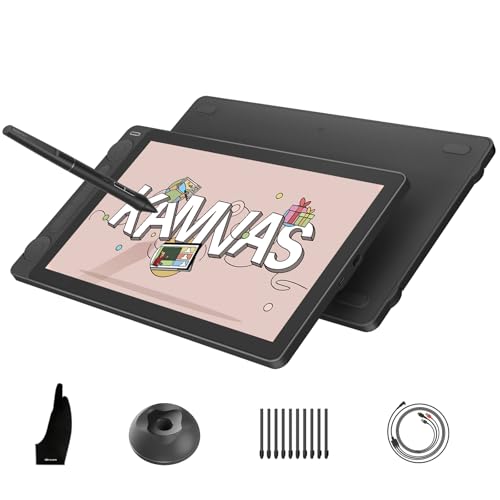 1. Huion Kamvas 13 (Gen 3) — Best overall pen display | Check price on Amazon | |
 2. Wacom One 13 (DTC133) — Best Wacom pen display for beginners | Check price on Amazon | |
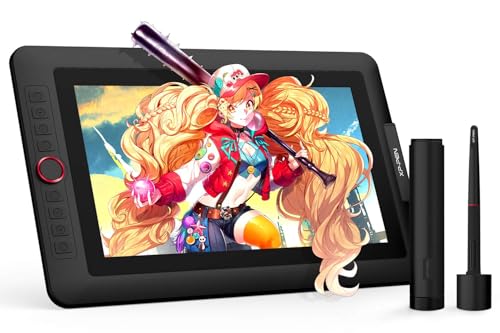 4. XP-Pen Artist 13.3 Pro — Best pen display with a dial | Check price on Amazon |
Key takeaways
- Looking for the best drawing tablets for pc? Compare pen displays and screenless tablets on pressure, size, color accuracy, and PC setup.
A drawing tablet turns a PC into a sketchbook, a painting studio, and a photo editing desk all at once. The best drawing tablets for pc connect to a Windows or Mac computer, accept pen input with real pressure sensitivity, and work with the art software you already use, from Photoshop and Clip Studio Paint to Krita, Blender, and free sketching apps. Whether you draw comics, retouch photos, take handwritten notes in online classes, or design game art, the right tablet makes long sessions comfortable and keeps your lines accurate.
There are two main kinds of drawing tablet for PC. A pen display has a built-in screen, so you draw directly on the image under your hand, which feels natural if you come from paper. A screenless pen tablet has a blank surface and shows your strokes on your PC monitor instead, which takes a little practice but costs less and travels easily. Both kinds are covered in this guide, because the right choice depends on how you work, how much desk space you have, and how much you want to spend.
This guide explains what to look for before you buy, then walks through four drawing tablets for PC that suit different needs, from a modern pen display to a dial-equipped pick for shortcut-heavy workflows. Use the comparison table to narrow the list, then match a pick to your own setup in the final section.
How to Choose
1. Pen display or screenless tablet
A pen display shows your drawing on the tablet itself. It is the most direct way to work, and it helps with detailed line work, lettering, and coloring, because your hand and your eye stay in the same place. The trade-off is size, weight, and a second screen to manage on your desk. A screenless tablet is lighter, thinner, and simpler: you look at your monitor while your hand moves on the tablet surface. Decide which style fits your desk and your habits before comparing anything else.
2. Pressure levels and tilt support
Pressure sensitivity controls how line weight and brush opacity change as you press harder or lighter. Modern tablets offer 8,192 or 16,384 levels, and both are more than enough for smooth, expressive strokes. Older models with 4,096 levels still draw well for sketching, note-taking, and photo work, though they can feel slightly less nuanced at the lightest touch. Tilt support lets the pen act like a real pencil or brush held at an angle, which matters for shading and calligraphy. If you shade heavily or use tilt-aware brushes, put tilt on your must-have list.
3. Active area and screen size
The active area is the part of the tablet that responds to the pen. A larger area gives your arm room to move and suits big, sweeping strokes, while a smaller area keeps everything within easy reach and fits a crowded desk. For pen displays, the screen size sets the working area: a 13.3-inch display is the sweet spot for most desks, large enough to see detail clearly and small enough to carry in a laptop bag. Think about your monitor too. A tablet that is much smaller than your main monitor can make the pen feel twitchy, because a small hand movement covers a large screen distance. Most drawing software lets you map the tablet to part of the screen, so this is adjustable, but a comfortable size match helps from the start.
4. Color accuracy and screen quality
On a pen display, the screen is your canvas, so color accuracy matters. Look for wide color coverage figures such as sRGB or Adobe RGB coverage, a fully laminated display that removes the gap between the pen tip and the pixels, and an anti-glare or etched-glass surface that cuts reflections and adds a paper-like drag to the pen. Lamination also reduces parallax, the small offset between where the pen tip touches and where the line appears. If you do color-critical work such as print illustration or photo retouching, prioritize color coverage and lamination over extra features. If you mostly sketch in black and white, a basic Full HD panel is fine.
5. Shortcut keys, dials, and workflow controls
Shortcut keys and dials keep your hand on the tablet instead of reaching for the keyboard. Programmable keys can hold undo, brush size, zoom, and layer commands, and a dial is handy for rotating the canvas or changing brush size smoothly. Artists who work in Photoshop or Clip Studio Paint for hours tend to value these controls highly, while beginners and note-takers often ignore them. Count the keys, check whether they are customizable in the driver software, and decide whether a dial is worth it for your workflow. A tablet without many keys is not a bad tablet; it is simply a tablet that expects you to keep a keyboard nearby.
6. Connection and PC compatibility
Every tablet in this guide needs a PC to work. Most connect with a USB-C cable or a 3-in-1 cable that carries video and data, and some pen displays need an HDMI connection plus USB for the pen signal. Before buying, check that your PC has the right ports or that you have a suitable adapter, and check the driver situation for your operating system. Windows and macOS are supported across the board here, and several of these tablets also work with Android devices and Chromebooks, which is useful for a second setup.
7. Pen feel, weight, and desk setup
The pen is the part you hold for hours, so its weight, grip, and nib matter. Battery-free pens never need charging and are the standard on the tablets below. A textured or etched screen surface adds friction that feels closer to paper, while a smooth glass surface feels faster but can be slippery until you adjust. Also consider the tablet’s weight and whether it includes a stand. A 13-inch pen display weighs around a kilogram, which is fine on a desk and manageable in a bag, but a folding stand or a third-party arm makes long sessions much more comfortable.
Top Picks
1. Huion Kamvas 13 (Gen 3) — Best overall pen display
Huion Kamvas 13 (Gen 3) on Amazon
The Kamvas 13 (Gen 3) is a 13.3-inch pen display built around Huion’s PenTech 4.0 pen, with 16,384 pressure levels and tilt recognition. Its fully laminated screen uses anti-sparkle canvas glass, which keeps the pen tip close to the pixels and gives the surface a slight paper-like texture. Color coverage is rated at 99% sRGB, so colors on the tablet track closely with what you see on a calibrated monitor. Two dials sit on the side for canvas rotation, brush size, zoom, and other shortcuts, and the tablet can also run in a pen-tablet mode with the screen off, mirroring your drawing onto your main monitor.
The tablet must be connected to a computer or laptop to work; it is not a standalone device. It works with Windows, macOS, and Android devices, and it suits illustration, comics, animation, and photo editing. Setup is a single USB-C connection on a compatible PC, with a 3-in-1 cable option for machines that need it.
Who it is for: illustrators, comic artists, and photo editors who want a modern 13-inch pen display with strong color coverage and dial controls, and who plan to use it as their main drawing surface.
Caveats: the dual dials take some setup time to map to your preferred commands, and the 13.3-inch screen can feel small if you are used to drawing on a large monitor. Confirm the model number GS1333 on the listing, since Huion sells earlier Kamvas 13 generations under a similar name.
2. Wacom One 13 (DTC133) — Best Wacom pen display for beginners
The Wacom One 13 is a 13.3-inch pen display from the company that has defined pen input for decades. Its Full HD screen has an anti-glare film, the battery-free pen offers 4,096 pressure levels with tilt support up to 60 degrees, and the tablet weighs about a kilogram, so it moves easily between desk and bag. Fold-out legs on the back give it a slight working angle without a separate stand. It works with Windows, macOS, and Chromebooks, and it pairs well with Wacom’s driver software, which is mature and widely supported by art programs.
This is the earlier 2019 generation of the Wacom One 13, model DTC133. It remains a straightforward, dependable pen display for drawing, photo editing, remote teaching, and annotation. Because Wacom has released newer Wacom One models since, check the model number DTC133 on the listing and make sure the included pen and cables match what you expect before ordering.
Who it is for: beginners, students, teachers, and photo editors who want Wacom’s pen feel and driver support in a simple 13-inch display, and who do not need the highest pressure range or built-in shortcut keys.
Caveats: 4,096 pressure levels are a step below the 8,192 and 16,384 levels on newer tablets, and there are no shortcut keys or dials on the tablet itself, so you will keep a keyboard nearby. The screen is Full HD rather than a higher resolution panel, which is fine for sketching and editing but shows less fine detail than a denser display.
3. XP-Pen Artist 13 (2nd Gen) — Best colorful mid-range pen display
XP-Pen Artist 13 (2nd Gen) on Amazon
The XP-Pen Artist 13 (2nd Gen) is a 13.3-inch pen display with a fully laminated Full HD screen and a wide color gamut rated at 130% sRGB and 96% Adobe RGB. The X3 Elite battery-free pen offers 8,192 pressure levels and 60-degree tilt, and nine shortcut keys sit along the side for undo, zoom, brush controls, and other commands. The screen can switch into a drawing-tablet mode with the display off, letting you draw on the surface while watching your main monitor. It comes in black, green, blue, and pink, which is a nice touch if your desk setup has a color theme.
The tablet connects to a PC with a 3-in-1 cable and works with Windows, macOS, Android, and Chrome OS. It is a good fit for hobbyists, art students, and beginning professionals who want strong color coverage and a full set of shortcut keys without moving to a larger display.
Who it is for: art students and hobbyists who want a colorful, well-equipped 13-inch pen display with good color coverage, a full row of shortcut keys, and a pen that handles light and heavy strokes well.
Caveats: the box includes a 3-in-1 cable rather than a single USB-C video cable, so a direct USB-C connection needs a separate cable. The 220 cd/m2 brightness is modest, so the screen is best in indoor lighting rather than bright sunlight. Confirm the listing is the second-generation Artist 13, since XP-Pen sells several similar Artist models.
4. XP-Pen Artist 13.3 Pro — Best pen display with a dial
XP-Pen Artist 13.3 Pro on Amazon
The XP-Pen Artist 13.3 Pro is a 13.3-inch pen display with a fully laminated Full HD screen, 8,192 pressure levels, and tilt support. Its standout feature is the red dial paired with eight shortcut keys, which gives you quick control over brush size, canvas rotation, zoom, and scrolling without touching the keyboard. An adjustable stand is included in the box, so you can set a comfortable drawing angle right away. Color coverage is rated at 123% sRGB, and the battery-free pen needs no charging.
The tablet is not a standalone device and must be connected to a PC or laptop. It works with Windows and macOS, and it suits digital painting, animation, photo editing, and design work where dial and key shortcuts speed up the workflow. Note that XP-Pen has released a newer Artist 13.3 Pro V2, so confirm the listing shows the original Artist 13.3 Pro model before ordering.
Who it is for: digital painters, animators, and designers who rely on shortcut keys and a dial, and who want a stand included so the tablet is ready to use on the desk from day one.
Caveats: this is the original Artist 13.3 Pro rather than the newer V2, so compare the two generations before choosing. The dial and keys need driver setup to match your software, and the tablet’s resolution is Full HD, which is standard for this size but not as dense as higher-resolution displays.
Comparison Table
| Tablet | Type | Screen | Pressure Levels | Tilt | Shortcut Controls | Stand Included |
|---|---|---|---|---|---|---|
| Huion Kamvas 13 (Gen 3) | Pen display | 13.3-inch, full lamination, 99% sRGB | 16,384 | Yes | Dual dials | No |
| Wacom One 13 (DTC133) | Pen display | 13.3-inch Full HD, anti-glare film | 4,096 | Yes, up to 60 degrees | None | Built-in fold-out legs |
| XP-Pen Artist 13 (2nd Gen) | Pen display | 13.3-inch Full HD, full lamination, 130% sRGB | 8,192 | Yes, 60 degrees | 9 shortcut keys | No |
| XP-Pen Artist 13.3 Pro | Pen display | 13.3-inch Full HD, full lamination, 123% sRGB | 8,192 | Yes | 8 keys plus red dial | Yes, adjustable stand |
Which One Is Right for You?
If you want the most capable pen display in this group and you draw every day, the Huion Kamvas 13 (Gen 3) is the natural starting point. Its 16,384 pressure levels, 99% sRGB color coverage, laminated canvas-glass screen, and dual dials cover illustration, comics, and photo editing in one device, and the pen-tablet mode adds flexibility when you want to work on your main monitor.
If you are new to drawing tablets, or you teach and annotate as much as you draw, the Wacom One 13 is the simpler choice. Its pen feel and driver support are well established, the tablet is light and easy to carry, and the absence of shortcut keys keeps the learning curve short. Just remember it is the earlier DTC133 generation, so confirm the model on the listing.
If color matters to you and you like having keys at your fingertips, the XP-Pen Artist 13 (2nd Gen) balances strong color coverage with nine shortcut keys and a choice of colors. It is a strong pick for art students and hobbyists who want a pen display that feels personal as well as capable.
If your workflow runs on shortcuts and you want a dial for brush size and canvas rotation, the XP-Pen Artist 13.3 Pro fits best, especially since the adjustable stand is included. It is the pick for painters and animators who spend long sessions in one program and want their most-used commands within thumb’s reach.
Desk space matters too. All four tablets are 13.3-inch displays, so each one needs roughly the footprint of a small laptop plus room for your hand to rest. If your desk is tight, a screenless tablet may still be worth considering as a second device, but for a single main tablet, any of these four will fit a standard desk with a monitor beside it.## Frequently Asked Questions
Do drawing tablets for PC work without a computer?
No. The tablets in this guide are pen displays and pen tablets that must be connected to a PC, laptop, or compatible device to work. They have no built-in operating system, processor, or storage for art software. You install the tablet driver on your computer, connect the tablet with the included cable, and draw in software running on the PC.
What is the difference between a pen display and a screenless drawing tablet?
A pen display has a screen built in, so you draw directly on the image you are creating. A screenless tablet has a blank surface and shows your strokes on your PC monitor, which means your hand and your eye are in different places. Pen displays feel more natural at first, especially for detailed work, while screenless tablets are lighter, thinner, and usually cost less. Both kinds use the same pressure-sensitive pen technology, and many artists are comfortable with either style after a short adjustment period.
How many pressure levels do I need in a drawing tablet for PC?
For most drawing, 8,192 pressure levels are plenty, and 16,384 levels give an even finer response at very light touches. A tablet with 4,096 levels, such as the earlier Wacom One 13, still draws well for sketching, note-taking, photo editing, and learning. Pressure levels matter most for brush work where line weight changes with how hard you press. If you mostly take notes, annotate documents, or do light sketching, the exact number matters less than pen comfort and driver stability.
Can I use a drawing tablet for PC with photo editing and design software?
Yes. Drawing tablets work as a precise input device in most creative software, including Photoshop, Lightroom, Illustrator, Clip Studio Paint, Krita, GIMP, and Blender. The pen replaces the mouse for brush work, masking, retouching, and selecting, and pressure sensitivity controls brush size and opacity in programs that support it.
Disclosure: As an Amazon Associate, we may earn from qualifying purchases.
More from Amazon
Programs that pair well with the guide above. Offers and eligibility are set by Amazon and may change.
Free shipping on eligible items, Prime Video and more. Eligible new members can start with a free trial.
Start a Prime free trialAd-free music streaming. Eligible new subscribers can start with a free trial.
Try Music Unlimited freeA Prime membership for ages 18-24 with a trial period. Eligibility is set by Amazon.
See Prime for Young AdultsAudiobooks and podcasts to listen to on the go. Eligible new members can start with a free trial.
Try Audible freeAs an Amazon Associate we earn from qualifying purchases.
Write Your Review
No reviews yet. Be the first to share your experience!