

Key takeaways
- Find a laptop that keeps Photoshop smooth on large files, with a colour-accurate screen, enough memory, and fast storage for layered projects and retouching.
Photoshop rewards a laptop that stays calm when a file grows. Layers pile up, brushes lag on a weak machine, and a dull screen hides the difference between two near-identical skin tones until the image is already printed or posted. The real decision is not about chasing the fastest chip on paper; it is about matching memory, storage speed, and colour handling to the size of the files you actually open, week after week.
A hobbyist retouching family portraits has different needs from a freelancer delivering client work on a deadline, and a student learning retouching needs something else again. The three laptops below cover those situations: a light MacBook Air with a sharp Liquid Retina display, a roomy 16-inch ASUS with a taller screen for panels and timelines, and a touchscreen Lenovo that suits Windows users who like to work directly on the canvas.
Quick Picks
As an Amazon Associate we earn from qualifying purchases.
| Product | Best for | Key spec from title |
|---|---|---|
| Apple 2025 MacBook Air 13-inch Laptop with M4 chip, 16GB Unified Memory, 256GB SSD Storage | Portable editing with a sharp, colour-rich display | 13.6-inch Liquid Retina Display, 16GB Unified Memory, 256GB SSD Storage |
| ASUS VivoBook S 16X Slim Laptop, 16-inch WUXGA Display, Intel Core i7-12700H CPU, 16GB RAM, 512GB SSD, Windows 11 Home, Midnight Black | Large-screen Windows editing with room for panels | 16-inch WUXGA (1920 x 1200) Display, Intel Core i7-12700H CPU, 16GB RAM, 512GB SSD |
| Lenovo IdeaPad Slim 5, AMD Ryzen AI 7 350 Processor, 16-inch WUXGA IPS Touchscreen Display, 16GB DDR5 Memory, 512GB Storage, Windows 11 Home | Touchscreen Windows editing and everyday multitasking | 16-inch WUXGA (1920 x 1200) IPS Touchscreen Display, AMD Ryzen AI 7 350 Processor, 16GB DDR5 Memory, 512GB Storage |
How to Choose
Screen quality comes before raw speed
Photoshop is a visual tool, so the screen is where most of the work happens. Look for a panel that shows colours faithfully at the brightness you use indoors, with enough resolution to judge fine detail without constant zooming. A taller 16:10 panel helps because Photoshop fills the edges with toolbars, layers, and adjustment panels, and a cramped display forces you to hide and reopen them all day. Check the listed resolution and panel type on the Amazon page, and remember that a glossy screen can look vivid in a shop yet reflect every window behind you at home.
Memory decides how large a file feels
Memory is the difference between a smooth brush stroke and a spinning wait cursor. Sixteen gigabytes is a sensible floor for Photoshop today, especially when a browser, a photo manager, and a messaging app sit open beside it. Files with dozens of layers, smart objects, and high-resolution scans consume memory quickly, and once the machine begins swapping to disk, every adjustment slows down. If your projects regularly pass twenty layers or combine several large images, favour a machine with memory you will not outgrow in a year.
Storage space and speed shape the workflow
Photoshop needs fast storage for scratch space as well as room for the files themselves. A solid-state drive keeps the application launching quickly and lets large documents save without long pauses, while a spinning drive turns the same task into a chore. Two hundred fifty-six gigabytes can work if your finished work lives on an external drive or in cloud storage, yet many photographers prefer 512 gigabytes so current projects stay on the machine. Before buying, count the size of a typical project folder and leave generous headroom for scratch files.
Weight, battery, and ports matter after the first week
A laptop for Photoshop often travels between a desk, a studio, and a client meeting, so portability is part of the specification, not an afterthought. A lighter machine gets carried more often, while a heavier one tends to stay plugged in at a desk, which is fine if that matches your routine. Battery life matters for editing away from an outlet, and the port selection decides whether an external monitor, a card reader, or a drawing tablet connects without a tangle of adapters. Match these practical details to where you actually edit.
The 3 Best Options
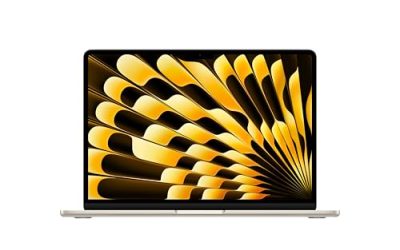
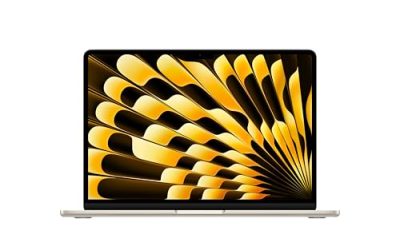
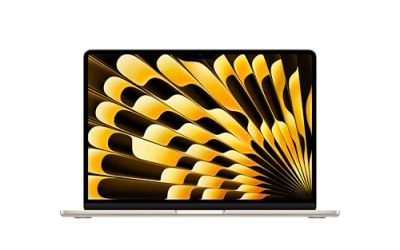
Apple 2025 MacBook Air 13-inch Laptop with M4 chip, 16GB Unified Memory, 256GB SSD Storage

This MacBook Air suits editors who want a quiet, light machine that slips into a bag and still handles layered documents with ease. The M4 chip keeps brush strokes and filter adjustments responsive during ordinary retouching sessions, and the 13.6-inch Liquid Retina display renders colours with a richness that makes skin tones and subtle gradients easier to judge. At 2.73 pounds it is easy to carry to a shoot or a café, and the fanless design means no whirring while you concentrate on fine detail.
Specs
- 13.6-inch Liquid Retina Display; Apple M4 chip; 16GB Unified Memory; 256GB SSD Storage; 12MP Center Stage Camera; Touch ID
Best for: Portable Photoshop work where display quality and light weight matter most.
Watch out for: The 256GB storage fills quickly with large photo libraries, so plan external or cloud storage for finished projects.
ASUS VivoBook S 16X Slim Laptop, 16-inch WUXGA Display, Intel Core i7-12700H CPU, 16GB RAM, 512GB SSD, Windows 11 Home, Midnight Black

The VivoBook S 16X gives Windows editors a generous canvas. Its 16-inch WUXGA display uses a taller 16:10 shape, so layers, brushes, and adjustment panels sit beside the image instead of covering it, and the 1920 x 1200 resolution keeps text and interface elements crisp. The Intel Core i7-12700H processor and 16GB of RAM handle multitasking between Photoshop, a browser full of reference images, and a photo organiser without constant stuttering. With 512GB of solid-state storage, current projects can stay on the machine.
Specs
- 16-inch WUXGA (1920 x 1200) 16:10 Display; Intel Core i7-12700H CPU; 16GB RAM; 512GB SSD; Windows 11 Home; Midnight Black; Model S5602ZA-DB74
Best for: Windows users who want a large screen and 512GB of storage for active projects.
Watch out for: Integrated graphics suit photo retouching better than heavy 3D rendering, so check your wider workload before choosing it.
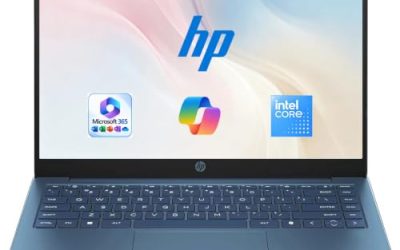
Lenovo IdeaPad Slim 5, AMD Ryzen AI 7 350 Processor, 16-inch WUXGA IPS Touchscreen Display, 16GB DDR5 Memory, 512GB Storage, Windows 11 Home

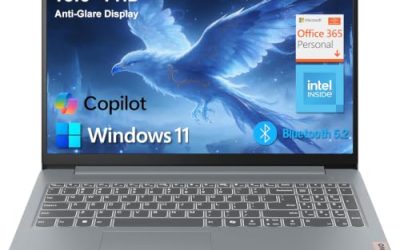
The IdeaPad Slim 5 adds touch to a familiar Windows editing setup. Its 16-inch WUXGA IPS touchscreen lets you tap tools, pinch to zoom, and scroll through layers directly, which some editors find faster than reaching for keyboard shortcuts every time. The AMD Ryzen AI 7 350 processor and 16GB of DDR5 memory keep Photoshop responsive while other applications run alongside it, and the 512GB of storage leaves room for several active shoots. Wi-Fi 7 and the FHD/IR hybrid camera round out a machine built for home and office use alike.
Specs
- 16-inch WUXGA (1920 x 1200) IPS Touchscreen Display; AMD Ryzen AI 7 350 Processor; 16GB DDR5 Memory; 512GB Storage; Wi-Fi 7; FHD/IR Hybrid Camera; Windows 11 Home; Cosmic Blue
Best for: Windows editors who like touchscreen control and a large display for layered work.
Watch out for: Touch input suits navigation and light retouching; precise masking still benefits from a mouse or a drawing tablet.
Which One Fits Your Situation
You edit on the move and value a light bag
Choose the MacBook Air. Its low weight and silent operation make it easy to carry to shoots, studios, and meetings, and the Liquid Retina display helps you judge colour without an external monitor. Keep finished work on external storage, since the 256GB drive is best reserved for active projects and the applications you use every day.
You work at a desk on Windows with many panels open
Choose the ASUS VivoBook S 16X. The 16-inch taller display gives Photoshop room to breathe, so the layers panel, brush settings, and adjustment controls stay visible while you work. That extra height also keeps the image large while reference photos stay open beside it. The 512GB drive also means fewer trips to external storage during a busy week of editing.
You want touch control and a modern Windows laptop
Choose the Lenovo IdeaPad Slim 5. The touchscreen adds a direct way to zoom, pan, and pick tools, while the Ryzen AI 7 processor and DDR5 memory handle everyday multitasking. The large screen keeps the canvas readable, and the machine stays comfortable during long sessions at home or in the office. It fits editors who move between Photoshop, email, and reference material throughout the day.
You retouch portraits and judge skin tones closely
Choose the MacBook Air first, and calibrate whichever screen you buy. Portrait work punishes a display that shifts warm or cool, so set the brightness you use in your editing room and check the same image on a second screen or a printed proof before delivering client work. A second check on a different display often catches shifts the first screen missed.
Common Mistakes
- Buying the cheapest laptop with 8GB of memory and expecting large layered files to stay responsive.
- Judging a screen only by size and ignoring resolution, panel type, and how colours look in your own room.
- Filling the internal drive with finished projects and leaving no space for Photoshop scratch files.
- Choosing a machine for Photoshop alone and forgetting the browser, photo manager, and other apps that run beside it.
- Skipping a mouse or drawing tablet and trying to do precise masking work on a trackpad all day.
Frequently Asked Questions
How much RAM do I need for Photoshop?
Sixteen gigabytes is a practical floor for most Photoshop work today. It handles layered documents, a browser, and a photo manager running together without constant slowdowns. Editors who stitch panoramas, composite many high-resolution images, or keep dozens of layers open should consider more memory, since Photoshop slows sharply once it runs out and begins using the drive instead.
Is a touchscreen useful for Photoshop?
A touchscreen can speed up navigation, zooming, and picking tools, and some editors enjoy working directly on the image. It does not replace a mouse or a drawing tablet for precise selections and masking, where fine control matters more than speed. Treat touch as a helpful addition to a good pointer device, not as a substitute for one.
Does Photoshop need a dedicated graphics card?
Photo retouching, colour correction, and compositing run well on modern integrated graphics paired with enough memory and fast storage. A dedicated graphics card helps more with 3D work, heavy video effects, and some accelerated filters than with everyday photo editing. Check which features your own workflow uses before paying for graphics power you may rarely touch.
How much storage should a Photoshop laptop have?
Five hundred twelve gigabytes suits most editors, because it holds current projects, the application, and scratch space without constant housekeeping. Two hundred fifty-six gigabytes can work if finished work moves to external or cloud storage promptly. Either way, keep free space on the internal drive, since Photoshop needs room for temporary files while large documents are open.
More from Amazon
Programs that pair well with the guide above. Offers and eligibility are set by Amazon and may change.
Free shipping on eligible items, Prime Video and more. Eligible new members can start with a free trial.
Start a Prime free trialAd-free music streaming. Eligible new subscribers can start with a free trial.
Try Music Unlimited freeA Prime membership for ages 18-24 with a trial period. Eligibility is set by Amazon.
See Prime for Young AdultsAudiobooks and podcasts to listen to on the go. Eligible new members can start with a free trial.
Try Audible freeAs an Amazon Associate we earn from qualifying purchases.
Write Your Review
No reviews yet. Be the first to share your experience!