

Key takeaways
- XMP vs EXPO explained: how Intel and AMD memory profiles differ, which DDR5 RAM kit fits your platform, and a simple step-by-step BIOS checklist.
XMP and EXPO are both just stored sets of speed, timing and voltage values on a memory module, and the only real question is which one your motherboard looks for. Intel platforms read XMP. AMD AM5 platforms are built around EXPO. Many modern DDR5 kits carry both, and an XMP-only kit can often still work on an AMD board. This guide explains what happens when you switch a profile on, how the two differ, and how to pick a kit without paying for a feature you will not use. The basis is published specifications, manufacturer documentation and buyer reviews.
What a memory profile actually is
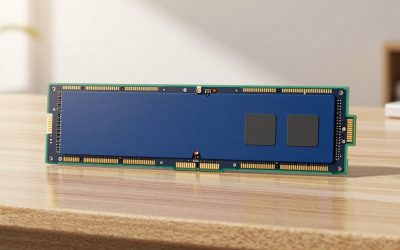
Every DDR5 module has a small chip that stores its identity, called SPD data. Out of the box, the motherboard reads the baseline entry, which follows the open industry standard and runs at a conservative speed. A profile is an extra entry that the memory maker has validated at a higher data rate, tighter timings and a defined voltage. Picking it in the BIOS tells the board to apply those numbers instead of the baseline.
This is why a kit labeled with a high data rate can show a much lower speed in your system information until you enable the profile. The memory is not broken. The board is simply using the safe default.
How the two standards differ
XMP stands for Extreme Memory Profile and originates with Intel. EXPO stands for Extended Profiles for Overclocking and originates with AMD. The names describe the branding and the certification path, and the data stored inside is similar in spirit. The differences you may feel are about compatibility and which platform the memory vendor tuned the numbers for.
| Point | XMP | EXPO |
|---|---|---|
| Origin | Intel | AMD |
| Target platform | Intel desktop boards | AMD AM5 boards with DDR5 |
| Profiles per module | XMP 3.0 supports up to five slots, including two user slots, per Intel’s published description | Kits typically ship with one or two profiles; check the kit’s page |
| Licensing | Closed program for memory vendors | Described as an open specification |
| Typical behavior on the other platform | Many AMD boards can load it, with no guarantee | Intel boards generally ignore it and use the baseline speed |
| Dual-profile kits | Often carry both on the same module | Same kits, same module |
Because the slot counts and compatibility claims vary by vendor, confirm anything that affects your purchase on the maker’s own spec page.
Where DOCP fits in
You may see a setting named DOCP or similar in an AMD board’s BIOS. It is a board-maker feature that reads an XMP profile and applies it on an AMD processor. On a current AM5 board with a current BIOS, an EXPO profile is the clean path, but DOCP-style options explain why an XMP-only kit sometimes still works. Names differ by board brand, so read the BIOS help text rather than assuming.
Reading the numbers on the box
A kit label such as a data rate, a CAS latency, a voltage and a capacity pair tells you more than the profile logo. The data rate sets how many transfers happen per second. The CAS figure is a delay count in clock cycles, so a lower number at the same data rate is better, and a higher data rate with a higher CAS can end up about equal in real latency. Voltage matters for heat and stability, and capacity matters if you run large games, editing software or virtual machines.
| Label item | What to look for | Why |
|---|---|---|
| Data rate | A figure your CPU’s memory controller is likely to hold | Higher is not always stable; the CPU and board set the limit |
| CAS latency | Lower at the same data rate | Shorter delay in cycles |
| Voltage | Matches what your board comfortably supplies | Higher voltage adds heat and stress |
| Kit layout | Two modules for dual channel | Four-module kits can be harder to run at rated speed |
| Profile type | XMP for Intel, EXPO for AMD, or both | Gives you the one-click path |
A worked example: choosing for two builds
These are planning assumptions, and no performance numbers are attached. Build A is an Intel system for a mixed workload of gaming and editing. Build B is an AMD AM5 system aimed mostly at gaming.
| Step | Build A (Intel) | Build B (AMD AM5) |
|---|---|---|
| Profile to look for | XMP, or dual-profile | EXPO, or dual-profile |
| Layout | Two modules, larger total capacity for editing | Two modules, enough for current games |
| Speed choice | A mainstream rating the board lists as supported | A rating the vendor describes as tuned for the platform |
| If the kit fails to boot | Update BIOS, reseat, then lower the speed one step | Same sequence |
Both builds follow the same logic. Start from the platform, choose the matching profile, and accept the mainstream speed rather than the top of the product page. The difference between mainstream and high-end kits in daily use can be small, and the processor you pair them with often decides how much the memory matters. Our Ryzen 5 and Core i5 comparison is a good companion read if you have not chosen a platform yet.
How to switch a profile on
- Update the motherboard BIOS first, since memory support is often improved in later releases.
- Seat the modules in the slots the manual recommends for two-module kits.
- Enter the BIOS and find the memory or overclocking page.
- Select the XMP or EXPO option, or the profile number if the board lists several.
- Save and reboot, then confirm the speed in the BIOS or an operating system tool.
- Run a stability check before relying on the setup for important work.
Common mistakes
The first is buying by logo alone and ignoring the speed the CPU and board will actually hold. The second is mixing kits, which can force both to the slowest settings. The third is filling four slots with a kit sold for two. The fourth is forgetting physical clearance: tall heat spreaders can collide with large air coolers, so look at the memory height against the cooler’s stated clearance, as in our NH-D15 and Dark Rock Pro 4 fit comparison. The fifth is blaming the kit when a BIOS update would have fixed the boot problem.
Everyday scenarios
A first-time builder with a Ryzen board and a kit that shows EXPO on the box has the easiest path: install, enter the BIOS, pick the profile, save. A builder who bought an older kit with only XMP on the label for an AM5 board has a short research step first, which is to look up the kit’s model number on the memory vendor’s compatibility page and the board vendor’s memory support list. Someone upgrading an Intel desktop from two modules to four should expect the board to be less forgiving, because four modules put more load on the memory controller, and the rated speed on the label may not hold.
A laptop buyer faces a different case. Most laptop memory is soldered or uses standard modules without these profiles, so there is nothing to enable. If you are shopping for a prebuilt, check whether the seller has already turned the profile on, because some systems ship with it off and run below the rated speed.
Symptoms and what they usually mean
| Symptom | Common cause | First step |
|---|---|---|
| System info shows a lower speed than the box | Profile not enabled | Turn on XMP or EXPO in the BIOS |
| No boot after enabling the profile | Board cannot hold the rated speed | Clear the BIOS settings, update BIOS, try a lower speed |
| Random restarts under load | Unstable memory settings | Step down one speed or return to stock |
| Long wait on first boot | Memory training on a new setting | Wait several minutes before assuming a fault |
| Only one module detected | Seating or slot issue | Reseat and use the slots named in the manual |
Memory training can take noticeably longer on DDR5 than many builders expect, so give a fresh setup a few minutes before you power it off.
When to stop and ask for help
If the system fails to start after several attempts, clear the BIOS settings using the method in your motherboard manual, and boot on a single module. If the problem follows one module, contact the memory vendor. If it follows the slot, contact the board maker. Random crashes under load usually point to an unstable setting, so lower the speed or raise nothing by hand unless you understand the voltage limits for your parts.
Related guides
- How To Apply Thermal Paste How Much And Which Pattern
- How To Choose Power Supply Wattage For A Pc Build
- Cpu Coolers For Small Form Factor Cases
Frequently asked questions
Can I use an XMP kit on an AMD motherboard?
Often yes, because many AM5 boards can read an XMP profile and translate it, but it is not guaranteed. The safest route is a kit that lists an EXPO profile, or one that advertises both. If you already own an XMP-only kit, check the memory vendor’s compatibility list and the motherboard’s qualified vendor list, update the BIOS, and be ready to lower the speed one step if the system does not boot at the rated figure.
Can I use an EXPO kit on an Intel motherboard?
Not reliably. EXPO is designed around AMD platforms, and Intel boards look for XMP data. An EXPO-only kit will usually still run on an Intel board at the standard JEDEC speed, which is slower than the label. If you want rated speed on an Intel system, buy a kit that lists XMP, or a dual-profile kit that carries both XMP and EXPO data on the same module.
Does enabling XMP or EXPO void my warranty?
The profile is a stored setting on the memory module, and the memory vendors sell these kits specifically to run at those settings. Motherboard and CPU makers describe memory overclocking differently, and the wording varies by manufacturer and region. Read the warranty terms from your CPU, board and RAM vendors if this matters to you. Keep the stock option available so you can fall back during troubleshooting.
Is the performance difference between XMP and EXPO large?
The profile name itself does not make a kit faster. The speed, the timings and how well the memory controller handles them decide the result. A kit rated for a higher data rate with tighter timings can help in some games and apps, mostly where the processor waits on memory, but gains vary by title. Compare the actual numbers on the kit label instead of the logo.
Do I need to enable the profile at all?
If you want the speed printed on the box, yes. Without a profile, DDR5 memory generally starts at the baseline speed set by the standard, which is lower than the rating. Enabling the profile is a single BIOS choice on most boards. If the system becomes unstable afterward, save the setting, step the speed down or update the BIOS before you assume the kit is faulty.



Write Your Review
No reviews yet. Be the first to share your experience!