

Key takeaways
- Putting the light too close to the wall, which creates a bright ring instead of a halo.
- Choosing a strip too long for the monitor, leaving loose coils behind the screen.
- Using saturated colors for long work sessions, which pull attention to the edges.
- Buying a camera kit for a monitor outside its listed size range, which causes uneven color reading.
- Expecting sync to work on every protected streaming window with software-based systems.
The best bias lighting for most desks is a camera-based Govee monitor kit, because it syncs colors to the screen without a bridge or a software subscription. Philips Hue Play gradient lightstrip is the premium choice for smart-home owners, Corsair iCUE LS100 suits builders who already run iCUE, and BenQ ScreenBar Halo 2 is the pick when you want soft neutral light behind the screen without any RGB.
Bias lighting means a gentle glow placed behind the display so the wall around it is not pitch dark. The goal is to cut the brightness gap between a glowing panel and a dim room, which is what makes long sessions feel harsher on the eyes. This guide compares six real approaches, explains the numbers that matter (distance, color temperature, diffusion, sync latency) and gives a decision matrix so you can match the system to your desk. General comfort information only, nothing here is a medical claim, and anyone with persistent eye discomfort should see an eye-care professional.
Our top picks


As an Amazon Associate we earn from qualifying purchases at no extra cost to you.
Quick comparison of the best monitor bias lighting systems
| Pick | Best for | Monitor fit | Sync method | Budget tier |
|---|---|---|---|---|
| Govee Gaming Light for Monitor G1 | Best overall value | 27-34 inch, curved or flat | Built-in camera, 123 scene modes | Budget to mid-range |
| Govee DreamView G1 Pro | Immersive side bars plus strip | Roughly 24-32 inch (sources vary) | 1080p camera, USB-C powered bars | Mid-range |
| Philips Hue Play gradient lightstrip for PC | Best gradient quality and smart home | 24-27 inch or 32-34 inch versions | Hue Sync desktop app, Zigbee via Hue Bridge | Premium |
| Corsair iCUE LS100 Smart Lighting Strip Starter Kit | Best for iCUE PC builds | Four strips: 2 x 450 mm, 2 x 250 mm | iCUE screen and game effects over USB | Mid-range |
| BenQ ScreenBar Halo 2 | Best no-RGB, eye-comfort lighting | Clamp fits 0.43-6 cm thick, 1000R-1800R curves | None (ambient auto-dimming) | Premium |
| DIY USB white or RGB strip | Cheapest, simplest | Any size you cut it for | None, or a hobby controller | Budget |
Best overall: Govee Gaming Light for Monitor G1
The Govee Gaming Light for Monitor G1 is the system most people should start with. It is an RGBIC LED backlight designed for 27-34 inch monitors, and it adapts to curved panels. The kit includes a neon-style light strip, a small gaming camera, a power adapter, a headphone linking cable and mounting clips, with both straight and corner pieces so the strip can follow the monitor outline.
Per the manufacturer’s listing, it offers 123 scene modes and works over 2.4 GHz Wi-Fi and Bluetooth. It does not use 5 GHz Wi-Fi, which matters if your router merges bands under one name; the setup phone may need to join the 2.4 GHz band during pairing. Dual-monitor setups are not supported by this particular kit, so a two-screen desk needs one kit per screen or a different system.
Who it is for: single-monitor gamers and movie watchers who want automatic color matching with minimal fuss.
Pros: the camera reads the screen so no PC software is needed; the clip set handles curved displays; scene modes cover music and static glow when you do not want sync.
Cons: camera-based sync reads colors at the screen edge, so it is less precise than a software-driven strip; 2.4 GHz only; no multi-monitor support; ambient room light can slightly shift the colors the camera sees.
Best for immersion: Govee DreamView G1 Pro
The DreamView G1 Pro adds two vertical light bars to the strip. Reviewers describe a kit with two light bars, a neon strip, a 1080p camera that also distributes power through USB-C outputs, a headphone linking cable and mounting clips. The camera sits where a webcam would, in the middle of the top bezel. The strip runs along the back while the bars stand beside the display, so the glow spills onto the desk and side wall instead of only the wall behind.
Reported specs include 16.8 million colors, four game modes, 42 scene modes, eight music modes and four movie modes. Sources disagree on the supported monitor size: some say 24-29 inch, others say up to 32 inch. Check the current spec sheet against your screen diagonal before buying, and remember that ultrawide panels are a poor match for kits sized around 16:9 monitors.
Who it is for: players who want the light to extend beyond the monitor frame and who have a desk wide enough for the side bars.
Pros: side bars give a stronger sense of immersion; USB-C power distribution cuts the number of adapters; game modes tuned for FPS, racing and RPG pacing.
Cons: more parts to place and hide; the bars need desk space; size support is described inconsistently, so verify it; a mid-range cost for something that is purely atmospheric.
Best premium gradient: Philips Hue Play gradient lightstrip for PC
Philips Hue sells this lightstrip in a 24-27 inch size and a 32-34 inch size, plus triple-monitor packs. Per the Hue listing for the smaller version, it is roughly 905 mm long, weighs about 0.2 kg, draws 15 W, reaches 800 lumens at 4000 K and 700 lumens at 2700 K, and has a rated lifetime of 25,000 hours. It cannot be cut or extended, which is the trade-off for its multi-zone gradient design.
The strip uses Bluetooth and Zigbee, and the PC version requires a Hue Bridge for operation (some regional bundles include the bridge, many do not). Sync is handled by the Hue Sync desktop app on Windows or macOS. Protected (DRM) video content cannot be captured by the app, so some streaming windows will not sync. White light output spans 2000-6500 K, which makes it useful as a neutral glow as well as an effect light.
Who it is for: people who already own Hue lamps and want the room to react to the same screen content, or who care most about gradient smoothness.
Pros: multiple zones give true gradients rather than one flat color; a wide white temperature range; Matter support through the bridge; solid ecosystem for automations.
Cons: premium cost plus the bridge; fixed length means you must buy the right size; DRM limitation; sync depends on the PC app being open, with a little latency from the wireless chain.
Best for iCUE builds: Corsair iCUE LS100 Smart Lighting Strip Starter Kit
The LS100 starter kit contains two 450 mm strips with 27 individually addressable LEDs each and two 250 mm strips with 15 LEDs each, 192 LEDs in total across two channels. A controller module connects to the PC over USB and to power, and the strips have a white diffuser cover with magnetic and adhesive mounting. Four 300 mm extension cables, clips and plates are included. Expansion kits are sold in both lengths.
Because the controller talks to the iCUE software, screen-matching, game effects and music visualization run from the PC, and the strips share profiles with Corsair fans, RAM and keyboards. The wired link avoids the Wi-Fi hop and tends to feel more immediate than camera-based systems.
Who it is for: PC builders already running iCUE who want the monitor glow to match their case lighting.
Pros: wired control; diffused look without hotspots; modular lengths so you can frame the screen on four sides; strong integration with other Corsair gear.
Cons: requires the iCUE software and a free USB port; the four-strip layout takes patient cable routing; it is a generic lighting strip rather than a monitor-specific kit, so you plan the geometry yourself.
Best without RGB: BenQ ScreenBar Halo 2
The ScreenBar Halo 2 sits on top of the monitor and lights both the desk (front light) and the wall behind (tri-zone backlight). Per BenQ, the front light delivers 500 lux over an 85 x 50 cm area, the backlight keeps the contrast between panel and wall low, and both lights have independent stepless brightness with a 2700-6500 K range. The front light is rated 95 CRI. A wireless dial controller with a display charges over USB-C and is said to last up to three months; one controller can pair with two Halo 2 units.
It senses presence to switch on and off, dims with ambient light, and has a favorite-setting memory mode. The clamp fits monitors from 0.43 to 6 cm thick and curves from 1000R to 1800R. There is no RGB color at all, which is exactly the point for office and eye-comfort buyers.
Who it is for: writers, programmers and editors who want a calm neutral glow rather than a light show.
Pros: the front light doubles as desk lighting; automatic dimming; clean look with no cables across the wall; independent front and rear control.
Cons: premium cost; no color effects or screen sync; the backlight is a soft wash rather than a wall frame; thick monitor mounts or arms need a fit check.
Best cheapest route: DIY USB LED strip
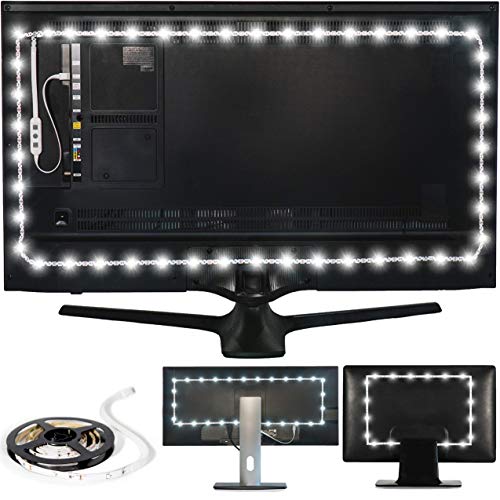
A generic USB-powered LED strip with an adhesive back is the cheapest way to get a bias glow. This is a spec class, not a single model, so look for a strip rated for a 5 V USB port, a neutral white option around 6500 K, and a built-in dimmer. Cut at the marked points, stick it 3-5 cm in from the monitor edge, and power it from the monitor’s USB port so it turns off with the screen.
Who it is for: anyone trying bias lighting before spending more.
Pros: the lowest cost; can be sized exactly; simple to replace.
Cons: visible dots on strips with sparse LEDs; adhesives can weaken with heat; no sync; cheap strips sometimes flicker at low brightness.
How to choose bias lighting with real numbers
Distance and spill
Mount the light 5-10 cm behind the panel and aim it at the wall. A wall 10-15 cm behind the monitor produces the widest, softest halo. A wall 2 cm behind produces hot spots and a narrow ring.
Color temperature
Bias lighting is usually set near 6500 K (D65), the standard white point of most monitors, so the wall looks neutral relative to the screen. Warmer settings around 2700-4000 K feel cozy but can make the screen white look bluer by contrast. Photo and video editors should use neutral 6500 K at low brightness to avoid shifting their color judgment.
Brightness
Aim for roughly 10 percent of the screen’s perceived brightness. If the glow is the brightest thing in your view, it is too strong. In a dark room, start at 20-30 percent on the controller and reduce it until you stop noticing the light and only notice the wall is no longer black.
Sync methods compared
| Method | How it reads the screen | Latency feel | Weak point |
|---|---|---|---|
| Camera (Govee) | Watches the screen edge | Fast, no PC load | Affected by room light, reads edges only |
| PC software (Hue Sync, iCUE) | Samples frames directly | Depends on link: wired is quicker than wireless | Needs the app running; DRM windows may be blank |
| No sync (BenQ, USB strip) | Static light | None | No color matching |
A worked power and cost example
A 15 W strip such as the Hue 24-27 inch version used 5 hours a day over a year consumes 15 W x 5 h x 365 = about 27 kWh. At an electricity rate of 0.15 per kWh that is roughly 4 in annual running cost. Even a 36 W TV-style kit run for the same hours would use about 66 kWh. Running costs are a non-issue; choose on sync quality and fit.
Decision matrix by situation
| Your situation | Choose | Why |
|---|---|---|
| One 27-34 inch gaming monitor, simple setup | Govee Gaming Light for Monitor G1 | Camera sync, curved-friendly clips |
| Wide desk, want light beyond the frame | Govee DreamView G1 Pro | Side bars plus strip |
| Already own Hue lights | Philips Hue Play gradient lightstrip for PC | Same ecosystem, true gradient |
| Corsair RGB case, fans and keyboard | Corsair iCUE LS100 kit | One app, wired |
| Office, editing, neutral light | BenQ ScreenBar Halo 2 | CRI 95 front light, no RGB |
| Two or three monitors | Hue triple pack or a DIY strip per screen | Govee G1 does not support dual monitors |
| Trying it first | DIY USB strip | Lowest commitment |
Installation steps and the reason for each
- Clean the back of the monitor with isopropyl alcohol. Adhesive grips poorly on dust and oils, and a strip that falls off at the corner is the most common failure.
- Dry-fit the strip before peeling the tape. Check the corners and the position of the stand so cables are not pinched.
- Keep the strip about 3-5 cm inside the panel edge. This hides the LEDs from your viewing angle and prevents direct glare.
- Run power from the monitor’s USB port or a switched strip. The light then turns off with the screen and you avoid a forgotten glow.
- Set the white point near 6500 K first, then try effects. A neutral baseline lets you judge whether the effect is helping.
- Dim until you stop noticing it. A good bias light is felt, not seen.
Durability and ownership realities
Adhesive tape is the first thing to wear, especially behind monitors that run warm. Re-stick with fresh double-sided tape or small clips every year or two. Wi-Fi kits depend on a vendor app, so check the app is maintained before buying. Cameras can drift out of alignment when the monitor is tilted; recheck after moving the desk. Hue and iCUE systems rely on desktop software that can break after an operating system update, so keep a static scene saved as a fallback.
Diffusion quality also decides how long you will like the product. Strips with dense LEDs and a frosted cover look smooth from day one. Sparse LED strips show dots on a glossy wall; a matte white or light grey wall hides this best. If your wall is dark or textured, expect a weaker halo and raise the brightness slightly, or place a small white card behind the monitor as a reflector.
Common mistakes
- Putting the light too close to the wall, which creates a bright ring instead of a halo.
- Choosing a strip too long for the monitor, leaving loose coils behind the screen.
- Using saturated colors for long work sessions, which pull attention to the edges.
- Buying a camera kit for a monitor outside its listed size range, which causes uneven color reading.
- Expecting sync to work on every protected streaming window with software-based systems.
Frequently Asked Questions
Does bias lighting really reduce eye strain?
It reduces the contrast between a bright screen and a dark background, which many people find more comfortable in dim rooms. It does not replace regular breaks, correct screen brightness or an eye exam. Treat it as a comfort aid, not a treatment.
What color temperature is best for bias lighting?
Around 6500 K is the common recommendation because it matches the white point of most monitors. Warmer settings feel relaxed but shift how the screen looks by comparison. Creative professionals should stay at neutral white.
Do I need a camera for screen sync?
No. Camera kits like the Govee G1 read the screen optically and need no PC software, while Hue Sync and iCUE sample the image through an app. The camera approach is simpler, the software approach is usually more precise.
Can I use bias lighting with two monitors?
Yes, but pick a system that supports it. The Govee G1 kit does not support dual-monitor setups, while Hue sells triple-monitor packs and a DIY strip can be cut for each screen. Place a separate controller or one strip per display.
Will bias lighting damage my monitor?
No. Low-voltage LED strips produce very little heat. Just keep adhesive and cables away from vents so airflow is not blocked.
Is a TV backlight kit usable on a monitor?
Usually not well. TV kits are sized for 55-inch and larger screens and their cameras are designed for a distant, wide view. Choose a monitor-specific kit instead.


Write Your Review
No reviews yet. Be the first to share your experience!