
Our Short List of 3

- Best for: beginners who expect to stay with one display for years and want dials, a stand and the highest pen figures in the guide. Watch out for: the biggest desk footprint here, and no touch layer.
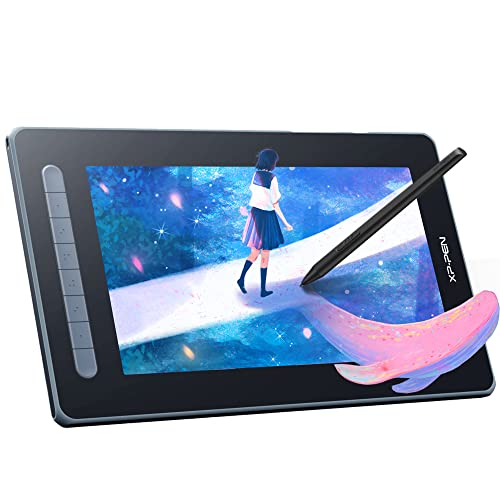
- Best for: beginners short on desk space who still want proper shortcut keys and a single-cable option. Watch out for: the stand is usually a separate purchase, and the canvas feels tight with panel-heavy software.
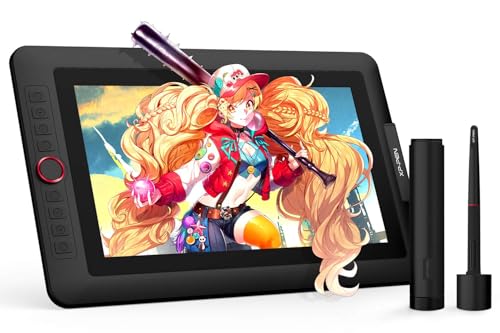
- Best for: beginners with the desk space for a 13.3-inch canvas who want a dial, keys and a stand in one box. Watch out for: the largest footprint here, and one-sided controls that need a driver setting for left-handed use.
All 3 Picks at a Glance
| Product | Specs | Action |
|---|---|---|
| 2. Huion Kamvas 13 (Gen 3): the most complete beginner package |
| Check price on Amazon |
| 3. XP-Pen Artist 12 (2nd Gen): the compact all-rounder |
| Check price on Amazon |
| 4. XP-Pen Artist 13.3 Pro V2: the step-up screen |
| Check price on Amazon |
Key takeaways
- Beginner pen displays with built-in screens compared on panel size, pen pressure, lamination and cables, so your first drawing screen fits your desk today.
As an Amazon Associate, we earn from qualifying purchases made through links on this page.
Every product in this guide is a pen display: a drawing surface with a screen built into it, so the line appears directly under the pen tip. That single requirement shapes the whole list. Screenless pen tablets are excluded, because they ask a new artist to draw on a blank pad while watching a separate monitor, and standalone tablets with their own apps and systems are excluded too, because they replace your computer instead of extending it. Each pick below connects to a Windows, Mac, Linux or Chromebook machine and mirrors your art software onto its own panel, which means your existing computer, files and programs stay at the centre of the setup.
The beginner frame matters just as much as the screen. These four models sit at the entry end of their makers’ pen display lines: compact panels between 11.6 and 13.3 inches, battery-free pens, and connection schemes that range from a single USB-C cable to a bundled 3-in-1 lead. None of them needs a pen charger, none hides its main controls inside software menus, and each one publishes the figures a first-time buyer actually has to judge: active drawing area, pressure levels, colour coverage stated in percent, and the exact cable the box contains. Read the format notes first, then compare the four screens against your desk and your computer’s ports.
What to look for
Panel size and active area. The screen size printed on the box is the panel diagonal, but the active area is the rectangle your pen can actually reach, and it is always smaller. An 11.6-inch display gives you roughly the drawing space of a small sketchbook page, which suits wrist-led sketching and tight desks. A 13.3-inch panel adds room for toolbars beside the canvas and lets longer strokes come from the elbow. Beginners who draw at a laptop desk usually settle happily at either size; the deciding factor is whether your software’s panels and palettes leave enough canvas once they are open.
Lamination and the gap under the pen. On a fully laminated display, the glass and the panel sit bonded together, so the cursor appears almost exactly where the nib touches. On a non-laminated screen there is a visible offset, called parallax, which is most noticeable at the edges. Every pick in this guide is fully laminated, and each uses an anti-glare surface, either etched glass or a matte film, which also gives the nib some friction instead of a slippery glide. For a first display, lamination is the one screen feature worth insisting on, because it removes the main source of early annoyance.
The pen: pressure, activation force and tilt. All four pens here are battery-free, powered by the display itself, so there is nothing to charge before a session. Pressure levels run from 4,096 to 16,384 across the list, and the honest reading is that a beginner’s hand cannot consciously separate those steps; line control at this level depends more on the initial activation force, the small weight needed to register the lightest stroke, which the makers here state between 2 and 3 grams. Tilt support matters only if your brushes use it: shading brushes in most painting apps respond to pen angle, and three of the four picks read tilt to plus or minus 60 degrees.
Colour coverage, stated in percent. A pen display doubles as your reference monitor, so its colour coverage decides how honestly you can judge finished work. The makers below quote sRGB coverage from 99 percent to 127 percent, with the higher figures describing a gamut wider than the sRGB space rather than a score above a maximum. Wider coverage helps when finished pieces move to print, where Huion and XP-Pen also quote Adobe RGB figures for some models. Treat these as the makers’ published panel specifications, and expect any two screens side by side to render slightly differently regardless of the numbers.
Cables and ports. Connection is the detail that decides whether a display works with your machine on the day it arrives. A full-featured USB-C port carrying DisplayPort Alt Mode can run some of these displays over one cable for picture, pen data and power. The fallback on most models is a 3-in-1 cable that splits into HDMI, USB and power leads, which suits desktops and older laptops. Check your computer before choosing: a laptop with only basic USB-C ports and no DisplayPort Alt Mode will need the HDMI route, and a Chromebook narrows the field to the one pick here with Works With Chromebook certification.
Controls, stands and system support. Shortcut keys and dials on the display body keep undo, brush size and zoom under your free hand, and the four picks split between none, five keys with dials, and eight keys. A stand is included in the box with three of the four; the fourth lies flatter and relies on its low profile. Finally, confirm the driver story for your system: each maker publishes its own driver, support lists differ on Linux and Chrome OS, and the pen needs that driver installed before pressure works in your art software.
The pen displays, compared
1. Wacom One 12: the simplest first screen
The Wacom One 12, model DTC121, is the pick built around removing friction from the first week. Its 11.6-inch IPS panel runs at 1920 by 1080 and is fully laminated behind anti-glare glass, with an active area of 257 by 145 millimetres and colour coverage quoted at 99 percent of sRGB. The Wacom One Standard Pen is battery-free, reports 4,096 pressure levels and reads tilt, and Wacom’s published figures put the whole unit at about 700 grams, light enough to move between a desk and a laptop bag without thinking about it.
Connection is where this model earns its place for beginners. Two USB-C ports sit on the body, and a computer with a DisplayPort Alt Mode USB-C port can drive the display through a single cable; a 3-in-1 cable in the box covers machines that need HDMI instead. It is also the only pick here certified under the Works With Chromebook programme, and Wacom lists support for Windows, macOS, Chrome OS and Android, which makes it the natural choice for a school laptop household. The trade-offs are plain in the specifications: there are no shortcut keys or dials on the display itself, so undo and brush changes stay on your keyboard, and the 4,096 pressure figure is the lowest in this guide, even if few beginners will feel the difference in practice. The panel is also the joint smallest here, which keeps toolbars close to the canvas on busy software layouts.
Best for: first-time buyers, Chromebook users and anyone who wants one cable and the widest system support. Watch out for: no onboard shortcut controls, and the single-cable route depends on your computer’s USB-C port carrying a display signal.
2. Huion Kamvas 13 (Gen 3): the most complete beginner package
- Best for: beginners who expect to stay with one display for years and want dials, a stand and the highest pen figures in the guide. Watch out for: the biggest desk footprint here, and no touch layer.
beginners who expect to stay with one display for years and want dials, a stand and the highest pen figures in the guide. Watch out for: the biggest desk footprint here, and no touch layer.
the biggest desk footprint here, and no touch layer.
Huion Kamvas 13 (Gen 3) on Amazon
The Kamvas 13 (Gen 3), model GS1333, is Huion’s current entry display, and its specification sheet reads like a checklist of what the other picks leave out. The 13.3-inch IPS panel runs at 1920 by 1080, is fully laminated, and is covered with the maker’s anti-sparkle Canvas Glass, an etched surface intended to feel closer to paper under the nib. Huion quotes colour coverage at 99 percent of sRGB and 90 percent of Adobe RGB. The pen uses PenTech 4.0, is battery-free, reports 16,384 pressure levels with an initial activation force of 2 grams, and reads tilt to plus or minus 60 degrees.
Around the screen sit two dials and five press keys, the most physical control in this guide, and dials mapped to brush size and zoom are the controls beginners reach for most. An adjustable stand is packed in the box, which none of the smaller picks can claim as standard. Connection runs over a full-featured USB-C cable or the bundled 3-in-1 lead, and Huion publishes support for Windows, macOS, Android and Linux. The limitations follow from the same sheet: at 13.3 inches it is the joint largest footprint here and the least bag-friendly, the dials add moving parts a simpler display does not have, and Android support depends on your phone having the right USB-C display output, which Huion’s own compatibility list narrows considerably. Buyers who want touch input should also note this panel takes pen input only.
3. XP-Pen Artist 12 (2nd Gen): the compact all-rounder
- Best for: beginners short on desk space who still want proper shortcut keys and a single-cable option. Watch out for: the stand is usually a separate purchase, and the canvas feels tight with panel-heavy software.
beginners short on desk space who still want proper shortcut keys and a single-cable option. Watch out for: the stand is usually a separate purchase, and the canvas feels tight with panel-heavy software.
the stand is usually a separate purchase, and the canvas feels tight with panel-heavy software.
XP-Pen Artist 12 (2nd Gen) on Amazon
The Artist 12 (2nd Gen), model CD120FH, squeezes the full pen display formula into an 11.9-inch working area with an active area of 263.23 by 148.07 millimetres. The panel is a fully laminated 1920 by 1080 IPS screen, and XP-Pen quotes the widest colour figures in this guide: 127 percent of sRGB, 90 percent of NTSC and 94 percent of Adobe RGB. The X3 Elite stylus is battery-free, reports 8,192 pressure levels with a 3 gram initial activation force, and reads tilt to 60 degrees.
Eight customisable shortcut keys line the body, twice the count of the smaller Huion alternative and the most keys in this guide, and the dual-port layout accepts either the bundled 3-in-1 cable or a full-featured USB-C connection. XP-Pen publishes support for Windows, macOS, Chrome OS, Linux and Android, and sells the display in black, green, blue and pink finishes, a small thing that matters to younger artists setting up a first desk. The honest limits: no stand is bundled in most retail boxes for this model, so budget a place in your setup for a separate stand or a book stack, the 11.9-inch canvas is the smallest drawing area here once software panels open, and the colour figures are the maker’s typical values, which vary between individual panels. Its pen also lacks the very low activation force of the Huion above, which shows up in the lightest sketch lines.
4. XP-Pen Artist 13.3 Pro V2: the step-up screen
- Best for: beginners with the desk space for a 13.3-inch canvas who want a dial, keys and a stand in one box. Watch out for: the largest footprint here, and one-sided controls that need a driver setting for left-handed use.
beginners with the desk space for a 13.3-inch canvas who want a dial, keys and a stand in one box. Watch out for: the largest footprint here, and one-sided controls that need a driver setting for left-handed use.
the largest footprint here, and one-sided controls that need a driver setting for left-handed use.
XP-Pen Artist 13.3 Pro V2 on Amazon
The Artist 13.3 Pro V2 is the largest screen in this guide and the one aimed at a beginner who already knows a small canvas will frustrate them. Its 13.3-inch IPS panel runs at 1920 by 1080 with full lamination and an anti-glare finish, an active area of 293.76 by 165.24 millimetres, and a stated colour gamut that XP-Pen places beyond the full sRGB range. The current version ships with the X3 Pro stylus, which is battery-free and reports 16,384 pressure levels with tilt to 60 degrees, matching the Huion’s headline pen figures.
The control layout is the reason to pick it: eight shortcut keys plus the maker’s Red Dial, a wheel that handles zoom, canvas rotation and brush size without your pen hand leaving the screen, and an adjustable stand is included in the box. Connection is by 3-in-1 cable or full-featured USB-C, and XP-Pen lists support for Windows, macOS, Chrome OS, Linux and Android. The limits are the flip side of its size: it is the heaviest and widest body here, the dial and keys sit on one side, which left-handed artists should check against the driver’s rotation settings before committing, and its wider feature set overlaps the lower end of the maker’s professional line, so a beginner pays for headroom they may not use for a year or more. The listing has also carried both generations of this model over its life, so confirm the version named on the box matches the V2 specification before setup.
Comparison table
| Model | Screen | Active area | Pen | Pressure levels | Colour coverage (maker figure) | Controls | Connection |
|---|---|---|---|---|---|---|---|
| Wacom One 12 | 11.6 in, 1920×1080, laminated | 257 × 145 mm | Wacom One Standard Pen, battery-free | 4,096 | 99 percent sRGB | None on body | Single USB-C or 3-in-1 |
| Huion Kamvas 13 (Gen 3) | 13.3 in, 1920×1080, laminated | 293.76 × 165.24 mm | PenTech 4.0, battery-free | 16,384 | 99 percent sRGB, 90 percent Adobe RGB | 2 dials, 5 keys | Full-featured USB-C or 3-in-1 |
| XP-Pen Artist 12 (2nd Gen) | 11.9 in, 1920×1080, laminated | 263.23 × 148.07 mm | X3 Elite, battery-free | 8,192 | 127 percent sRGB | 8 keys | Full-featured USB-C or 3-in-1 |
| XP-Pen Artist 13.3 Pro V2 | 13.3 in, 1920×1080, laminated | 293.76 × 165.24 mm | X3 Pro, battery-free | 16,384 | Beyond full sRGB range | Red Dial, 8 keys | Full-featured USB-C or 3-in-1 |
FAQ
Does a pen display work on its own, without a computer?
No. Every model in this guide is a monitor with pen input, not a standalone device. It draws its picture and its pen data connection from a computer, phone or Chromebook, and it stops being a drawing surface the moment that connection is unplugged. If you want to draw away from a computer entirely, you are shopping for a standalone tablet instead, which is a different product type with its own apps.
Is 4,096 pressure levels enough for a beginner?
Yes, on the makers’ own published figures. Pressure levels describe how many steps of force the pen reports, and every value in this guide, from 4,096 upward, exceeds what a new artist’s hand can deliberately control. Activation force, lamination and driver quality shape your first month far more than the pressure headline, which is why the guide weighs those figures alongside it.
Which size should a first pen display be?
Match the panel to your desk and your software. An 11.6 or 11.9-inch display suits a laptop desk, a shared family computer and younger artists, and travels in a laptop bag. A 13.3-inch panel leaves more canvas visible once toolbars open and suits longer sessions at a fixed desk. Both sizes run the same software at the same 1920 by 1080 resolution here, so the choice is about working room, not picture sharpness.
Will these displays work with free drawing software?
Yes. The pen and driver layer is handled by each maker’s driver, and after that the display behaves like any monitor in programs such as Krita, MediBang Paint and GIMP, as well as in the paid applications the makers bundle trials for. Install the driver before opening your art software, and check the maker’s support list for your exact system version, because pressure support depends on the driver being present and current.
Can I use one of these with a Chromebook?
Only one pick carries formal Chromebook certification: the Wacom One 12 is listed under the Works With Chromebook programme. XP-Pen publishes Chrome OS support for its two models here as well, but support and certification are different claims, and a school-managed Chromebook may also block driver installation entirely. If the display is for a Chromebook, the Wacom is the safe specification to match.
Conclusion
A first pen display should make one promise: the line lands where the pen touches, on a screen your current computer can drive. The Wacom One 12 keeps that promise with the least setup, a single cable where the port allows it and the only Chromebook certification here. The Huion Kamvas 13 (Gen 3) adds the strongest pen figures, two dials and a stand, and suits a beginner who wants one display to grow into. XP-Pen’s Artist 12 (2nd Gen) is the compact pick with proper shortcut keys, while the Artist 13.3 Pro V2 trades portability for the biggest canvas and a dial of its own. Pick by your ports and your desk first, and by pressure figures last; on the published specifications, any of the four will carry a new artist through their first year of drawing on screen.
More from Amazon
Programs that pair well with the guide above. Offers and eligibility are set by Amazon and may change.
Free shipping on eligible items, Prime Video and more. Eligible new members can start with a free trial.
Start a Prime free trialAd-free music streaming. Eligible new subscribers can start with a free trial.
Try Music Unlimited freeA Prime membership for ages 18-24 with a trial period. Eligibility is set by Amazon.
See Prime for Young AdultsAudiobooks and podcasts to listen to on the go. Eligible new members can start with a free trial.
Try Audible freeAs an Amazon Associate we earn from qualifying purchases.




Write Your Review
No reviews yet. Be the first to share your experience!