

Key takeaways
- Best Overall: Dell 27 Plus QHD USB-C Monitor S2725DC. Balanced resolution, speed and one-cable charging.
- Best 4K for Text and Spreadsheets: Dell 27 Monitor S2725QC. Same convenience, sharper image.
- Best Docking Monitor: ViewSonic VG2756-4K. 90W USB-C and built-in Ethernet for a one-cable desk.
- Best Value 4K: Philips 27E1N5900R. 4K IPS with 65W USB-C and a height-adjustable stand.
- Best Budget 27-inch: LG 27U631A-B. QHD IPS panel at a modest tier.
- Best Compact Office Screen: msi PRO MP242 E14C. 24-inch, 144Hz, USB-C with 15W power delivery.
- Best Portable: ASUS ZenScreen MB169CK. Two USB-C ports and a 360-degree kickstand.
If you want the short answer to the best USB-C monitor for laptop work, start with the Dell 27 Plus QHD S2725DC. It gives you a sharp 27-inch 1440p panel at 144Hz, built-in speakers and a single USB-C cable that carries picture, data and up to 65W of charging to your laptop. The runner-up is the Dell 27 S2725QC, which keeps the same cable-and-charging convenience but moves to a 4K panel for people who want crisper text and more room for spreadsheets, code and side-by-side documents.
The rest of this guide covers seven monitors that suit different desks and budgets: a 4K workhorse with Ethernet and 90W charging, a no-nonsense budget 27-incher, a small 24-inch office screen, and a portable panel for people who split their week between the office and the kitchen table. Every pick below is a real, currently sold product, and every spec comes from the listing or the manufacturer. Where a detail is not published, we say “not listed” rather than guess. If you are weighing a USB-C monitor for a home office, a hybrid schedule or a small shared desk, the sections on charging wattage and port types will save you the most trouble.
Our top picks


As an Amazon Associate we earn from qualifying purchases at no extra cost to you.
Top Picks at a Glance
- Best Overall: Dell 27 Plus QHD USB-C Monitor S2725DC. Balanced resolution, speed and one-cable charging.
- Best 4K for Text and Spreadsheets: Dell 27 Monitor S2725QC. Same convenience, sharper image.
- Best Docking Monitor: ViewSonic VG2756-4K. 90W USB-C and built-in Ethernet for a one-cable desk.
- Best Value 4K: Philips 27E1N5900R. 4K IPS with 65W USB-C and a height-adjustable stand.
- Best Budget 27-inch: LG 27U631A-B. QHD IPS panel at a modest tier.
- Best Compact Office Screen: msi PRO MP242 E14C. 24-inch, 144Hz, USB-C with 15W power delivery.
- Best Portable: ASUS ZenScreen MB169CK. Two USB-C ports and a 360-degree kickstand.
Comparison Table
| Product | Best for | Key specs | Watch for | Price tier |
|---|---|---|---|---|
| Dell S2725DC | All-round laptop work | 27-inch QHD, 144Hz, 65W USB-C | Not 4K | Mid-range |
| Dell S2725QC | Sharp text, large files | 27-inch 4K, 120Hz, 99% sRGB, 65W | No DisplayPort input | Mid-range |
| ViewSonic VG2756-4K | Docking, wired network | 4K IPS, 90W USB-C, RJ45 | 60Hz panel | Premium |
| Philips 27E1N5900R | 4K on a tighter budget | 4K IPS, 65W USB-C, HDR400 label | 60Hz, no Ethernet | Mid-range |
| LG 27U631A-B | Cost-conscious desks | QHD IPS, 100Hz, HDR10 | USB-C charging wattage not listed | Budget |
| msi PRO MP242 E14C | Small desks | 24-inch FHD IPS, 144Hz, 15W USB-C | Low charging power | Budget |
| ASUS ZenScreen MB169CK | Travel, second screen | 15.6-inch FHD, 2x USB-C, mini-HDMI | No speakers | Mid-range |
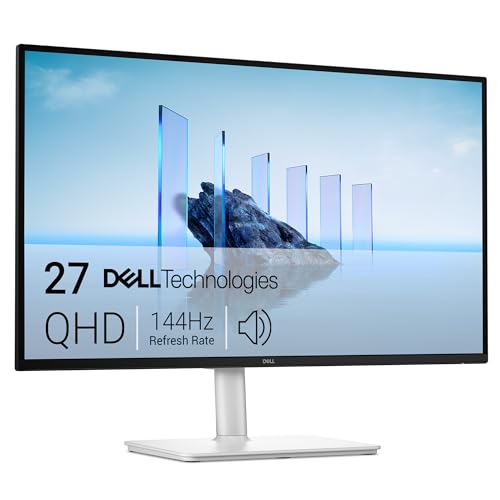
1. Dell 27 Plus QHD S2725DC: Best Overall for Laptop Work
- 27-inch QHD (2560×1440) display, 144Hz refresh rate, 1ms response rating (as listed)
- USB-C upstream with DisplayPort 1.4 Alt Mode and up to 65W power delivery (Dell spec)
- HDMI and DisplayPort inputs, plus USB-A and a second USB-C downstream port
- Two 3W speakers, 99% sRGB coverage
Best for: Anyone who wants one monitor that handles documents, video calls and the occasional game. Skip if: You need 4K density or more than 65W of charging for a power-hungry laptop.
For most office-style laptop work, 1440p at 27 inches is the sweet spot. Text is clearly sharper than on a 1080p screen of the same size, and you can run two windows side by side without squinting. The 144Hz refresh rate is more than most office tasks need, but it makes cursor movement and scrolling feel smoother, and it means the same monitor works if you plug in a gaming PC after hours.
The practical advantage is the cable. A single USB-C connection from your laptop brings the image, charges the machine at up to 65W, and exposes the monitor’s USB ports for a mouse or keyboard receiver. 65W covers most thin-and-light laptops. Workstation-class machines that draw more under heavy load may charge slowly or drain a little, so check your laptop’s charger rating before you commit.
Because this model keeps both an HDMI and a DisplayPort input, you can keep a second computer connected and switch between them from the on-screen menu. The built-in speakers are fine for calls and background audio, though not a replacement for a decent headset. In day-to-day terms, this is the monitor to pick if you do not want to think about it: plug in once, and your desk is ready.
Pros: Sharp QHD image; fast 144Hz refresh; 65W USB-C charging; useful port selection; built-in speakers. Cons: Resolution is lower than 4K; speaker output is modest.
2. Dell 27 Monitor S2725QC: Best 4K for Text and Spreadsheets
- 27-inch 4K UHD (3840×2160) IPS, 163 PPI, up to 120Hz
- 99% sRGB, 4ms response, FreeSync Premium (as listed)
- USB-C with up to 65W power delivery
- Two HDMI inputs, no DisplayPort input (per RTINGS’ port table)
- Two 5W speakers
Best for: People who spend all day in text, tables or code and notice fuzzy edges. Skip if: You rely on a DisplayPort-only desktop connection, since that port is not on this model.
At 163 pixels per inch, the S2725QC renders fine type noticeably cleaner than a QHD panel. If you run macOS or Windows with 150 percent scaling, you effectively get a very sharp screen with plenty of workspace. RTINGS notes that this model’s sRGB mode is more accurate out of the box than the QHD sibling’s, which matters if you edit photos for web use.
The 120Hz ceiling is a nice bonus, and the HDMI 2.1 bandwidth makes it friendlier to consoles. The trade-off is that the two HDMI inputs replace the DisplayPort of the QHD version. For a laptop user plugging in over USB-C that is a non-issue; for someone with an older graphics card that only outputs DisplayPort, it is worth a quick check before ordering.
Charging is the same 65W as its QHD sibling, so the same laptop-wattage advice applies. The stronger 2x5W speakers are a small step up for video calls, and the extra USB-A downstream port gives you one more place for a dongle or wireless receiver.
Pros: 4K sharpness; 120Hz; accurate sRGB mode; 65W charging; stronger speakers. Cons: No DisplayPort input; costs more than the QHD model.
3. ViewSonic VG2756-4K: Best Docking Monitor
- 27-inch 4K UHD IPS, 350 cd/m2, 5ms GTG (ViewSonic spec)
- USB-C with DisplayPort Alt Mode and 90W charging
- Gigabit Ethernet (RJ45) port, USB hub, HDMI and DisplayPort inputs
- Ergonomic stand with 130 mm height adjustment and -5 to 40 degrees of tilt
Best for: Hybrid workers who want a single cable to the laptop, including wired internet. Skip if: You want a high refresh rate; ViewSonic lists 60Hz, though some retailers show different figures.
This is the monitor that makes a laptop behave like a desktop. One USB-C cable carries video, audio, data, Ethernet and up to 90W of charging, so plugging in at your desk takes a second. The wired network connection is a real advantage in offices with unreliable Wi-Fi or on video calls where stability matters more than convenience.
The 90W charging output is the highest in this guide and suits larger 15-inch and 16-inch laptops that ship with 90W chargers. The stand’s height, tilt and swivel range is also better than the basic stands on cheaper monitors, so you may not need a separate arm.
Port counts vary slightly between retailers, so confirm the number of HDMI inputs before buying if you plan to connect several sources. The refresh rate is not a gaming figure, which is perfectly fine for work.
Pros: 90W charging; built-in Ethernet; generous stand adjustment; docking convenience. Cons: 60Hz panel; premium cost; plain design.
4. Philips 27E1N5900R: Best Value 4K
- 27-inch 4K UHD (3840×2160) IPS, 60Hz
- USB-C with DisplayPort Alt Mode and up to 65W power delivery
- HDMI 2.0, DisplayPort 1.2, USB 3.2 hub (Philips spec)
- DisplayHDR 400 labelling; brightness figures differ between Philips and retailers
- Height-adjustable stand
Best for: Budget-minded buyers who want 4K and one-cable charging. Skip if: You need Ethernet or more than 65W.
The 27E1N5900R is a straightforward productivity monitor. It gives you 4K sharpness, a USB hub and 65W of charging without frills. The 60Hz refresh rate is standard for office work and avoids paying for features most spreadsheet users never notice.
Philips lists 400 cd/m2 and a DisplayHDR 400 badge, while a major retailer shows 350 nits, so treat the brightness as “about 350 to 400” rather than an exact figure. As with all entry-level HDR labels, do not expect cinematic highlights; the benefit is mostly a brighter, more readable image in a well-lit room.
Compared with the Dell 4K model, this one runs at 60Hz instead of 120Hz and has a DisplayPort input rather than a second HDMI. If you only work, you will hardly miss the extra frames.
Pros: 4K at a moderate tier; 65W charging; hub ports; adjustable stand. Cons: 60Hz; no Ethernet; brightness specs vary by source.
5. LG 27U631A-B: Best Budget 27-Inch
- 27-inch QHD (2560×1440) IPS, 100Hz, 5ms
- HDR10 support, Reader Mode, flicker-safe (as listed)
- HDMI and a USB Type-C input; charging wattage not listed
Best for: People who want a bigger, sharper screen without spending much. Skip if: Your laptop needs USB-C charging; the power delivery figure is not listed, so verify it with LG before relying on it.
This is the most affordable way into a 27-inch QHD IPS panel in this guide. The 100Hz refresh rate is a quiet upgrade over the usual 60Hz office panel, and the resolution matches the Dell QHD pick. LG’s Reader Mode lowers blue light and adjusts tone for long documents.
The one caution is USB-C. The listing mentions a USB Type-C connection, but the power delivery wattage is not stated, so treat it as a video connection first and a charger second. If your laptop has its own charger anyway, this is a perfectly sensible choice.
Pros: QHD IPS at a low tier; 100Hz; eye-comfort modes. Cons: Charging wattage not listed; ergonomic adjustments not listed.
6. msi PRO MP242 E14C: Best Compact Office Screen
- 24-inch IPS, 1920×1080, 144Hz, FreeSync
- USB-C with 15W power delivery, plus HDMI
- VESA mount support (as listed)
Best for: Small desks and second-screen setups. Skip if: You expect to charge a laptop at full speed; 15W only helps phones and tablets or tops up a very efficient laptop.
A 24-inch 1080p screen is perfectly pleasant for emails, browsers and video calls. The 144Hz refresh rate is the same as the larger Dell, and the lower resolution means a modest graphics workload for older laptops. The 15W power delivery is more of a convenience than a charging solution, so keep the laptop’s own charger nearby.
Its VESA compatibility lets you move it to an arm and free up desk space, which is useful if your office is a corner of a shared room.
Pros: Compact; 144Hz; USB-C video; budget-friendly. Cons: Low charging power; 1080p is less sharp at 24 inches than QHD.
7. ASUS ZenScreen MB169CK: Best Portable Option
- 15.6-inch Full HD (1920×1080) IPS, 60Hz, about 250 nits (ASUS spec)
- Two USB-C ports with DisplayPort support, plus mini-HDMI
- 360-degree kickstand, roughly 0.78 kg without the stand
- No built-in speakers
Best for: Remote workers and travelers who want a second screen in a bag. Skip if: You need a primary desk monitor.
Portable monitors can be hit and miss, but the ZenScreen is a known quantity. It connects with a single USB-C cable for both power and video on compatible laptops, and the second USB-C port lets you pass power through. The kickstand rotates for portrait use, which is helpful for reading code or long documents.
The 250-nit brightness is fine indoors but not ideal near a sunny window. There are no speakers, so pair it with headphones. For a coffee-shop or hotel-room second screen, the weight and slim body are what you are paying for.
Pros: Light and slim; dual USB-C; flexible kickstand; established brand. Cons: No speakers; modest brightness; costs more than generic portable screens.
Also Consider
BenQ GW2490C
A 23.8-inch 1080p IPS monitor with 144Hz, flicker-free tech and eye-care features. BenQ’s spec page says its USB-C port carries video and data but does not support power delivery, despite what some retail copy suggests. Choose it for the display, not for charging.
ASUS ProArt PA279CRV
A 27-inch 4K USB-C monitor aimed at creators, with Calman verification, Delta E under 2 and daisy chain support. Charging wattage is not listed here, so check ASUS before buying. Consider it if color accuracy matters more than price.
INNOCN 27-inch 4K USB-C Monitor
A 27-inch 4K IPS with HDR400, DisplayPort, HDMI and a stated Delta E below 2. It is an alternative to the Philips if you prefer its color focus. Power delivery details are not listed in the title we reviewed.
How We Chose
We did not run our own bench measurements on these monitors, and we have not used them at a desk ourselves. Instead, we compared manufacturer spec sheets from Dell, ViewSonic, Philips, ASUS, BenQ and msi, retail listing details, and independent reviews including RTINGS, ITPro and Expert Reviews. We prioritized monitors that are currently sold, support USB-C video, and cover a range of sizes and budgets. Where retailers and manufacturers disagreed, we flagged the difference instead of choosing a number.
We excluded very cheap monitors with unclear USB-C support and anything we could not match to a verifiable listing. Price is described by tier only because retail prices change often. The goal is a shortlist you can verify yourself against the manufacturer pages named at the end, not a final verdict.
Buying Guide
Check the power delivery wattage first
USB-C power delivery is the number that decides whether your laptop charges from the monitor. Many ultraportables charge happily at 45W to 65W. Larger 15-inch and 16-inch laptops often ship with 90W to 140W chargers, and a 65W monitor may charge them slowly under heavy load. A 15W port, as on the msi, is best treated as a video connection with a small top-up. Always compare against your laptop’s original charger rating, and keep the charger in your bag if you also work away from the desk.
Confirm the USB-C port carries video
Not every USB-C port can output a display. The port on your laptop needs DisplayPort Alt Mode or Thunderbolt/USB4. Look for a small display icon or Thunderbolt symbol next to the port, or check the laptop’s spec sheet. If it is not there, you will need HDMI instead. Some budget laptops use USB-C only for charging and data.
Pick resolution by screen size
At 24 inches, 1080p is acceptable. At 27 inches, QHD is the practical minimum for sharp text, and 4K is the comfortable choice if you scale up the interface. Above 30 inches, ultrawide or 4K starts to make sense. Higher resolution also means your laptop’s graphics have more pixels to push, which older machines may struggle with at high refresh rates, so check the maximum resolution and refresh rate your laptop supports over USB-C.
Decide whether refresh rate matters
For spreadsheets and documents, 60Hz is fine. 100Hz to 144Hz makes scrolling and mouse movement feel smoother and adds flexibility if you game. Do not pay a premium for 144Hz if you will never use it, but know that it is increasingly common at mid-range tiers. Many integrated laptop graphics chips will run 4K at 60Hz without trouble but may not reach 120Hz at 4K.
Think about the stand and extras
Height adjustment prevents neck strain. As a rule of thumb, the top edge of the screen should sit at or just below eye level. If the stand only tilts, budget for a VESA arm. Built-in Ethernet, a USB hub and a KVM switch make one-cable desks possible, but they typically push the cost up, so buy only what you will use.
Common Mistakes to Avoid
- Assuming every USB-C monitor charges a laptop quickly.
- Buying 4K for a laptop that cannot output it over its USB-C port at a useful refresh rate.
- Ignoring the cable; a cheap cable can limit bandwidth or power. Use the one in the box or a certified USB-C cable.
- Forgetting that portable screens often have no speakers and modest brightness.
- Overlooking retailer copy that conflicts with the manufacturer’s spec page, as seen with some 24-inch models.
Setting Up a One-Cable Laptop Desk
Buying the right monitor is only half of the job; a few setup choices decide whether the desk feels effortless. Start with the cable. Use the USB-C cable that ships with the monitor where possible, because it is matched to the monitor’s power and video bandwidth. If you must replace it, choose a cable rated for the wattage you need and for video, since some cheap USB-C cables are charge-only or limited to 60W.
Next, set the scaling. On a 27-inch 4K screen, Windows and macOS usually default to a scaled interface that looks sharp without making text tiny; on a 27-inch QHD screen, 100 percent scaling is typically comfortable. Spend a minute in your operating system’s display settings rather than leaving the default, because the right scale is what makes the extra resolution useful.
Then think about the lid. Many people close the laptop and use only the external screen with a separate keyboard and mouse; others keep the lid open as a second display. If you close it, make sure your laptop is set to stay awake with the lid closed while connected to a display, and consider a vertical stand to keep it out of the way. Finally, put the monitor at arm’s length with the top edge near eye level, and use the monitor’s USB ports for the keyboard and mouse receivers so the whole desk reconnects with one plug.
If you share the monitor between a work laptop and a personal machine, use the monitor’s input switching and keep the second device on HDMI or DisplayPort. That way the USB-C port stays reserved for the laptop that needs charging, and nothing has to be unplugged between sessions.
Frequently Asked Questions
Can a USB-C monitor charge my laptop?
Yes, if the monitor supports USB-C power delivery and its wattage matches or exceeds what your laptop needs. The Dell and Philips models here offer up to 65W, and the ViewSonic offers 90W.
Do I need Thunderbolt for a USB-C monitor?
No. A USB-C port with DisplayPort Alt Mode is enough for the monitors in this guide. Thunderbolt adds daisy-chaining and higher bandwidth but is not required.
Is 4K worth it for laptop work?
It is worth it at 27 inches if you read a lot of text, work with large spreadsheets or edit photos. QHD is a reasonable middle ground at a lower tier.
Can I use one USB-C monitor with a Mac and a Windows laptop?
Yes. Most USB-C monitors work with both, and the on-screen menu lets you switch inputs. Check that the monitor’s wattage suits each laptop.
What is the best USB-C monitor for working from home?
For most people the Dell S2725DC is the safest all-rounder, while the ViewSonic VG2756-4K is the better choice if you want wired internet and 90W charging through a single cable.
Are portable USB-C monitors good for work?
They are good as a second screen for travel or tight spaces. They are not a replacement for a full-size desk monitor because of their size and brightness.
Will a USB-C monitor work with a tablet or phone?
Some phones and tablets with DisplayPort output can mirror to a USB-C monitor, but support varies by device, so check your model’s documentation.
Which One Should You Buy?
Pick the Dell S2725DC if you want a dependable all-rounder. Move up to the Dell S2725QC or Philips 27E1N5900R if you want 4K sharpness. Choose the ViewSonic VG2756-4K if you want a docking-style setup with Ethernet and 90W charging. The LG 27U631A-B and msi PRO MP242 E14C cover tighter budgets, and the ASUS ZenScreen MB169CK is the pick for portable work. Match the charging wattage to your laptop before you buy and you will avoid the most common disappointment.
Sources
- Dell Technologies product pages for S2725DC and S2725QC
- RTINGS monitor reviews
- ViewSonic VG2756-4K datasheet
- Philips 27E1N5900R product page
- ASUS ZenScreen MB169CK technical specifications
- BenQ GW2490C specification page
Last updated: October 2026

Write Your Review
No reviews yet. Be the first to share your experience!