

Key takeaways
- Compare the 5 best drawing tablets for your computer: pen tablets and one pen display, with pressure levels, active areas, keys and OS support.
Most buyers should buy a pen tablet, not a pen display: you draw on the pad while looking at your monitor, it costs less, and it is lighter on the wrist. The Wacom Intuos Small is the safest first pick for beginners, and the Huion Kamvas 13 (Gen 3) is the pick if you want to draw directly on a screen. A large active area and 8192 pressure levels are plenty, and 16384 levels alone is not a reason to pay more.
This guide is for beginners buying their first tablet, illustrators and photo editors who live in shortcut keys, laptop users who sketch on the go, and artists who want to draw where they look. We chose these five from Amazon product titles and specifications: four pen tablets and one pen display, all of which must connect to a computer, with active areas, pressure levels, shortcut counts, and operating system support checked against the listings.
Quick Picks
As an Amazon Associate we earn from qualifying purchases
| Product | Best for | Key spec from title |
|---|---|---|
| Wacom Intuos Small CTL-4100 | Safest first tablet for beginners | Pen tablet, 4096 levels, 4 ExpressKeys, 6.0 x 3.7 in active area |
| XP-Pen Deco 01 V2 | Biggest drawing area for the money | Pen tablet, 8192 levels, 10 x 6.25 in active area, 8 shortcut keys |
| Huion Inspiroy H1060P | Most shortcut keys for heavy editing | Pen tablet, 8192 levels, 10 x 6.25 in active area, 12+16 hot keys |
| Wacom One S CTC-4110WL | Portable Bluetooth tablet for laptops | Pen tablet, 4096 levels, Bluetooth, 152 x 95 mm active area |
| Huion Kamvas 13 (Gen 3) | Drawing directly on the screen | Pen display, 13.3 in 1920×1080, 16384 levels, 2 dials + 5 keys |
How to Choose
Pen tablet or pen display
A pen tablet has no screen: you draw on the pad while looking at your monitor, which takes a day or two to get used to but keeps the device light and cheap. A pen display has a built-in screen, so you draw where you look, which feels natural from the first minute. The trade is real: the display adds weight, needs a video cable to the computer, and costs more for the same drawing quality. Neither type works on its own, since all five tablets in this guide must connect to a computer. Most buyers should start with a pen tablet and only move to a pen display when they know they draw every day.
Active area versus physical size
The active area is the part of the tablet that actually senses the pen, and it is always smaller than the tablet itself. The Wacom Intuos Small measures 7.8 by 6.3 inches on the desk, but its drawing area is only 6.0 by 3.7 inches, so judge it by the smaller number. A 10 by 6.25 inch active area, found on the Deco 01 V2 and the H1060P, gives far more room for broad strokes and large arm movements. Match the active area to your monitor size and your drawing style: small areas suit quick sketching and note-taking, while large areas suit painting and long, sweeping lines.
Pressure levels and pen feel
Pressure levels run from 4096 on the two Wacom tablets to 8192 on the XP-Pen and Huion pen tablets and 16384 on the Kamvas 13 Gen 3. More levels give finer control between a feather-light line and a heavy stroke, but the number is not the whole story. Pen feel matters just as much: initial activation force, tilt response, and driver quality decide how natural light strokes feel. The Kamvas PW600L pen needs only 2 grams of force to start a line, while the Wacom One S pen has a high initial activation force that makes very light strokes harder. For most buyers, 8192 levels with a good pen beats 16384 levels with a poor one.
Shortcut keys, dials, and operating system support
Shortcut keys save constant trips to the keyboard when you work in Photoshop, Clip Studio Paint, or Krita. The counts here run from zero on the Wacom One S to four ExpressKeys on the Intuos Small, eight on the Deco 01 V2, twenty-eight on the H1060P, and two dials plus five keys on the Kamvas 13 Gen 3. Check your operating system too: Windows and Mac are supported by all five, while Chromebook and Android support varies by model. On Android, drawing is plug-and-play with no driver, but ExpressKeys mostly do not work, and the Kamvas 13 Gen 3 on Android needs a USB-C port with DisplayPort Alt-Mode.
The 5 Best Options
Wacom Intuos Small CTL-4100
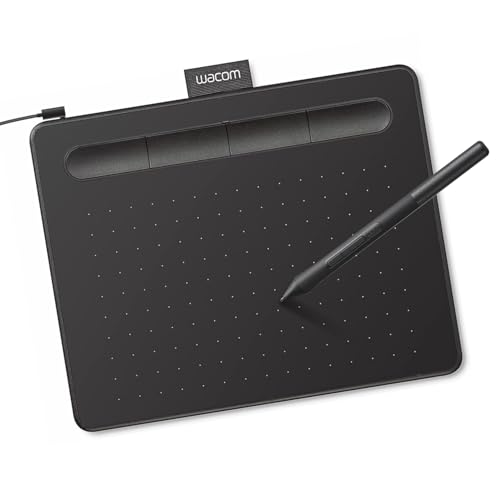
The Wacom Intuos Small is the safest first drawing tablet because it does the basics well and nothing gets in the way. Its battery-free pen gives 4096 pressure levels with no charging, four ExpressKeys cover undo and brush size, and the compact pad fits beside a laptop keyboard without crowding the desk. Wacom’s drivers are the most mature in this guide, which matters when you would rather draw than troubleshoot. The active area is small at 6.0 by 3.7 inches, so it suits sketching, notes, and photo retouching rather than big sweeping paintings.
- Specs:
- Pen tablet, no screen; battery-free Wacom Pen 4K, 4096 pressure levels, 2 side buttons
- Active area 6.0 x 3.7 in (152 x 95 mm); device size 7.8 x 6.3 in
- 4 customizable ExpressKeys; 2540 LPI
- Wired USB connection; works with Windows, Mac, Chromebook, and Android
- In the box: tablet, pen, 3 extra standard nibs with nib removal tool, quick start guide
- Best for: Beginners buying their first drawing tablet for sketching, notes, and photo retouching.
- Watch out for: The active area is much smaller than the device, so check the 6.0 x 3.7 inch figure, not the box size.
XP-Pen Deco 01 V2

The XP-Pen Deco 01 V2 gives the biggest drawing area in this guide for the least money, with a 10 by 6.25 inch active area and 8192 pressure levels from a battery-free pen that also supports 60 degrees of tilt. Eight customizable shortcut keys keep common tools under your thumb, and the slim 8 mm body travels easily in a laptop bag. It works with Windows, Mac, Android, Chrome OS, and Linux, which covers nearly every computer a buyer might own. This is the pick when the size of the drawing area matters more than the brand name on the pen.
- Specs:
- Pen tablet, no screen; battery-free P05 stylus, 8192 pressure levels, 60 degrees tilt, 2 side buttons
- Active area 10 x 6.25 in; device 13.82 x 8.54 x 0.31 in, 8 mm thin
- 8 customizable ExpressKeys; 5080 LPI; 266 RPS report rate
- Works with Windows, Mac, Android 6.0 or later, Chrome OS 88 or later, and Linux
- One free creative software included per XP-Pen
- Best for: Buyers who want the largest active area for the money and a tablet that works on nearly any operating system.
- Watch out for: XP-Pen’s own US store says this model is discontinued, so check live availability on Amazon before ordering, and confirm the listing title says Deco 01 V2 with 8192 levels.
Huion Inspiroy H1060P
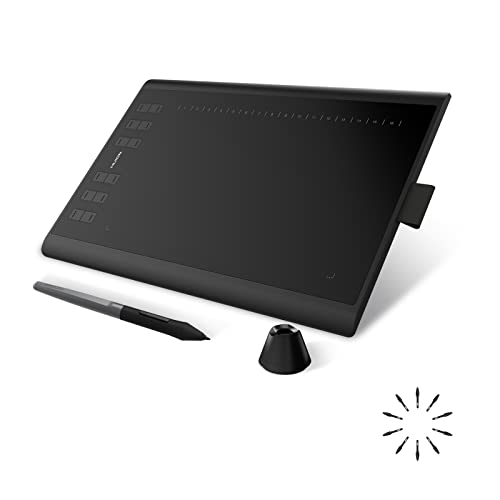
The Huion Inspiroy H1060P is the pick for people who live in shortcut keys, because it carries twelve customizable hot keys plus sixteen soft keys, twenty-eight in total, more than any other tablet here. Its 10 by 6.25 inch active area matches the Deco 01 V2 for room to draw, and the battery-free PW100 pen gives 8192 pressure levels with tilt response and 5080 LPI resolution. Photo editors and illustrators who map brush size, undo, zoom, and layer commands to keys will feel the difference within a day. The tablet is larger than the Wacom models, so it suits a fixed desk better than a crowded laptop bag.
- Specs:
- Pen tablet, no screen; battery-free PW100 stylus, 8192 pressure levels, tilt response, 5080 LPI
- Active area 10 x 6.25 in; device 360 x 240 x 10 mm; weight 0.77 kg
- 12 customizable hot keys + 16 customizable soft keys, 28 total
- Works with Windows, Mac, and Android 6.0 or later; OTG adapters included
- Battery-free pen, no charging needed
- Best for: Photo editors and illustrators who want the most shortcut keys for heavy editing work.
- Watch out for: Do not confuse it with the older 1060 PLUS, a different model with a rechargeable pen and a built-in microSD card.
Wacom One S CTC-4110WL

The Wacom One S is the portable tablet in this guide, connecting over Bluetooth or USB-C with no cable tying it to a desk. Its active area is 152 by 95 mm, the same size as the Intuos Small, and the battery-free pen gives 4096 pressure levels with 60 degrees of tilt. It works with Windows, Mac, Android, and ChromeOS, which makes it a natural partner for a laptop or a Chromebook. There are no shortcut keys at all, so every command comes from the keyboard or the screen, which keeps the tablet simple but slows down heavy editing work.
- Specs:
- Pen tablet, no screen; battery-free Wacom One Standard Pen CP-923, 4096 pressure levels, 2 side buttons
- Active area 152 x 95 mm (5.98 x 3.74 in); no shortcut keys, no dials
- Bluetooth + USB-C connection; 2540 LPI; 240 RPS report rate; tilt 60 degrees
- Works with Windows, Mac, Android, and ChromeOS
- White model CTC-4110WLW0A
- Best for: Laptop and Chromebook users who want a wireless tablet for sketching and notes on the go.
- Watch out for: The pen has high initial activation force, so very light strokes take more effort, and the white model is the one listed here.
Huion Kamvas 13 (Gen 3)
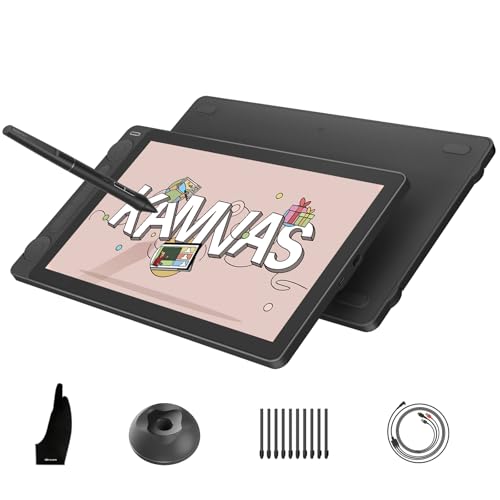
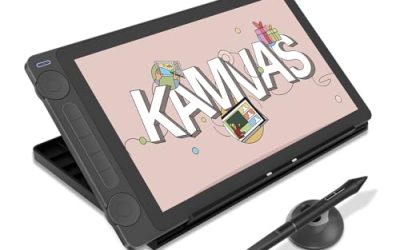
The Huion Kamvas 13 Gen 3 is the only pen display in this guide, so it is the pick when you want to draw directly on the screen instead of looking up at a monitor. Its 13.3 inch IPS screen shows 1920 by 1080 resolution with 99 percent sRGB coverage and factory calibration to Delta E under 2, and the etched Canvas Glass 2.0 gives a paper-like feel built into the glass itself. The PW600L pen offers 16384 pressure levels with a 2 gram initial activation force, plus two dial controllers and five programmable keys for shortcuts. It still needs a computer, and a stand is sold separately.
- Specs:
- Pen display with 13.3 in IPS screen, 1920 x 1080 FHD, 60 Hz, 166 PPI, full-laminated Canvas Glass 2.0
- Colour: 99 percent sRGB / 99 percent Rec.709 / 90 percent Adobe RGB coverage, Delta E under 2
- Battery-free PW600L pen, PenTech 4.0, 16384 pressure levels, 2 g initial activation force, 5080 LPI, tilt plus/minus 60 degrees
- 2 dial controllers + 5 programmable silent press keys + 2 function-switch buttons; active area 293.8 x 165.2 mm
- Works with Windows, macOS, Android (needs USB-C with DisplayPort Alt-Mode), and Linux; weight 865 g
- Best for: Artists who want to draw directly on the screen with the finest pressure control in this guide.
- Watch out for: It must connect to a computer to work, it is not a standalone tablet, and the stand is optional, not included.
Which One Fits Your Situation
First tablet for a beginner
Buy the Wacom Intuos Small if you are starting out and want the fewest surprises. Its mature drivers, battery-free pen, and compact size make it the easiest tablet to set up and learn on, and four ExpressKeys are enough for undo and brush size. The small active area suits sketching and notes, and if you outgrow it, you will know exactly what to look for in a larger tablet.
Photo editing and heavy shortcut work
Buy the Huion Inspiroy H1060P if your work lives in Photoshop or Clip Studio Paint and your hands are always reaching for the keyboard. Twenty-eight customizable keys put brush size, undo, zoom, and layer commands under your fingers, and the 10 by 6.25 inch active area gives room for broad retouching strokes. It is a desk tablet rather than a travel one, so keep it where you edit.
Drawing on the go with a laptop or Chromebook
Buy the Wacom One S if you sketch away from a desk and want no cables in the way. Bluetooth and USB-C connect it to a laptop or Chromebook, and the slim pad slips into a bag beside the computer. You give up shortcut keys entirely, so it suits sketching, notes, and light editing rather than long sessions in Photoshop with dozens of commands.
Drawing directly on the screen
Buy the Huion Kamvas 13 (Gen 3) if looking at a monitor while your hand draws elsewhere never felt natural to you. Drawing where you look is the most direct way to work, and the etched glass, 16384 pressure levels, and two dials make it the most capable tablet here. Remember that it still needs a computer, needs a video cable, and the stand is sold separately.
Common Mistakes
- Buying a pen display thinking it works on its own: all five tablets in this guide must connect to a computer, and the Kamvas 13 Gen 3 is no exception.
- Judging a tablet by its box size instead of its active area: the Intuos Small is 7.8 by 6.3 inches on the desk but only 6.0 by 3.7 inches of it senses the pen.
- Choosing by pressure levels alone: pen feel, initial activation force, tilt, and driver quality matter as much as 4096 versus 8192 versus 16384 levels.
- Expecting shortcut keys to work everywhere: on Android, drawing is plug-and-play but ExpressKeys mostly do not work, and the Kamvas 13 Gen 3 needs a USB-C port with DisplayPort Alt-Mode.
- Mixing up look-alike models: the H1060P is not the 1060 PLUS, the Kamvas 13 Gen 3 is not the original Kamvas 13, and the wired Intuos Small is not the Bluetooth version.
Frequently Asked Questions
Should I buy a pen tablet or a pen display?
Buy a pen tablet for most uses: it costs less, weighs less, and is easier on the wrist, and you get used to drawing on the pad while looking at the monitor within a day or two. Buy a pen display only if you want to draw where you look and you draw often enough to justify the extra weight, cables, and cost.
Do I need a computer to use these tablets?
Yes, all five tablets must connect to a computer to work, and none of them works on its own. Some also work with a compatible Android device or Chromebook, but a Windows or Mac computer with the maker’s driver installed is the setup that supports every feature, including shortcut keys.
Is 16384 pressure levels noticeably better than 8192 or 4096?
It gives finer control between light and heavy strokes, but the difference is subtle compared with pen feel, initial activation force, tilt, and driver quality. A pen that starts a line with only 2 grams of force feels better than a high level count paired with a stiff pen, and 8192 levels is plenty for most buyers.
Will these work with Photoshop, Clip Studio Paint, and Krita?
Yes, on Windows and Mac with the maker’s driver installed, all five work with the major drawing and photo editing programs. On Android and Chromebook the support is limited, shortcut keys mostly do not work, and you should check the maker’s compatibility list for your exact device before buying.
More from Amazon
Programs that pair well with the guide above. Offers and eligibility are set by Amazon and may change.
Free shipping on eligible items, Prime Video and more. Eligible new members can start with a free trial.
Start a Prime free trialAd-free music streaming. Eligible new subscribers can start with a free trial.
Try Music Unlimited freeA Prime membership for ages 18-24 with a trial period. Eligibility is set by Amazon.
See Prime for Young AdultsAudiobooks and podcasts to listen to on the go. Eligible new members can start with a free trial.
Try Audible freeAs an Amazon Associate we earn from qualifying purchases.


Write Your Review
No reviews yet. Be the first to share your experience!