

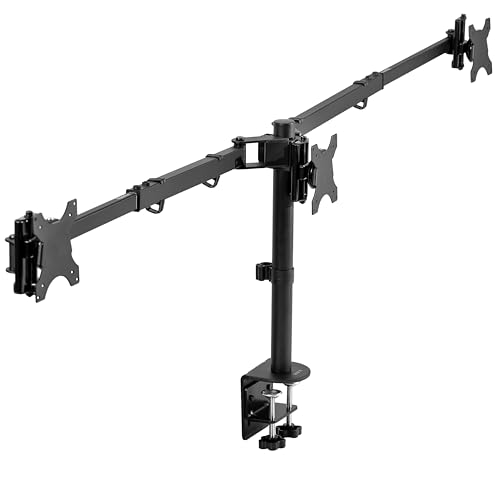
The best desk clamp mount for a triple gaming monitor setup in 2026 depends almost entirely on screen size and weight. For three 24- to 27-inch monitors, the VIVO STAND-V003 family and the Huanuo triple mount are the common value picks, the Mount-It MI-2753 adds gas-spring arms and built-in USB ports, and the Ergotron DS100 is the sturdy fixed-geometry option for smaller panels. If your screens are heavier or larger, three independent single arms are safer than any one triple bracket.
Triple monitor mounts look simple, but they concentrate a lot of load on one pole and one clamp. Three 27-inch screens can add up to 30 or 40 lb hanging well out from the desk edge, and a wide span creates leverage that the clamp and the desktop have to resist every time you touch the keyboard. This guide compares seven real options, explains the numbers that decide whether a mount works for your screens, and walks through setup steps that avoid the usual problems: sagging side arms, desk damage and monitors that never line up.
Our top picks



As an Amazon Associate we earn from qualifying purchases at no extra cost to you.
Quick Comparison of Triple Monitor Clamp Mounts
| Mount | Best for | Load per monitor | Screen size | Design | Tier |
|---|---|---|---|---|---|
| VIVO STAND-V003 family | Value 24-27 inch setups | about 17.6 lb (some listings say up to 22 lb) | 13-24 in, up to 27 in with limited adjustment | Pole with three arms | Budget |
| Huanuo triple (HNTS3B) | Budget gas-spring triples | about 4.4-17.6 lb | up to roughly 27 in | Pole with gas-spring side arms | Budget |
| Mount-It MI-2753 | Built-in USB ports | listings vary, treat as roughly 15-20 lb | three 27 in screens | Gas-spring arms on a pole | Mid-range |
| Mount Pro triple | Static center, flexible sides | about 17.6 lb per arm | up to 27 in | Gas-spring sides, fixed center | Mid-range |
| Ergotron DS100 triple | Small screens, durability | 31 lb per monitor (93 lb total) | up to 21 in, 20 in width | Horizontal fixed stand | Premium |
| Mount-It freestanding triple | Desks that cannot be clamped | varies by model | typically up to 27 in | Freestanding base | Mid-range |
| Three Ergotron LX arms | Heavy or large screens | about 7-25 lb each | up to about 34 in | Three separate clamps | Premium |
Per-arm capacity figures vary between retailers and reviewers, sometimes by several pounds for the same family of products, because manufacturers revise models and sellers quote different variants. Treat these numbers as a planning range and confirm the rating on the spec sheet for the exact model number you buy.
How to Choose a Triple Mount: The Numbers That Matter
Weight per screen
Weigh each monitor without its stand. A typical 24-inch 1080p gaming monitor weighs roughly 6 to 9 lb without the stand, a 27-inch 1440p panel roughly 8 to 13 lb, and a 32-inch panel roughly 12 to 18 lb. Compare each to the per-arm rating and leave at least 20 percent margin, because the arm rating assumes a perfectly balanced load and your monitor will sit out in front of the arm. If a mount lists a minimum as well as a maximum weight, as the Huanuo triple does with a floor around 4.4 lb, make sure your screens are not lighter than that minimum or the gas springs will push them upward.
Screen size and total span
Three side-by-side 27-inch monitors span roughly 71 inches, including bezels, which is wider than many desks. A 27-inch 16:9 panel is about 23.5 inches wide, so three give roughly 70.5 inches before you count the gaps. Compare that with your desk, which might be 55, 60 or 71 inches wide. On a narrower desk, the side screens will overhang the edge, and the mount will carry them on long, leveraged arms. Three 24-inch panels, each roughly 21 inches wide, span about 63 inches, which fits better on a 60- to 71-inch desk. This is why many triple setups use 24-inch screens even though 27-inch panels are more popular for single monitors.
Clamp thickness and desk strength
Most triple mounts clamp to a desk up to roughly 3.25 inches thick, according to the VIVO product family. Check the underside of your desk. A hollow-core desk, thin particleboard or glass top may crush under the clamp’s force or flex under the load. A steel reinforcement plate under the clamp spreads the pressure and is cheap insurance, and a grommet mount is a stronger alternative on desks with a cable hole.
Pole height and the center screen
A fixed-height center bracket, found on several triple stands, fixes the middle monitor at one height relative to the pole. If your eyes sit below the pole’s center height, you may find yourself craning up at the center screen, which is the one you look at most. Look for adjustable pole clamps that let you set the center height, or choose a mount whose center bracket slides along the pole.
A worked example
Take three 27-inch 1440p monitors that each weigh 11 lb without the stand. The combined load is 33 lb. A mount with 17.6 lb per arm holds each monitor with a 6.6 lb margin, which is 37 percent over the load, so it passes the 20 percent rule. A mount rated for only 15.4 lb per arm leaves just 4.4 lb of margin, close to the limit, and you would expect side arms to sag after a few months. Now consider three 32-inch curved monitors at 17 lb each, a 51 lb total. Most triple poles are not built for this. Three separate heavy arms rated 25 lb or more each are the right answer, even though they take more desk edge space.
Best Value: VIVO STAND-V003 Family
VIVO’s STAND-V003 series is the most mentioned triple mount in reviewer roundups. The STAND-V003M listing on VIVO’s own page gives 13- to 24-inch screens, with limited adjustment for 27-inch panels, and 17.6 lb per monitor, with VESA 75×75 and 100×100 compatibility on all models. Other retailers quote up to 22 lb per arm or a 13- to 30-inch range for sibling models, so check the exact variant. Typical designs use two pneumatic side arms with a fixed center bracket and a desk clamp that handles desks up to roughly 3.25 inches thick.
Who it suits: gamers with three 24-inch monitors, or lighter 27-inch panels, who want a tidy, compact setup.
Pros: widely available, VESA 75 and 100 support, flexible side arms, budget tier. Cons: the fixed center can be too low or too high for some desks, and 27-inch panels sit near the limit of its adjustment.
Best Budget Gas-Spring Option: Huanuo Triple Mount
The Huanuo triple (HNTS3B and related models) is the usual budget recommendation. Reviews list a per-arm range of 4.4 to 17.6 lb, which fits typical 24- and 27-inch gaming monitors, and some retailers list up to 22 lb per arm and screens from 13 to 27 inches. Reviewers praise the build and adjustability, and the common complaints are plastic screws in some units and time spent aligning three screens precisely.
Who it suits: buyers on a tight budget with lighter monitors who do not mind a little patience during setup.
Pros: strong value, gas-spring side arms, good range of movement. Cons: minimum weight limit, plastic hardware on some units, alignment takes time.
Best With Built-In USB: Mount-It MI-2753
The Mount-It MI-2753 is described in reviews as a gas-spring triple mount with USB-A and USB-C ports built into the base, which is a convenient feature when the desk is covered by cables. Reviewers say it handles three 27-inch displays easily, while three 32-inch screens may exceed the side arms’ limit. Because published per-arm limits vary by source, confirm the figure before you buy, and keep your monitors on the lighter side of the stated range.
Who it suits: people who want front-of-desk USB ports for headsets, controllers or flash drives without reaching behind a PC.
Pros: integrated USB ports, gas-spring movement, handles 27-inch screens. Cons: a heavier unit with a more intricate setup, and some reviewers report sagging when loaded near the maximum.
Best Fixed Center Design: Mount Pro Triple
PopSci’s triple monitor stand recommendation, the Mount Pro Triple, uses gas-spring side arms with a static center arm. It takes up to 17.6 lb per arm and screens up to 27 inches. The static center is a deliberate design choice: the center screen is the one you look at most, and it stays rock steady with no flex, while the side screens can be angled inward for a mild wraparound view.
Who it suits: gamers who want the center screen to stay put while adjusting the sides for racing or flight sims.
Pros: stable center screen, gas-spring sides, 27-inch support. Cons: the center height cannot be changed as freely as with a full gas-spring triple.
Best Fixed Stand for Small Screens: Ergotron DS100 Triple
Ergotron’s DS100 triple-monitor desk stand (part 33-323-200) is a horizontal, fixed-geometry stand rated for 31 lb per monitor and 93 lb total. It supports displays up to 21 inches with a 20-inch maximum width, VESA 75×75 to 100×100 mounting, 360-degree rotation for portrait use, integrated cable management and a five-year warranty. It ships with a base, a 14-inch pole, a bow-shaped Paraview bracket, two sliding brackets and angled and flat center brackets.
The weight rating is generous, but the width limit means that this stand is for smaller 21-inch and under screens, such as secondary panels, rather than three 27-inch gaming displays. It is an excellent option if you want a bulletproof, fixed-position cluster of smaller screens, for instance for a flight sim instrument cluster or a trading-style dashboard next to a main monitor.
Who it suits: users who need three small monitors in fixed positions and value build quality.
Pros: high per-monitor rating, durable aluminum and steel build, five-year warranty. Cons: not suitable for modern 24- to 27-inch gaming monitors, and fixed positions limit ergonomic tweaks.
Best Without Clamping: Freestanding Triple Stands
Mount-It also makes a freestanding triple stand that needs no clamp or hole in the desk, according to review roundups. This class of stand is for rented desks, glass tops, standing desks with unusual frames and anyone who does not want to mark the surface. The trade-off is footprint: the base takes up desk space, and the stand relies on weight and a wide base for stability rather than a clamped connection, so it is less rigid than a clamp mount.
Who it suits: people who cannot or will not clamp to their desk.
Pros: no desk damage, quick to move, stable on level surfaces. Cons: larger footprint, less rigid, limited load rating compared with clamp designs.
Best for Heavy or Large Monitors: Three Single Arms
If you own three 27- to 34-inch monitors, or any screens heavier than about 15 lb each, a bank of three single arms is the more reliable approach. The Ergotron LX is the usual reference, rated roughly 7 to 25 lb, and a trio gives each screen its own independent load path and clamp point. It costs more than a triple pole and uses more desk edge, but it avoids the central pole as a single point of flex, and you can adjust each screen height without affecting the others.
Who it suits: owners of large or heavy monitors, or buyers who prefer independent adjustment.
Pros: highest reliability, independent adjustment, long warranties. Cons: premium tier, three clamps need desk edge space, and it is more work to align.
Decision Matrix: Which Setup Fits You?
| Your situation | Best choice | Reason |
|---|---|---|
| Three 24-inch 1080p screens, 6-9 lb each | VIVO STAND-V003 or Huanuo triple | Well inside the 17.6 lb rating |
| Three 27-inch 1440p screens, 8-13 lb each | Mount Pro Triple or Mount-It MI-2753 | 27-inch support with gas-spring sides |
| Three 32-inch screens, 14-18 lb each | Three single arms | Exceeds most triple pole ratings |
| Small secondary screens in fixed positions | Ergotron DS100 triple | 31 lb per monitor, rigid |
| Glass or rented desk | Freestanding triple | No clamping required |
| Narrow 48-55 inch desk | Three 24-inch screens with any triple | Total span about 63 inches, so use curved side arms |
Installing a Triple Mount Step by Step
- Trial-fit the clamp location. Place the clamp near the center of the desk, not at the corner, so the load sits evenly over the desk legs. Check the clearance underneath for drawers or crossbars.
- Add a reinforcement plate. On thin or hollow desks, install a steel plate under the clamp to spread the force and stop the desktop from dishing.
- Assemble the pole and arms before attaching monitors. Set the arms to roughly the final angle so they are not overloaded while you adjust.
- Mount the center monitor first. It sets the reference height and distance. Set it so the top edge sits at or just below eye level.
- Attach the side monitors and angle them inward. Aim for an angle of about 20 to 30 degrees so the side screen edges are equidistant from your eyes.
- Adjust gas-spring tension. Each side arm should hold position without drift. If the arm sags, either the screen is too heavy or the tension needs a small quarter turn.
- Secure the cables. Leave slack at each pivot so cables do not tug on the arms. Use the cable clips and sleeves provided with the stand.
Durability and Ownership Realities
The first thing to wear on a triple mount is the side-arm gas springs and the joint friction, not the pole. Over months, gas springs lose a little pressure, and loaded arms near the maximum rating start to droop. Keeping each monitor at 70 to 80 percent of the rated load extends life considerably. The second weak point is the clamp: periodically re-tighten it, because wood desks compress slightly and a loose clamp creates wobble. The third is the plastic hardware found on some budget units. If you see plastic screws or washers in the hardware bag, replace critical fasteners with metal equivalents of the same thread.
Also think about future upgrades. A triple pole locks you into a limited range of monitor sizes and VESA patterns. If you expect to move from 24-inch to 27-inch panels, or to add a curved center display, a mount with 100×100 VESA and a good weight margin will give you more freedom. Separate arms are the most upgrade-friendly route since each screen can be swapped independently.
Ergonomics for Triple Gaming Setups
Three screens only help if you can use them without twisting your neck constantly. Keep the center screen straight ahead, at an arm’s length, with the top edge near eye level. Angle the side screens inward so they form a gentle arc, and keep them slightly further away so the full arc lies at a consistent distance from your eyes. For racing and flight simulators, narrower bezels and a tighter arc improve immersion. For multitasking, place chat, guides and performance overlays on the side screens and keep the game on the center one. Make sure your graphics card has enough outputs and enough video memory headroom for three displays before you buy the mount.
Frequently Asked Questions
Can a triple monitor mount hold three 27-inch gaming monitors?
Many can, provided each monitor is within the per-arm rating. Common triple mounts are rated around 17.6 lb per monitor, and a typical 27-inch 1440p panel weighs roughly 8 to 13 lb without its stand, so the margin is workable. Confirm that the mount’s stated screen size limit includes 27 inches, since some listings only support 24 inches without limited adjustment.
Is a pole mount or three separate arms better?
A pole mount is cheaper, more compact and easier to align. Three separate arms offer independent adjustment and handle heavier screens better. If your monitors are over 15 lb each, or you want the freedom to swap them one at a time, separate arms are the better option.
Will a clamp mount damage my desk?
It can on thin or soft surfaces. Padded clamp pads, a reinforcement plate under the desk and a moderate tightening torque minimize the risk. For glass or very thin desks, use a freestanding stand or a grommet mount through a cable hole.
How wide a desk do I need for three monitors?
Three 24-inch monitors span about 63 inches with bezels, and three 27-inch monitors span about 71 inches. A desk of 60 inches or wider is comfortable for 24-inch panels, while 27-inch panels suit desks of 70 inches or wider, or a setup where the side screens extend past the desk edge on arms.
Does a triple setup work with a laptop or a single graphics card?
Yes, with limits. Most modern graphics cards have three or four video outputs, and gaming across three screens needs substantially more GPU power than a single display. Many players use the side screens for chat, maps and monitoring while games run on the center screen only, which keeps performance close to a single-monitor setup.
What is the VESA pattern and why does it matter?
VESA is the standard hole pattern on the back of a monitor, most commonly 75×75 mm or 100×100 mm. The mount must match the monitor’s pattern. Most triple mounts support both, but some curved or very thin monitors need spacers or adapters, so check the back of your screen before ordering.



Write Your Review
No reviews yet. Be the first to share your experience!