

The best monitor for a PC in 2026 is a 27-inch 1440p IPS panel for most people, a 27 to 32-inch 4K panel if you work with text, photos or spreadsheets all day, and a high-refresh 1440p or OLED model if gaming is the priority. The Dell S2725DS is a strong 1440p all-rounder, the Dell S2725QS and UltraSharp U3225QE cover 4K work, and the Gigabyte M27QA ICE and ASUS ROG Swift PG27AQDP cover budget and premium gaming. Match resolution to screen size, then refresh rate to your graphics card.
Our top picks
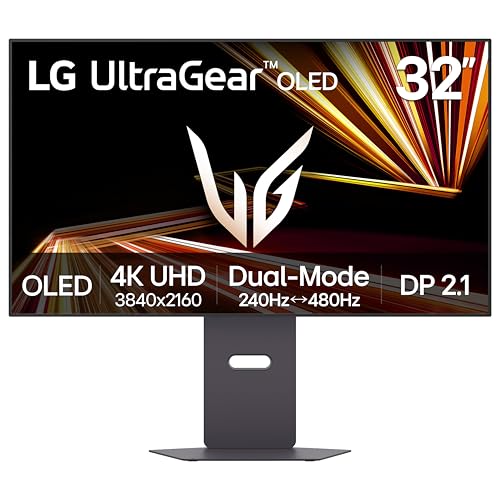
 LG 27G810A-B 27-inch Ultragear 4K UHD
- 27” 4K Gaming—Speed Meets Clarity - UltraGear's 27-inch…
- Breathtaking UHD Clarity, Bold Colors, and DisplayHDR 400…
- Dual Mode: 4K UHD 180Hz or Full HD…

As an Amazon Associate we earn from qualifying purchases at no extra cost to you.
Quick comparison of PC monitor picks
| Pick | Best for | Size and resolution | Refresh rate | Panel | Price range |
|---|---|---|---|---|---|
| Dell S2725DS | Home and office all-rounder | 27 in, 2560 x 1440 | 100 Hz | IPS | Budget to mid |
| Dell S2725QS | Sharp 4K with USB-C | 27 in, 3840 x 2160 | 120 Hz | IPS | Mid-range |
| Dell UltraSharp U3225QE | Productivity on a big screen | 32 in, 3840 x 2160 | 120 Hz | IPS Black | Upper-mid |
| ASUS ProArt PA279CRV | Photo and design color work | 27 in, 3840 x 2160 | 60 Hz | IPS | Mid-range |
| Gigabyte M27QA ICE | Budget 1440p gaming | 27 in, 2560 x 1440 | 180 Hz | IPS | Budget |
| AOC Q27G40XMN | Mini-LED contrast on a budget | 27 in, 2560 x 1440 | 180 Hz | VA, mini-LED | Mid-range |
| ASUS ROG Swift PG27AQDP | Premium competitive gaming | 27 in, 2560 x 1440 | 480 Hz | QD-OLED | Premium |
Specifications follow manufacturer pages and independent review summaries; verify current variants because brands revise models quickly.
Best overall for most people: Dell S2725DS
This 27-inch 1440p IPS monitor offers 99 percent sRGB coverage, a 100 Hz refresh rate, built-in speakers and a USB-C input, a mix few budget monitors match. It is smooth enough for web, office and casual gaming. The trade-off is that 100 Hz is not ideal for fast shooters, and it lacks height-adjustable options on some stands.
Best 4K for work: Dell S2725QS
A 27-inch 4K at 120 Hz with USB-C gives crisp text and a smooth desktop. At 27 inches, 4K delivers about 163 pixels per inch, so text is sharp but typically needs 125 to 150 percent scaling in Windows. A 4K panel requires a capable graphics card for gaming.
Best 32-inch productivity monitor: Dell UltraSharp U3225QE
With a 32-inch 4K IPS Black panel, USB-C docking and Ethernet, the U3225QE is built for laptop-plus-desktop workflows. It costs more and is overkill for casual use. It suits spreadsheets, coding and multi-window work.
Best for color work: ASUS ProArt PA279CRV
This 27-inch 4K panel targets photo and design work with wide color gamut coverage and USB-C power delivery for a laptop. Its 60 Hz refresh rate means it is not a gaming screen. Choose it when color accuracy matters more than motion.
Best budget gaming: Gigabyte M27QA ICE
A 27-inch 1440p IPS at up to 180 Hz offers a big step up from 1080p at a low cost. It uses a white design that may not suit every desk. Build quality and stand features are basic.
Best contrast on a budget: AOC Q27G40XMN
This mini-LED VA panel with local dimming gives deeper blacks than a standard IPS monitor. Local dimming can create halos around bright objects in dark scenes, and VA panels have narrower viewing angles. It suits dark-room gaming and movies.
Best premium gaming: ASUS ROG Swift PG27AQDP
A 27-inch QD-OLED at 480 Hz gives near-instant response and rich contrast. It is the choice for esports and enthusiasts with a powerful GPU. OLED panels can show burn-in if static images stay on screen for long periods, and the price is high.
How to choose: size, resolution and refresh rate
| Screen size | Resolution | Pixel density | Best match |
|---|---|---|---|
| 24 in | 1920 x 1080 | about 92 PPI | Budget, competitive gaming |
| 27 in | 2560 x 1440 | about 109 PPI | Best balance for most |
| 27 in | 3840 x 2160 | about 163 PPI | Sharp text and photos |
| 32 in | 3840 x 2160 | about 138 PPI | Productivity and media |
Pixel density is the diagonal pixel count divided by diagonal inches. For 27-inch 1440p, the diagonal pixel count is about 2,938, and 2,938 divided by 27 is roughly 109. As a rule of thumb, aim for around 110 PPI at arm’s length for comfortable use without scaling, and 140 or more for crisp text.
Refresh rate guide: 60 Hz works for office and video; 100 to 144 Hz noticeably smoother for everyday use; 165 to 240 Hz for competitive games; above 240 Hz needs a high-end GPU and mostly benefits esports players.
Panel types and ports
- IPS: Good color and wide viewing angles, moderate contrast.
- VA: Higher contrast, narrower angles, some smearing.
- OLED: Best contrast and response, brighter prices, burn-in risk.
- Ports: DisplayPort 1.4 for high refresh, HDMI 2.1 for consoles, USB-C with power delivery for laptops.
- Stand: Height, tilt and swivel adjustments matter for comfort; VESA mount holes allow an arm.
Mistakes to avoid
- Pairing a 4K 144 Hz monitor with a graphics card that cannot reach those frame rates.
- Ignoring the cable: use the DisplayPort or HDMI cable that supports the refresh rate you paid for.
- Choosing a curved or ultrawide display without checking desk depth.
- Trusting HDR claims on budget screens; look for real local dimming or OLED.
- Setting refresh rate back to 60 Hz by mistake in Windows display settings after connecting.
Decision matrix: which monitor for which buyer
| If you are… | Choose | Why |
|---|---|---|
| Working from home on a laptop | Dell S2725QS or UltraSharp U3225QE | USB-C charging, sharp text, one-cable desk |
| A student on a tight budget | Dell S2725DS or Gigabyte M27QA ICE | 1440p clarity at a low cost |
| A photo or video editor | ASUS ProArt PA279CRV | Wide gamut, 4K detail, factory color focus |
| A competitive player | ASUS ROG Swift PG27AQDP | 480 Hz and near-instant response |
| A movie and dark-room gamer | AOC Q27G40XMN | Local dimming improves black levels |
Matching the monitor to your graphics card
A monitor is only as smooth as the GPU feeding it. As a rough guide, an entry graphics card handles 1080p at 144 Hz or 1440p at 60 to 100 Hz in demanding games, a midrange card suits 1440p at 120 to 165 Hz, and only the top cards sustain 4K above 100 frames per second in recent titles. If your computer is mainly for work, an integrated graphics solution or a modest card can drive a 4K desktop at 60 Hz without trouble, but check the video output: older HDMI 1.4 ports cap 4K at 30 Hz. If you plan to upgrade the GPU later, buy the monitor for the card you will own in two years, not the one you have now. Adaptive sync (FreeSync or G-Sync Compatible) helps smooth frame rate dips on any modern card and is worth having on gaming screens.
For setup, connect with the cable included or a certified DisplayPort cable, set the refresh rate in Windows Advanced Display settings, enable adaptive sync in the graphics driver, and use the monitor’s sRGB or standard mode for accurate color unless you calibrate. Place the top of the screen at or slightly below eye level, about an arm’s length away, to reduce neck and eye strain.
Frequently Asked Questions
What size monitor is best for a PC?
For most desks, 27 inches is the sweet spot. Choose 24 inches for small desks or 32 inches if you sit farther away and want a bigger workspace.
Is 4K worth it on a 27-inch monitor?
For text, photos and video, yes; the pixel density is about 163 PPI. For gaming, 1440p is easier to run at high frame rates unless you own a high-end GPU.
What refresh rate do I need?
60 Hz is fine for office use, 100 to 144 Hz feels smoother for everyday use and 165 Hz or more suits fast games. The monitor is only as fast as your graphics card allows.
IPS, VA or OLED: which is best?
IPS gives the most balanced color and viewing angles, VA gives better contrast for less, and OLED gives the best contrast and response at a higher price and with burn-in considerations.
Do I need a USB-C monitor?
Only if you use a laptop. A USB-C connection with power delivery reduces cables by carrying video, charging and USB devices through one cable.




Write Your Review
No reviews yet. Be the first to share your experience!